
Overview
The setup has three steps:
|
What |
Who |
|
|---|---|---|
|
1 |
The customer contact at Wisefish |
|
|
2 |
Install Wisefish APIs in the Business Central environment |
The customer's Business Central administrator (or a Wisefish constultant) |
|
3 |
Permissions - for both sender of the data and the ones who process it within BC |
Wisefish consultant (recommended) |
|
4 |
Setup the MES, mainly MES Terminals and MES Connect card. |
Wisefish consultant (recommended) |
Prerequisites
-
The Wisefish app is installed and licensed in the environment. Wisefish APIs depends on the apps Wisefish and Wise Licensing.
Step 1 Register the license at Wisefish
Wisefish apps use Wise licensing. When the customer has bought MES Connect, the license must be registered at Wisefish before the app can be used.
Contact the Wisefish salesperson who sold the MES Connect application and ask for the appropriate license to be registered. What is needed:
-
-
the company name of the customer,
-
the Microsoft Entra tenant ID of the Business Central environment,
-
the environment name(s) (for example Production, Sandbox). - is this correct?
-
To do: What kind of error is returned to the user if the license has not been registered?
Step 2 Install Wisefish APIs
Wisefish APIs is published on Microsoft AppSource by Wisefish
App name: Wisefish API
AppID: 7260801d-a26a-416c-a8ab-dfb71a63f959
It is installed in the environment by the customer's Business Central administrator - in the same way as other apps. It depends on the registration of the app how this is done.
You can also as a Wisefish consultant to install the app.
Step 3 Users and permissions
After the installation, assign correct permission sets to the users (or user groups / security groups) that will
-
The user that sends in the MES data has to have a permission to insert into the transaction tables and use the API endpoints.
-
The users who process the data need to have wide permissions into Wisefish and standard BC.
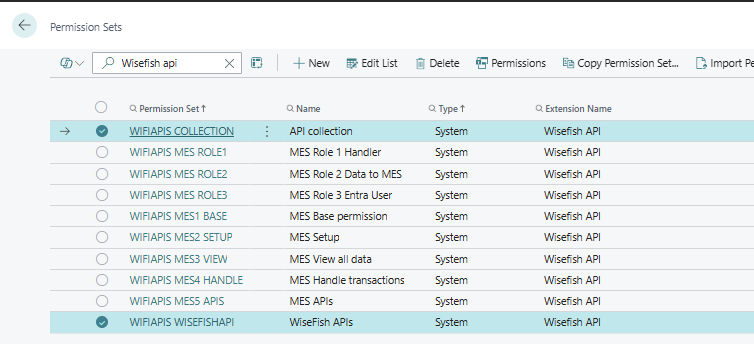
The available permissions sets can be found by filtering on WiFiAPIS MES*
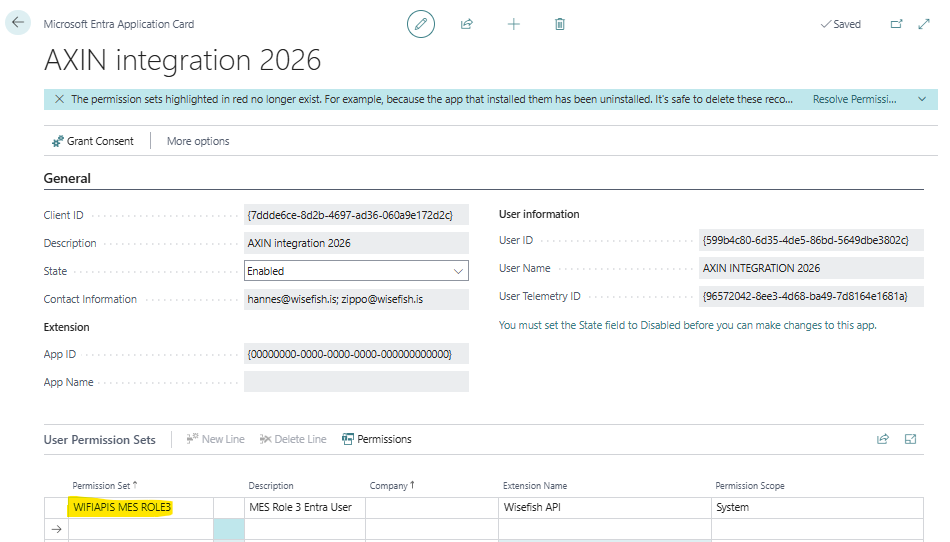
Entra Application Card
Set up the Entra user for the one that sends in the data through APIs:
Step 4 Set up the functionality
-
For MES Inbound module, see MES Inbound - Settings
-
For MES Outbound module, see MES Outbound - Settings