
Overview
With the Business Central MCP server (Model Context Protocol), AI assistants such as Microsoft Copilot Studio, GitHub Copilot, Claude or ChatGPT can read and work with Wisefish data in Business Central. They do this through the API endpoints of the Wisefish APIs app (API group base, for example pallets, lots, salesAgreements).
All calls run as the signed-in user. The AI can only see and do what that user is allowed to do in Business Central.
The setup has three steps:
|
Step |
What |
Who |
|---|---|---|
|
1 |
The customer contact at Wisefish |
|
|
2 |
Install Wisefish APIs in the Business Central environment |
The customer's Business Central administrator (or a Wisefish constultant) |
|
3 |
Permissions |
The user has to have a permission to use the Wisefish APIs objects |
|
4 |
MCP setup in Business Central: a configuration card, and optionally write access |
A Business Central administrator |
Prerequisites
-
Business Central online (SaaS). The MCP server is only available for Business Central online.
-
The Wisefish app is installed and licensed in the environment. Wisefish APIs depends on the apps Wisefish and Wise Licensing.
-
Users who will use AI have permission to the Wisefish APIs objects, for example with the permission set
WiFiAPIs WisefishAPI(caption "WiseFish APIs"), in addition to their normal Wisefish permissions.
Step 1 Register the license at Wisefish
Wisefish apps use Wise licensing. When the customer has bought Wisefish APIs, the license must be registered at Wisefish before the app can be used.
Contact the Wisefish salesperson who sold the AI Connect application and ask for the Wisefish APIs license to be registered. What is needed:
-
-
the company name of the customer,
-
the Microsoft Entra tenant ID of the Business Central environment,
-
the environment name(s) (for example Production, Sandbox). - is this correct?
-
To do: What kind of error is returned to the user if the license has not been registered?
Step 2 Install Wisefish APIs
Wisefish APIs is published on Microsoft AppSource by Wisefish
App name: Wisefish API
AppID: 7260801d-a26a-416c-a8ab-dfb71a63f959
It is installed in the environment by the customer's Business Central administrator - in the same way as other apps. It depends on the registration of the app how this is done.
You can also as a Wisefish consultant to install the app.
Step 3 User and permissions
After the installation, assign the permission set WiFiAPIs WisefishAPI to the users (or user groups / security groups) that will use the APIs through AI.
There is also another group called “API collection” that should be enough.
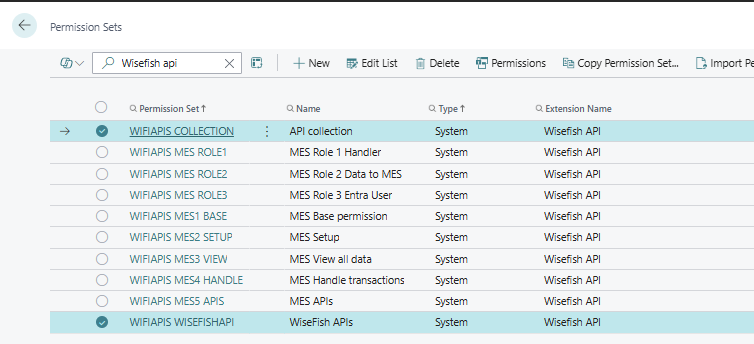
Step 4 MCP setup in Business Central
The MCP server is set up in Business Central on the page Model Context Protocol (MCP) Server Configurations. The administrator needs at least the permission set MCP - Admin.
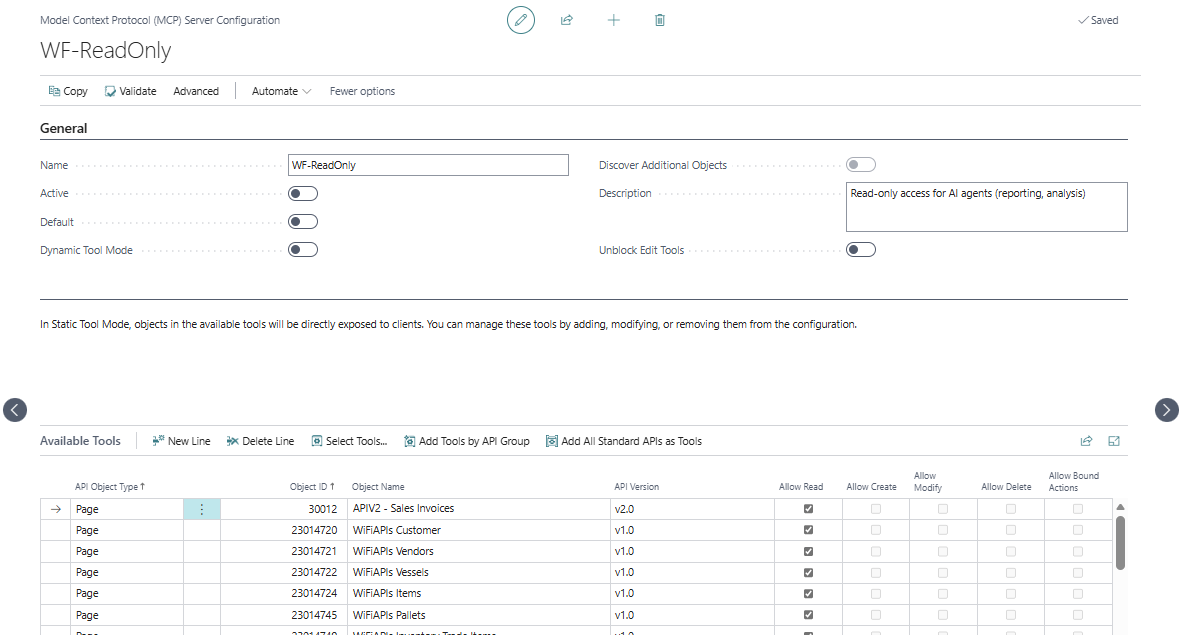
On the MCP card it is possible to …
-
Give access to all APIs in the system - but only with read permissions
-
Control per API endpoint, if the user shall be able to insert, modify or delete data
3.1 Read access to all APIs (only create the MCP card)
Just by creating and activating a configuration card, the AI can read all API endpoints that exist in the system, including all Wisefish APIs. Nothing needs to be selected endpoint by endpoint.
-
Search for Model Context Protocol (MCP) Server Configurations and choose New.
-
Fill in Name (for example
WISEFISH) and Description. Leave Active off while you configure. -
Under Server Features, select API Tools and choose Activate.
-
Select Dynamic Tool Mode and choose Activate, then Configure, and turn on Discover Read-Only Objects.
-
Turn on Active.
With Discover Read-Only Objects on, the AI finds the API pages and queries at runtime and can read every endpoint the user has permission to. It cannot create, change or delete anything, and it cannot run procedures.
Business Central also has a built-in default configuration (blank name) with dynamic tool mode and read-only discovery turned on. If the AI client connects without a configuration name, this default is used, so read-only access works even without creating a card. A named card is recommended, because write access (3.2) is added to it.
3.2 Allow the AI to modify data
To let the AI create, change or delete data, or run Wisefish procedures (for example addTradeItem on pallets or release on sales agreements), each endpoint must be added to the configuration with the operations that are allowed.
-
Open the configuration card. If it is active, turn Active off first (an active configuration is read-only).
-
Turn on Unblock Edit Tools. Without it, no create, modify, delete or action operations are possible.
-
Under Available APIs, add the Wisefish endpoints that the AI may change. Either:
-
choose Add APIs by API Group and select the Wisefish API group base (publisher wisefish), then remove the lines that are not needed, or
-
choose Select APIs, or enter Object Type, Object ID and API Version (
v1.0) line by line.
-
-
For each line, select the allowed operations:
Permission
What it allows
Allow Read
Read (GET). Must be on when Allow Modify is on.
Allow Create
Create records (POST), for example new lots or agreement lines.
Allow Modify
Change records (PATCH).
Allow Delete
Delete records (DELETE).
Allow Actions
Run the procedures of the endpoint (bound actions), for example
addTradeItem,loadToTransportUnit,reserveToAgreement,release,AddNote. -
Choose Validate and fix any warnings (for example with Apply Recommended Action).
-
Turn Active on again. To make this the configuration that clients use when they don't send a configuration name, choose Set as Default.
By keeping Dynamic Tool Mode with Discover Read-Only Objects , the AI can still read all other endpoints.
Limits that still apply:
-
Business Central only offers the operations an endpoint supports. Queries (for example
tradeItemLotTotals) are always read-only, and read-only endpoints (for exampleinventoryTradeItems,closedSalesAgreements) cannot be changed even if the permission is selected. See "Requests allowed" on each endpoint page. -
Child endpoints of type ListPart/CardPart cannot be added as tools; only top-level API pages.
-
The user's own Business Central permissions always apply.
Example: A few endpoints and what they support
|
Endpoint |
Read |
Create |
Modify |
Delete |
Actions |
|---|---|---|---|---|---|
|
|
✓ |
|
|
|
✓ |
|
|
✓ |
✓ |
|
|
|
|
|
✓ |
✓ |
✓ |
✓ |
✓ |
|
|
✓ |
✓ |
✓ |
✓ |
✓ |
For example, if you put “Allow Delete” on the pallets endpoint, it will not allow deletion simply because the endpoint does not support it.
3.3 Connect the AI client
On the configuration card, choose Advanced > Connection String to get the connection details. All configurations use the same server URL; the headers select tenant, environment, company and configuration:
"businesscentral": {
   "url": "https://mcp.businesscentral.dynamics.com",
   "type": "http",
   "headers": {
      "TenantId": "<tenant id>",
      "EnvironmentName": "Production",
      "Company": "<company name>",
      "ConfigurationName": "WISEFISH"
   }
}
-
Microsoft clients (Copilot Studio, Visual Studio Code with GitHub Copilot) use an app registration provided by Microsoft. Copilot Studio requires
EnvironmentNameandCompany. -
Other clients (for example Claude or ChatGPT) need an app registration in Microsoft Entra ID in the customer's tenant: register an application, add the client's redirect URI, add the delegated permission Dynamics 365 Business Central >
Financials.ReadWrite.All, and have a tenant administrator grant admin consent. Then configure the client with the server URL, the headers above and the application (client) ID.
Test the connection by asking, for example: "List the open pallets in stock center BLUE" (read) or, with write access, "Add trade item PS1-11 to pallet 0000111122223333600".