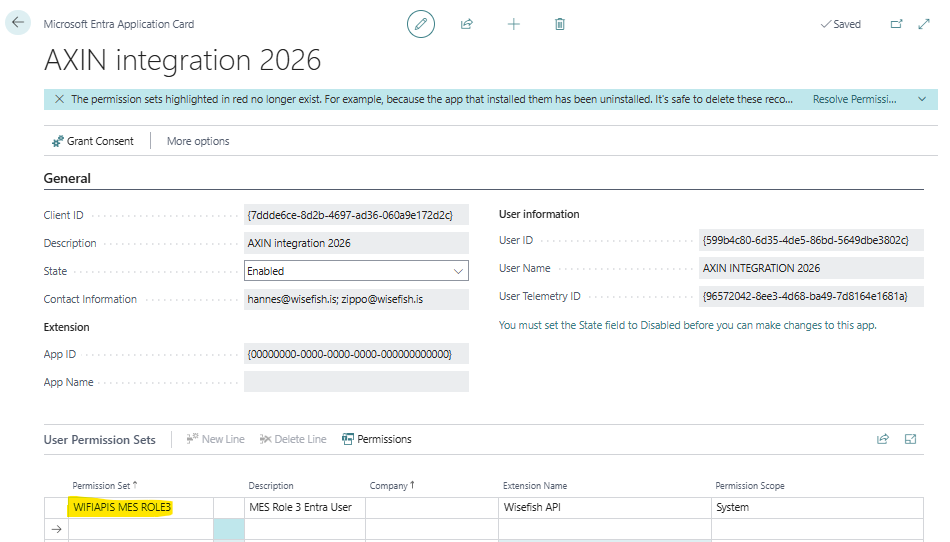
In addition to the general BC and Wisefish setup, the main setup in the Wisefish APIs app to start using the MES Inbound module is the following
-
MES Terminals - First create this list. This is the most important data because it controls both how data is automatically populated and how the MES processor works
-
Wisefish APIs Base - has a few settings fields
MES Terminals
Every transaction sent in through the API needs to belong to a specific MES Terminal. Therefore a terminal needs to be created for every system/machine sending in data.
Settings on the MES Terminal include:
-
Default location on transactions
-
Default stock center on transactions
-
Default Stage on transactions
-
Control if production lot is to be imported from the MES (instead of needing to create in Wisefish beforehand)
-
Control if pallet barcodes are to be imported from the MES (instead of letting BC generate barcodes)
General
|
Field Name |
Description |
|
|---|---|---|
|
1 |
Code |
Unique key for this terminal |
|
2 |
Description |
Only for description here, not copied anywhere |
|
3 |
Default Stock Center |
When this terminal is sending in transactions, this will be the Stock Center on them, if not given in the API request. |
|
4 |
Pallets Created in MES |
Put a checkmark here if the barcodes have been created in MES before the transaction arrives. Then the Pallet list in BC will just be updated when the transaciton is processed. If there is no checkmark, the pallet must exist at the time of posting, else the transaction stops on error. |
|
5 |
Allow Same Transaction ID |
If checked, the system will allow posting Transactions even if the same ID already exists in Trade Item Ledger Entries. If not checked, the error handler will check if there is a Trade Item Ledger Entry with this transaction ID in the WP Connection field. |
|
6 |
Trade Item Barcode Unique |
Put a checkmark here if the Trade Item Barcode (often Packet ID) must be unique. This applies for Receipts and Output transactions. The check is only done on Open Trade Items. |
|
7 |
Populate Unit Automatically |
When a Transaction Line is created with blank Unit of Measure, the field is populated either with the base unit of a standard item or a Trade Item Base Unit for a Trade Item (Wisefish). |
|
8 |
|
|
|
9 |
|
|
|
10 |
Default Palletizing Location |
When creating pallets, they will be put on this Location, unless location is already give |
Receiving
|
Field Name |
Description |
|
|---|---|---|
|
1 |
Receiving Location |
If Location is not given in a receiving transaction API request, this value is set as default |
|
2 |
Receiving Stage |
If Stage is not given in a receiving transaction API request, this value is set as default |
|
3 |
Receiving Lot Created in MES |
If items should be received on the lot given in the MES transaction, but not on a lot created at the time of posting. |
|
4 |
Post Receipt Automatically |
For every receipt transaction, post the received items to inventory. |
|
5 |
Purchase Line Must Exist |
If the transaction is linked to a purchase agreement line, the purchase line must exist for the transaction to be processed. If the field is not checked, the line will be created and then updated according to received quantity. This applies to both Receipt Agreements and standard Purchase Orders. |
Production
|
Field Name |
Description |
|
|---|---|---|
|
1 |
Production Location |
If Location is not given in a production transaction API request, this value is set as default |
|
2 |
Production Stage |
If Stage is not given in a production transaction API request, this value is set as default |
|
3 |
Production Lot Created in MES |
Put a checkmark here to automatically create every production lot received from the MES. |
Wisfish APIs Setup
It is only one tab on this card that needs to be considered:
General Setup
|
Field |
Description |
|---|---|
|
Default Terminal for APIs |
If there is a terminal that should be set as default, if no |
|
No. of Terminals |
This is just a calculation of how many MES Terminals have been set up. |
|
Archive Method |
When MES transactions have been processed, they can be archived manually or automatically. This field controls the method used to archive. Manual means that the transactions will be archived when the user clicks the action on the page. Automatic means that transactions will be archived automatically when they are older than a certain period defined in the field "Archive Period". Options:
|
Automatic Processing
This tab has the following fields that are non-editable are are there only for information:
|
Field |
Description |
|---|---|
|
Job Queue is Set Up |
Indicates whether the Job Queue for handling MES transactions is set up. |
|
Last Job Queue Run |
The last time the Job Queue for handling MES transactions was run. |
|
Last Job Queue Status |
The last status of the Job Queue for handling MES transactions. Shows if last run was successful or not. |
Implementation
Implementation when data comes through InboundFromInnova
See chapter MES Inbound - Upgrading older integration project
MES processer as a Job Queue
The Job Queue to set up the automatic processing of MES Transaction should be set up with
codeunit 23014821 WiFiAPIs MES Handle Queue.
User Profile
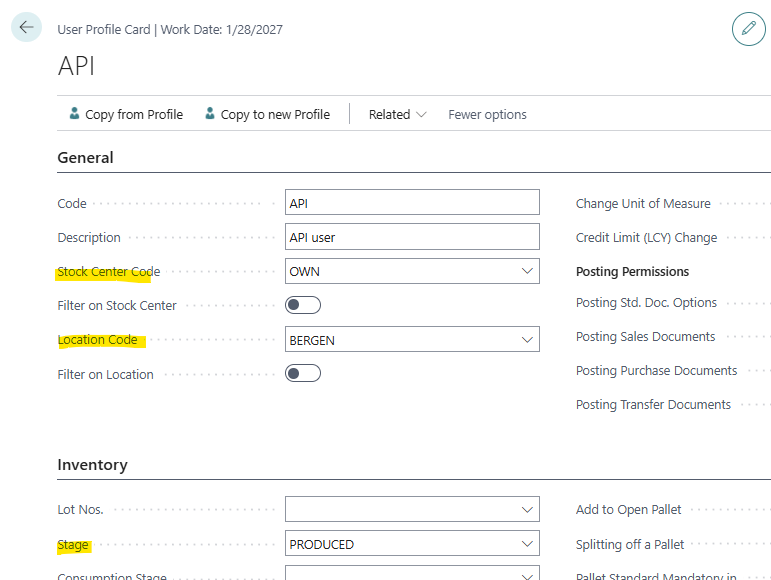
A few fields on the User Profile can affect how fields are automatically populated, if not given in the API requests:
-
Location
-
Stock Center
-
Stage