Data from Wisefish and Business Central can be sent to the MES system as XML documents via service bus messages through Azure. There are a few different ways to use this:
-
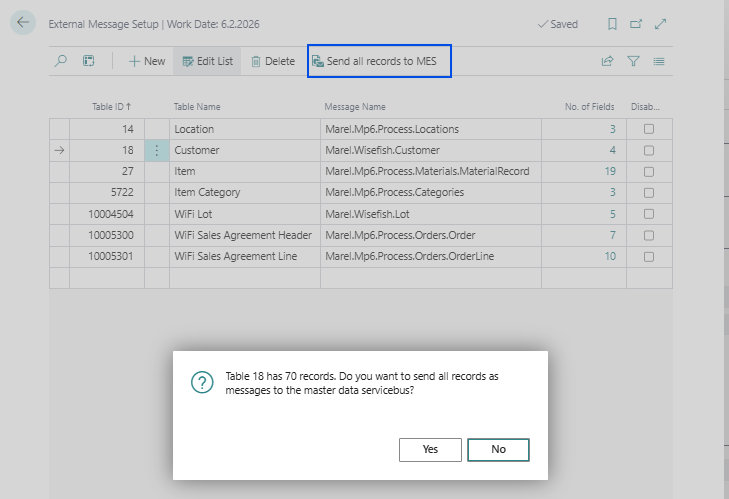
For all tables, the whole contents can be sent directly from the External Message Setup.
-
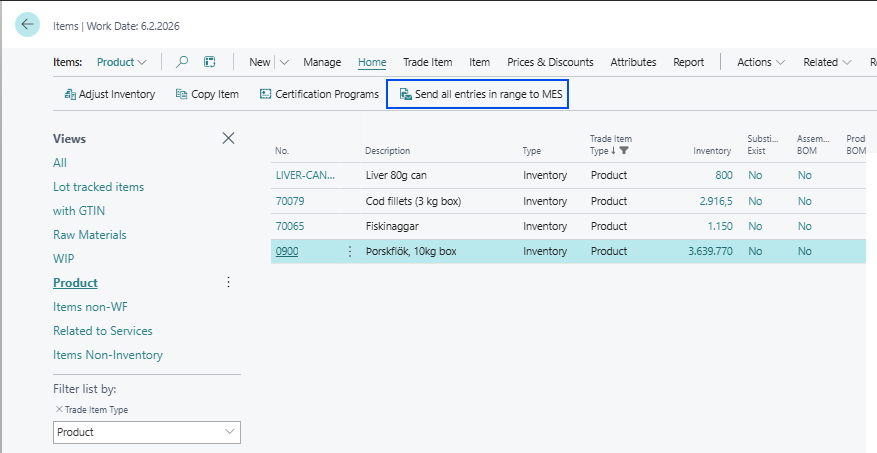
The item master can be sent from the Items list, with a pre-selected range.
-
For selected tables that have an active change log (see APIs Base Setup), updated entries can be sent from the Change Log page.
-
Finally, sales orders that items need to be produced for. This has been implemented for Delivery Agreements in Wisefish. In this case, there is an option to send automatically at release. For this message, the contents of the messages comes from from multiple tables.
Sending a whole table to MES
From the External Message Setup, the whole contents of a table can be sent to the MES:
-
Create the setup, if it does not already exist
-
Create a message setup for the required table
-
Drill down the No. of Fields and set up the nodes
See details in chapter MES Outbound - Setup
-
-
Click Send all records to MES
A confirmation pop-up will tell how many records/messages are going to be sent.
All sent messages will be logged in the External Message Log
Message Log
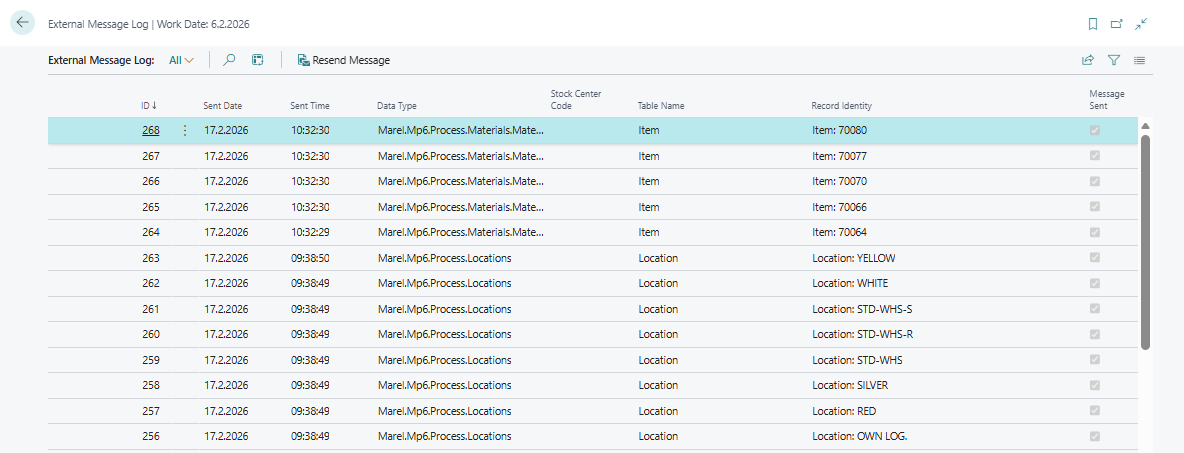
Every message sent is logged in the list called External Message Log.
-
All entries get Sent Date and Sent Time, no matter what happened on the service bus side.
-
For messages that were successfully received by the Service Bus, the field is marked with Message Sent.
Resend Message
An action on this page can be used to resend messages, or for testing purposes, i.e. just view the content of the message that would be sent.
When resending a message from the Change Log, it will contain data from the record field values as they are now, since the system is not keeping a copy of the old values of the data fields.
Sending data from Change Log
On the base card, the APIs change log can be activated for specific records:

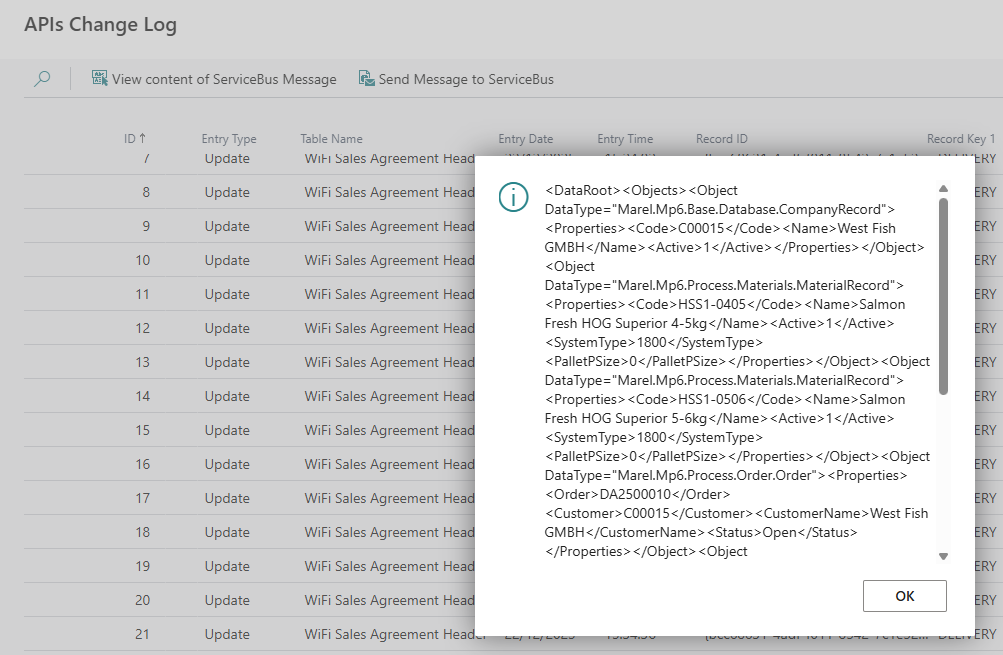
When changes have been done on these table, entries will exist in the APIs Change Log. From this lists, messages can be sent for each entry.
Actions on this list:
-
Send Message to ServiceBus
For the selected record, send a message.
The message will contain data from the record field values as they are now, since the system is not keeping a copy of the old values of the data fields.
-
View content of ServiceBus Message
This action will only combine the message and show it in pop-up. This can be used to check if the field setup has been done because this will show an error if some data could not be retrieved. When running this action, the message is not logged in the Message Log.
Sending item master to MES
For the Items list, there is a specific action to send to MES.
-
Create a message setup for table 27, if it does not already exist.
-
Open the Items page and set the desired filter
-
Click Send all entries in range to MES
A confirmation pop-up will tell how many records/messages are going to be sent.
All sent messages will be logged in the External Message Log