
Setup
There are few things which should be taken care of in setup and configuration before the functionality can be put into the user hands.
Search for WiseFish Setup Configuration in the search window and click the option in the list.

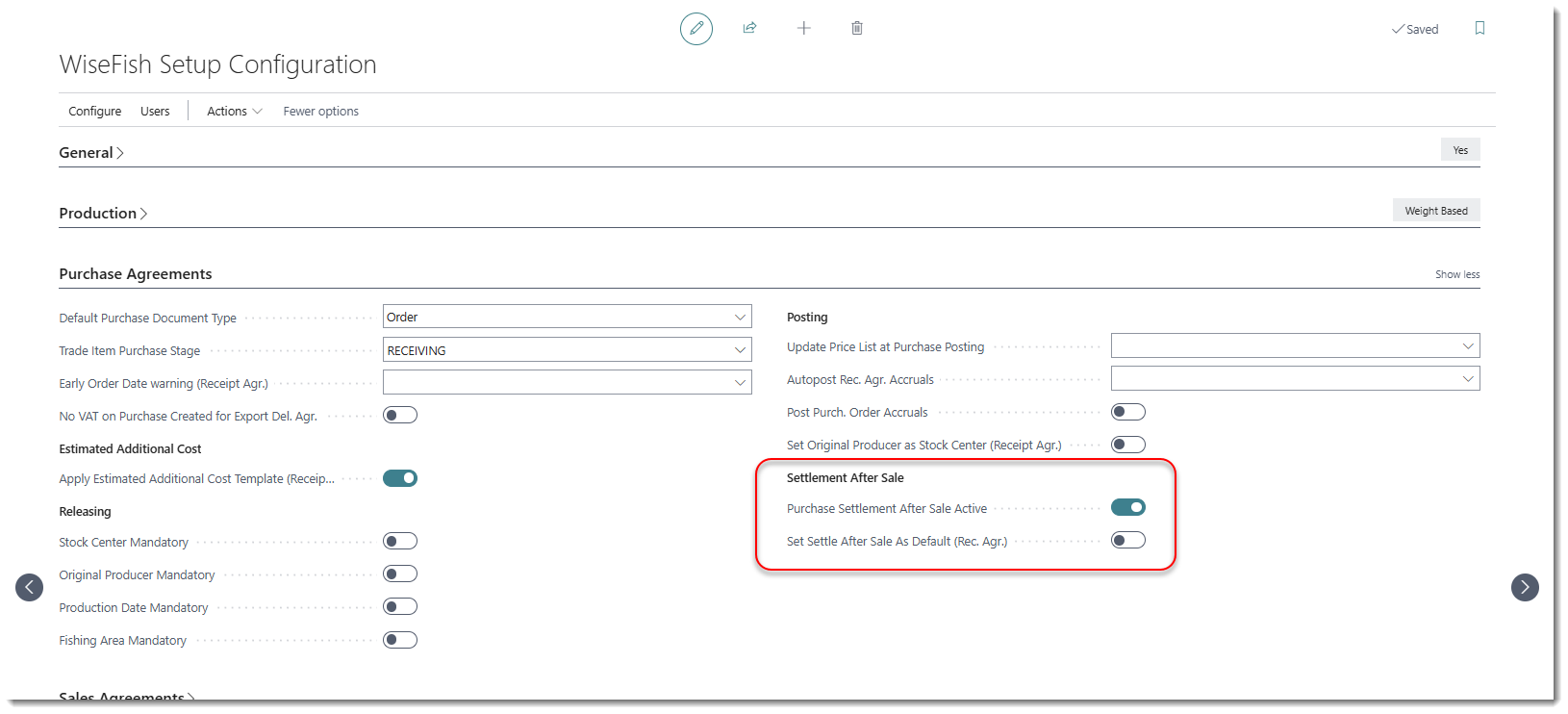
On the Purchase Agreements tab, in the Settlement After Sale group, there are two fields:
-
Purchase Settlement After Sale Active turns the functionality on. When it is on, the Settle Purchase After field is shown on receipt agreement lines and on the item card, and each sale of such goods creates a line in the Purchase to Settle After Sale Worksheet.
-
Set Settle After Sale As Default (Rec. Agr.) makes Sale the default value of Settle Purchase After on all new receipt agreement lines, whatever is set on the item card. This field can only be edited when the functionality is active.
If you turn the functionality off while items are set to Sale or entries are still waiting for settlement, you are asked to confirm.
Key Functional Elements
In short, a typical purchase settlement after sale goes through the following steps:
Receipt Agreement - Purchase Order
-
A sales person or a stock manager creates a receipt agreement to be received from the corresponding vendor according to the terms they’ve agreed up on, followed by the indication of the purchase price to be settled afterwards. The registration for the receipt agreement is confirmed by changing its status to Released.
-
When the time comes to receive the goods into inventory, a stock manager or a sales person creates a posting document (purchase order) out of the receipt agreement followed by posting of the receipt, as the invoicing part is to be postponed to the point when the sale of the goods has been processed.
Delivery Agreement - Sales Invoice
-
The sale of the goods are to be done in regular manners via Delivery Agreement. There is a field in the delivery agreement line for the purchase price to vendor, which the sales person can indicate the purchase price to be settled with. However, this is not a mandatorily field in the settlement process. The decision of the settled purchase price can also been managed in the purchase settlement process itself, later on as desired.
-
After posting of the sales invoice of the related goods, entries accumulates into certain designated register as an indication for their readiness for the purchase settlement process.
Purchase Settlement Worksheet - Purchase Invoice
-
The person responsible for the purchase settlement process will be able to check (at any time chosen) if something is waiting to be settled by opening a worksheet showing accumulated unprocessed purchase settlements.
-
In the worksheet, entries can be marked for invoicing, alongside with the decision for the purchase price to be settled with. Followed by the creation of the purchase invoices which the settlements are based up on.
-
After posting of the purchase invoices, accumulated unprocessed entries are moved into register for settled entries via invoicing process. Afterwards, these settled entries will be accessible to anyone later on for historical purposes, when desired.
Purchase to Settle After Sale
Receipt Agreement
On the receipt agreement line, set the Settle Purchase After field to Sale to show that the purchase price will be settled after the goods have been sold.

Notice: New receipt agreement lines get the value from the Settle Purchase After field on the item card, which is Receipt unless changed. If Set Settle After Sale As Default (Rec. Agr.) is turned on in WiseFish Setup, new lines always get Sale.
The Sale option in the Settle Purchase After field in the receipt agreement line will prevent the user to create purchase invoice out of the receipt agreement, as it the invoicing of the purchase is to be done after sale. The Purchase Document Type field in the Invoicing tab is therefore to be set as Order to fulfil the prerequisites for invoicing the purchase after the sale:

In this example, trade item inbound lines have been created for each receipt agreement line:

Each will become an individual trade item after posting of the receipt out of the created purchase order. Release the receipt agreement and then click Posting > Create Posting Document. The Purchase Order opens, click Posting > Post and post the receipt only.


Notice how the purchase order lines are updated after posting of the receipt.

There is also an additional check if the user attempts to post an invoice on a purchase order with its lines marked with Settle Purchase After = Sale.
Delivery Agreement - 1
The registration process of a delivery agreement can be done in an ordinary manner followed by the reservation of the related trade items into the corresponding delivery agreement. Click here to see how to reserve trade items from a specific receipt agreement. Then release and post the delivery agreement.

Purchase to Settle After Sale Worksheet
After creation and posting of the sales invoice out from the previously mentioned delivery agreement, the user responsible for the purchase settlement process can monitor how each sale appears in the Purchase to Settle After Sale Worksheet accessible by searching for it in the search window.

Each line shows the quantity of one receipt line that was sold on one delivery agreement line. The worksheet is refreshed every time it is opened. You can also choose Refresh Worksheet, for example after more sales invoices have been posted.

There are two elementary fields which the user responsible for the purchase settlement process needs to be aware of and manage before entering into the invoicing of the settlements:
-
Settlement Option:
-
Settle With Invoice (default): a purchase invoice or credit memo is created from the worksheet.
-
Settle Without Invoice: the line is settled without a purchase document.
-
-
Source of Direct Unit Cost:
-
Undisclosed (default): the line cannot be invoiced until another option is chosen.
-
Receipt Agreement: uses the Direct Unit Cost on the receipt agreement line.
-
Delivery Agreement: uses the Purch. Price to Vendor on the delivery agreement line.
-
Manual: you enter the price in the Direct Unit Cost (Settlement) field.
-

-
If you type a price in Direct Unit Cost (Settlement), Source of Direct Unit Cost changes to Manual automatically.
-
A line with a zero price cannot be selected for invoicing unless Allow Zero Direct Unit Cost is turned on for the line.
Selecting lines for invoicing
Select the lines to invoice (Ctrl+A selects all) and choose Select Lns. for Inv. Creation on the Home tab. Selecting the Create Invoice for Settlement field on a line does the same. To undo, choose Desel. Lns. from Inv. Creation.

The selected lines get the status Selected for Invoicing and are shown in blue.

Next step is to create invoices by clicking Invoicing > Process Selected Entries.

A dialog asks for the posting date of the documents to be created. Change it if needed and choose Create Posting Documents.

Purchase invoices are created for positive quantities and purchase credit memos for negative quantities. Lines set to Settle Without Invoice are settled directly, without a document. Invoice lines are grouped by receipt, delivery agreement and shipping reference.
The Status Invoice Creation field changes from Selected for Invoicing to Invoice Created, and the line is shown in green. The Document Type (Created), Document No. (Created) and Doc. Line No. (Created) fields show which document was created.

To open the document, select the line and choose View Document Created on the Home tab.

From here, the documents are reviewed and posted like any other purchase document in Business Central. When a document is posted, its lines leave the worksheet and appear in Settled Purchase After Sale.

The goods are received on purchase orders, but the settlement is invoiced on separate purchase invoices, so some orders are not deleted automatically. Choose Delete Invoiced Purch. Orders in the worksheet to delete purchase orders that are fully received and invoiced.
Delivery Agreement - 2 (several sales from one receipt)
The goods from one receipt agreement can be sold on several delivery agreements. Each posted sales invoice adds its own lines to the worksheet, so part of a receipt can be settled while the rest is still in stock. In the original example, the first delivery agreement reserved only part of the received trade items, and a second delivery agreement reserved the rest.
Credit Memos
There are two ways to credit a sale. Either the customer gets a discount and keeps the goods, or the goods are returned to inventory. Decide which method applies before you create the sales credit memo, because the two methods are handled very differently on both the sales side and the purchase side.
Credit without returning the goods
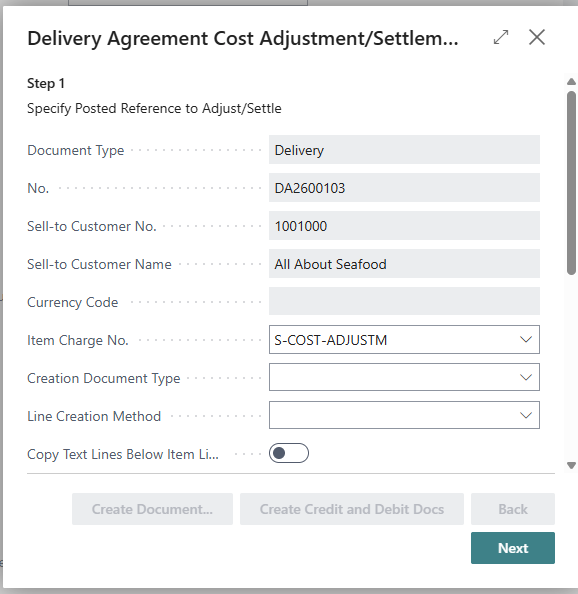
If the customer's claim is settled with a discount and the goods are not returned, use Cost Adjustment/Settlement Wizard on the delivery agreement. If the vendor accepts the claim, do the same on the receipt agreement. The wizard creates sales and purchase credit memos with item charge lines that are connected to the posted shipment and receipt.
Credit with returning the goods
If the goods are returned:
-
Create a sales credit memo and use Copy Document to copy the posted sales invoice.
-
Choose Select Trade Items and keep only the trade items that are returned.
-
Choose Synchronize with Document Lines, close the page with OK, and post the sales credit memo.
A new line then appears in the worksheet with a negative quantity in Qty to Settle in Purch. (Rcpt). If the goods are still in stock, Item Return Available is selected and the location is shown, which means that the goods can be returned to the vendor.
Use the Stock Reversal Option field (only editable on negative lines) to decide what happens:
-
Keep Item in Stock: the vendor does not take the goods back. Settlement Option changes to Settle Without Invoice and Direction of Settlement to Without Document. Choose Process Selected Entries, and the line is moved to Settled Purchase After Sale without a purchase credit memo.
-
Item Return: the vendor takes the goods back. This requires Item Return Available. Keep Settle With Invoice, choose the Source of Direct Unit Cost (or enter the price), and select the line for invoicing. Direction of Settlement shows Credit Memo. Choose Process Selected Entries to create the purchase credit memo, and post it.
Unlike a purchase invoice, posting a purchase credit memo for the original purchase always returns the items to the vendor.
Settled Purchase After Sale
Settled entries are kept in Settled Purchase After Sale Entry. Search for it in the search window. Each entry shows the sales document behind the settlement, the settled price and its source, and the posted purchase document. Choose a document number to open the document. Choose View Connected Trade Items to see the trade items behind the entry. The entries cannot be changed.
The entries can also be reached from:
-
The posted purchase invoice: use Find entries (Navigate) and drill down to Settled Purchase After Sale entries.
-
The receipt agreement: View Settled Purchase After Sale Entries on the header, or on a line for that line only.
-
The delivery agreement: View Settled Purchase After Sale Entries on the header, or on a line for that line only.
skoða uppgjörsfærslur innkaupa eftir sölu uppgjörsfærslur