A Cross-Company outbox message is created in the Wisefish Cross-Company Outbox when an agreement is released or posted and the option to automatically send agreement transactions is disable in the Wisefish Cross Company Setup, Auto. Send Agreement Trans.).
The Outbox transactions hold information to whom it is sent (CC Partner Code), which document initiated the message (Document type and No.) and the posting date.

Wisefish Cross-Company Outbox - Send To CC Partner
The Outbox transaction can then be processed manually by selecting to Send To CC Partner. The message is then sent to Wisefish Cross-Comanty Inbox of the CC Partner and can be furhter handled there.
Any update that is done in the original agreement after the agreement has been created in the receiving company will trigger a new message in the Wisefish Cross-Company Outbox.
Below listed are some of the functions that you can execute being in the Wisefish Cross-Company Inbox page.
Additional Options in Send To CC Partner
Cancel - Set the Line Action field on the selected line/s to Cancel, to indicate that the transaction will be moved to the handled Outbox without processing.
No Action - Set the Line Action field on the selected line/s to "No Action", to indicate that the transaction will remain in the inbox.

Navigate
Via the Open Agreement option, it is possible to open the Agreement that is listed as Document No. in the selected line. This allows easy access to make changes to the Agreement, if required.
In this dropdown , it is possible to access the Transactions. This will display a list of all transactions that have been sent to the Outbox.
Additionally it is possible to navigate to the Inbox, Handled Inbox and the Handled Outbox
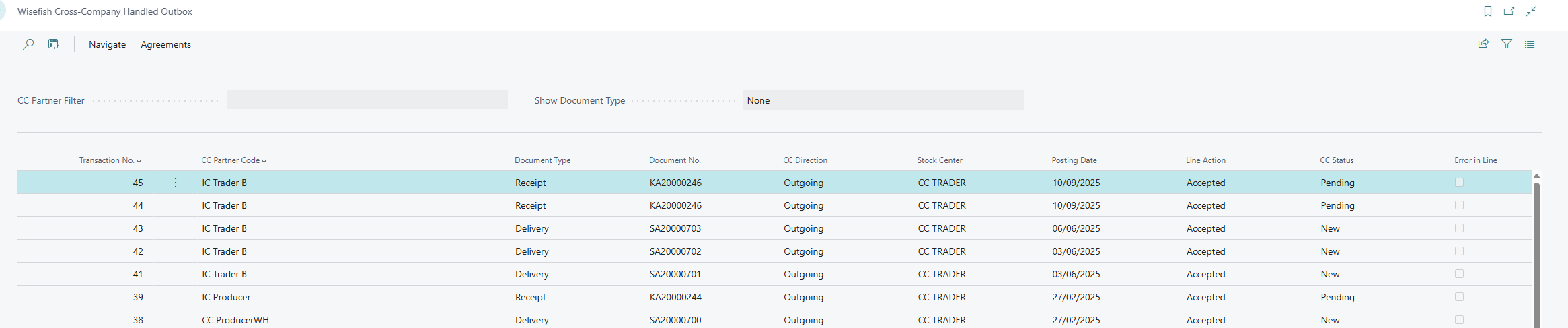
Wisefish Cross-Company Handled Outbox
The message after being processed at Wisefish Cross-Company Outbox are automatically move to the Wisefish Cross-Company Handled Outbox. Here, a list of sales and purchase transactions from CC Partners that have been processed and moved to the Handled Outbox Transactions are displayed.