
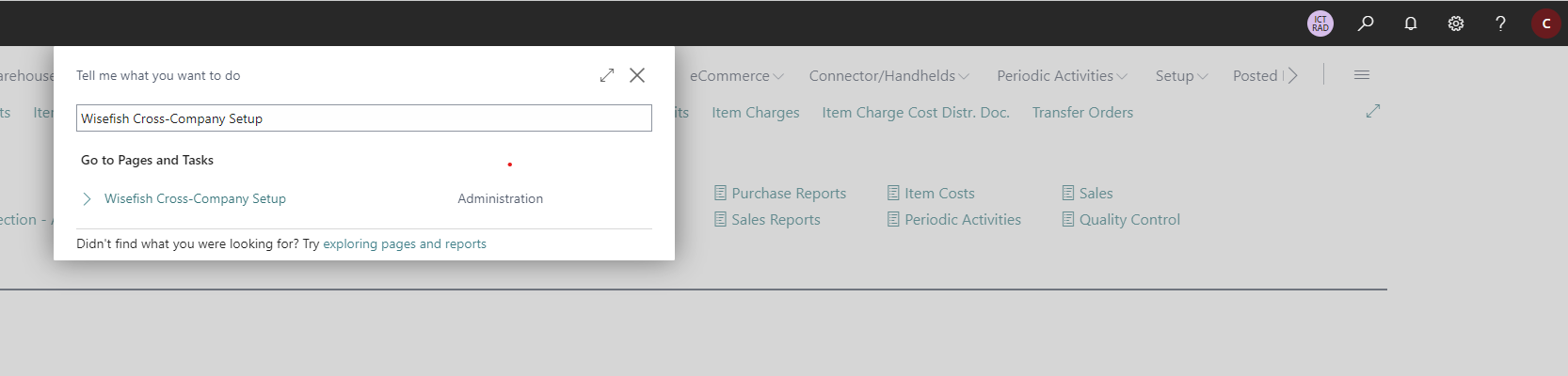
To set up Wisefish Cross-Company, please go to the search bar and search for Wisefish Cross-Company Setup functions. Click on Wisefish Cross-Company Setup and open the setup page.
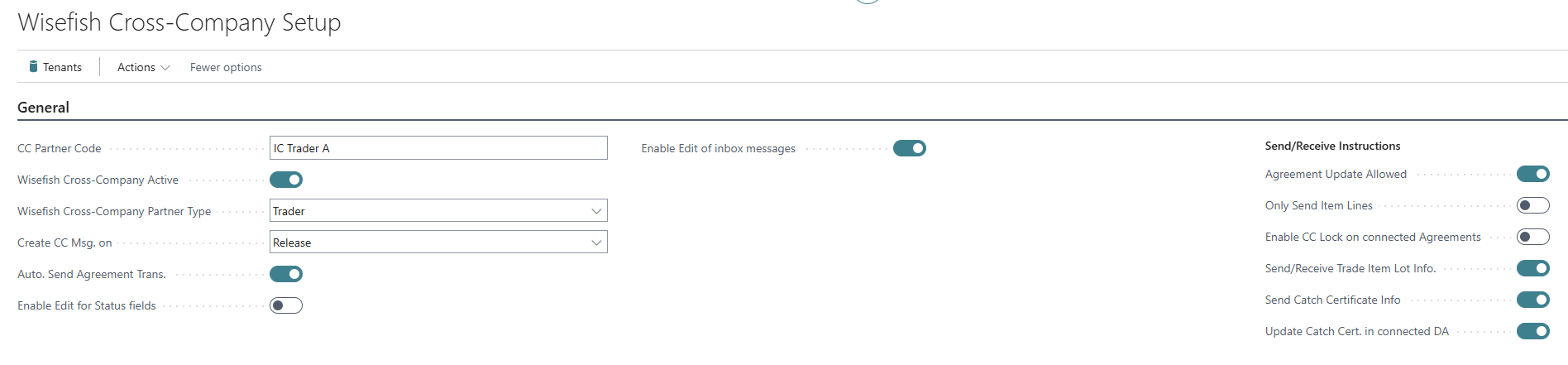
In the General section of the Wisefish Cross-Company Setup, the Wisefish Cross-Company Partner Code is listed. This is the Company Name of the Company the user has currently selected in My Settings.
Note: Wisefish Cross-Company uses the Company Name as the Cross-Company Partner Code, to avoid any confusion with the Standard BC Intercompany functionality.
Toggle On/Off the Cross-Company Active button to activate / deactivate the Cross-Company functionality.
Additionally, the Wisefish Cross Company Partner Type and on which Status change (Release or Post) a CC message should be sent to the CC Partner is selected.
Field Descriptions
|
Field |
Descriptions |
|---|---|
|
CC Partner Code |
The Partner Code is the Company Name, inherited from the Company Setup |
|
Wisefish Cross-Company Active |
To activate sending and receiving of Cross-Company messages from Wisefish agreements this needs to be enabled. |
|
Wisefish Cross -Company Partner Type |
There are currently 2 types of Cross-Company partners; Trader (Purchase and Sale) and Producer. The Partner Type decides whether the company accepts a later update to an agreement (Trader company rejects any update to an already-created agreement and does not reply automatically. A Producer company accepts updates (subject to ‘Agreement Update Allowed’)). |
|
Create CC Msg. on |
This setting decides if a CC message will be sent when an agreement is Released, or when a Posting Document is created. Trader companies typically send CC messages when agreements are released.
|
|
Auto. Send Agreement Trans. |
If this is enabled, Cross-Company messages are sent automatically on Release or Post of an agreement based on the value in field "Create CC Msg on". If it is disabled, a transaction will remain in the Cross-Company outbox until manually processed. |
|
Enable Edit for Status fields |
When enabled, status changes can be made in the Cross-Company tab of Agreements |
|
Enable Edit of inbox messages |
When enabled, it allows users to edit inbox messages in case they need correction before processing. |
|
Sending and Receiving Instructions |
|
|
Agreement Update Allowed |
If set to true, it is allowed to update the original agreement and send update messages to the receiving CC Partner, as long as the derived agreement at the CC Partner has not been put in picking or closed. |
|
Only Send Item Lines |
This setting decides if only Item lines should be included in the CC message or if comment lines should also be included. |
|
Enable CC Lock on connected Agreements |
Enables locking of connected Cross-Company agreements when status is changed from Open to Released. |
|
Send/Receive Trade Item Lot Info |
This setting decides if Lot information connected to the sales lines should be included in the CC messages. The Lots will then be created in the receiving company when the message is processed. When communicating between Trader and Producer company, the Trade Item Lot Codes are updated on the Lots when the Trader processes the reply message from the Producer company. |
|
Send Catch Certificate Info |
If this is set to true, Catch Certificate information connected to the agreements will be sent between companies with the CC messages. |
|
Update Catch Cert. in Connected Delivery Agreement |
If this is set to true, Catch Certificate information is inherited from a Receipt Agreement when receiving a CC reply message to a connected Delivery Agreement. |