
After the Tenant connection has been established, you can set up the Cross-Company Partners.
The Wisefish Cross-Company Partner list is accessible on the Wisefish Cross-Company Setup page.
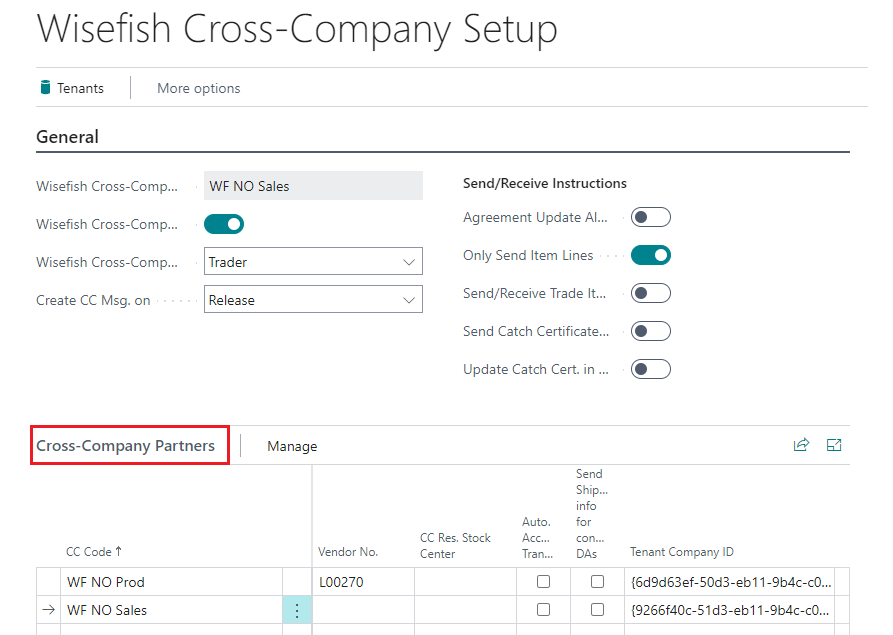
You can do most editing directly from the list or open the Wisefish CC Partner Setup Card to edit each partner.
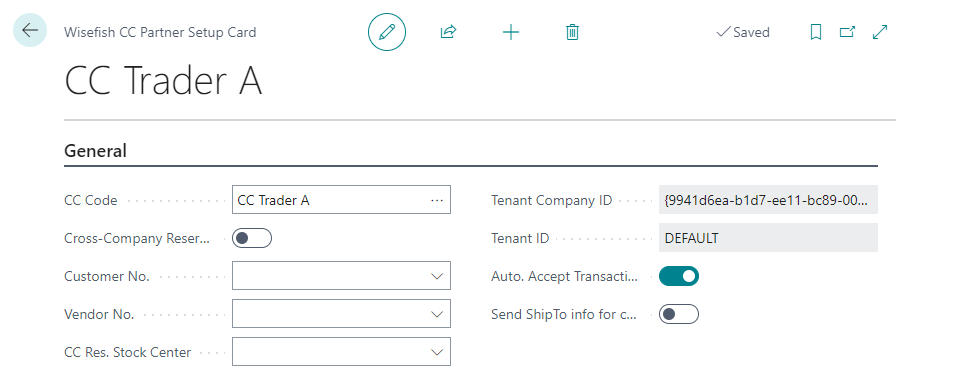
The CC Code is the Company Name of the CC Partner company which you can choose from a drop down list in the field. When the CC Code is validated it automatically fills in the fields that are necessary for the Tenant connection, the Tenant Company ID.
You then need to fill in which Customer and Vendor to associate with the CC Partner. If you want the CC transactions to be processed automatically when they are created in the Inbox enable the Auto. Accept Transaction toggle.
When you are sending messages between a Trader and Production company you can choose to send Ship-to information from the original Delivery in the Trader company to the Production company. The Ship-to information can then be viewed in the Fact Box of the Delivery Agreement in the Production company.
Fields available in the Partner Setup Card
|
Field |
Description |
|---|---|
|
Cross-Company Code |
The company name of the CC Partner. |
|
Customer No. |
The customer that represents this partner. When this customer is entered on a Delivery Agreement, the partner is picked up automatically and a CC message is prepared. A customer can only be linked to one partner. |
|
Vendor No. |
The vendor that represents this partner. When this vendor is entered on a Receipt Agreement, the partner is picked up automatically and a CC message is prepared. A vendor can only be linked to one partner. |
|
Tenant Company ID |
Filled in automatically from the Cross-Company Code. Identifies the partner's company for the web service calls. Not editable. |
|
Tenant ID |
Filled in automatically from the Cross-Company Code. Identifies the tenant the partner company belongs to. Not editable. |
|
Auto. Accept Transactions |
When on, messages received from this partner get Line Action = Accept as soon as they arrive in the Inbox. They can then be processed automatically with the Job Queue (see the Job Queue page). When off, each message is accepted manually. |
|
Send ShipTo info for connected DAs |
When on, a Receipt Agreement that was created from a Delivery Agreement also sends the Delivery Agreement's Ship-to information to the partner. Use this when the partner is a Producer who produces to order, so they know who the goods are for. |
|
Use Location from CC Partner |
When on, the Location Code in the received message is used on the agreement that is created. |
|
Use Stock Center from CC Partner |
When on, the Stock Center Code in the received message is used on the agreement that is created. If the Stock Center does not exist in your company, the message gets an error in the Inbox. |