
The setup is done on the following pages in Wisefish:
-
Wisefish APIs Base & Setup has some basic settings to active this functionality.
-
The Stock Centers that stand for for the production factories get their own service bus queue.
-
External Message Setup has the list of tables that are sent
-
For each table, the fields to be sent are selected in the list External Message Fields
Wisefish APIs Setup
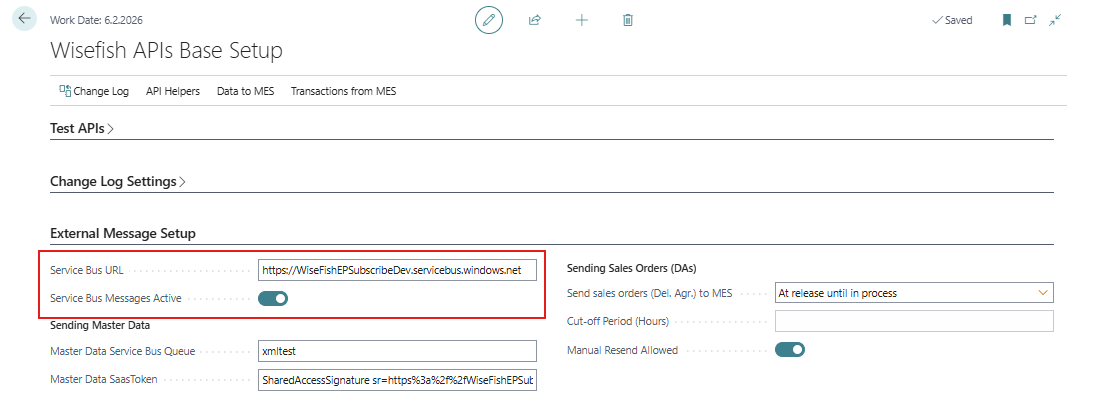
The main settings for this feature are on the tab External Message Setup on the page Wisefish APIs Base Setup.
|
Field |
Description |
|---|---|
|
Service Bus URL |
The service bus message URL. This is general for all messages. |
|
Service Bus Messages Active |
This checkmark is needed to turn on the messages. If all messages need to be stopped, simply remove this checkmark. |
|
Master Data Service Sub Queue |
The queue to use when sending data from the Change Log, like masterdata. Note: This is not used when sending sales orders, because each sales order belongs to a Stock Center. |
|
Master Data Saas Token |
This is needed for authentication into the service bus. |
|
Sending Sales Orders (Del. Agr.) to MES |
This option controls when released Delivery Agreements are automatically sent as sales orders to the external manufacturing system (MES). Options are:
|
|
Cut-off Period (Hours) |
Cut-off time is calculated as the shipment date (at noon, 12 pm), minus the number of hours in this field. For example: “Cut-off Period (Hours) is set as 18 hours. => Noon on shipment date minus 18 hours = 6 pm. => Cut-off time is at 6PM on the day before shipment date. This means that a DA will be sent as an order to MES at every release, up until at 6 PM before shipment date. |
|
Manual Resend Allowed |
A checkmark in this fields allows the user to resend an order which has status “Sent to MES”. This is be done in either
|
Stock Center
For each stock center that has a MES system that needs to receive sales orders (Delivery Agreements) as XML messages, the service bus queue needs to be configured as well as the connection information and authentication for it. These fields are in a new tab at the bottom of the Stock Center page:

Example:
The SAS token looks like this:
SharedAccessSignature sr=https%3A%2F%2FWiseFishEPSubscribeDev.servicebus.windows.net%2Fsomequeue&sig=0bDte%2FbvqCTl9CRGv2Z4G8wjsahF0BZ6Vhyg0xKgN8I%3D&se=2397206944&skn=BCIntegrationSend
External Message Setup
Under the Wisefish APIs setup page there is a button to open the External Message Setup.
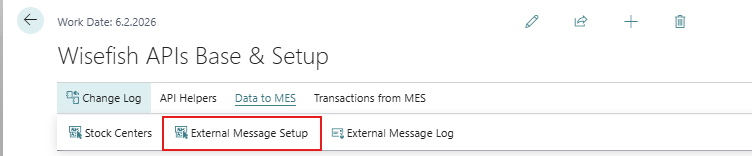
This opens a list of all defined message types, where each of them is related to a single table in the database.
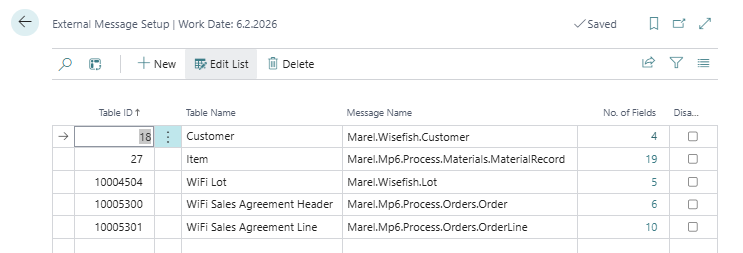
Sales Order message for a Delivery Agreement is directly linked to the “Sales Agreement Header” table which is the table behind the header. But the message also shows data from the following tables, which then also need a setup in this list:
-
Sales Agreement Header
-
Sales Agreement Line
-
Customer
-
Item
External Message Fields
Drilling down from field No. of Fields will open up the field selection for that specific table.
|
Field |
Description |
|---|---|
|
Node Name |
This value will be used as a node name in the XML file |
|
Field ID |
This is the ID of the field in the table in BC. This should be left blank if the node shall contain a fixed value, instead of a field value. |
|
Field Name |
Shows the name of the field selected with the Field ID. |
|
Fixed Value |
If there is no Field ID, the fixed value is typed into this field. |
|
Disabled |
Checkmark in this field will disable it, so it is not included in the XML file. |
Example
On the snapshot below, the Item table number 27 has 5 fields configured for xml:
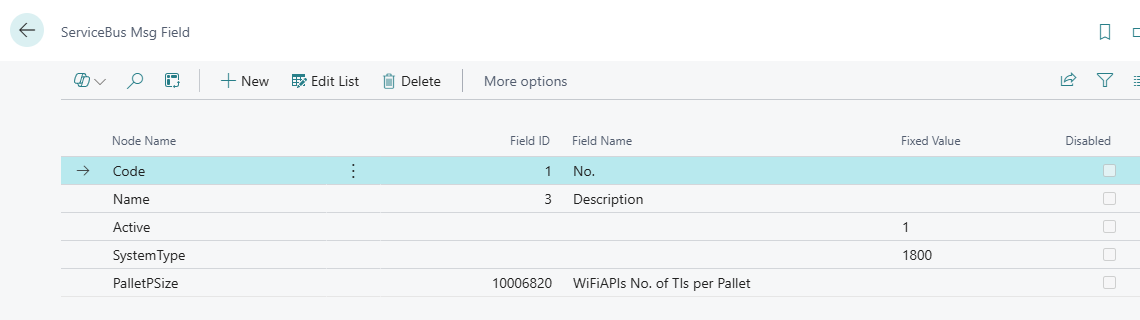
This list defines the XML node names and then you select the field ID from the Item Table, so for the first line we have configured the field No. to be a part of the XML but it should be named “Code” in the XML file. You can also add non table bound fields like the field SystemType that is just the entered value 1800.
This configuration will produce the following XML for one entry in the table:
    <Object DataType="Marel.Mp6.Process.Materials.MaterialRecord">
      <Properties>
        <Code>HSS1-0405</Code>
        <Name>Salmon Fresh HOG Superior 4-5kg</Name>
        <Active>1</Active>
        <SystemType>1800</SystemType>
        <PalletPSize>30</PalletPSize>
      </Properties>
    </Object>