It is possible to modify the status of both transport units and scheduled trips manually or, under certain conditions, automatically. Status changes can notify other users about the shipment and directly affect the queues on the role center.
Manual Status Changes
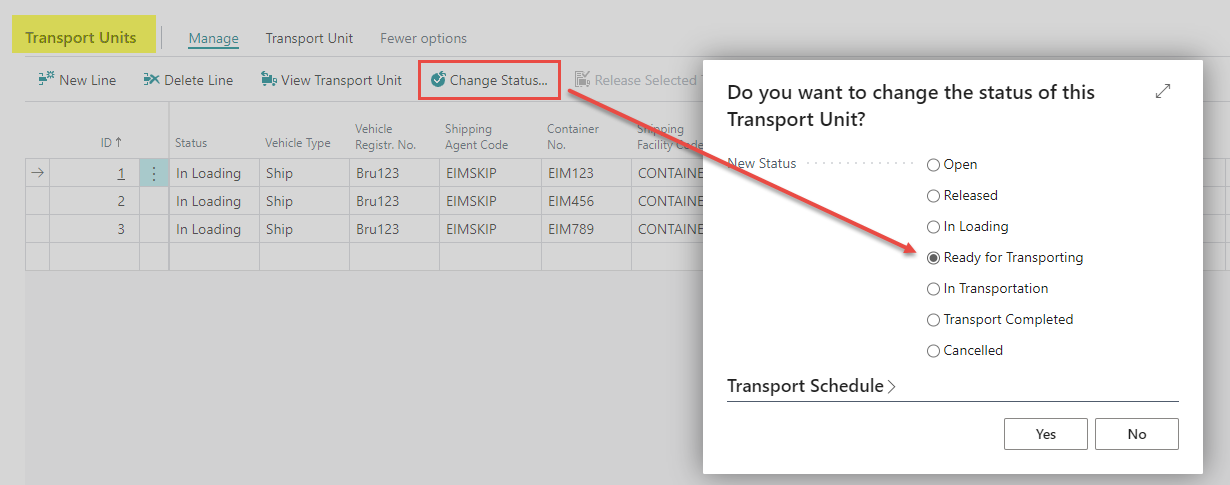
Transport Units move through their status lifecycle from the Managing Transport Units within Scheduled Trip page, see Managing Transport Units within Scheduled Trip for the full list of statuses and how to change them.
Scheduled Trips move through Open → Moving → Completed, or can be set to Cancelled, via the Change Status action on the Scheduled Trip Card. This opens a dialog where you can also update the trip's departure/arrival date and time as part of the same change.
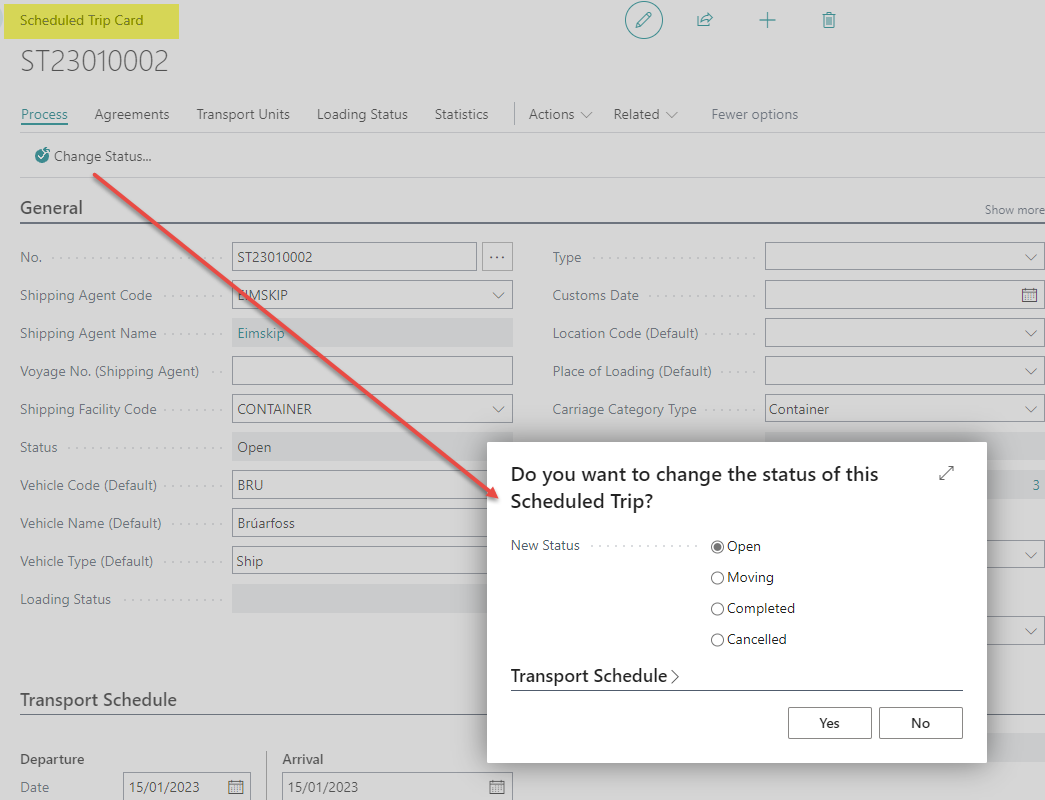
Before a trip can advance past Open, a couple of things are checked:
-
At least one Delivery/Storage Shipment Agreement must be allocated to the trip.
-
Unless those agreements use a reservation method that allows shipping without a Transport Unit, at least one Transport Unit must also be allocated.
Advancing a trip to Moving, Completed, or Cancelled will also prompt you to bulk-advance the status of its Transport Units to match:
-
Moving → any Transport Unit still at Ready for Transporting moves to In Transportation.
-
Completed → any Transport Unit still at In Transportation moves to Transport Completed.
-
Cancelled → any Transport Unit still at In Transportation moves to Cancelled.
You can decline the prompt and update Transport Units individually instead if needed.
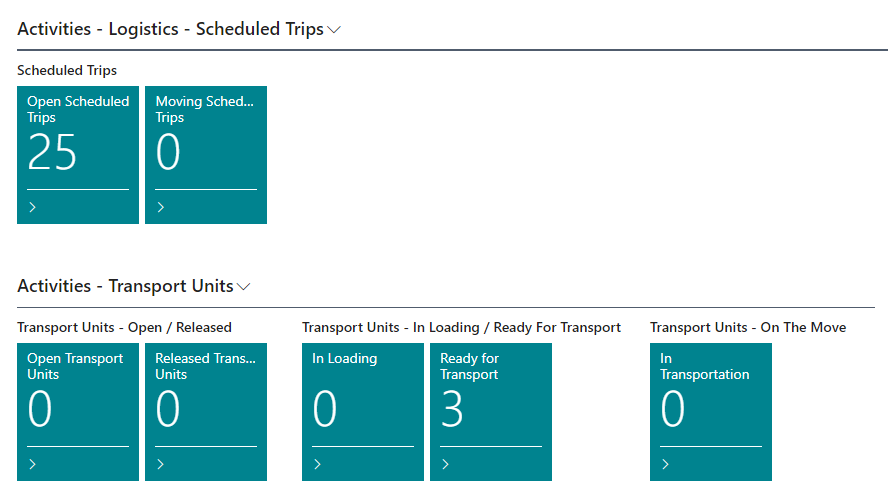
Notice that changing the status will affect the queues on the role center.
Different companies can have different processes when it comes to changing the status.
Automatic Status Changes
Two separate mechanisms can change a Scheduled Trip's status without anyone manually clicking Change Status:
-
Automatic completion on posting. A trip is automatically set to Completed the moment its last linked agreement is closed out. This applies specifically when a Sales Invoice/Credit Memo is posted for a Delivery-type agreement on the trip, a Transfer Order receipt is posted for one, or a Storage Shipment Agreement is finalized, provided every other Delivery/Storage Shipment Agreement allocated to that trip has already reached Closed status. If the automatic update fails for any reason, the user who triggered the posting sees a notification with the error.
-
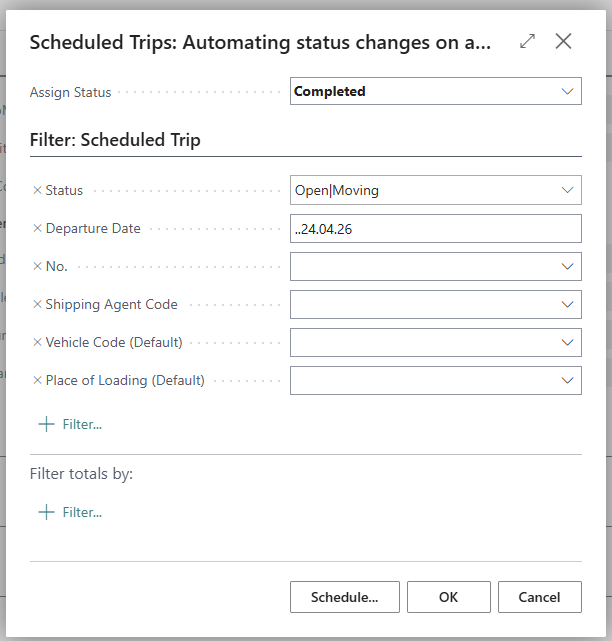
Administrative batch report. Scheduled Trips: Automating status changes on a filtered set of scheduled trips (found under Administration, and linked from the Logistics role center menu as Sched. Trips: Autom. Status Changes) lets an administrator bulk-assign a status to many trips at once. By default it targets trips with status Open or Moving whose Departure Date is more than 3 months in the past, and defaults to assigning Completed. Both the filters and the target status can be changed on the request page. This can be used to clean up old trips that were never manually closed out.