
When the time comes for loading and dispatching of a scheduled trip, selected transport units need to be assigned to the reservation process of the goods to be transported.
In this example the goods are being shipped in containers overseas. In many cases the logistics team needs to plan/manage the amount and use of containers for each trip.
In other words, the transport units are containers in this example.
The Manage Transport Units functionality is available within scheduled trips from both list and card pages.
Go to the Scheduled Trip List. Select the Scheduled Trip and click on Transport Units > Manage Transport Units
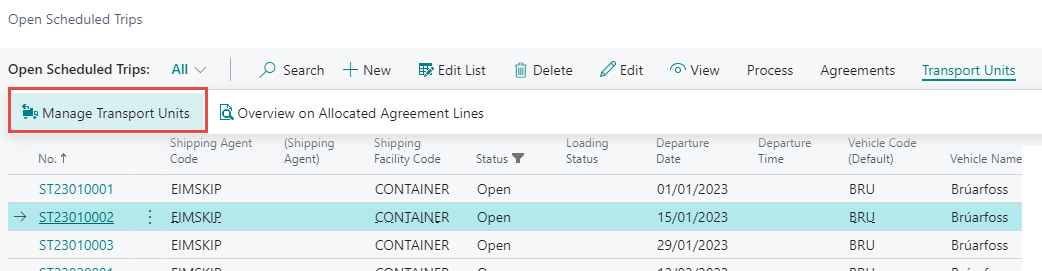
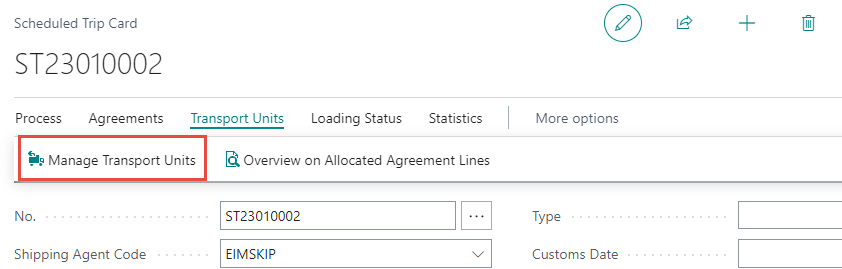
When selected, the following page opens.
The header section shows information for the designated scheduled trip. The line section shows the connected transport units within the trip.
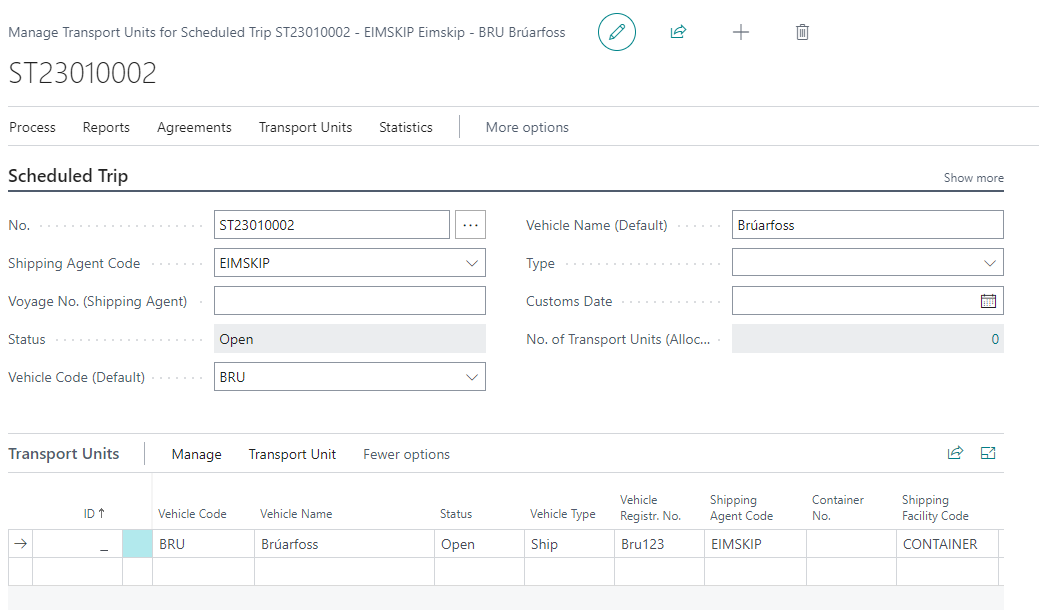
The ID column in the Transport Units lines is a unique identifier for the connected transport unit.
If the ID is empty, the corresponding line has yet to be assigned/connected to a transport unit.

By adding registration in the lines or changing the status of the line the transport unit gets its unique identifier assigned and the record for the transport unit has been inserted in the list of transport units connected to the corresponding scheduled trip.
Here is an example where the container no. was added to the line.

A Scheduled trip can have one or more Transport Units.
Here it is possible to add as many transport units as necessary for the trip. It is also possible to insert more detailed information about the transport unit (in this example, the container).

Notice that the lines are red in this example. This is because the Status (of the transport unit) is still Open.
Each Transport Unit line moves through seven statuses over its lifecycle:
-
Open – newly created, not yet ready for loading.
-
Released – ready for loading; indicates to other users the shipment is being prepared.
-
In Loading – trade items are actively being loaded onto the unit.
-
Ready for Transporting – loading is complete and the unit is ready to depart.
-
In Transportation – the unit is en route.
-
Transport Completed – the unit has reached its destination.
-
Cancelled – the unit is no longer part of the trip.
To change status, select one or more Transport Unit lines and use the Change Status button in the ribbon.
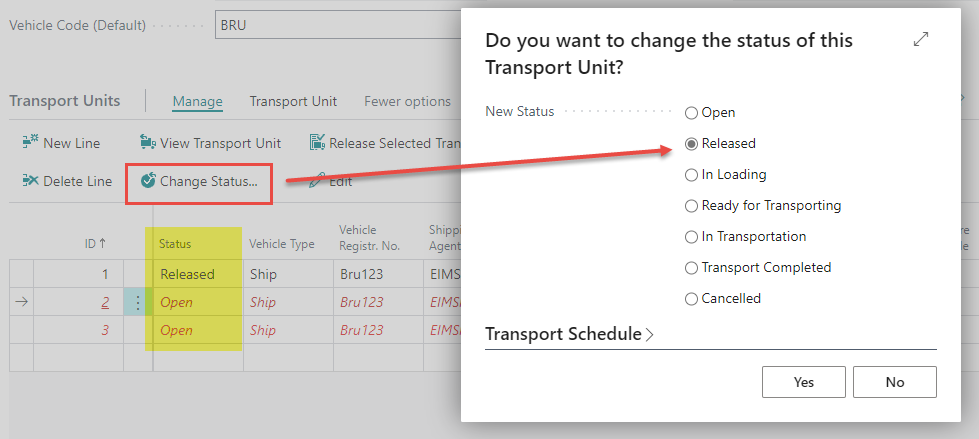
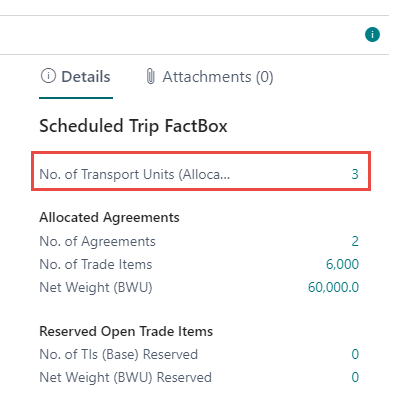
When released the lines turn black and the FactBox is updated with number of allocated Transport Units (in this example three containers have been allocated to the scheduled trip).
Related Actions
A few related actions live on the Scheduled Trip Card itself rather than on individual Transport Unit lines:
-
Loading Instructions / Packing List to print the loading instructions or packing list for the selected Transport Unit.
-
Populate Vehicle's Cargo Holds Into Transport Units can be used for Bulk-Cargo trips with a default vehicle assigned. It automatically creates one Transport Unit per cargo hold registered on that vehicle.
-
Loading Status (In Loading / Loading Completed / Reset), this is a separate status on the scheduled trip itself, not on individual Transport Units. Setting it to In Loading blocks users from reopening any Delivery Agreement assigned to the trip, so logistics staff can work without the sales side making changes underneath them. Loading Completed signals the operation is finished, and Reset reverts this if it was set too early.