When a Scheduled Trip has been created the logistics or sales team need to connect the Delivery Agreements to an upcoming Scheduled Trip. The same applies for Storage Shipment Agreements when the Warehouse functionalities are used.
There are two ways of assigning/allocating Delivery Agreements to a Scheduled Trip:
1. Allocate Agreements into Scheduled Trip
2. Allocate the Scheduled Trip in the Shipping tab in a Delivery Agreement / Storage Shipment Agreement
The same scheduled trips are going to used as in previous chapter.
In the next chapter two Delivery Agreements for two different customers are going to be assigned to the scheduled trip.

Allocate Delivery / Storage Shipment Agreements into Scheduled Trip
To assign the Agreements go to the Scheduled Trip List and select the designated Scheduled Trip, then click on Agreements > Allocate Agreements.
The Allocate Agreements functionality is available both on scheduled trip card and list.
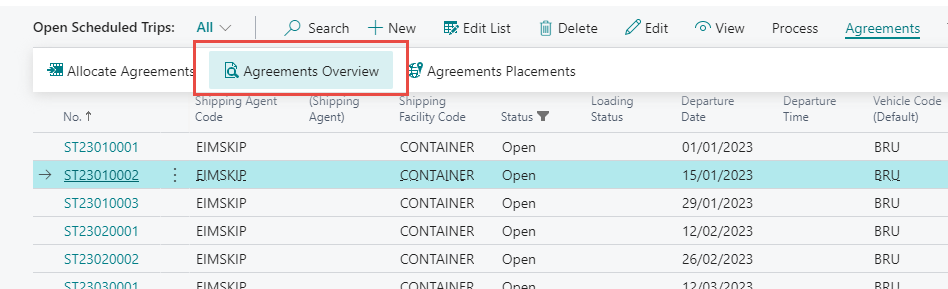

This action opens a new page with a Delivery and Storage Shipment Agreements overview where the user can select the corresponding Delivery Agreement.
Select the Agreement, then click on Available Agreements > Allocate Agreement.
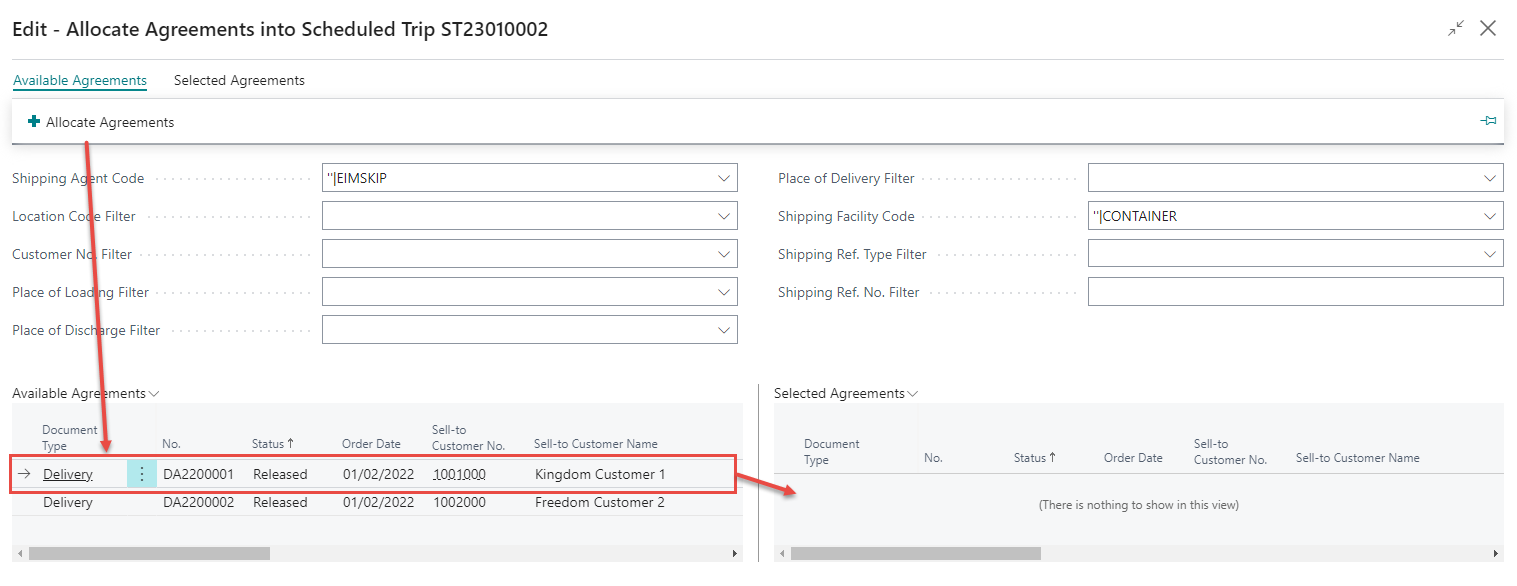
The Agreement shifts over to the right-hand side.

Click Close to finish and allocate the selected Agreements.
Now the Scheduled Trip has been linked to the Agreement and information from the trip can be viewed under shipping and in the Agreement lines.
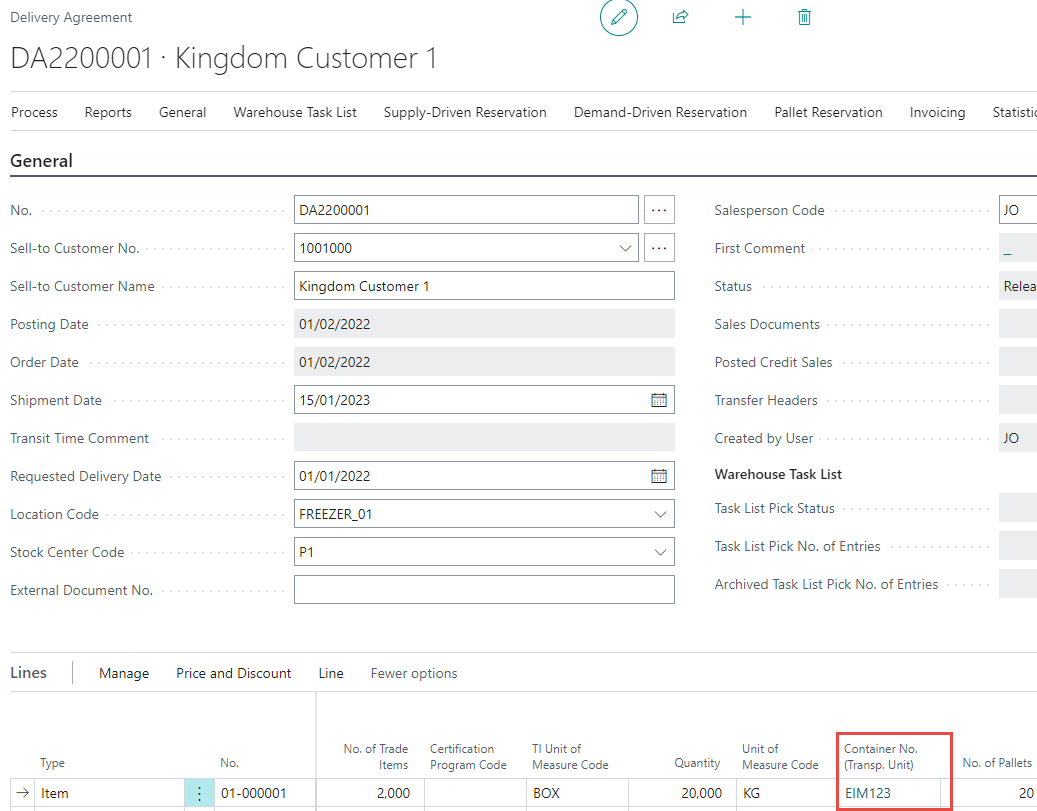
Allocate Scheduled Trip in a Delivery / Storage Shipment Agreement
It is also possible to assign a Scheduled Trip directly from a Delivery Agreement.
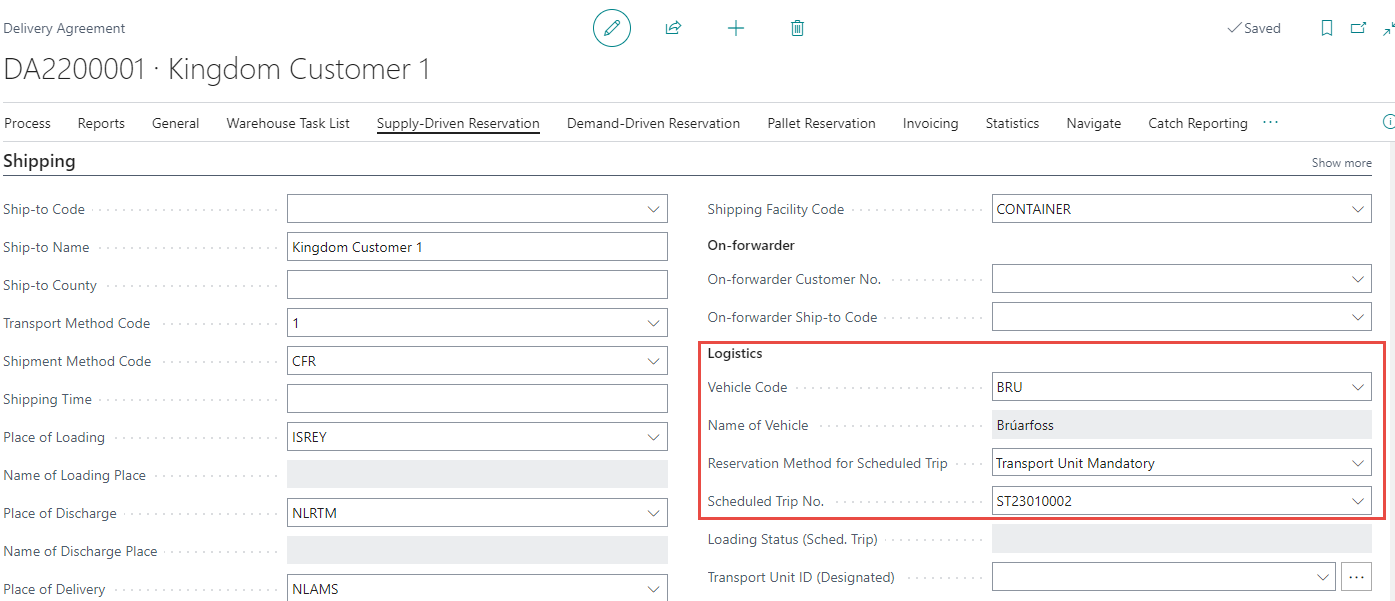
Below is an example of a Delivery Agreement that is ready for a scheduled trip.
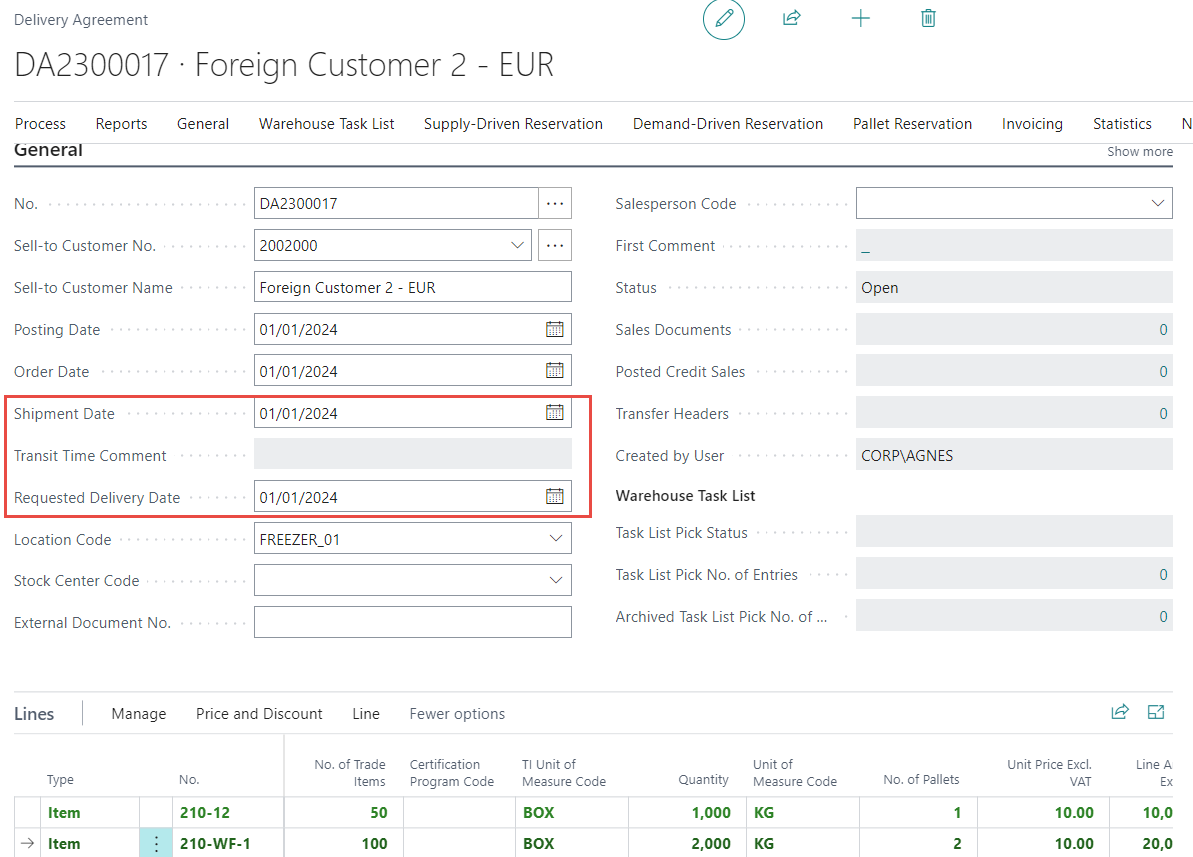
Under the shipping tab click on the Scheduled Trip No. field. A drop-down list appears with all registered Scheduled Trips.
Select the related/suitable trip for that specific Agreement.
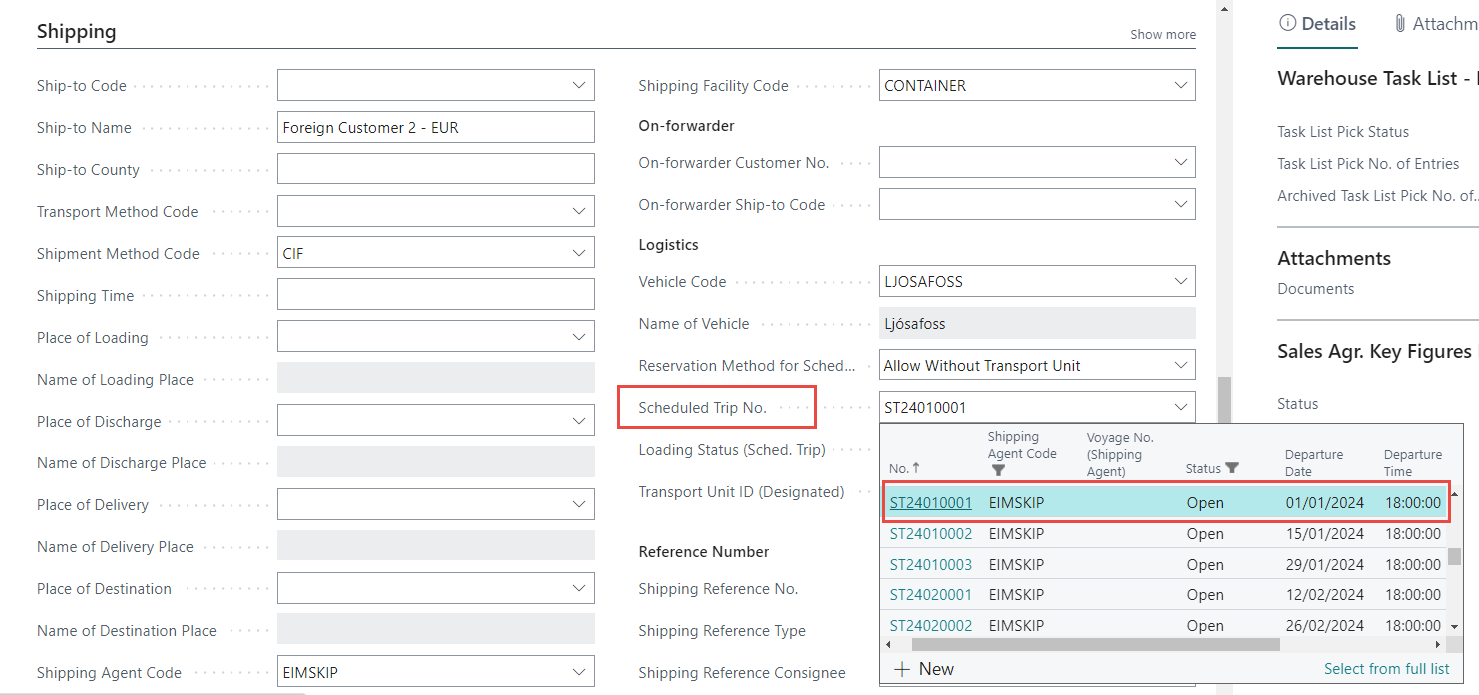
This connects/allocates the Agreement to the Scheduled Trip. Notice how the related logistic fields fill out automatically when a Scheduled trip No. is selected.
Click here for more information about the available logistics functionality in a Delivery Agreements.
View Allocated Agreements
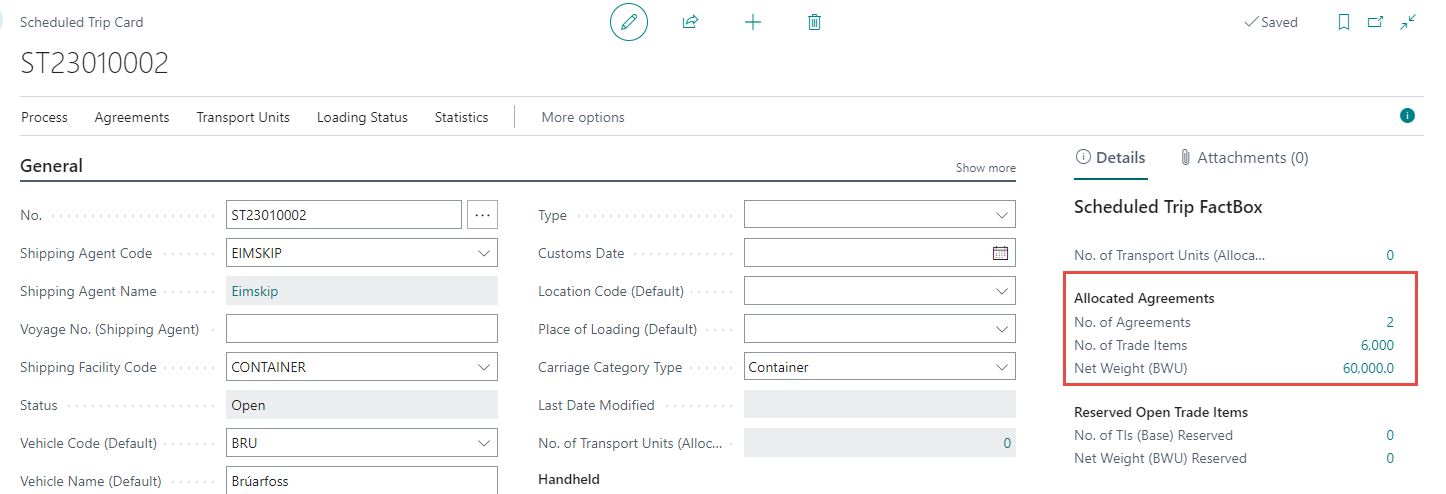
Take a look at the FactBox to view how many Agreements are allocated to a specific Scheduled Trip.
Here is the same example used previously, where two Delivery Agreements where allocated to an scheduled Trip.