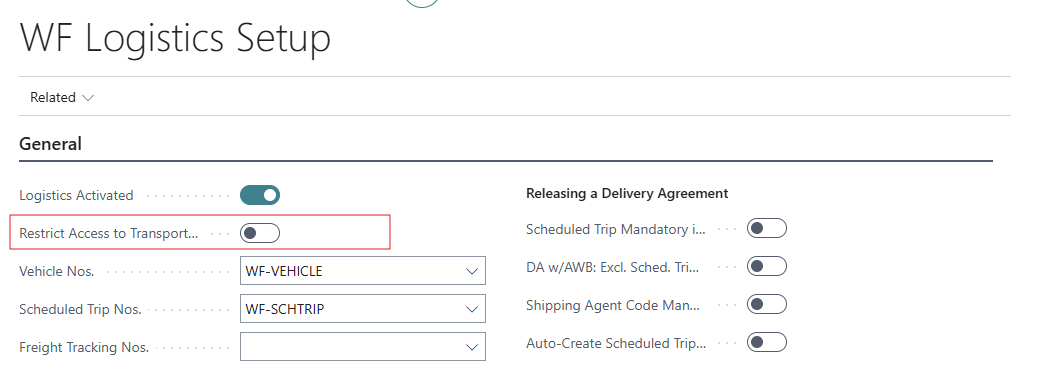
The Designated Transport Unit Wizard can be used to assist with the creation of a Scheduled Trip and Transport Units with a step by step guide. Please note that the option to Restrict Access to Transport Unit Wizard needs to be disabled in the Logistics Setup.
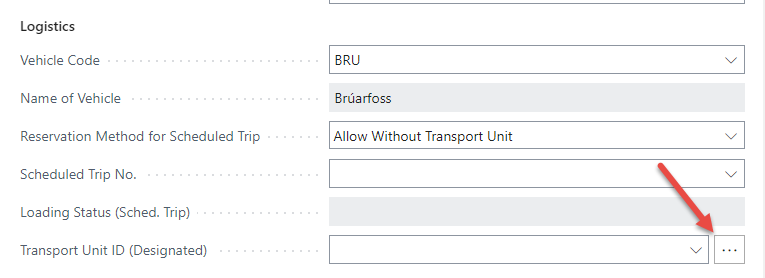
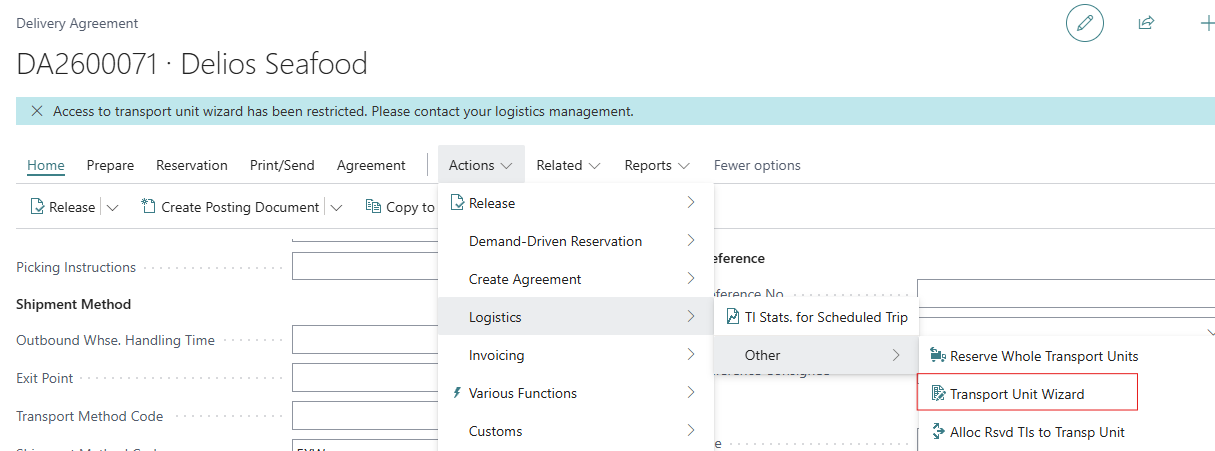
Click on the three dots by the Transport Unit ID field or find it under Actions - Logistics - Transport Unit Wizard.
The field will automatically be filled out with the information already available on the Delivery Agreement. Then fill in the rest of the fields where applicable.
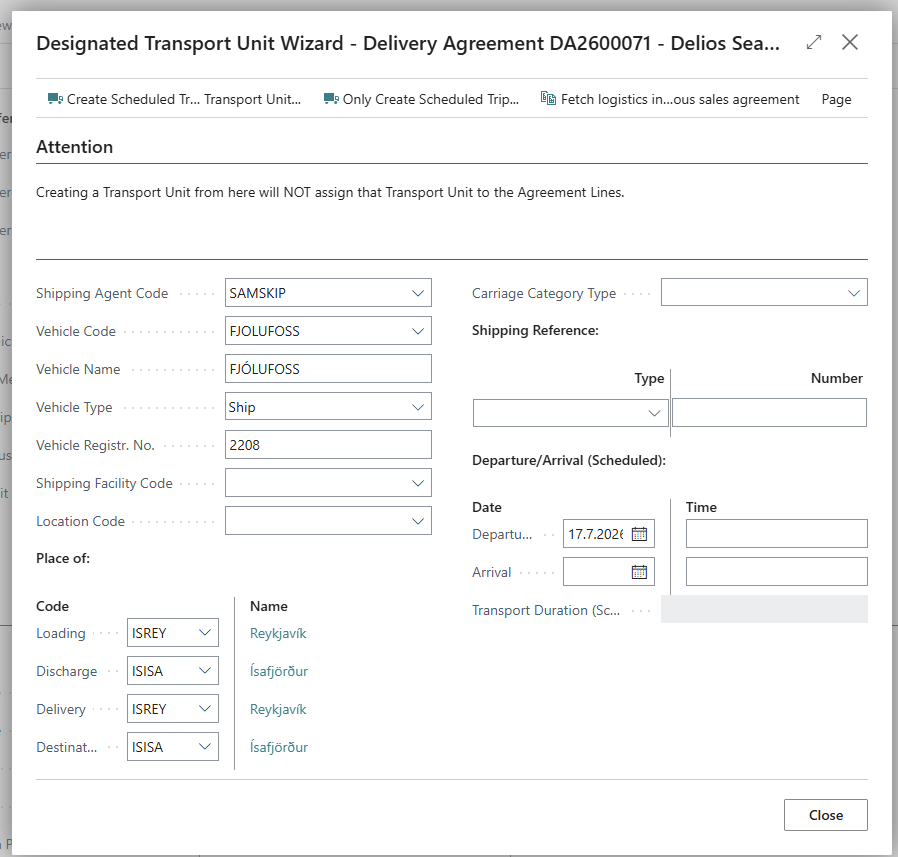
Create Scheduled Trip and Transport Units
Finished off by hitting the Create Schedule Trip and Transport Unit action, the Designated Transport Unit Wizard page closes and the corresponding delivery agreement gets assigned with a new scheduled trip. As a Scheduled Trip might include more than one Transport Unit or the setting for Transport Unit is optional, this field will need to be updated manually in the Delivery Agreement.
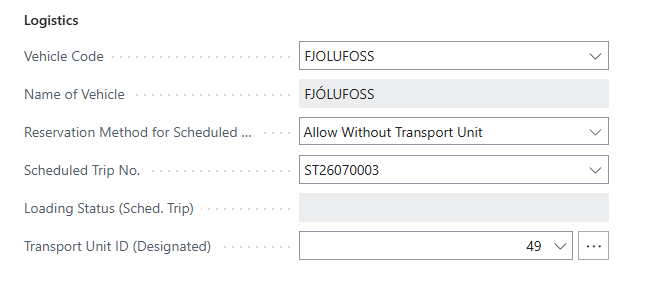
Fetch previous Delivery Agreements
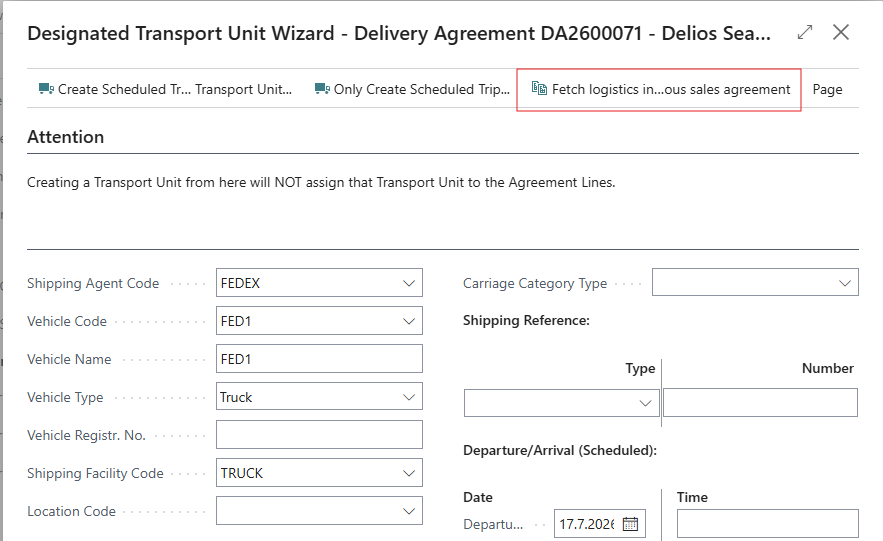
It is also possible to fetch logistics information from a previous Delivery Agreement related to the corresponding customer by using the option to Fetch logistics and select a Delivery Agreement.
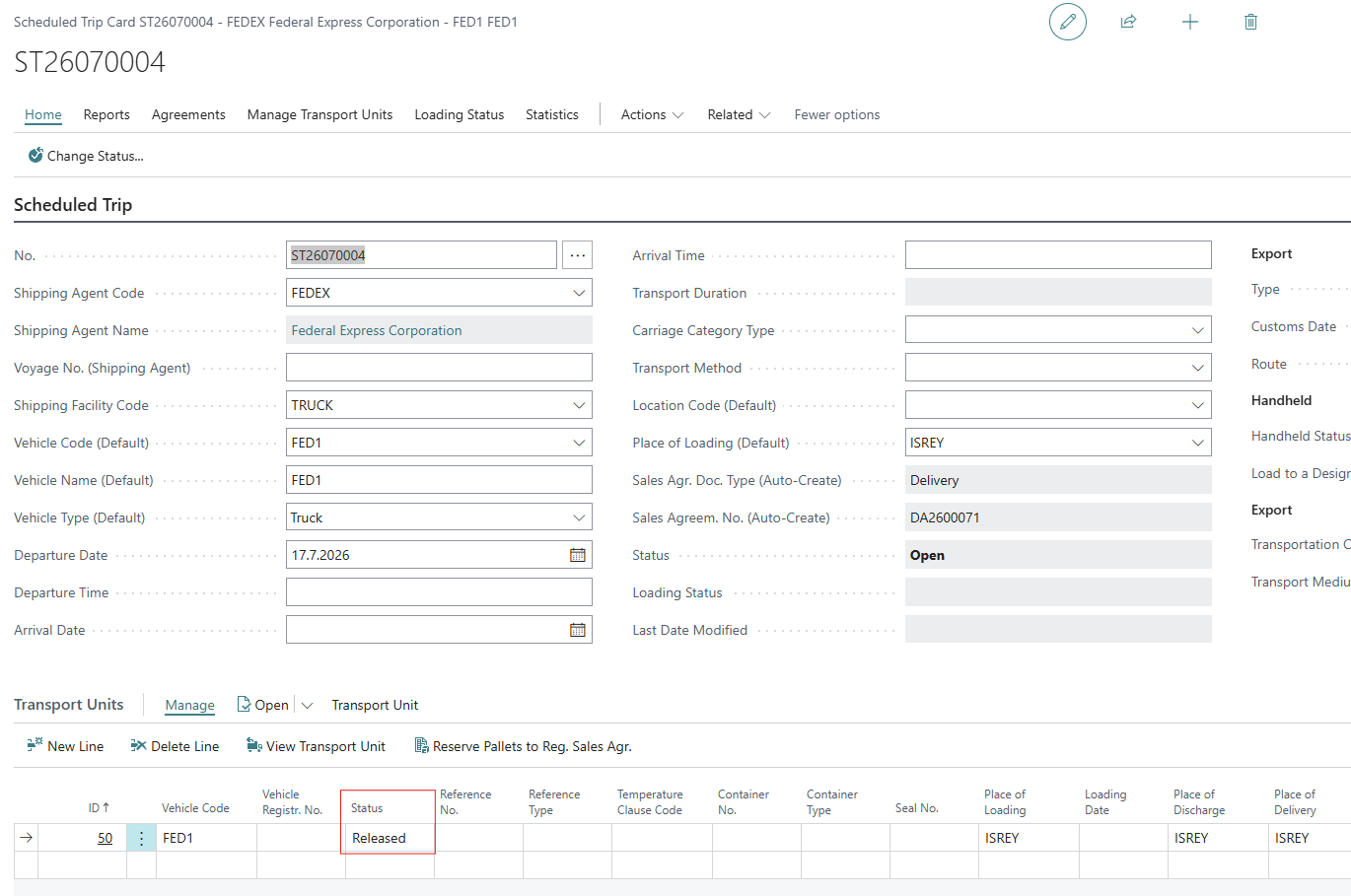
The status of the Transport Unit for the Scheduled Trip is Released. This information can be viewed by Viewing the Scheduled Trip Card.
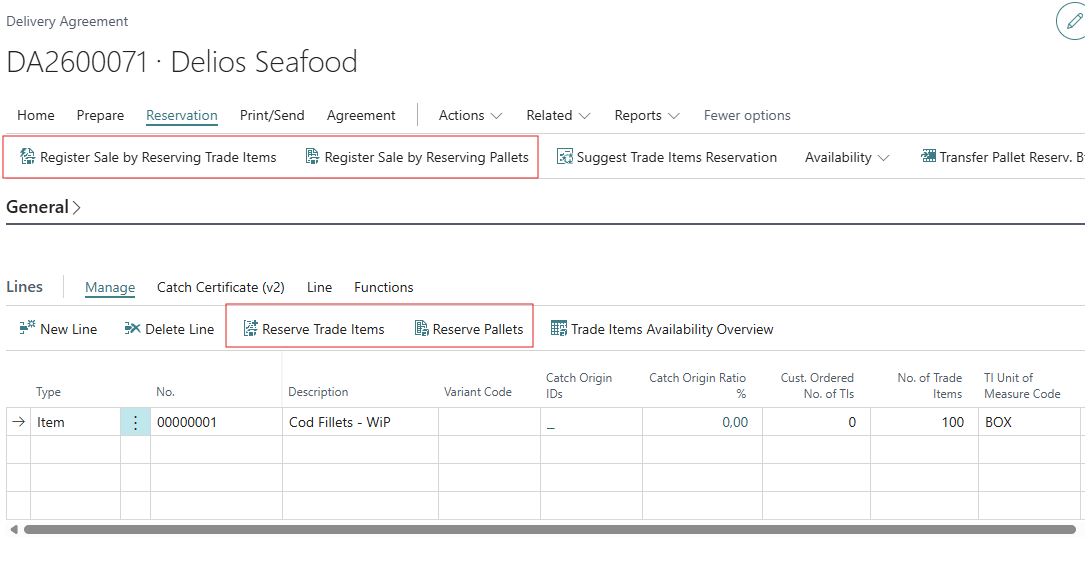
The Delivery Agreement can now be processed directly by reserving ot Trade Items / Pallets, without using the reservation functionality described in Reservation of Trade Items to Delivery Agreement