
The Available To Promise (ATP) - Item Overview page opens and automatically filters the search to the same location code from the Delivery Agreement header.

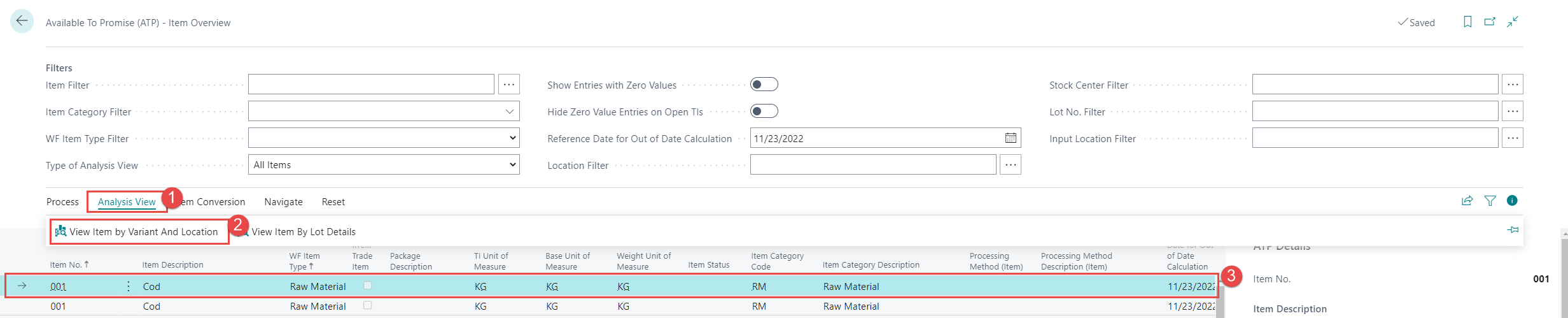
The overview screen has four main sections: (1) Filters in the header, (2) items in the lines, (3) actions (4) a fact-box on the right-hand side, displaying details for the selected item line.
Filtering
The purpose of having a specific filter section is to provide an instant filtering option for key elements like item no., item category code, location code, etc.
The Show entries with Zero Values field enables the user to view the items which turned out with no values in the calculation of the ATP-figures.
NOTE: Location Filter and Stock Center Filter fields affects the calculation of the ATP’s figures. For instance, the Item Filter field, click on the three dots, an item list opens where the user can highlight selected items:
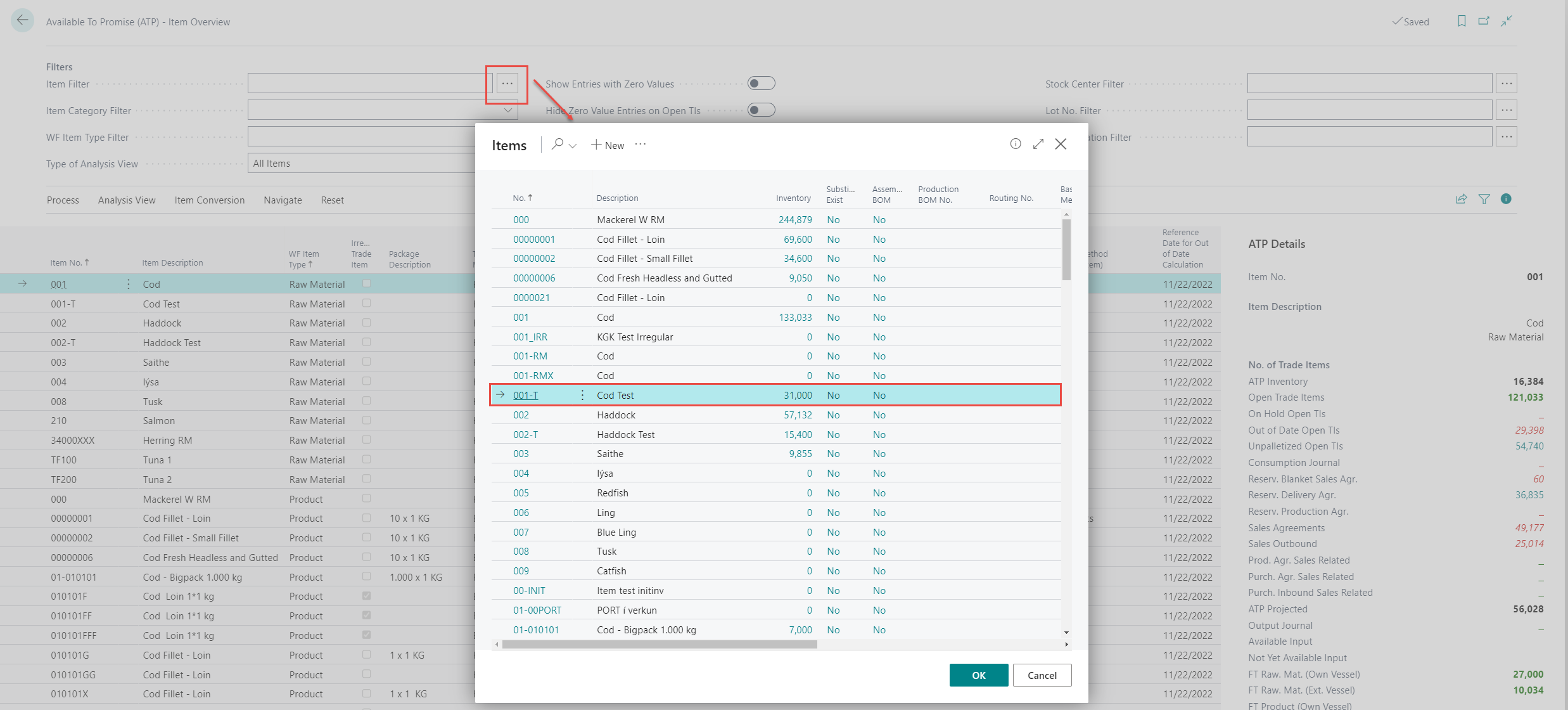
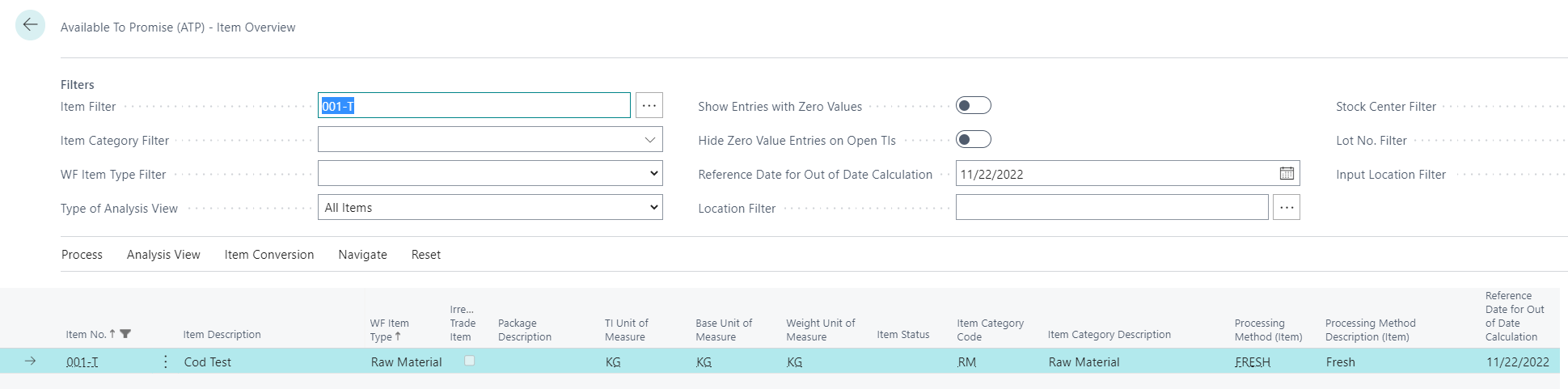
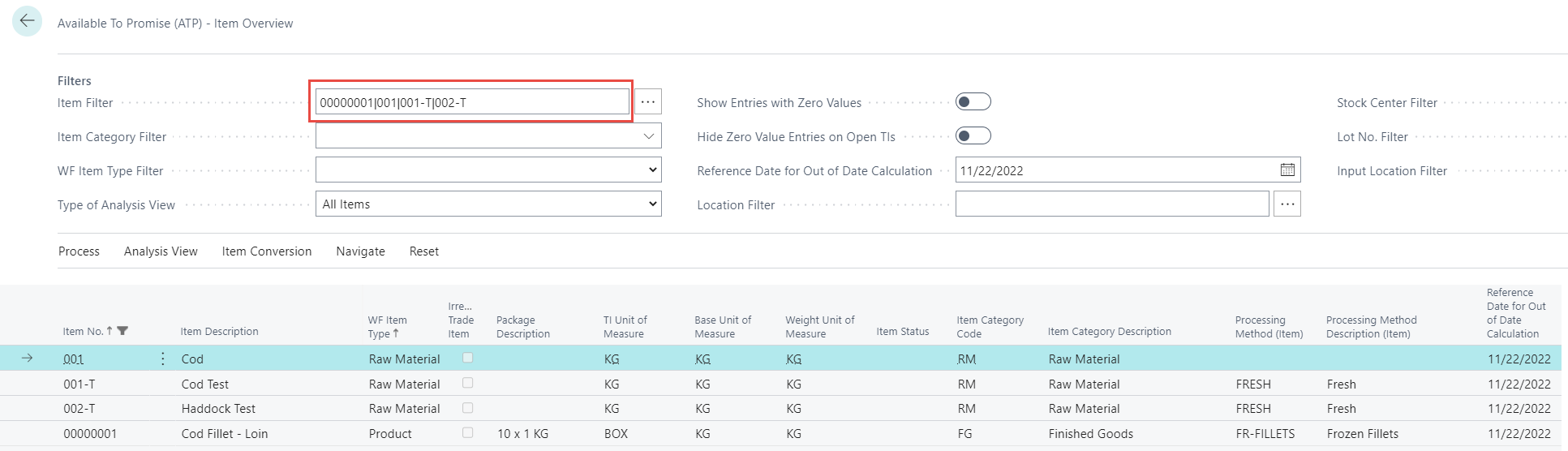
It is possible to collect more than one Item as filter.
Items are entered manually or chosen from list.
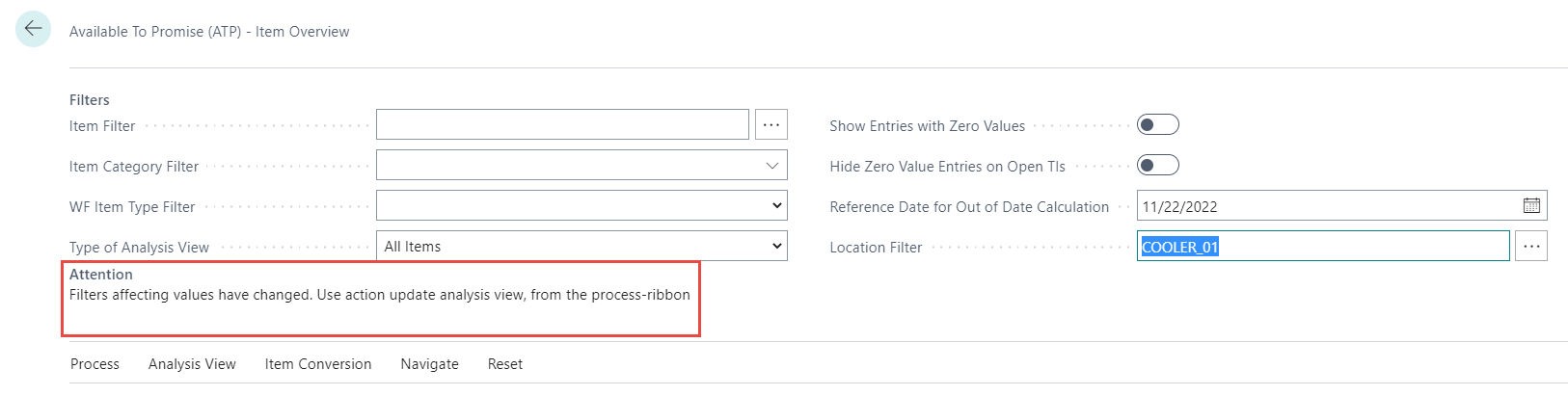
When the Location Filter or Stock Center Filter field are changed, the following notification appears below the filter section in the Header:
Show Entries with Zero Values: Means even if there is no entry at all, for the Item no – it is shown on the list.
Hide Zero Value Entries on Open TIs: Means the system is only focusing on the Open TIs.
Process
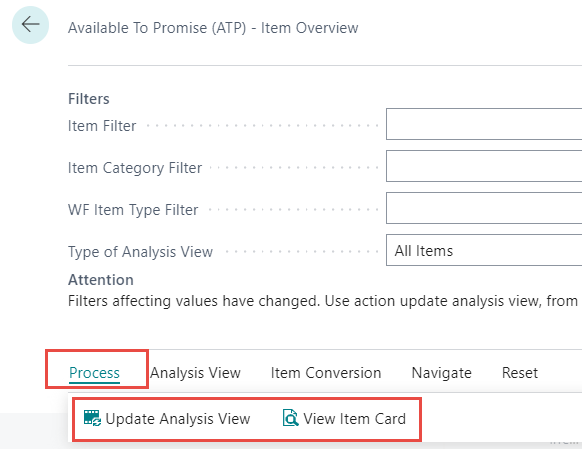
Update Analysis View
Refreshes the data. It is also possible to press(F9)
NOTE: At the bottom of the screen there is a timestamp when the last update was.

View Item Card
Open the card for the chosen item.
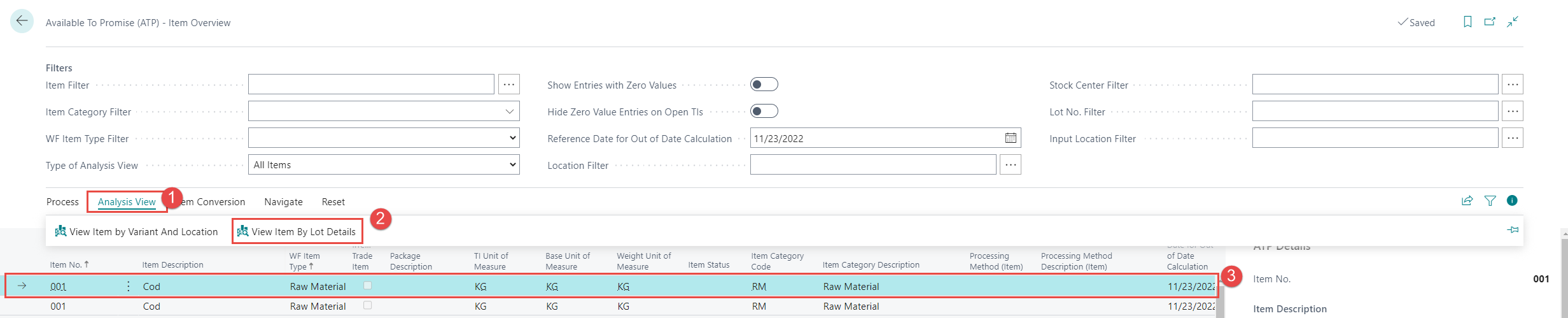
Analysis View
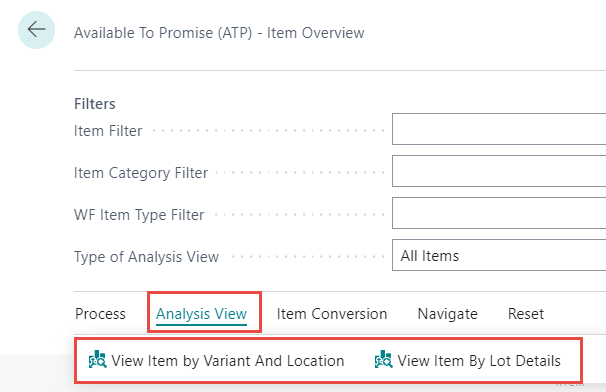
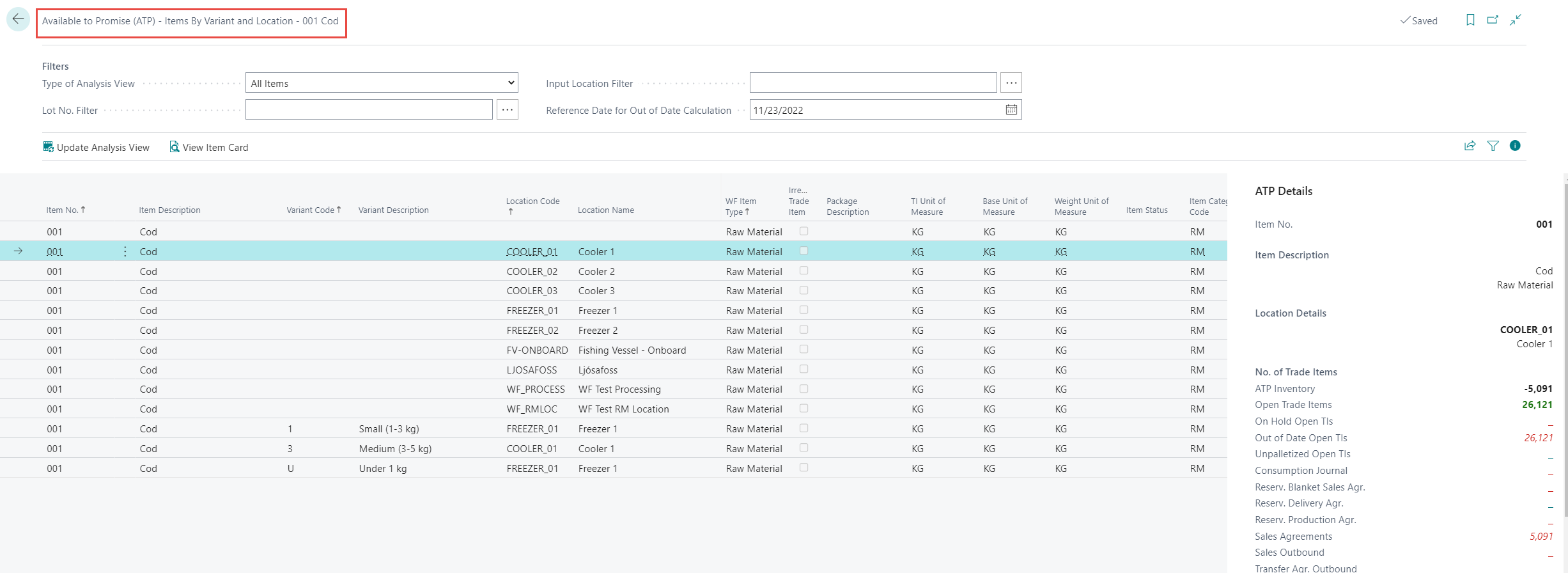
View Item by Variant and Location
Opens up a list page for the corresponding item in the line which has been selected and shows a more detailed breakdown on the item’s ATP by variants and locations.
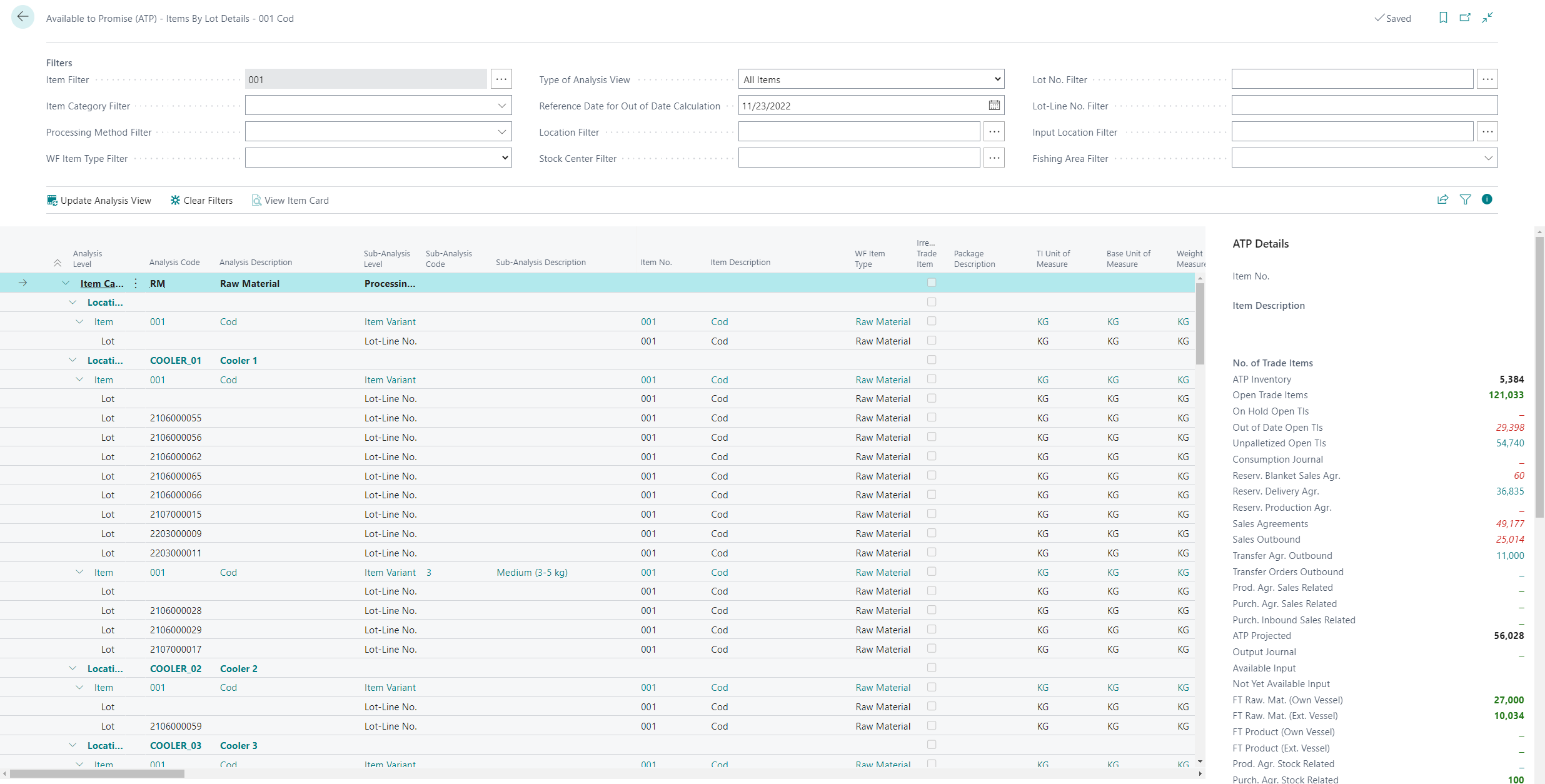
View Item by Lot Details
Opens up a list page for the corresponding item in the line which has been selected and shows a more detailed breakdown on the item’s ATP by variants and lots.
Item Conversion
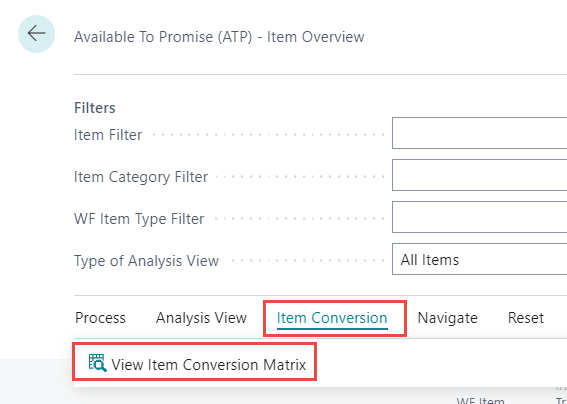
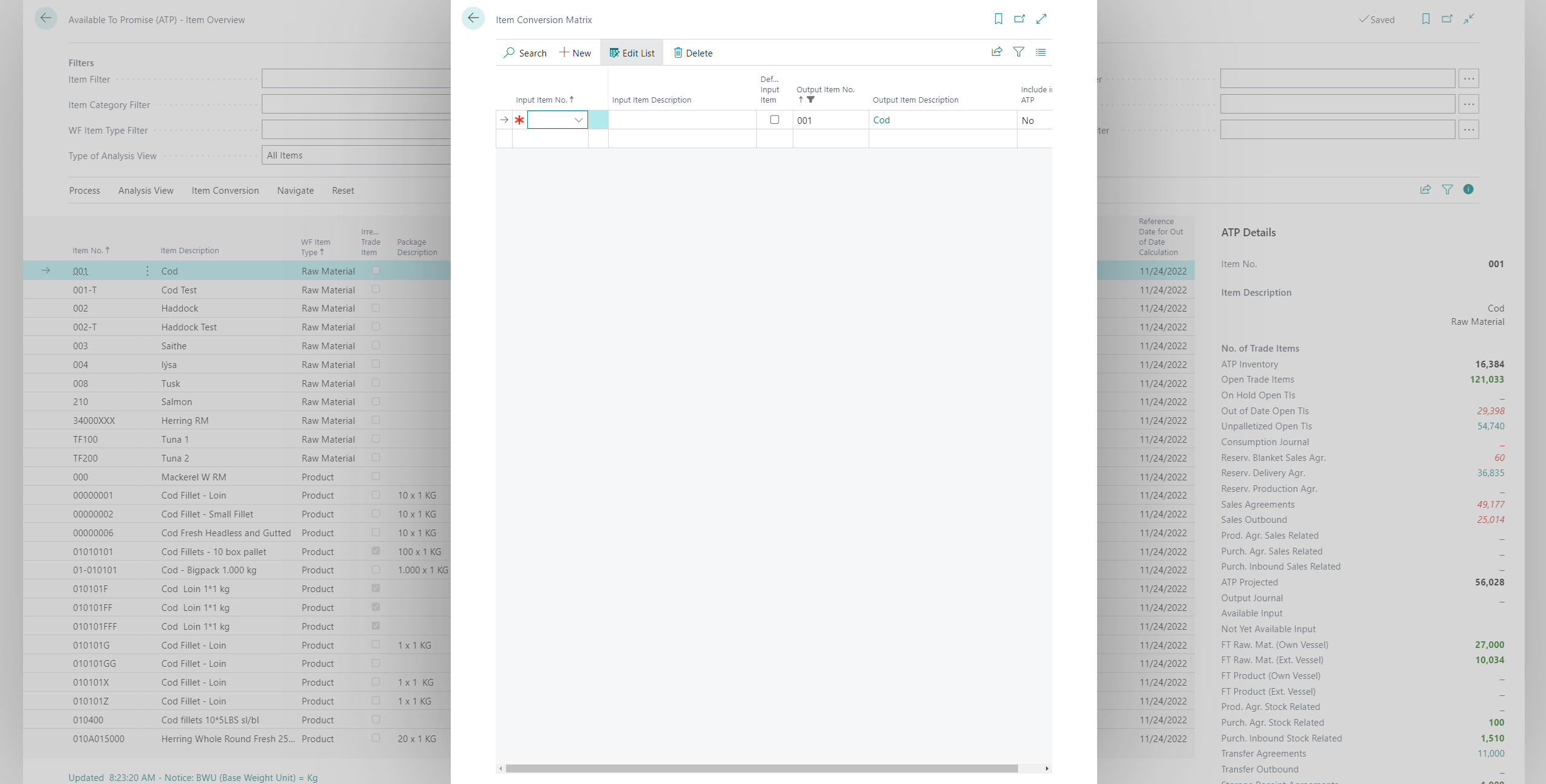
View Item Conversion Matrix
Navigate
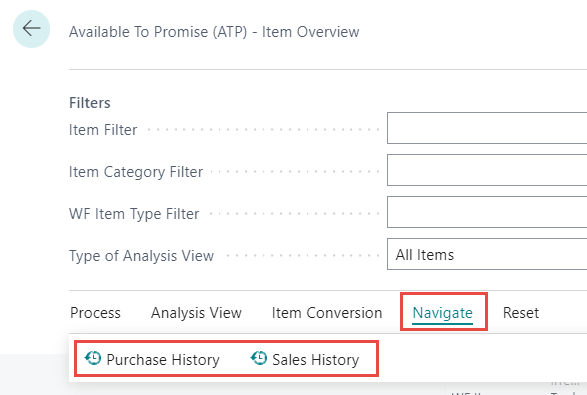
It can be convenient to look at the “history” for items – Purchase History and Sales History can be viewed.
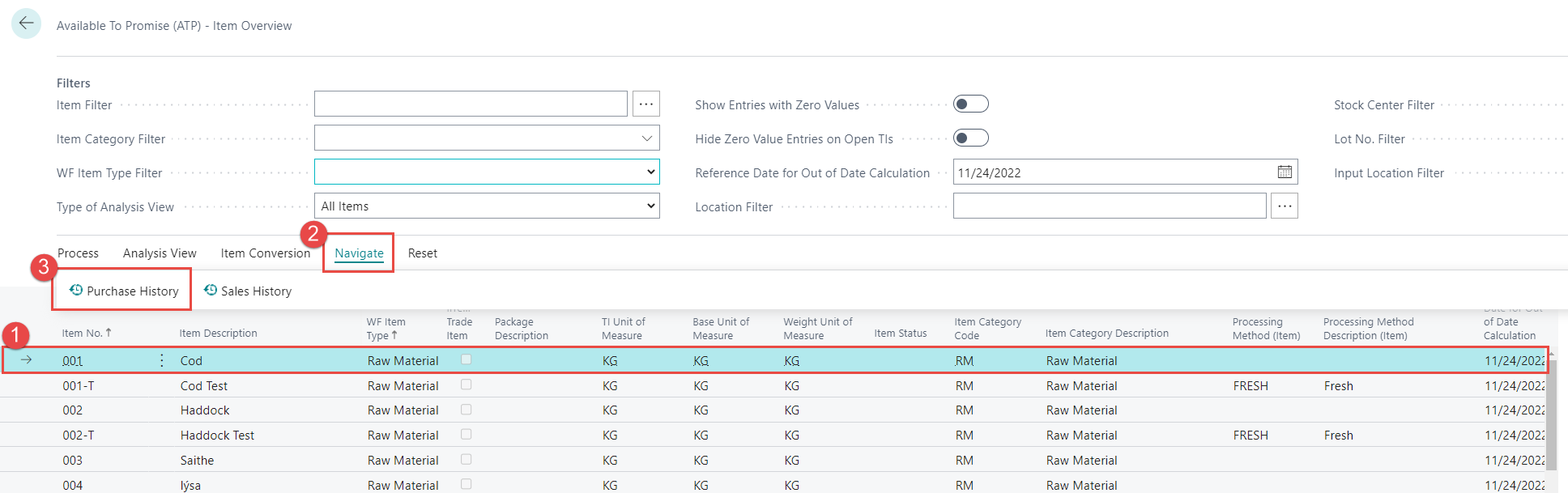
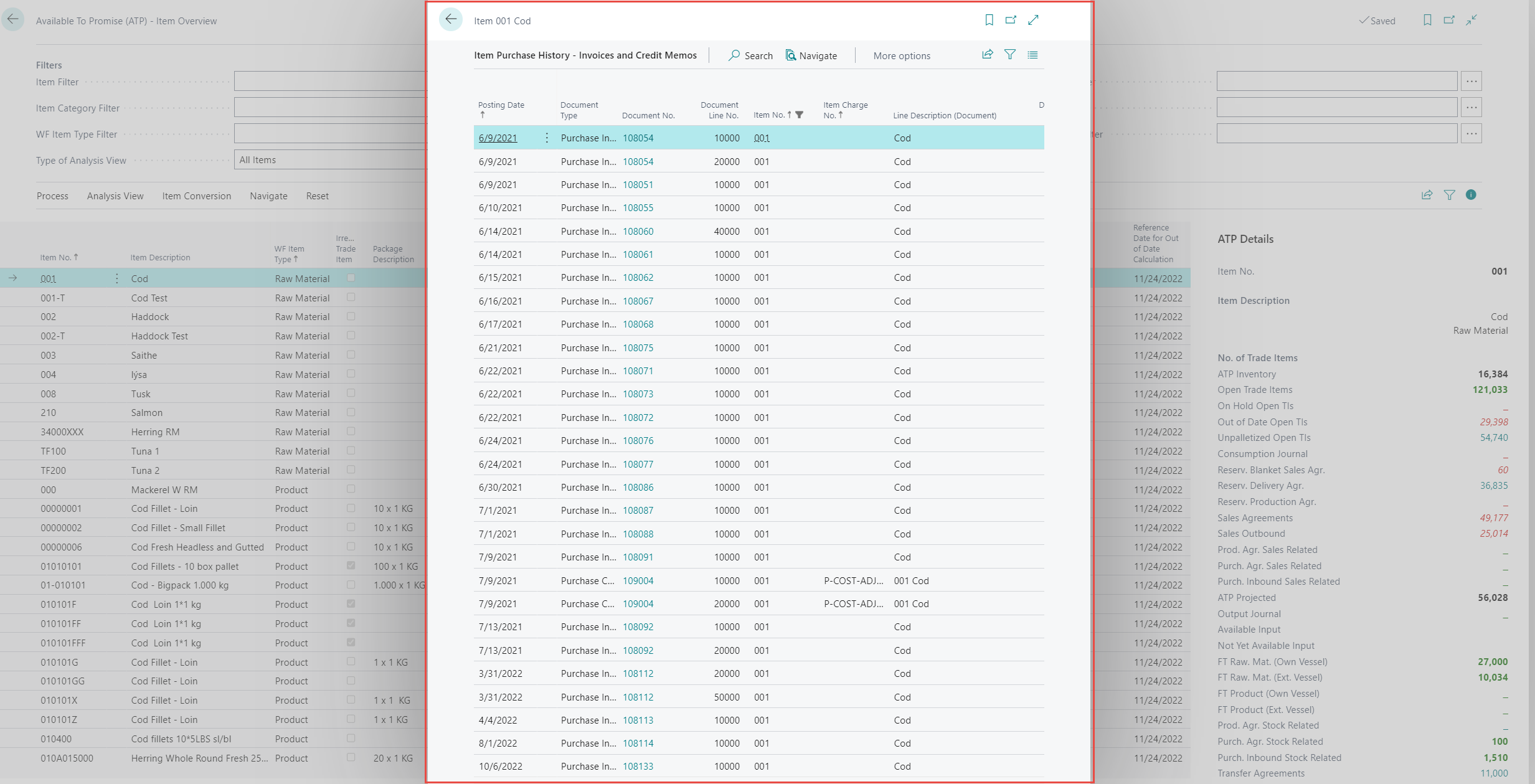
Purchase History
The Purchase History action opens up a list page for the corresponding item in the line which has been selected and shows the purchase history of the selected item.
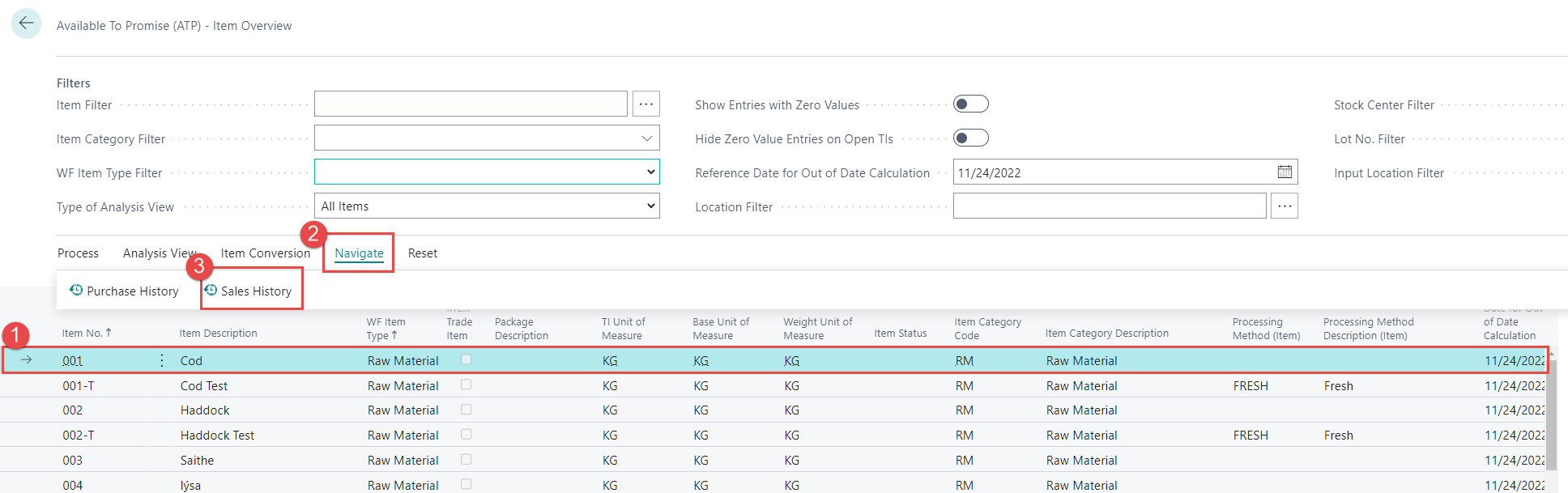
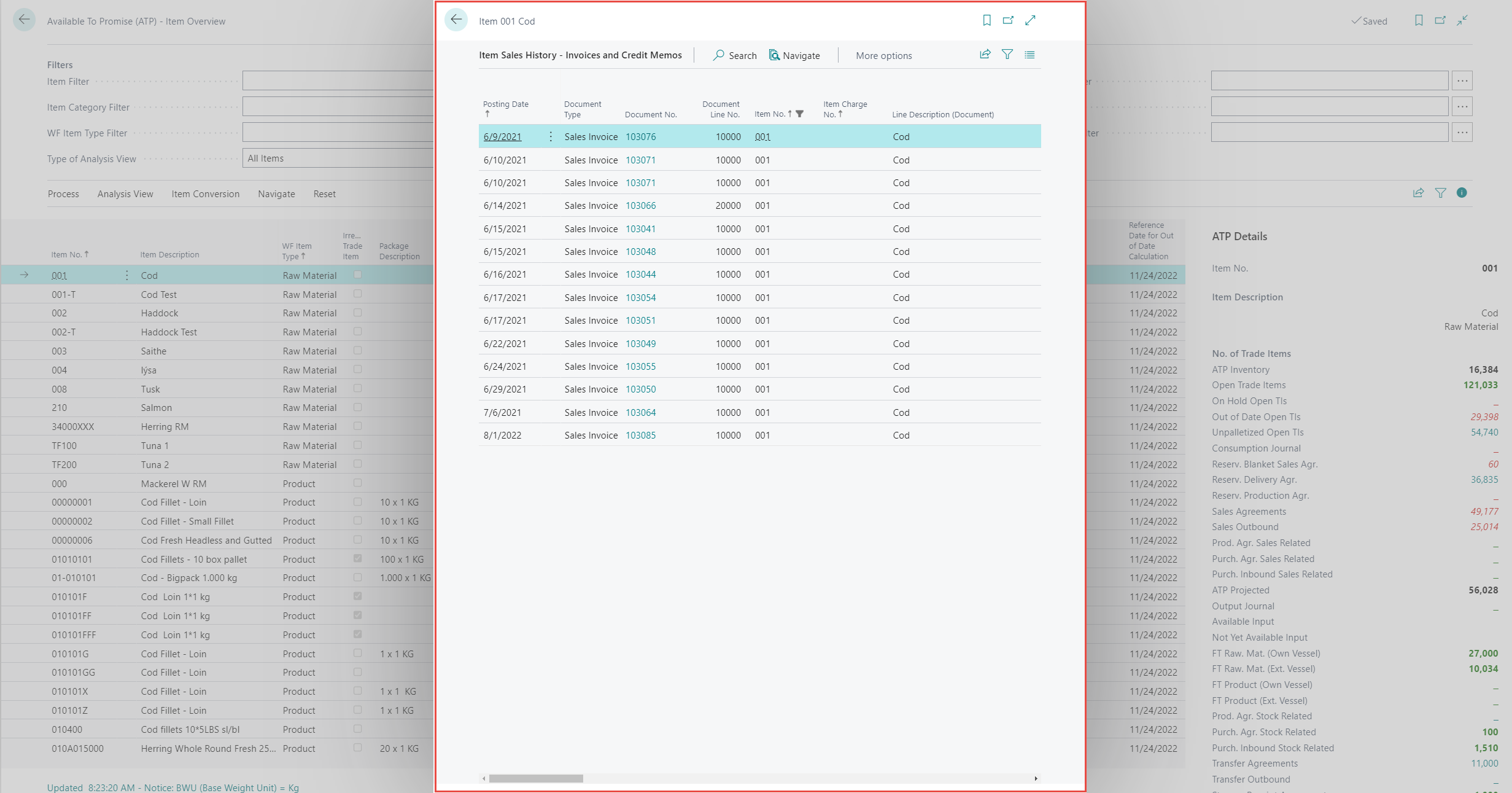
Sales History
The Sales History action opens up a list page for the corresponding item in the line which has been selected and shows the sales history of the selected item.
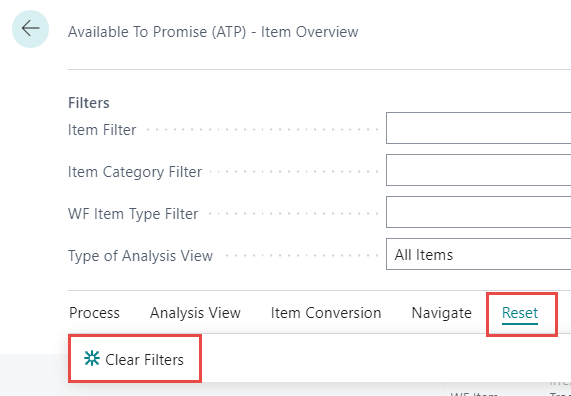
Reset
Clear Filters
By clicking the Clear Filters actions, all filters are cleared.
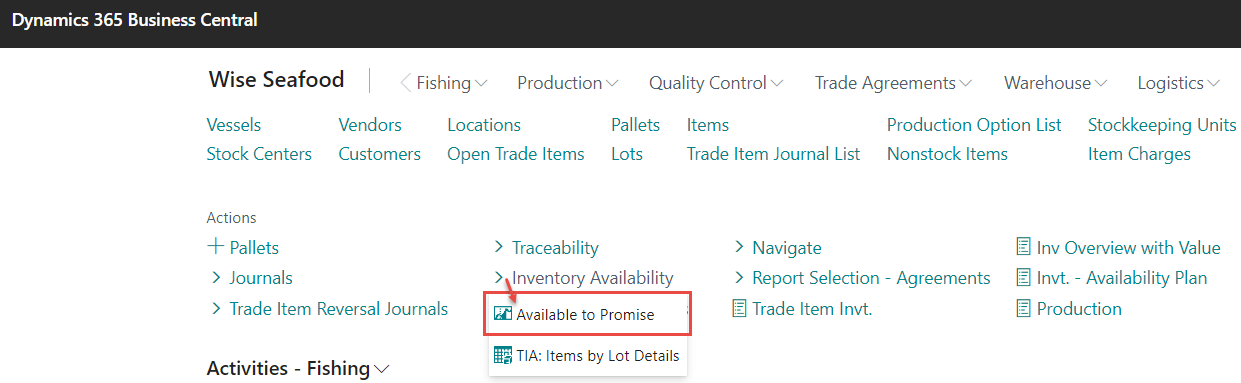
The Available to Promise function can be found under Inventory Availability on the Home Page.
Or by searching for “Available to Promise” in the Search in the Navigation Pane in the top right corner of the screen.
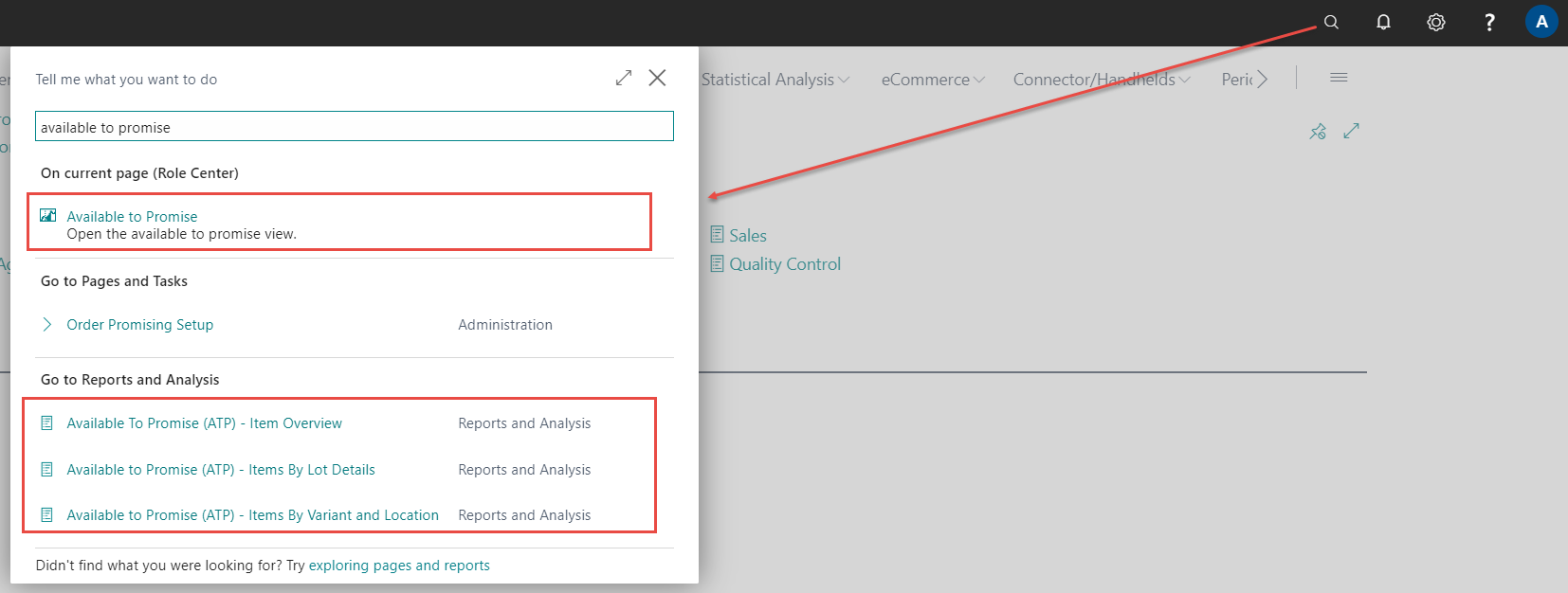
ATP - Item Overview - is accumulated by each item without specific details, providing more compact overview of items availability.
ATP - Item by Lot Details - grouped by lots.
ATP - Items by Variant and Location - view shows its figures grouped by item, variant and location.