
This document describes the Trade Items to Post page in WiseFish: what it shows, how its entries are posted to BC inventory, and what to do when an entry cannot be posted.
What the page shows
Trade items are always posted in WiseFish first. The posting to BC inventory (item ledger and G/L) follows, either right after the trade item posting or later. Trade Items to Post lists the trade item postings that are not yet posted to BC inventory. An entry stays on the page until its BC inventory posting succeeds.

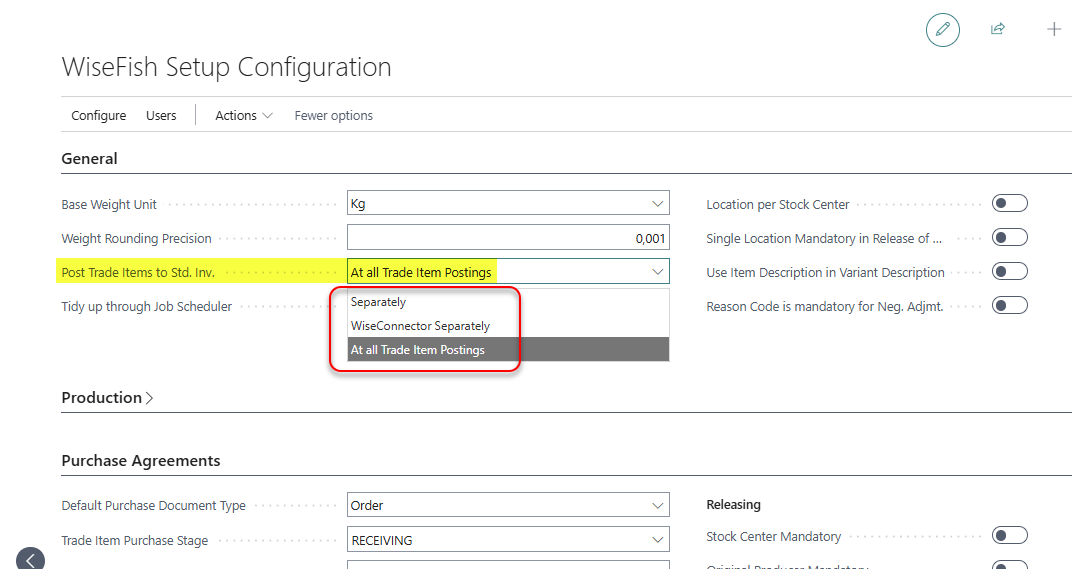
When the BC inventory posting happens is decided by Post Trade Items to Std. Inv. in WiseFish Setup:
-
At all Trade Item Postings: BC inventory is posted right after each trade item posting, for example after a trade item journal is posted. Entries only stay on the page when that posting could not be completed.
-
Separately or WiseConnector Separately: entries wait on the page until they are posted with Post TIs to BC Inv. or by a job queue.
The page is opened from the role centers (for example Production, Warehouse, Logistics, Sales and Trader), or with the search function (Alt+Q).
Posting the entries
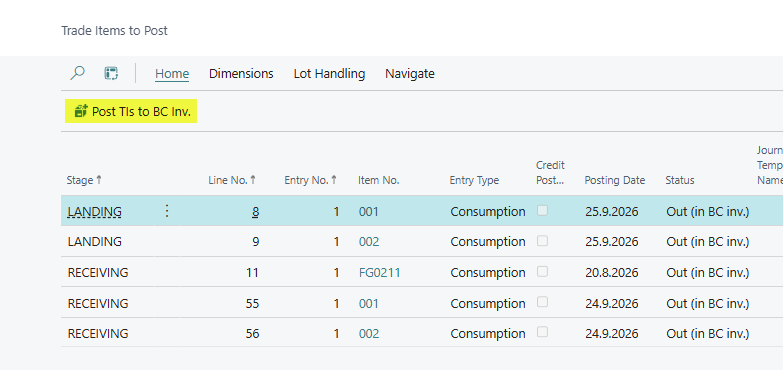
Choose Post TIs to BC Inv. (Process) to post the entries to BC inventory.
Post TIs to BC Inv. posts all entries within the current filters, not only the selected lines. Set a filter on the page first (for example on Stage, Lot No. or Posting Date) to post only some of the entries.
Inbound entries (Output and Positive Adjmt.) are posted first, then reclassifications, and then outbound entries. Cost adjustment runs after the posting.
When an entry cannot be posted
A common reason is a missing dimension, for example when DEPARTMENT is Code Mandatory on the inventory G/L account and the trade item does not have a department.
-
In the trade item journals, the dimension rules of the item, stock center, lot and inventory G/L account are checked for Output and Positive Adjmt. lines before anything is posted. A missing dimension stops the posting with an error that names the dimension and the account, and the line stays in the journal so it can be corrected there.
-
On Trade Items to Post, an Output or Positive Adjmt. entry whose dimensions are missing or wrong does not stop the whole posting. The entry is skipped, the reason is shown in Posting Error with the lot and the item (for example "Lot 22-10-L4, item 00000001: Select a Dimension Value Code for the Dimension Code DEPARTMENT for G/L Account 2120."), and the other entries are posted. A notification tells how many entries were skipped.
Other errors, and dimension errors on outbound, reclassification and credit consumption entries, still stop the posting with a message. Correct the cause and post again.
Fixing dimensions
The dimension actions are in the Dimensions group in the action bar (and under Related):
-
Dimensions changes the dimensions of the current line. For a reclassification, you choose whether to change the old or the new dimensions.
-
Set Dimensions on Selected Lines sets one or more dimensions on all selected lines at once. Use it when several lines fail on the same missing dimension.
To fix several lines:
-
Select the lines (for example all lines with the same Posting Error).
-
Choose Dimensions > Set Dimensions on Selected Lines.
-
Enter the dimension and its value (for example DEPARTMENT), and close the page.
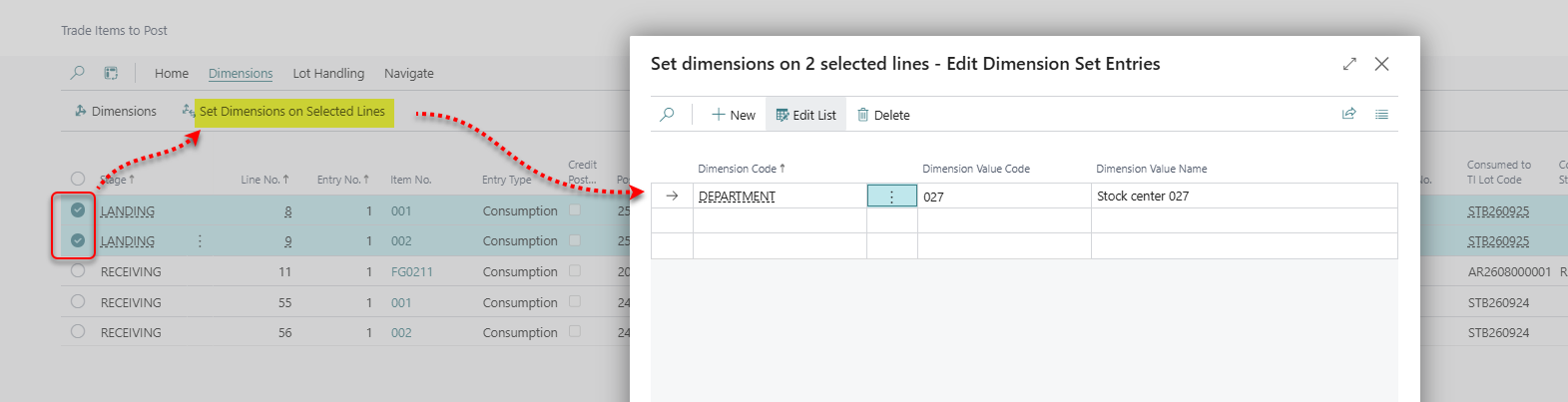
Trade Items to Post: Set Dimensions on Selected Lines
-
Choose Post TIs to BC Inv. again.
A dimension that a line already has gets the new value, and all other dimensions on the line are kept. The trade item ledger entry and the open trade item get the same dimensions, so they stay in line with the entry.
Trade Items to Post – Fields
|
Field |
Description |
|---|---|
|
Entry Type |
The kind of BC inventory posting the entry creates, for example Output, Positive Adjmt., Negative Adjmt. or Consumption. |
|
Credit Posting |
The entry reverses an earlier posting of the trade item, for example when an output is credited. It is posted with the opposite sign and applied to the item ledger entry in Applies-to ILE Entry. |
|
Posting Date |
The date the entry is posted with in BC inventory. It comes from the trade item posting, not from the work date. |
|
Status |
How far the trade item has come in BC inventory. Created: it exists in WiseFish but not yet in BC inventory. Out (in BC inv.): it has left WiseFish and is in BC inventory, but its outbound posting is still waiting. |
|
Consumed to TI Lot Code |
For consumption, the lot the trade item was consumed into. |
|
Delay Posting |
Land Fishing Trip: the entry comes from a fishing trip on a vessel that delays inventory posting. It is skipped by the posting until the delay is removed, normally when the fishing trip is landed. |
|
Applies-to ILE Entry |
For credit postings, the item ledger entry the credit is applied to. If it is blank, or the entry no longer has enough remaining quantity, a matching entry is found at posting. |
|
Posting Error |
Why the entry was skipped at the last posting, for example a missing dimension (with the lot and the item) or an RBK dimension check. |
|
Responsibility Center Code (hidden) |
Choose the field to change the responsibility center of the trade item before it is posted. |
|
Dimension Set ID (hidden) |
The dimensions the entry is posted with. When it is 0, output and positive adjustments get the default dimensions of the item, stock center and lot at posting. |
|
Shortcut dimensions (for example Department Code, Project Code) |
The values of the shortcut dimensions from General Ledger Setup, read from the entry's dimensions. Shortcut dimensions 1 and 2 are shown, 3–8 can be added with Personalize. Lines with a blank value are missing that dimension. Choose a value to open Dimensions for the line. The columns cannot be filtered or sorted; to find lines that failed on a dimension, filter on Posting Error. |
Actions
|
Action |
Description |
|---|---|
|
Post TIs to BC Inv. |
Posts all entries within the current filters to BC inventory, then runs cost adjustment. |
|
Dimensions |
Changes the dimensions of the current line. |
|
Set Dimensions on Selected Lines |
Sets one or more dimensions on all selected lines and keeps their other dimensions. |
|
Close Lots for Cost Adjustments (Lot Handling) |
Closes open lots whose ending date has passed, within the filters you set, and distributes their costs to the products. Choose Keep Lots Open to distribute without closing the lots. |
|
Distribute Contribution for Lot (Lot Handling) |
For a consumption line: distributes the contribution of the lot in Consumed to TI Lot Code. You choose either to close the lot and redistribute its product value, or to distribute and keep the lot open. |
|
Trade Item (Navigate) |
Opens the trade item ledger entry that the line belongs to. |
Teaching tips on the page explain the same fields and actions in the web client.