
Invoices are received directly from RSF through their web service and processed in Wisefish.
-
Open the Import Fish Market Invoices page.
-
Select File Process > Read File from RSF API.
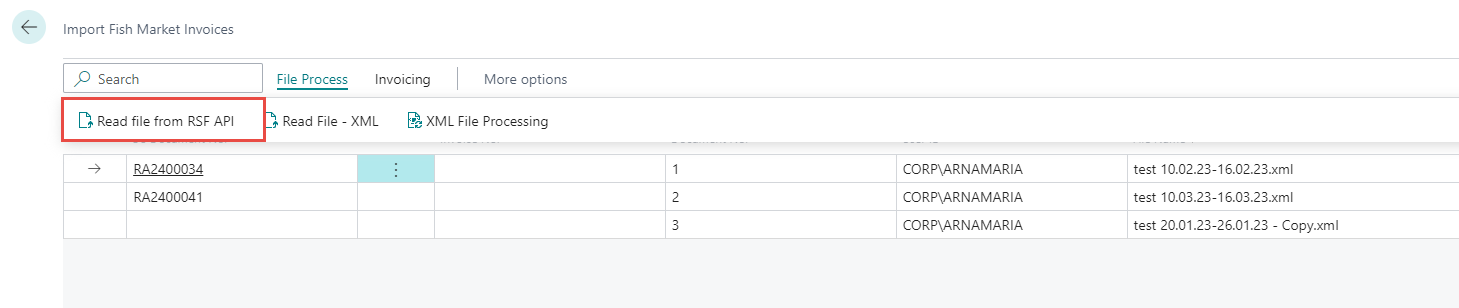
A request window opens where the following information must be entered:
-
Start Date
-
End Date
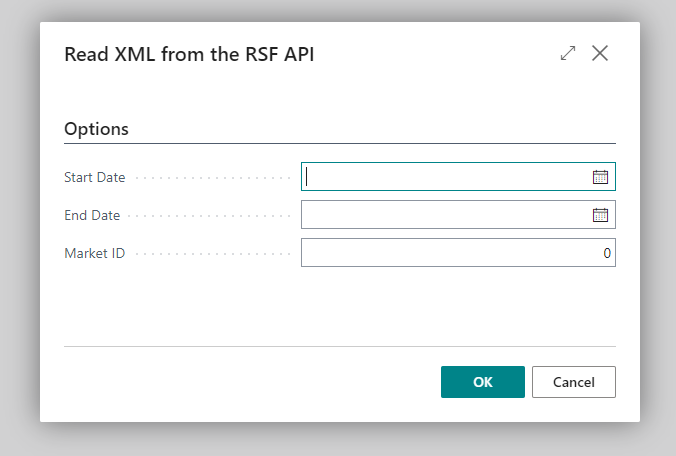
After entering the required values, click OK.
When the process completes successfully:
-
All invoices within the selected date range are retrieved from RSF.
-
The imported invoices appear as lines on the Import Fish Market Invoices page.
File Processing and the State Field
Take note of the State field, this field shows the current stage of the import process and indicates whether the data is ready to move on to the next step.
Only when the State is File Imported is the data ready for invoice creation.

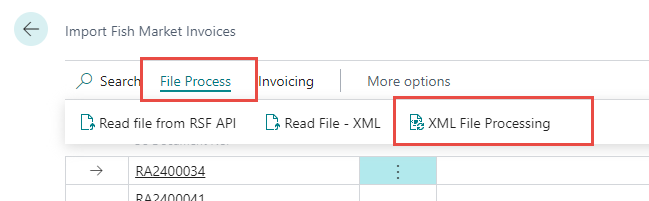
File processing is performed automatically as part of the API import, and the State moves directly to File Imported. In xml configurations, an intermediate Registering state is used, requiring manual processing before continuing, to do so click on XML File Processing
Creating the Invoice
To create the Receipt Agreement
-
Select the imported line
-
Choose Create Invoice.

When the invoice is created:
-
The status changes to Invoice Created
-
The same invoice cannot be imported again
-
A receipt agreement is created and can be handled like any other purchase document (edit, delete, or post)
Error Handling and Warping Validation
If Create Invoice returns an error, the imported data must be validated.
-
Select Invoicing > Error Check.
-
The system checks for missing or invalid warpings.

If required warpings are missing:
-
A registration window opens
-
The user can add the missing values

Warpings that require attention are shown with an empty Wise No. field.
These must be filled in before the invoice can be created.
Once all warpings are registered, the user can run Create Invoice again.