
The WF Item Worksheet lets you create or update many items at once. You fill the worksheet with one line per item, check the lines, and then migrate them into items. Migration also sets up the Wisefish units of measure, size and quality grades, and variants.
When to use it
-
Upgrades and data migration: bring items over from an older Wisefish version or another system.
-
Implementations: create or update many items at once, for example a new product range.
-
Moving items between databases or companies: File Export in one place, File Import in the other.
-
Commercial Warehouse: the Excel import of storage receipt agreements uses the worksheet to create missing items (see Item Template lines below).
Opening the worksheet
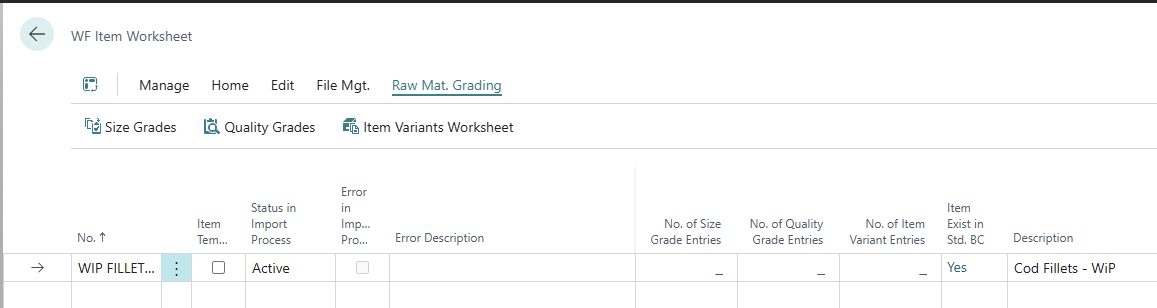
Search for WF Item Worksheet. From the worksheet you open:
-
Item Worksheet Setup (Home), how the check works.
-
Migrate Into Std. BC Item (Home), the page where you check and migrate.
-
Size Grades, Quality Grades and Item Variants Worksheet (Raw Mat. Grading), the grades and variants of the selected line.
How it works
-
Set up the worksheet, decide which fields the check requires, and whether completed lines are deleted.
-
Fill the worksheet from existing items, from a file, with Edit in Excel, or by hand.
-
Add grades and variants to the lines that need them.
-
Check the lines with Only Data Check.
-
Fix the errors and check again until all lines are Active.
-
Migrate with Data Check and Migrate. The lines become Completed (or are deleted).
1. Set up the worksheet
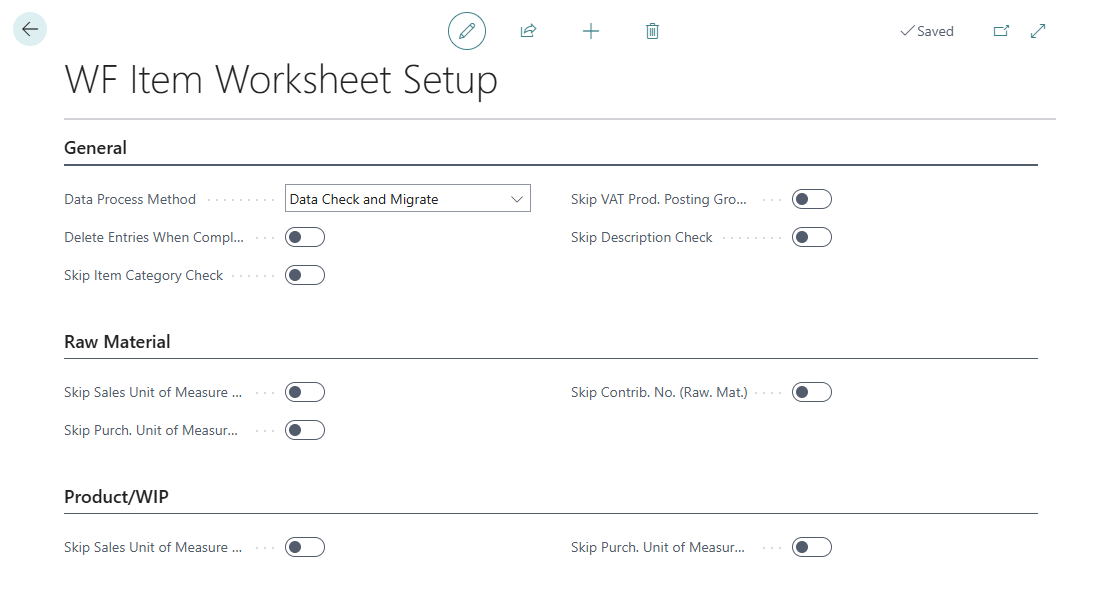
Open Item Worksheet Setup. The Skip switches decide which fields the check requires. when a switch is off, the field is required. Turn it on to make the field optional.
|
Field |
Description |
|---|---|
|
Data Process Method |
Only Data Check finds errors without changing any items. Data Check and Migrate also creates or updates items for the lines that pass. |
|
Delete Entries When Completed |
When on, lines are deleted once they are migrated. When off, they stay in the worksheet as Completed. |
|
Skip Item Category Check |
When off, each line needs an item category that exists. |
|
Skip VAT Prod. Post. Gr. Check |
When off, each line needs a valid VAT product posting group. |
|
Skip Description Check |
When off, each line needs a description. |
|
Raw Material: Skip Sales UoM Check / Skip Purch. UoM Check |
When off, raw material lines need a sales / purchase unit of measure. |
|
Raw Material: Skip Contrib. RawMat No. |
When off, WIP and product lines need a Contrib. Raw Mat. No. (the switch sits in the Raw Material group, but it applies to WIP and product lines). |
|
Product/WIP: Skip Sales UoM Check / Skip Purch. UoM Check |
When off, product and WIP lines need a sales / purchase unit of measure. |
2. Fill the worksheet
Create Entries Into Worksheet
Fills the worksheet with one line per existing item, so you can review and change items in bulk, or export them.
-
Choose Create Entries Into Worksheet.
-
If the worksheet already has lines, confirm that they may be erased. The lines, including their grades and variants, are deleted.
-
On the page Create Entries Into WF Item Worksheet - Prerequisites, set the filters. By default, items with status Quit are left out and only Raw Material, WIP and Product items are included. Clear the item type filter to include non-Wisefish items as well.
-
Choose OK. A line is created for each item.
Create Entries copies the item's fields and its unit-of-measure setup into the line, and the size and quality grades (raw materials) and variants into the grade and variant worksheets.
It also turns on
-
Skip Cost Related Assgnt. for items that have open item ledger entries, so migration doesn't change their costing method or unit cost.
-
Skip Pallet Definition Check for WIP and products without a pallet unit.
-
Non-WF Related Item for items without a Wisefish item type.
3. Add grades and variants
-
Size Grades and Quality Grades open the grade worksheets of the selected raw material line. Each line with a grade code becomes a size or quality grade of the raw material. Lines without a grade code are skipped.
-
Item Variants Worksheet opens the variants of the selected line (all item types). Each line becomes a variant of the item. Translations holds the variant's translations.
-
The columns No. of Size Grade Entries, No. of Quality Grade Entries and No. of Item Variant Entries show how many lines each worksheet line has.
-
Existing grades and variants are updated, none are deleted.
4. Check and migrate
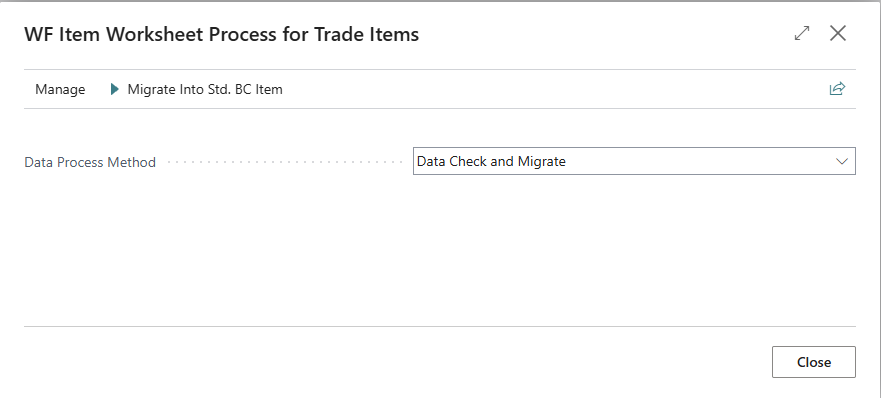
Choose Migrate Into Std. BC Item. On the page WF Item Worksheet Process for Trade Items, choose the Data Process Method and then Migrate Into Std. BC Item to run it.
-
Only Active and Error lines are processed. Error lines are reset and checked again from the start.
-
Lines are processed by item type. First non-Wisefish items, then raw materials, then WIP, then products. So a product's Contrib. Raw Mat. No. can point at a raw material that is still a line in the worksheet.
-
Each line is processed on its own. A line that fails doesn't stop the others.
|
Status in Import Process |
Meaning |
|---|---|
|
Active |
Ready to be checked and migrated. |
|
Error |
The line failed the check or the migration. Error Description says why. |
|
Completed |
The line has been migrated. It is skipped the next time. |
|
Inactive |
The line is left out. Item Template lines are always Inactive. |
5. Fix the errors
Filter on Status in Import Process = Error and read Error Description. Then fix the lines in one of these ways and run Only Data Check again:
-
Edit the line, or fill in the missing value.
-
Turn on a Skip switch in the Item Worksheet Setup when your items don't need that field.
-
Find and Replace (action group Edit). Replace a value in one field across the lines in the current view. Choose the field, Find What and Replace With, and whether to match the whole field or any part of it. Filter the worksheet first to limit which lines are changed.
-
Suggest Weight Unit of Measure as Sales and Purchase Unit of Measure on Selected Lines: sets the weight unit as sales and purchase unit on the selected lines. Completed lines that change become Active again.
What migration does to the item
-
An item with the line's No. is updated if it exists, otherwise created.
-
Most fields are copied as they are. Descriptions, type, posting groups, item category, tariff and CN codes, Gross Weight, item tracking and lot nos., Unit Price, Overhead Rate, and the Wisefish fields.
-
The units of measure are applied with the same logic as the Item Units of Measure Setup page.
-
Only the values that differ from the item are changed. A line with the item's current weight leaves its units of measure unchanged.
-
Non-Wisefish items get only the base unit.
-
With Skip Pallet Definition Check, the pallet unit isn't changed.
-
Sales and Purch. Unit of Measure are applied only when they are filled in.
-
-
Applied only in some cases:
-
Costing Method and Unit Cost not with Skip Cost Related Assgnt., on an existing item, Unit Cost only when it isn't 0.
-
Expiration Calculation only for non-Wisefish items. Wisefish items use Expiration Unit and Expiration Type.
-
-
Not copied (reference only): Standard Cost, Net Weight (comes from the units of measure), Trade Item Net Weight kg/lb (recalculated), Latin Code, Latin Description.
-
Created by migration:
-
A container unit, when Container Unit of Measure and No. of Pallets pr. Container are filled in (quantity = pallets × trade items per pallet × base units per trade item).
-
The Latin translation, from Latin Language Code and Latin Description.
-
Size and quality grades (raw materials) and variants from their worksheets.
-