
Before using the overview, define which item numbers will display in columns- Sales Daily Items
The Sales Daily Overview is a supply-versus-demand matrix that displays a overview what is available and what is committed , broken down by product (item) and filterable by date, location, stock center, lot, and salesperson. It displays up to 20 configured items, organized by location and lot for detailed visibility.
Each column in the matrix represents a product item you have configured. Each row represents a document type; harvest plans, production agreements, receipt agreements and inventory on the supply side, where as on the demand side delivery agreements are displayed. A calculated Supply – Demand row at the bottom shows the net position at a glance.
Open the Daily sale Overview from the Role Center.
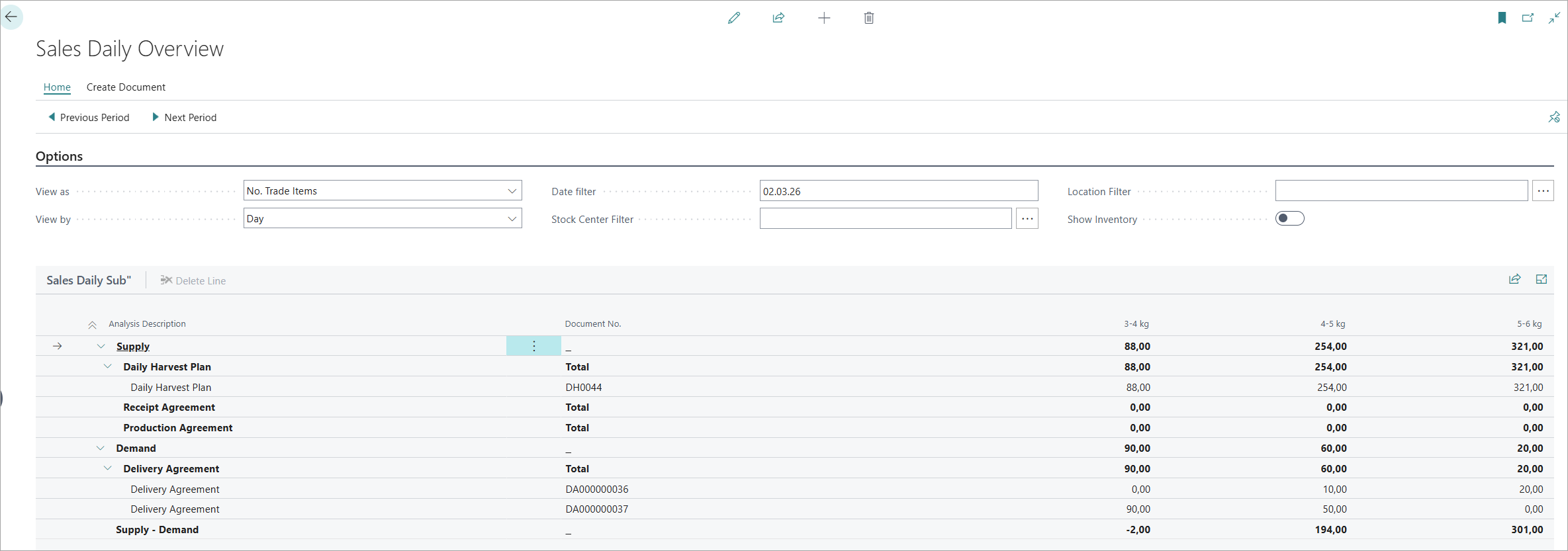
Understanding the Display:
-
Receipt Agreements: Incoming supply from receipt agreements
-
Daily Harvest Plan: Expected supply from production
-
Supply Total: Sum of inventory and incoming supply
-
Delivery Agreements: Committed demand from orders
-
Available: Supply Total minus Demand Total
Sales Daily Overview page
Filter options
The header section above the matrix contains all filter options. Every change recalculates the matrix immediately.
|
Filter |
Default |
What it does |
|---|---|---|
|
View as |
No. Trade Items |
Switches between Quantity (weight in the item's base unit) and No. Trade Items (count of individual trade items / boxes). Affects every number in the matrix. Choose based on your audience: operations use weight; logistics use box counts. |
|
View by |
Day |
Sets the time granularity — Day, Week, Month, Quarter, or Year. Combined with the Previous/Next Period actions, this lets you step forward and backward through time. For daily operations, keep it on Day. For trend planning, use Week or Month. |
|
Date Filter |
Today (WorkDate) |
Restricts all document lines to those falling within the specified date range. Use standard BC filter syntax: a single date ( |
|
Stock Center Filter |
All |
Restricts the matrix to one or more stock centers (farm sites / processing facilities). Use the assist-edit button to pick from a list. Useful in multi-site operations where each site manages its own supply. |
|
Location Filter |
All |
Restricts to specific warehouse/inventory locations. Use the assist-edit button to select. Affects inventory lines and document lines that carry a location code. |
|
Lot No. Filter |
All |
Restricts to a specific farming lot. Hidden by default — use personalisation to show it if needed. Useful for lot-level supply/demand tracking. |
|
Salesperson Filter |
All |
Restricts delivery agreements and receipt agreements to those assigned to selected salespersons. Hidden by default. Useful for individual or team performance views. |
|
Show Inventory |
Off |
When enabled, adds Inventory and Production Lot rows to the top of the supply section. Shows current open trade item ledger entry quantities, helping you compare on-hand stock against planned supply and demand. |
The matrix
The matrix is a hierarchical tree of rows. Each row shows quantities for each configured item column. Here is a simplified example with two items (Salmon 4-5kg and Salmon 5-6kg):
|
Description |
Document No. |
Salmon 4-5kg |
Salmon 5-6kg |
|---|---|---|---|
|
Supply |
|||
|
Inventory |
|
1,200 |
800 |
|
Production Lot |
|
3,400 |
2,100 |
|
Production Lot |
LOT-0042 |
2,000 |
1,400 |
|
Production Lot |
LOT-0043 |
1,400 |
700 |
|
Daily Harvest Plan |
|
4,500 |
3,000 |
|
Daily Harvest Plan |
DHP-00021 |
4,500 |
3,000 |
|
Receipt Agreement |
|
500 |
0 |
|
Production Agreement |
|
1,000 |
600 |
|
Demand |
|||
|
Delivery Agreement |
|
4,200 |
2,800 |
|
Delivery Agreement |
DA-00215 |
2,500 |
1,600 |
|
Delivery Agreement |
DA-00216 |
1,700 |
1,200 |
|
Supply – Demand |
5,200 |
-100 |
|
The green Supply – Demand row is positive when supply exceeds demand (surplus) and turns red when demand exceeds supply (shortfall). In the example above, Salmon 5-6kg has a shortfall of 100 units — you may need to adjust a harvest plan or delivery agreement.
Row types
|
Row |
Level |
Data source |
Date field used |
|---|---|---|---|
|
Inventory |
Section total |
Open Trade Item Ledger Entries (Status ≠ Closed) |
No date filter — shows all open inventory |
|
Production Lot |
Per lot |
Trade Item Ledger Entries at the Default Production Lot Stage |
Posting Date (Inbound) |
|
Daily Harvest Plan |
Per plan |
Released or Open Daily Harvest Plan lines |
Harvest Date on the plan header |
|
Receipt Agreement |
Per agreement |
Released or Open Purchase Agreement lines (Type = Receipt) |
Expected Receipt Date on line |
|
Production Agreement |
Per agreement |
Released or Firm Planned Production Agreements |
Due Date on line |
|
Delivery Agreement |
Per agreement |
Released or Open Sales Agreement lines (Type = Delivery) |
Shipment Date on header |
|
Supply – Demand |
Total |
Calculated: sum of all supply rows minus sum of all demand rows |
— |
⚠️ Inventory rows require Show Inventory = On
The Inventory and Production Lot rows are hidden by default. Toggle Show Inventory in the filter options to add them. On large datasets this may slow down the refresh slightly, so it is off by default.
Document drill-down
On any row that shows a Document No., click the assist-edit button (or press F8) to open the source document directly — the Daily Harvest Plan card, Delivery Agreement card, Production Agreement card, Receipt Agreement card, or Lot card. This lets you act immediately without leaving the overview.
Actions
Navigation actions
|
Action |
What it does |
|---|---|
|
Previous Period |
Moves the Date Filter one period backward (based on the View by setting). If View by = Day, moves to yesterday. If View by = Week, moves back one week. |
|
Next Period |
Moves the Date Filter one period forward. |
Create Document actions
Use these when the overview reveals a gap or opportunity that requires immediate action — without leaving the page.
|
Action |
What it creates |
When to use it |
|---|---|---|
|
Create Delivery Agreement |
A new Delivery Agreement (Sales Agreement, type Delivery), opened directly for editing. |
When you see available supply (positive Supply – Demand) and want to commit it to a customer immediately. |
|
Create Production Agreement |
A new Production Agreement in Firm Planned status, opened directly. |
When harvest plans show incoming fish that needs production instructions assigned. |
|
Create Receipt Agreement |
A new Receipt Agreement (Purchase Agreement, type Receipt), opened directly. |
When the overview shows a supply shortfall and you need to plan incoming material from an external source. |