
Sales Daily Items configuration sets which products appear in the Sales Daily Overview for quick access and monitoring.
Before the overview can show any columns, an user must define which items appear as columns. This is done once in Sales Daily Items.
Navigate to Sales Daily Items setup. You can add up to 20 items. The user setup the data into the fields, refer to table below to know more about each fields.

Fields Descriptions
|
Field |
Required |
What to Input |
|---|---|---|
|
Column Id |
Required |
A number from 1 to 20 that determines this item's column position in the overview. Each Column Id must be unique. The overview supports a maximum of 20 columns. |
|
Item No. |
Required |
The item to display in this column. The lookup is filtered to items that have the Default Raw Material set in Farming Setup, and a Size Grade and Quality Grade assigned — so only graded/sized products can be selected. |
|
Description |
Optional |
A display label. If Use Desc. For Column Header is on, this text replaces the item number as the column heading in the overview. |
|
Use Desc. For Column Header |
Optional |
When ticked, the Description is used as the column heading instead of the item number. Useful for showing a friendly product name (e.g. "Salmon 4-5kg") rather than an internal item code. |
|
Visible |
Optional |
Controls whether this column is shown in the overview. Defaults to true. Set to false to temporarily hide a column without deleting the setup record |
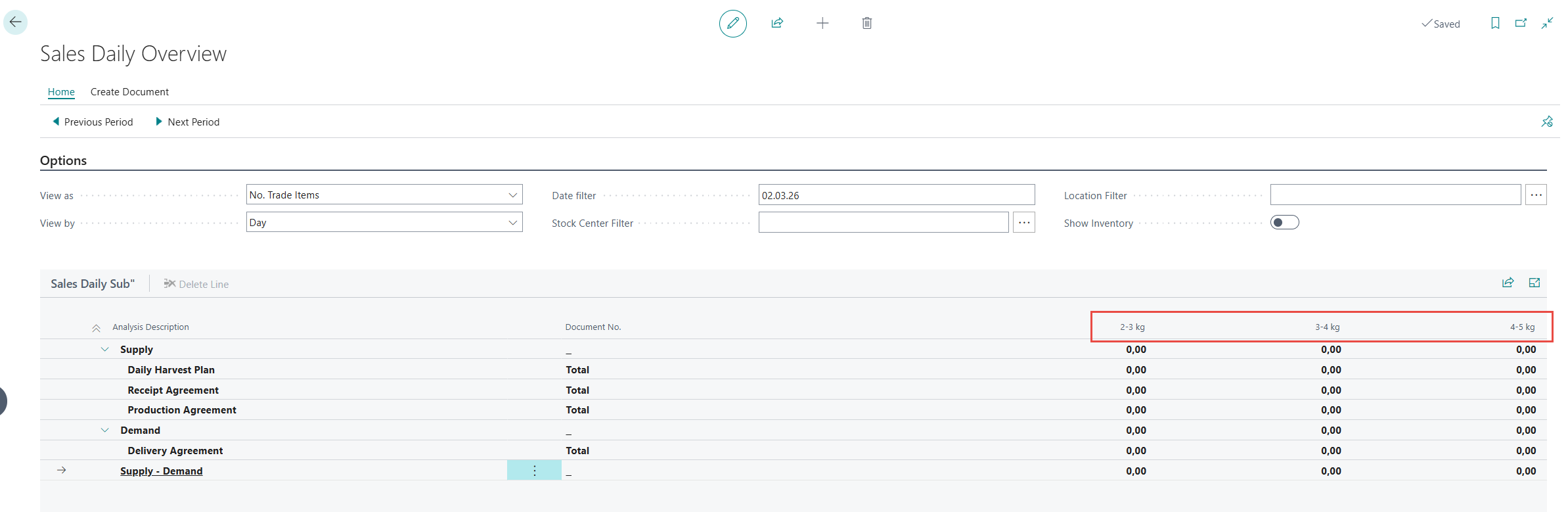
Based upon the configurations done, the items appear as columns in the Sales Daily Overview as below.
Item lookup rules
When you click the lookup on Item No., the system applies three filters automatically:
-
Item must have Contrib. Raw Material No. = the Default Raw Material set in Farming Setup.
-
Item must have a RM Size Grade set (not blank).
-
Item must have a RM Quality Grade set (not blank).
This ensures only properly graded product items appear as columns. If an item you expect to see is missing from the lookup, check that it has both Size Grade and Quality Grade populated on its item card.
Item substitutions
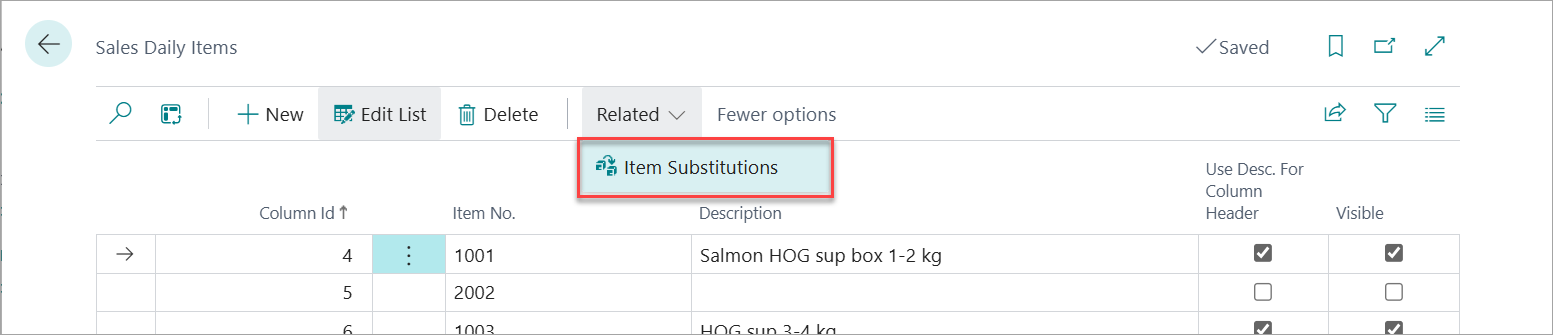
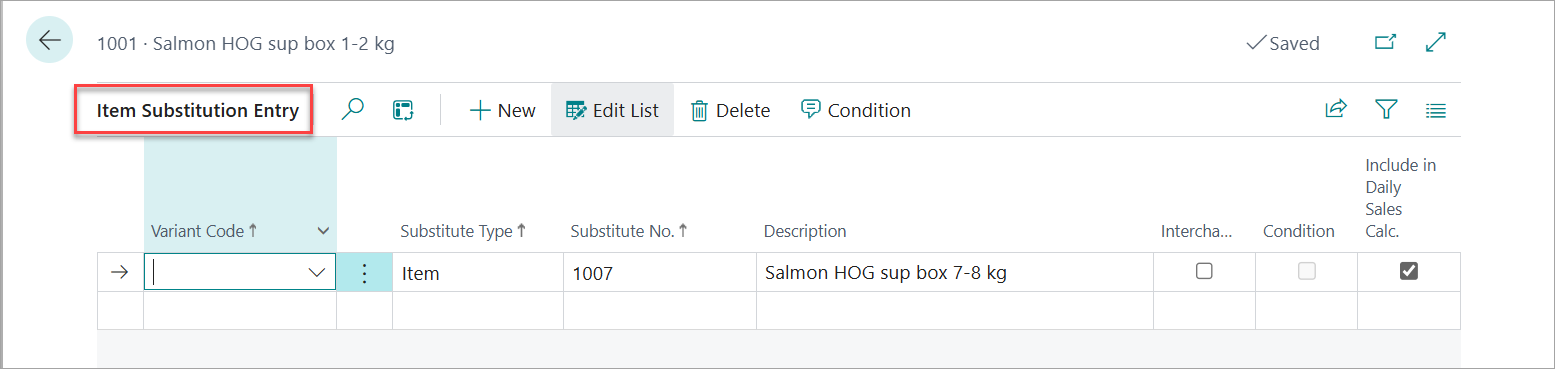
From the Sales Daily Items list, use the Item Substitutions action to open the standard BC Item Substitution Entry page for the selected item.
This is where you define which substitute items should be rolled up into this column's quantities .
Refer Item Substitutions to know details about how Item Substitution works.