
The Farming Setup page is the central configuration page for the Wisefish Farming module. It controls system-wide defaults for farming lots, worksheets, harvest plans, connector integration, and processing worksheets. This setup must be completed before using any farming functionality.
Navigation: Role Center → Administration → Farming Setup
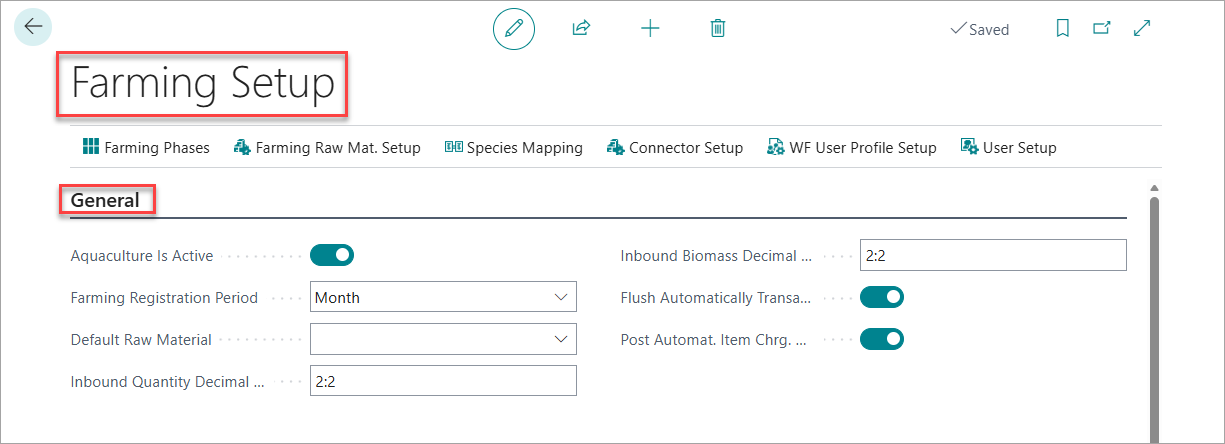
To perform the Farming Setup, navigate to the Farming Setup page through Role center or General Search. You will see the Farming Setup fields are categorized into different sections as follows:
General
This section controls the core activation and precision settings for the module.
|
Field |
Description |
|---|---|
|
Aquaculture Is Active |
Enables aquaculture module features. Must be active to use farming functions. |
|
Farming Registration Period |
Defines the default period length for farming registrations in the worksheet. Controls how farming activity is grouped by time (e.g., Month). |
|
Default Raw Material |
Default raw material item for farming operations (e.g., SALMON). |
|
Inbound Quantity Decimal Places |
Number of decimal places for inbound quantity registrations (e.g., stocking, mortality, harvesting). The default |
|
Inbound Biomass Decimal Places |
Number of decimal places for inbound biomass display (e.g., 2:2). |
|
Flush Automatically Transactions |
When enabled, automatically flushes production, consumption, and negative adjustment connector transactions after posting the farming worksheet |
|
Post Automat. Item Chrg. Cost Distrib. Doc. |
When enabled, automatically posts item charge cost distribution documents at the final stage of indirect cost worksheet posting. |
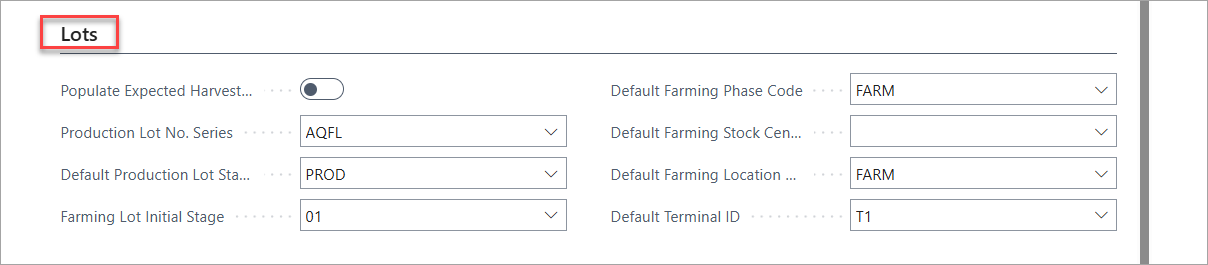
Lots
This section defines defaults related to farming lot creation and lifecycle management.
|
Field |
Description |
|---|---|
|
Populate Expected Harvest Yield to Lot |
When enabled, automatically populates the expected harvest yield percentage on the farming lot at registration. |
|
Production Lot No. Series |
Number series used for automatically generating production lot numbers (e.g., |
|
Default Production Lot Stage |
The default stage assigned when creating a new production lot from a farming lot (e.g., Processing Stage 2). |
|
Farming Lot Initial Stage |
Initial stage code for new farming lots (e.g., 01). |
|
Default Farming Phase Code |
Default farming phase for new lots (e.g., FARM). |
|
Default Farming Stock Center Code |
Default stock center for farming operations |
|
Default Farming Location Code |
Default location for farming operations |
|
Default Terminal ID |
Terminal assigned for production/consumption transactions (e.g., T1). |
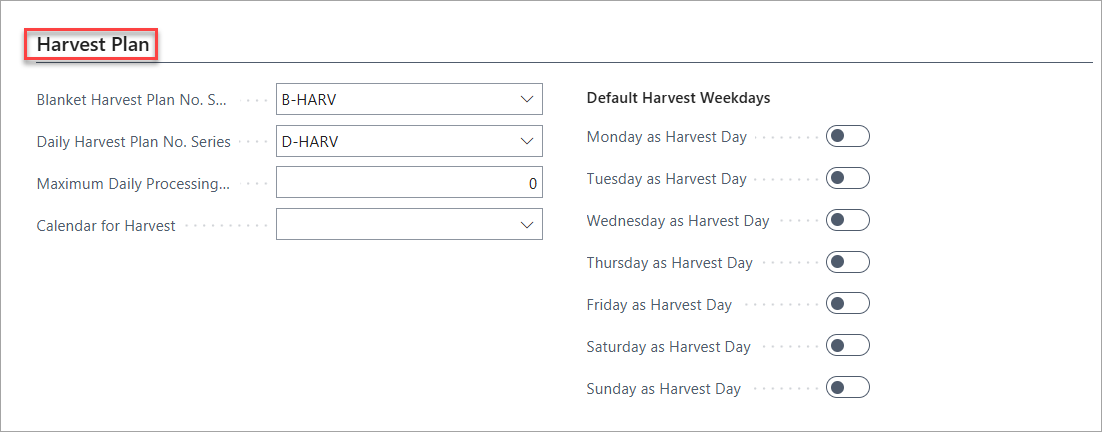
Harvest Plan
This section configures number series, capacity limits, and default harvest calendar settings for blanket and daily harvest planning.
|
Field |
Description |
|---|---|
|
Blanket Harvest Plan No. Series |
Number series for blanket harvest plans (e.g., BHP). |
|
Daily Harvest Plan No. Series |
Number series for daily harvest plans (e.g., DHP). |
|
Maximum Daily Processing Capacity |
The maximum quantity (kg) that can be processed in a single day. Used to validate daily harvest plan quantities against plant capacity |
|
Calendar for Harvest |
A Business Central base calendar defining working days for harvest planning. Non-working days from this calendar are excluded when proposing harvest dates |
|
Monday as Harvest Day |
Marks Monday as a default available harvest weekday |
|
Tuesday as Harvest Day |
Marks Tuesday as a default available harvest weekday |
|
Wednesday as Harvest Day |
Marks Wednesday as a default available harvest weekday |
|
Thursday as Harvest Day |
Marks Thursday as a default available harvest weekday |
|
Friday as Harvest Day |
Marks Friday as a default available harvest weekday |
|
Saturday as Harvest Day |
Marks Saturday as a default available harvest weekday |
|
Sunday as Harvest Day |
Marks Sunday as a default available harvest weekday |
Suggestions for Farming Worksheet
This section controls which activity types are included when the Suggest Lines action is run on the Farming Worksheet. Each toggle enables or disables automatic line suggestion for that activity across all open lots.

|
Field |
Description |
|---|---|
|
Suggest Stocking |
When enabled, the Suggest Lines action will propose a stocking line for each open farming lot |
|
Suggest Standing Stock |
When enabled, suggests a standing stock (biomass measurement) line for each open farming lot |
|
Suggest Mortality |
When enabled, suggests a mortality line for each open farming lot |
|
Suggest Harvest |
When enabled, suggests a harvest line based on lot maturity, weight targets, and harvest plans |
|
Suggest Feed |
When enabled, suggests a feed consumption line for each open farming lot |
|
Suggest Medicine |
When enabled, suggests a medicine/treatment line for each open farming lot |
Inbound
This section controls which activity types can be imported into the Farming Worksheet using the Get Inbound action. Inbound data originates from the external connector . Each toggle must be enabled for the corresponding activity type to be imported.

|
Field |
Description |
|---|---|
|
Use Inbound Stocking |
Allows stocking registrations to be imported from the Stock Inbound Summary via the connector |
|
Use Inbound Standing Stock |
Allows standing stock (biomass) registrations to be imported from the Stock Inbound Summary |
|
Use Inbound Mortality |
Allows mortality registrations to be imported from the Stock Inbound Summary |
|
Use Inbound Harvest |
Allows harvest registrations to be imported from the Stock Inbound Summary |
|
Use Inbound Feed |
Allows feed consumption registrations to be imported from the Feed/Med Inbound Summary |
|
Use Inbound Medicine |
Allows medicine/treatment registrations to be imported from the Feed/Med Inbound Summary |
Consumption Worksheet
This section controls defaults for the Consumption Worksheet, which records raw material input during processing.

|
Field |
Description |
|---|---|
|
Default Stage for Positive Adjustment |
The default lot stage applied when creating positive adjustment lines on the consumption worksheet. |
Output Worksheet
This section controls defaults for the Output Worksheet, which records finished product output after processing.

|
Field |
Description |
|---|---|
|
Lot Output Worksheet No. Series |
If filled in, Check Worksheet creates a new production lot from this number series for lines with no Lot Code (Output). If blank, every line needs a Lot Code (Output) and Stage Code (Output). |
|
Lot Output Worksheet Default Stage |
The default Stage given to the created lot and its lines. Required when the No. Series is filled in. |
|
Output Worksheet Posting |
Complete: posts the output, then a positive adjustment of the harvest item and its consumption into the output lot, based on Output Yield %.
|
Top Menu Bar Functions
The top menu bar in the Farming Setup page provides quick access to related setup and configuration pages. Use these menu options to quickly navigate to related configuration areas and ensure all necessary data is set up for aquaculture operations.

The main menu options are:
|
Action |
Description |
|---|---|
|
Farming Phases |
Defines the biological lifecycle phases a lot passes through (e.g., Juvenile, On-growing). Phases are used to filter worksheet entries and group reporting. |
|
Farming Raw Mat. Setup |
Maps each raw material item to its corresponding Stocking, Standing Stock, Mortality, and Harvesting items. This is essential configuration for all farming lot calculations. |
|
Species Mapping |
Maps external species identifiers (from FishTalk or other connectors) to raw material items in Business Central. Ensures correct item selection during automated import. |
|
WF User Profile Setup |
Defines per-user defaults such as preferred stock center, location, and worksheet filters, so users do not need to fill in these values manually each time. |
|
User Setup |
Standard Business Central user setup — configures posting date restrictions and other per-user controls. |
|
Connector Setup |
Configures the integration connection to external farming software (FishTalk or Mercatus), including credentials, schedule, and import options per site. |
3. Additional Setup Steps
Farming Locations:
-
Set up all physical locations where farming activities occur (e.g., sea cages, tanks).
-
Go to Locations and create entries for each farming site.
Farming Items:
-
Define items representing fish species or stock types.
-
Go to Items and create or update relevant item cards.
Stock Centers:
-
Set up stock centers to group locations for reporting and management.
-
Go to Stock Centers and create entries as needed.
4. User Permissions
Assign appropriate permissions to users who will manage farming data. Use the provided permission sets or create custom ones as required.
5. Next Steps
Once the Farming Setup is complete, you can:
-
Register new farming lots
-
Plan and execute harvests
-
Consumption and Production of Harvest
-
Create Sales handle Logistics
-
Maintain full traceability from stocking to harvest