
Sometimes two physically different items represent the same commercial product for daily planning purposes. For example, Salmon HOG Grade A and Salmon HOG Grade B might both be sold as general "salmon HOG" and you want to see their combined supply and demand in a single column rather than managing two separate columns.
The item substitution feature lets you define this relationship so the substitute item's quantities are automatically folded into the parent item's column.
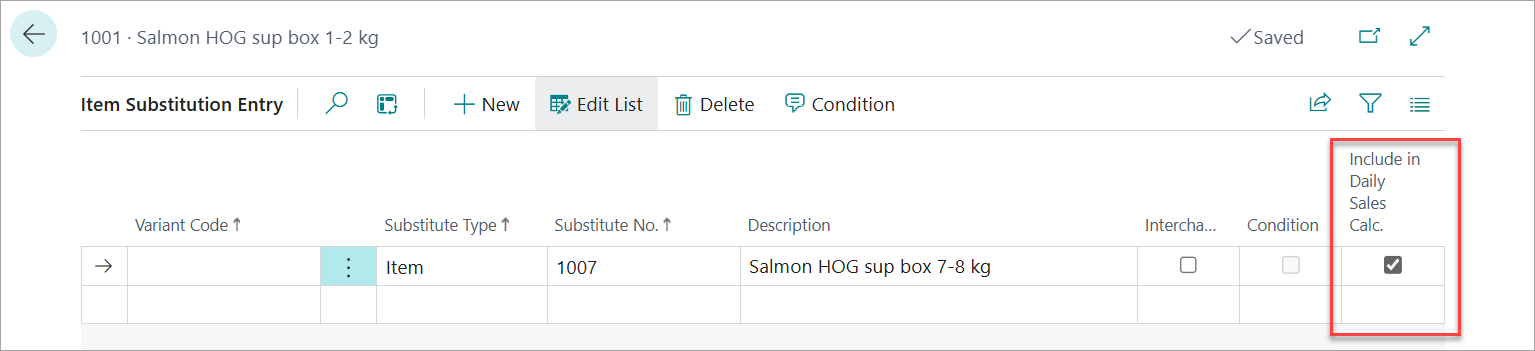
A field Include Daily Sales in calculation has been introduced to standard BC Item Substitution table which is by default OFF. When this field is checked the substitute item's quantities are added into the parent item's column on the Sales Daily Overview.
How it works
The calculation runs in two directions depending on the data source:
Forward lookup — most document types
Used for: Inventory, Daily Harvest Plans, Receipt Agreements, Production Agreements, Delivery Agreements.
For each column item (the parent), after summing its own quantities, the system also finds all item substitutions where the column item is the parent and the flag is on — then adds the substitute's quantities into the same column.
Reverse lookup — Production Lot rows
Used for: Production Lot rows only.
Here the starting point is a ledger entry's item code. The system checks whether that item is registered as a substitute for any column item.
If Parent Column is A:
-
Ledger entry item B → find substitution where Substitute No. = B and flag = true → add quantities to column item A (the parent).
This handles production lots that were posted using the substitute's item code but should be reported under the parent item in the planning view.
ℹ️ Display only — no documents are changed
The substitution logic is purely a display aggregation. No agreement, ledger entry, or document is ever modified. Prices, item codes, and all downstream processes remain exactly as entered.
Example
Your Sales Daily Items setup has one column: Column 1 = Salmon HOG (item SALM-HOG-A).
In practice, some harvest plans and delivery agreements use SALM-HOG-B (Grade B) instead. You want both grades shown together in the Salmon HOG column.
Setup steps:
-
Open Sales Daily Items, select the Salmon HOG row.
-
Click Item Substitutions.
-
Add a line: No. = SALM-HOG-A, Substitute Type = Item, Substitute No. = SALM-HOG-B.
-
Tick Include in Daily Sales Calc. on that line.
Result: The overview now sums both SALM-HOG-A and SALM-HOG-B quantities into the single Salmon HOG column — across inventory, harvest plans, agreements, and delivery agreements.
💡 Multiple substitutes per column
You can add as many substitution lines as needed for one parent item — each flagged independently. A single column can aggregate 3, 4, or more physical item codes into one planning view. For example: Grade A, Grade B, and Grade C all rolled into a single "Salmon HOG" column.