
Every transaction sent in through the API needs to belong to a specific MES Terminal. Therefore a terminal needs to be created for every system/machine sending in data.
Settings on the MES Terminal include FOR EXAMPLE:
-
Default location on transactions
-
Default stock center on transactions
-
Default Stage on transactions
-
Control various functionality such as…
-
if production lot is to be imported from the MES (instead of needing to create in Wisefish beforehand)
-
if pallet barcodes are to be imported from the MES (instead of letting BC generate barcodes)
-
etc.
-
The page is devided into the following tabs. Below is a list of field on every tab:
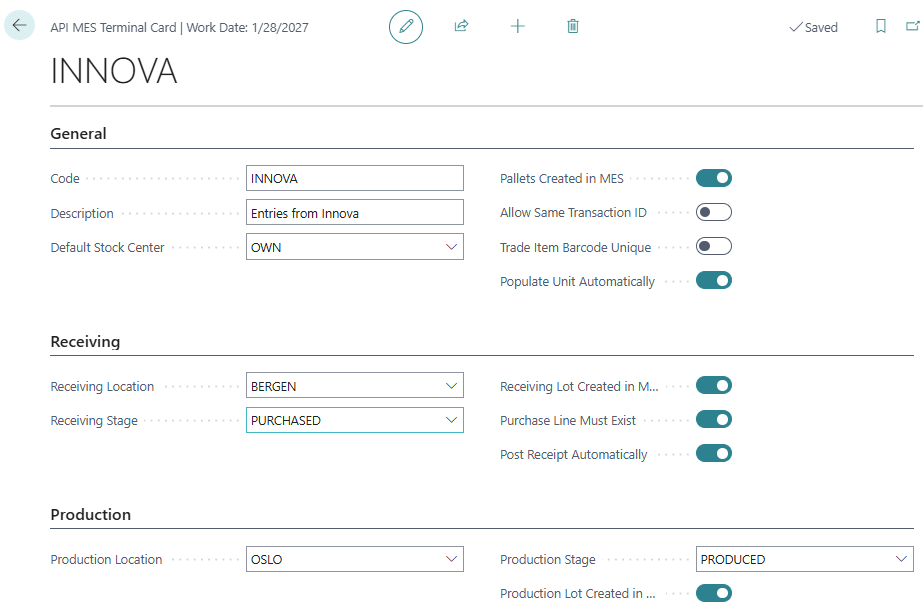
Tab: General
|
Field Name |
Description |
|
|---|---|---|
|
1 |
Code |
Unique identification of this terminal |
|
2 |
Description |
Only for information. This value is not copied anywhere. |
|
3 |
Require Stock Center |
Put a checkmark here, if Stock Center should always be set when a new transaction is created. It can either be given with property in the API request or retrieved from default values. |
|
4 |
Default Stock Center |
If Stock Center is not given in transactions, this value is set as default. |
|
5 |
Default Stage |
If Stage is not given in a transaction API request, this value is set as default generally, but for receipt and production there is a specific default stage field. |
|
6 |
Pallets Created in MES |
Put a checkmark here if the barcodes have been created in MES before the transaction arrives. Then the Pallet list in BC will just be updated when the transaction is processed. If there is no checkmark, the pallet must exist at the time of posting, else the transaction stops on error. |
|
7 |
Allow Same Transaction ID |
If checked, the system will allow posting Transactions even if the same ID already exists in Trade Item Ledger Entries. If not checked, the error handler will check if there is a Trade Item Ledger Entry with this transaction ID in the WP Connection field. |
|
8 |
Disable Ext. Reference Check |
If checked, the system will not check if the External Reference already has been used in a previous MES Transaction. |
|
9 |
Trade Item Barcode Unique |
Put a checkmark here if the Trade Item Barcode (often Packet ID) must be unique. This applies for Receipts and Output transactions. The check is only done on Open Trade Items. |
|
10 |
Populate Unit Automatically |
When a Transaction Line is created with blank Unit of Measure, the field is populated either with the base unit of a standard item or a Trade Item Base Unit for a Trade Item (Wisefish). |
Tab: Receiving
|
Field Name |
Description |
|
|---|---|---|
|
1 |
Receiving Location |
If Location is not given in a receiving transaction API request, this value is set as default |
|
2 |
Receiving Stage |
If Stage is not given in a receiving transaction API request, this value is set as default |
|
3 |
Receiving Lot Created in MES |
If items should be received on the lot given in the MES transaction, but not on a lot created at the time of posting. |
|
4 |
Purchase Line Must Exist |
If the transaction is linked to a purchase agreement line, the purchase line must exist for the transaction to be processed. If the field is not checked, the line will be created and then updated according to received quantity. This applies to both Receipt Agreements and standard Purchase Orders. |
|
5 |
Post Receipt Automatically |
For every receipt transaction, post the received items to inventory. |
Tab: Production
|
Field Name |
Description |
|
|---|---|---|
|
1 |
Production Location |
If Location is not given in a production transaction API request, this value is set as default |
|
2 |
Production Stage |
If Stage is not given in a production transaction API request, this value is set as default |
|
3 |
Production Lot Created in MES |
Put a checkmark here to automatically create every production lot received from the MES. |
Tab: Shipping & Reservation
|
Field Name |
Description |
|
|---|---|---|
|
1 |
Shipping Location |
If Location is not given in a shipping transaction API request, this value is set as default |
|
2 |
Sales Line No. is Mandatory |
Put a checkmark, to let a sales line with missing "Reserve To Doc. Line No." stop on error. |
|
3 |
Create missing Sales Lines |
Put a checkmark here, to allow the processor to create missing sales lines. This applies to both Sales Orders and standard Sales Agreements. |
|
4 |
Disable Reservation |
Put a checkmark here to disable TI reservation for sales lines. This applies to both Sales Orders and standard Sales Agreements. If this is checked, the line does not need to contain Lot, but it still needs to contain Item No. |
|
5 |
Sync Quantity to Reserved |
Put a checkmark here to sync the quantity (No. of Trade Items) to the reserved quantity, after processing every transaction. |
|
6 |
Post Shipment Automatically |
For every shipment transaction, post the shipped items out of inventory. |
Terminal Information fields
|
Field Name |
Description |
|
|---|---|---|
|
1 |
Terminal Functions |
Number of terminal functions applied to this terminal. This is just a counter from table Terminal Functions. |
|
2 |
Terminal Data Filters |
This is just a counter from table Terminal Functions. This is just a counter from table Terminal Functions. |