
This page is about the GUI side, i.e. the MES Transactions page within BC which is the one that keeps the transactions imported from the MES.
This covers…
-
how to process these entries and what will the posting method do
-
how to see if there are some transactions on error
-
how to archive already processed entries
Setup
There is not much setup to do, in order to start using the MES Transactions.
MES Terminal
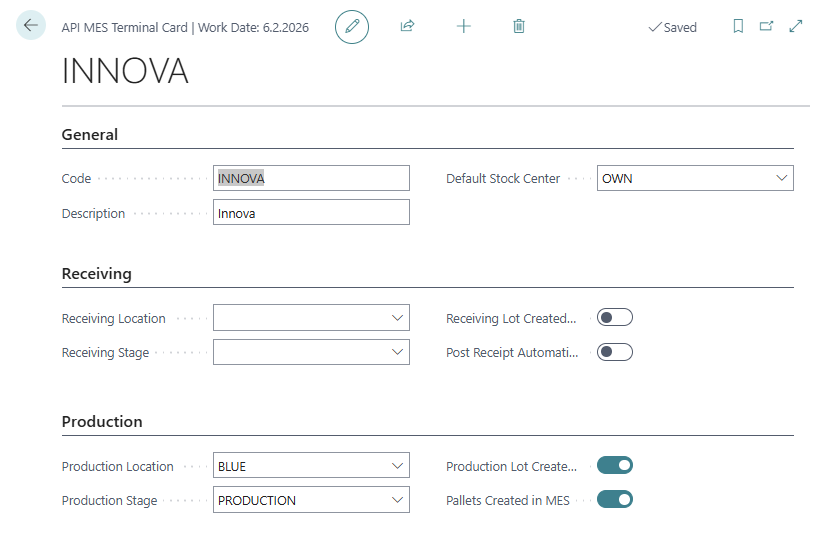
Every transaction sent in through the API needs to belong to a specific MES Terminal. Therefore a terminal needs to be created for every system/machine sending in data.
Settings on the MES Terminal include:
-
Default location on transactions
-
Default stock center on transactions
-
Default Stage on transactions
-
Control if production lot is to be imported from the MES (instead of needing to create in Wisefish beforehand)
-
Control if pallet barcodes are to be imported from the MES (instead of letting BC generate barcodes)
User Profile
As usually in Wisefish, defaults can be set for following fields on User Profile card:
-
Location
-
Stock Center
-
Stage
Page: MES Transactions
The MES Transactions get all entries imported from the MES with API endpoints.
This is the only page that the user needs to work with on a daily basis.
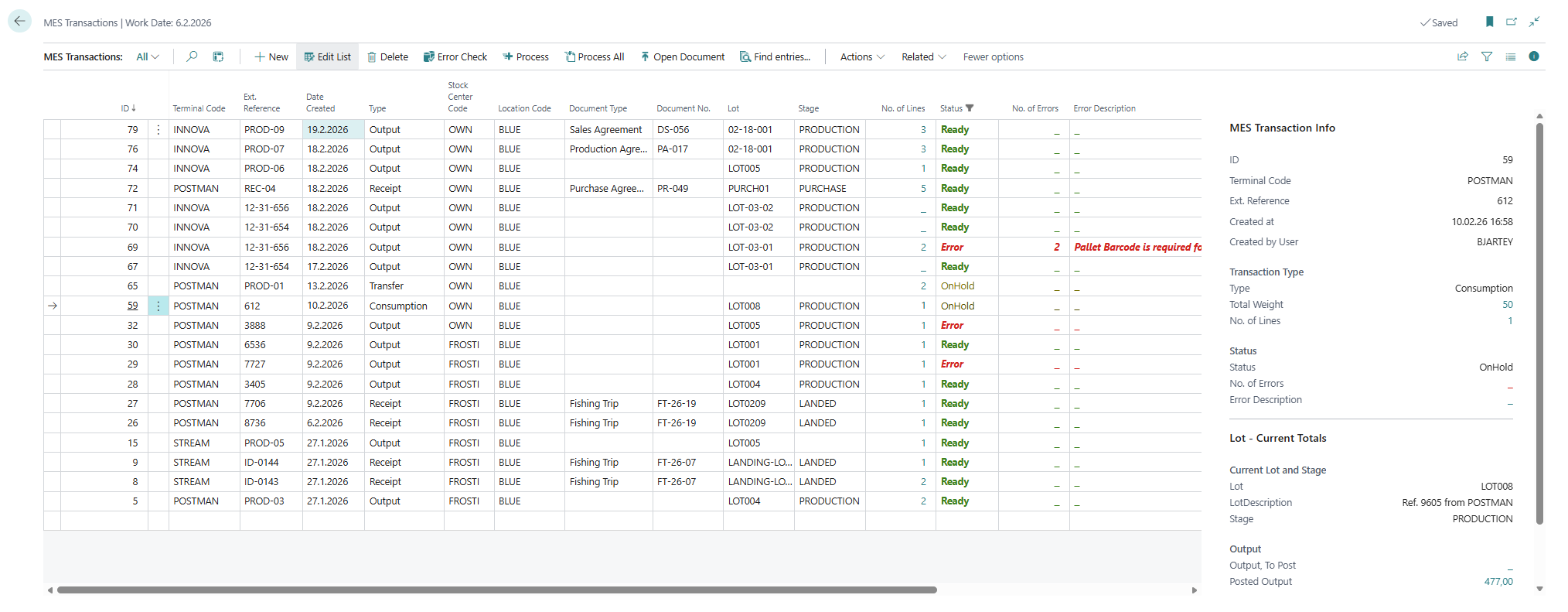
This following overview mainly lists the columns visible to the user through both the main page and the child page that holds the MES Transaction Lines.
Field List: Transaction
The following is a list of the columns in the MES Transactions page.
|
Field Name |
Type |
Description |
|
|---|---|---|---|
|
1 |
ID |
BigInteger |
The unique ID of this transaction. No other transaction can have the same ID. In the archived transactions, there should also not be any transaction with this ID. After posting, this value will become a connection to the posted trade item, because it will be inherited into field “WP Connection PK” in Open Trade Item and Trade Item Ledger Entry. |
|
2 |
Date Created |
Date |
The date when the entry was created. The exact time of creation can be shown in the info box on the right side. It is also possible to add the column that contains the systemCreatedAt, which shows both date and time. |
|
3 |
Terminal Code |
Code 10 |
This field will tell from which manufacturing unit this entry comes from. The MES Terminal Card contains multiple settings that control which data is required and also how this entry will be posted. |
|
4 |
Ext. Reference |
Code 10 |
This field contains a reference from the MES system. When data is created, the sender is required to put it’s own reference on every transaction. Within each Terminal, the same reference can only be used once. |
|
5 |
Type |
Option |
This is the field that controls how this transaction will be posted, and therefore also how it will be checked for data integrity and errors. Options:
|
|
6 |
Stock Center Code |
Code 20 |
The Stock Center this entry belongs to. All item movements in one transaction must belong to the same stock center. |
|
7 |
Location |
Code 10 |
The Location to use when the item movements will be posted. All item modifications in one transaction must belong to the same location. |
|
8 |
Document Type |
Enum |
Options are the document types of both Wisefish and standard BC, (current) options are:
|
|
9 |
Document No. |
Code 20 |
The number of the document, of type which can be shown in field Document Type. Shipping and receiving transactions must belong to a document. Output transactions can belong to a document but don’t need to. This is done to allocate the production output instantly to a document.
|
|
10 |
Lot |
Code 10 |
A transaction can belongs to a lot, but if it does, it is only one lot. At the other hand, when posting consumption, the consumed items will usually belong to different lots which are given on the Transaction Lines, in field Consumed Lot. |
|
11 |
Stage |
Code 20 |
When there is a lot, there is always a Stage as well. |
|
12 |
Activity Date |
Date |
Activity Date is the actual date of the related event, such as production date, receipt date, shipment date etc. |
|
13 |
The fields here after are the ones populated after the entry has been created in BC (i.e. not populated by the API request): |
||
|
14 |
No. of Lines |
Integer (Flowfield) |
Drill down this counter to open the Transaction Lines that belong to this Transaction. See next sub-chapter for field list. |
|
15 |
Status |
Option |
Options:
|
|
16 |
No. of Errors |
Integer (Flowfield) |
A counter showing the number of errors on this transaction. A transaction shall only have errors if the Status is Error. Click on the value to display the MES Transaction Errors. |
|
17 |
Error Description |
Text (Flowfield) |
Shows the first error in the error list, only for better GUI. There can be more errors which become visible when clicking on the value to pop up the error list. |
|
18 |
Posting Document No. |
Code 20 |
Where possible, shows the Document No. on the posted entries, i.e. as on the Item Ledger Entries. This is used to do Find Entries, which navigates into all posted entries in BC. |
|
19 |
Posting Date |
Date |
Posting date of this transaction. For an unposted transaction, this can be modified manually if needed before for the transaction is processed |
|
20 |
No. of Item Ledger Entries |
Integer |
If the transaction is processed and has Posting Document No. populated, this will show how many Item Ledger Entries are related to that document number and the given Posting Date. |
|
21 |
Posted Quantity (ILE) |
Decimal |
The total Quantity of the Item Ledger Entries related to this transaction (as seen in No. of Item Ledger Entries). |
Field List: Transaction Line
The following is a list of the columns in the MES Transaction Lines page.
|
Property |
Type |
Description |
|
|---|---|---|---|
|
1 |
Transaction ID |
BigInteger |
The ID of the transaction that this line belongs to. |
|
2 |
Line No. |
Integer |
The number of this line, which is only unique within this Transaction ID. |
|
3 |
Transaction Type |
Enum |
The Type of the transaction, non-editable, just for information. This is a flowfield that shows the Type of the Transaction. |
|
4 |
Item No. |
Code 20 |
The item number. When this line will be processed, an inventory movement (depends on the Type), will be posted on this Item. |
|
5 |
Item Description |
Text |
The description of the item, a flowfield calculated from Item card. |
|
6 |
Quantity |
Decimal |
The quantity of the movement. |
|
7 |
Unit of Measure Code |
Code 10 |
The unit that goes with the Quantity field. |
|
8 |
Weight |
Decimal |
If quantity and unit is not given, the Weight can be used instead. See info note below. |
|
9 |
Lot |
Code 10 |
The same lot as on the transaction header. |
|
10 |
Consumed Lot |
Code 10 |
Only for consumption, another lot must be given. |
|
11 |
Trade Item Stage Trade Item Line No. |
Code Integer |
These 2 fields can be used to create a relation to a single trade item, such as for consumption if the Trade Item with this Stage + Line No. shall be consumed. |
|
12 |
|
|
|
|
13 |
Trade Item Barcode |
Code |
If the trade item is barcoded. Can be used for …
|
|
14 |
Pallet Barcode |
Code 20 |
Used for a positive transaction (Output and Receipt) when the trade item shall be put on a pallet. This pallet might exist, or shall be created when transaction is processed. This is not used for consumption transactions. When consuming, a specific trade item must be related (not a pallet). When a value is inserted that has only 16-17 characters, zero(s) will be added in front, to make it 18 chars. |
|
15 |
Pallet No. |
Code |
When a pallet is being created, in Output or Receipt, the Pallet number must be given in this field. |
|
16 |
Pallet Status |
Option |
Give this, to update the status of a pallet when the trade item is put on it. |
|
17 |
Reserve to Document Type Reserve to Document No. Reserve to Line No. |
Option Code 20 Integer |
To use when the created trade item shall be reserved to a document immediately after creation. Allowed documents depend on which type of transaction it is. See specific documents about different endpoints/transaction types: |
Which quantity and weight fields are mandatory?
-
For Trade Items with irregular weight, the Quantity, Unit of Measure Code and Weight and Unit of Measure Code must be available for all transaction lines.
-
For Trade Items with regular weight, the line can …
-
contain only Quantity and Unit of Measure Code and then the Weight is calculated in the posting process.
-
or it can contain only Weight, and the Quantity and Unit is populated in the posting process, according to the Weight Unit of Measure on the Item card.
-
Actions Overview
At the top of the page there is an action bar.

|
Action |
Description |
|---|---|
|
Error Check |
For an unprocessed entry. The action deleted the existing errors and then runs the error check again. |
|
Process |
To process the selected entries. Multiple entries can be selected with Shift+down/up and then processed. See chapter below MES Transactions - Usage in BC | Process Transaction |
|
Process all |
Processes all transactions in the list that are not processed, i.e. both with Status = Ready and Error. |
|
Open Document |
For all transactions that have a Document Type and Document No., open the page for that particular document. |
|
Find entries… |
For processed transactions with a Posting Document No., run the standard navigation page to find all entries that were created by the posting method. |
|
Archive |
If archiving of processed transaction is set up to be done manually, this action is used to run it. |
Factboxes
There are 2 factboxes that can be made visible:
-
MES Transaction Info
This shows various information from the entry. Mots of this information is also visible as a column, but for convenience, some columns could be hidden, because the info is also in this factbox. -
Lot - Current Totals
This factbox shows total figures for the lot in the active transaction
Process Transaction
This is the main action of this page. Process can be initiated by either…
-
when user manually clicks Process or Process All
-
with a Job Queue
This processing method works in a few layers
-
Error Handling is finished first with any data being modified. After this the Status can become Error. → See below.
-
If there is no error, the posting of the item transactions is done, i.e. new items created, consumed items, transfers, shipments or whatever the transaction contains. After this, the Status becomes Processed.
Posting Job Queue
Job Queue is created for codeunit WiFiAPIs MES Post Transaction
add photo
Error Checks
Before posting, the error check is run. If there is an error, the transaction will stop with Status = Error and no data has been modified in BC. The entry will wait until someone fixes the entry, or the setup in BC which caused the error.
There is a cue in Wisefish that will show the user if there are some transactions that could not be processed.
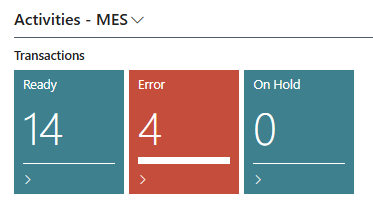
Users need to…
-
Drill down the Error cue
-
Fix the problems. These might possibly be wrong input data or posting setup missing.
-
Process the entries - or just set the status back to “Ready” to let the automatic batch job process them.
Posting
After the posting of one transaction the following data changes may have been done in BC / Wisefish:
-
Lot may have been created (if it did not already exist)
-
Pallets may have been created (if they did not already exist)
-
Item Ledger Entries has been created for the trade item(s)
-
Open Trade Item(s) may have been created or deleted
-
Trade Item Ledger Entries may have been
The MES Transaction has been updated so now it has:
-
Status = Processed
-
Posting Document No. => This creates a direct link from the transaction to the standard BC item ledger.
Archiving
A processed transaction can either be archived directly - or at pre-defined intervals, such as daily or weekly.
After the archiving:
-
MES Transaction has been deleted
-
MES Transaction Archive has been created. This table has all the same information as the MES Transaction.