
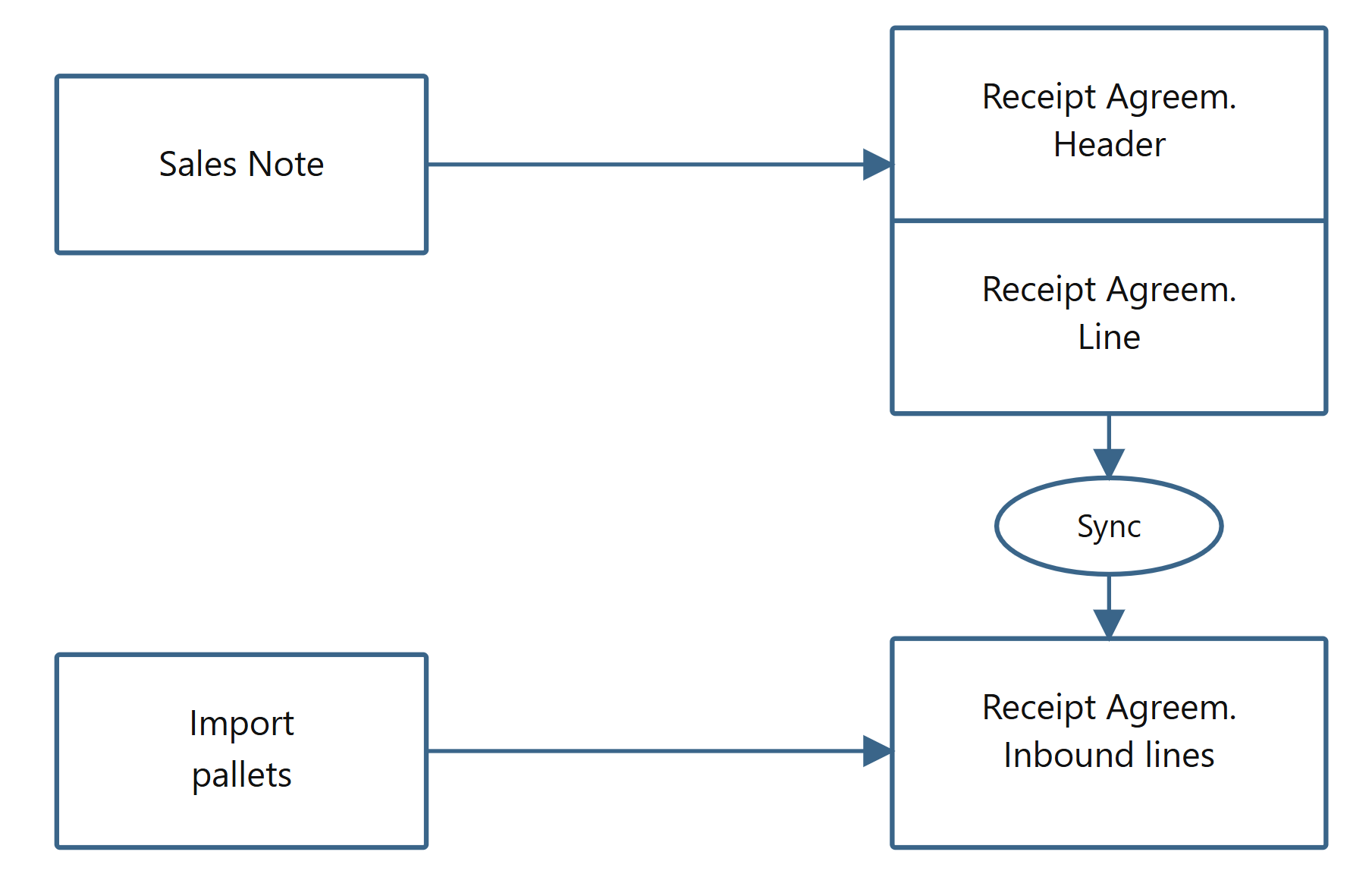
When purchasing from the Norwegian Fisherman's Sales Organizations (FSO) and importing pallets to Receipt Agreements, there are a few things to keep in mind.
-
External Item No.
-
Storage Agent lot in the FSO note under the “Wisefish” tab
-
Inbound Lot Code under the “Wisefish” tab
-
Adding the Note No. to the Excel file or in the Norwegian Warehouse Excel import Worksheet
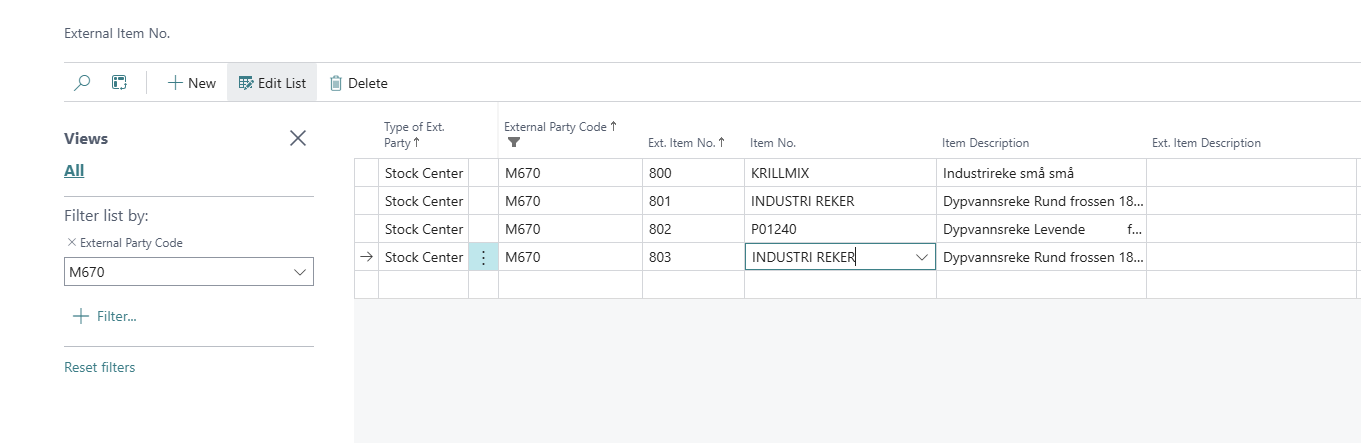
External Item No.
The “External Item No.” is found on the item card under “Trade Item” => “External Item No.”.
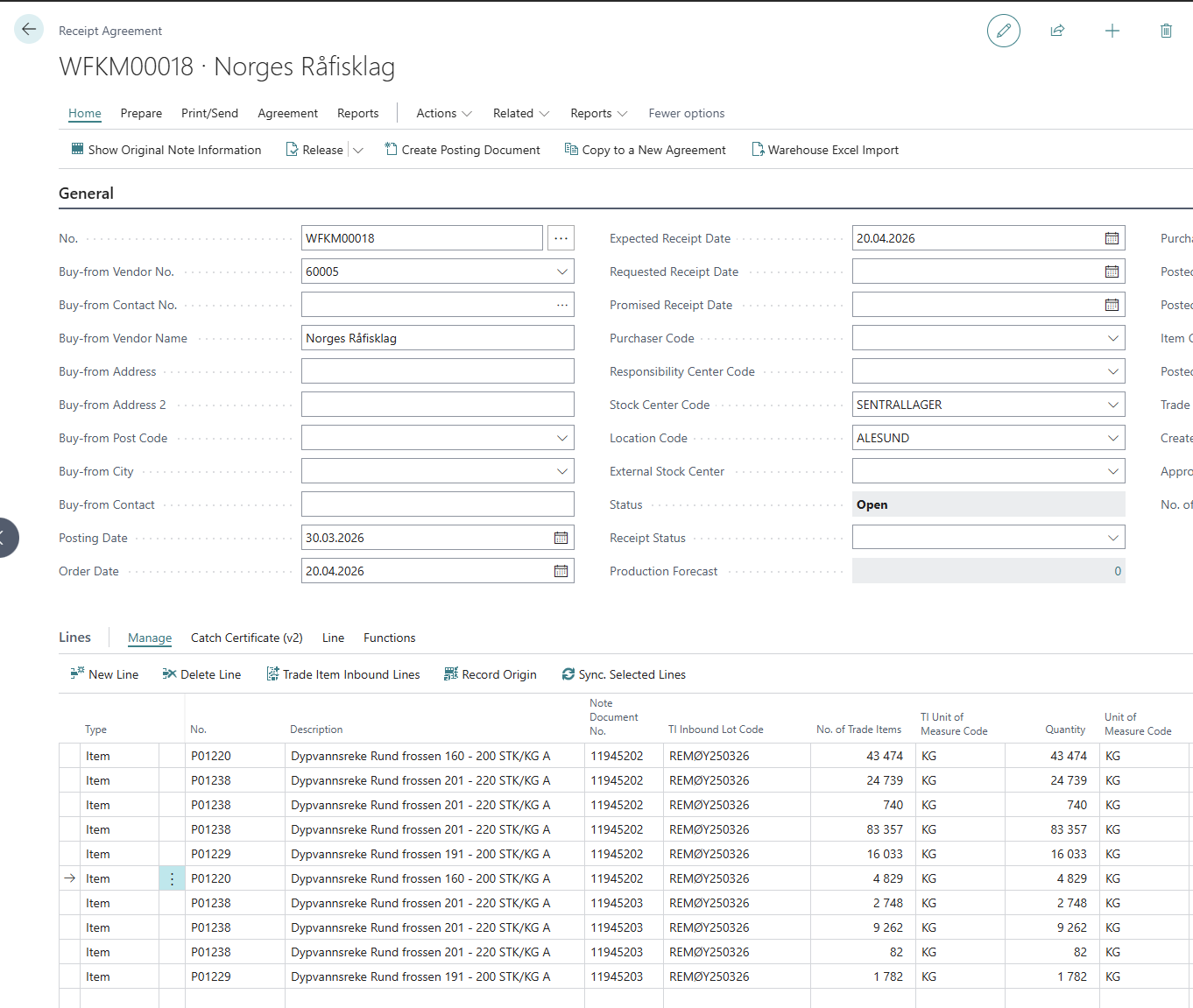
Step 1: After connecting the FSO notes to Receipt agreement, open your Receipt Agreement
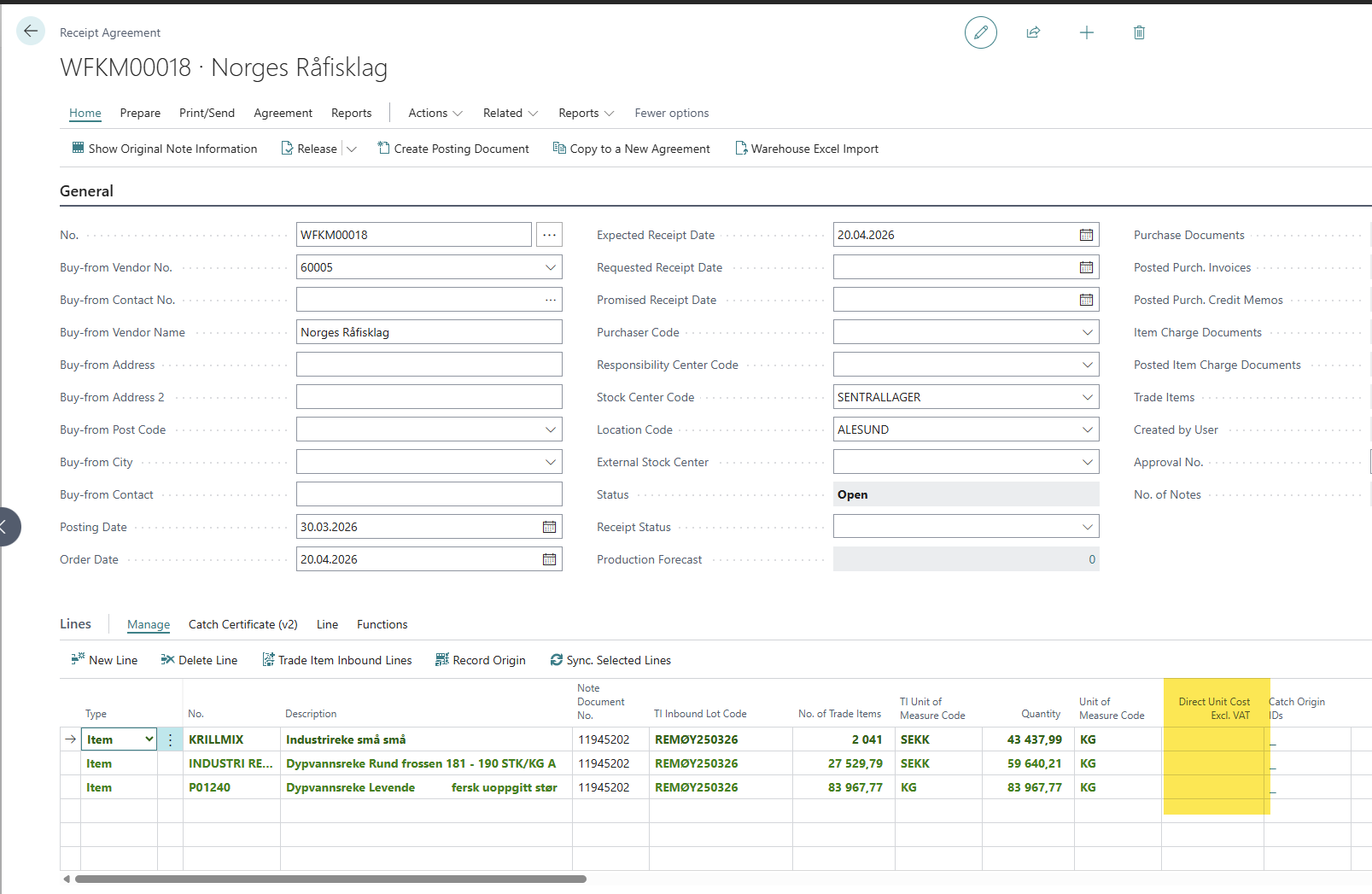
In the example below, we have RA WFWM00018 for Norges Rafisklag, with two FSO notes and four Excel tabs to import.
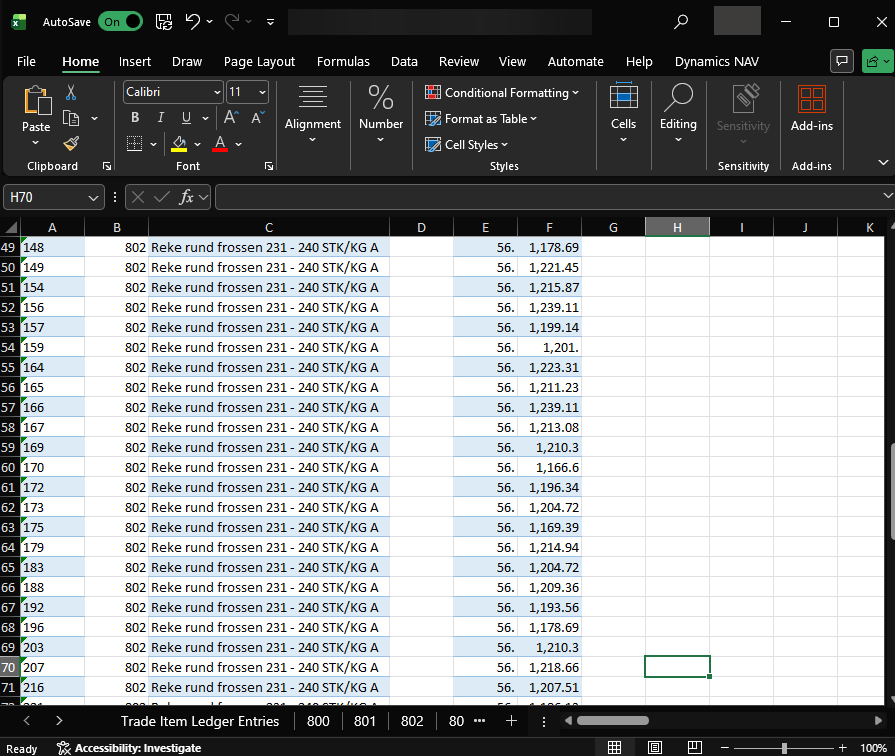
Step 2: Prepare your Excel file
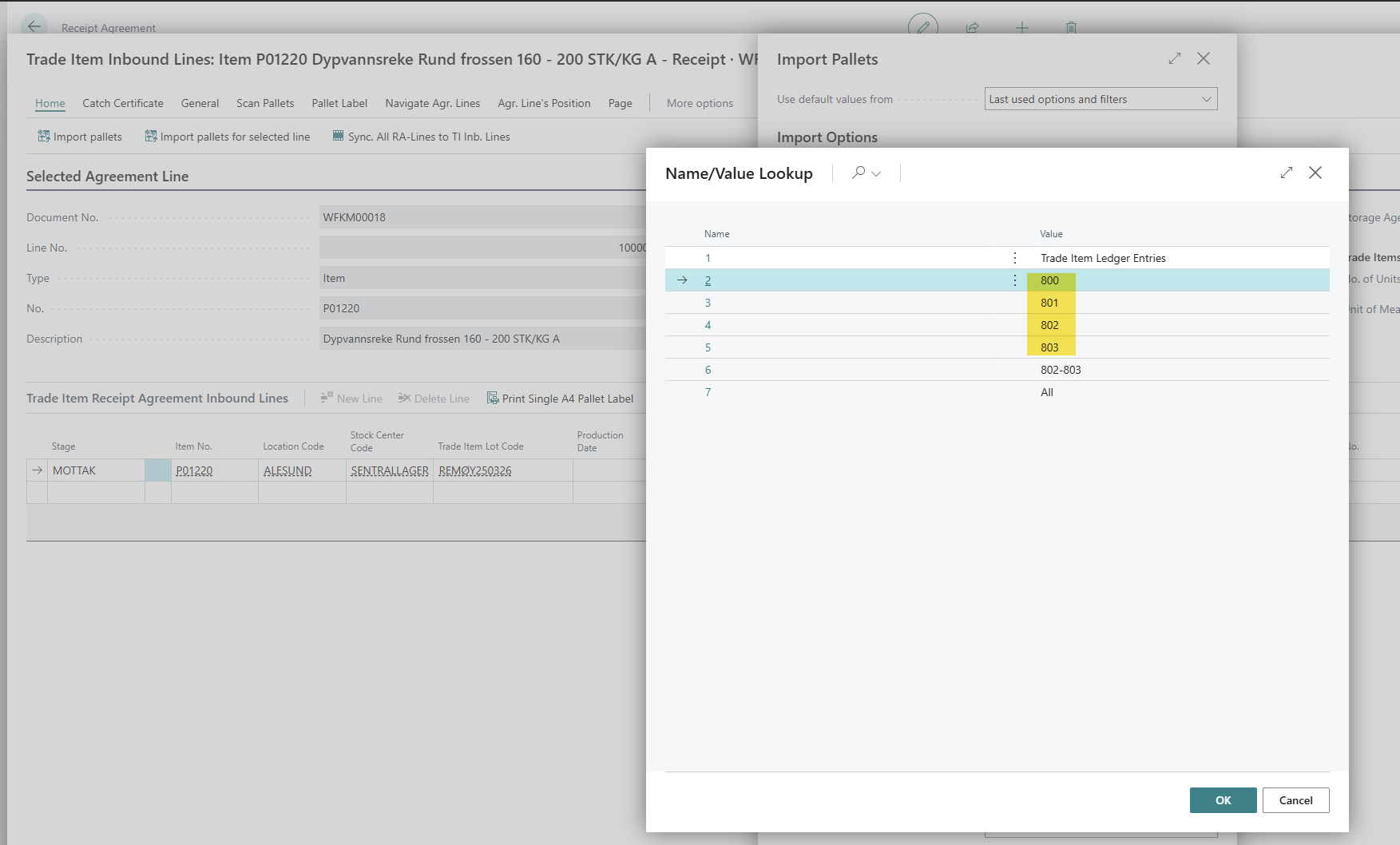
Your Excel file may have multiple tabs, and each tab can contain pallets from more than one FSO note. In this example, the file has tabs 800, 801, 802, and 803. You can choose to import one tab at a time, or all at once.
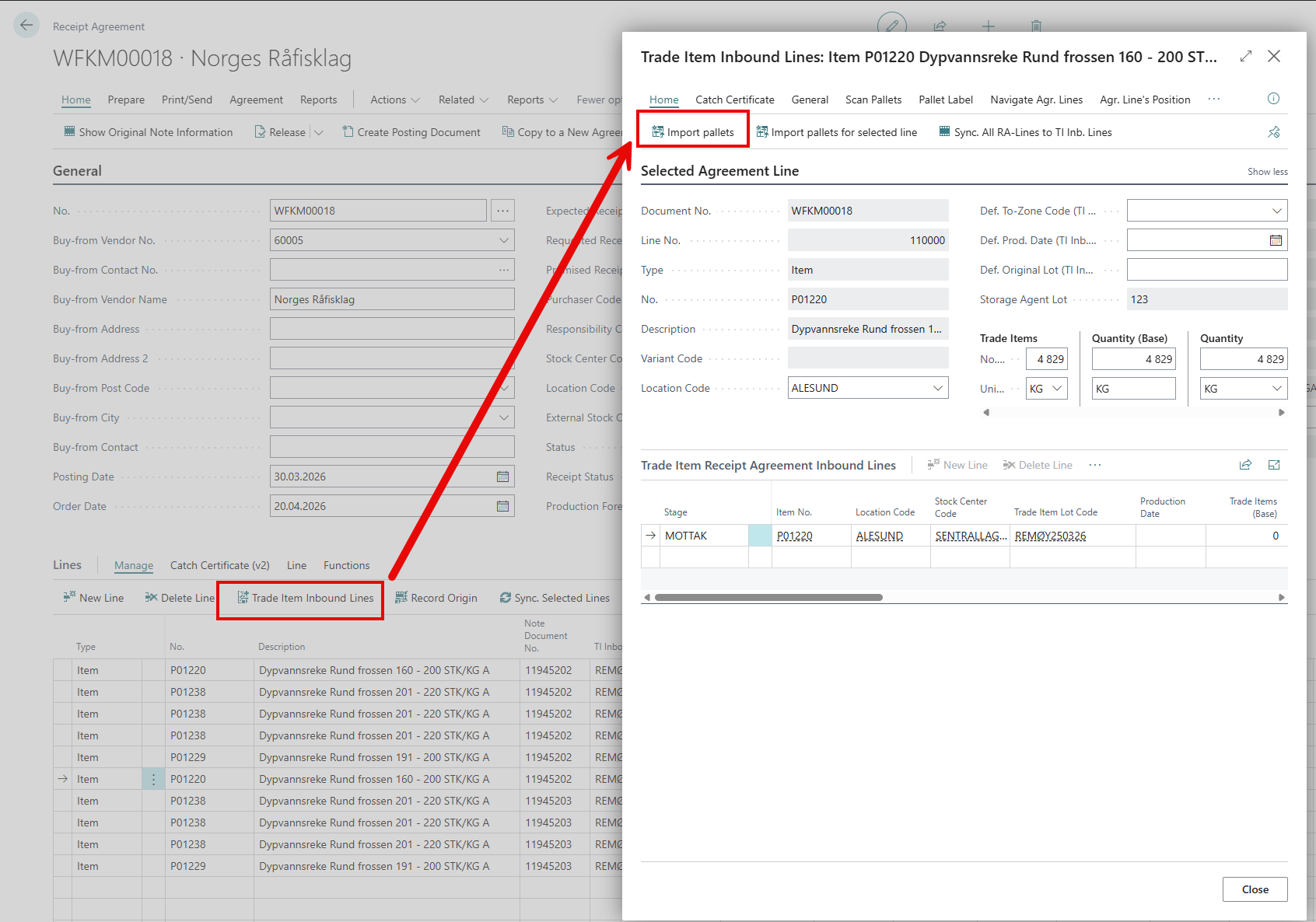
Step 3: Open the Import Pallets dialog
From the Trade Item Inbound Lines page, click "Import Pallets". In the dialog that opens, set the Vendor (the company you are buying from) and the External Producer (where the items originate).
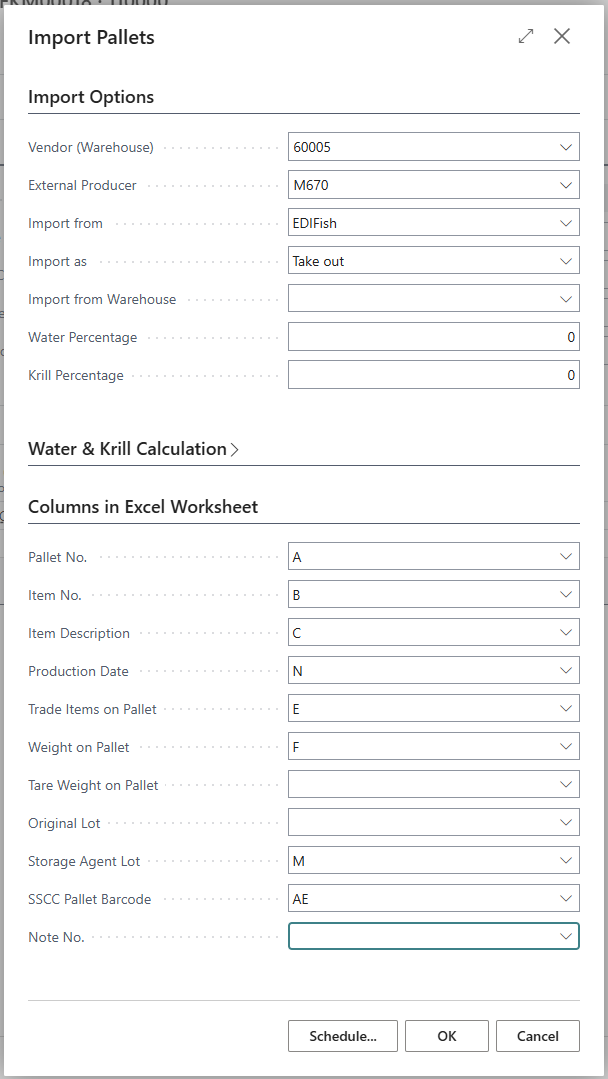
Step 4: Map your Excel columns (first time only)
The first time you import, you need to tell the system which columns in your Excel file correspond to which fields. Once set, this mapping is remembered for future imports.
Note: If your Excel file already contains the lot number ("Original lot") and note number ("Note No."), you can map those columns too, and the system will pick them up automatically.
Step 5: Review the imported pallets
After clicking OK, the pallets from your Excel file are imported into the RA. The system creates new inbound lines with all the pallet data.
Important: prices after import
|
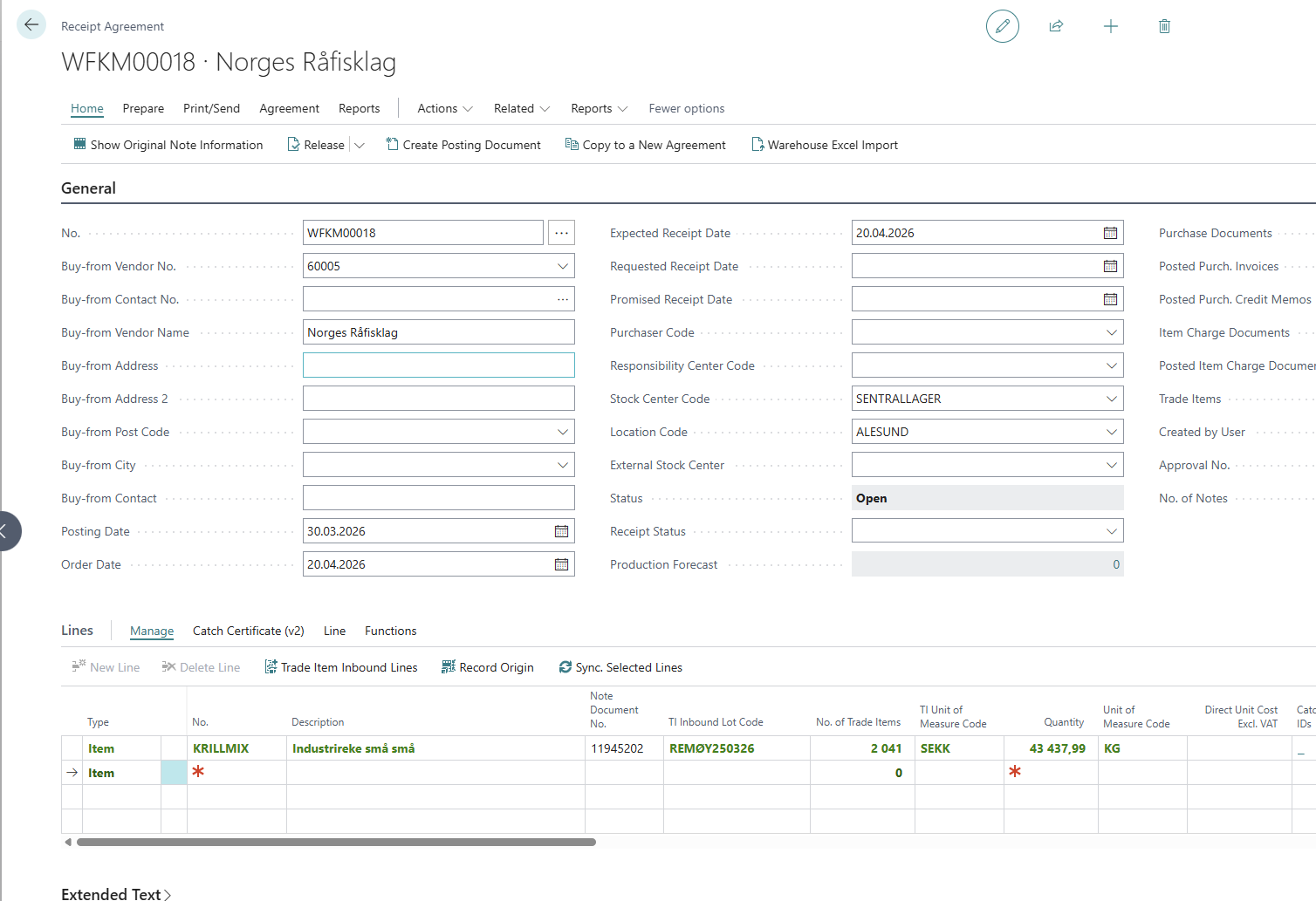
Note on pricing after import When pallets are imported, the previous lines in the RA are replaced with new lines from the Excel data. Because the new lines do not necessarily match the old lines one-to-one, the system cannot automatically carry over prices. After importing, you will need to set the price on the new lines. We could store the original price for reference, but given the lines change, there is no reliable way to re-populate prices automatically. |
The screenshot below shows the RA after import. The price column will need to be filled in after each import.
Selecting which Excel tab to import
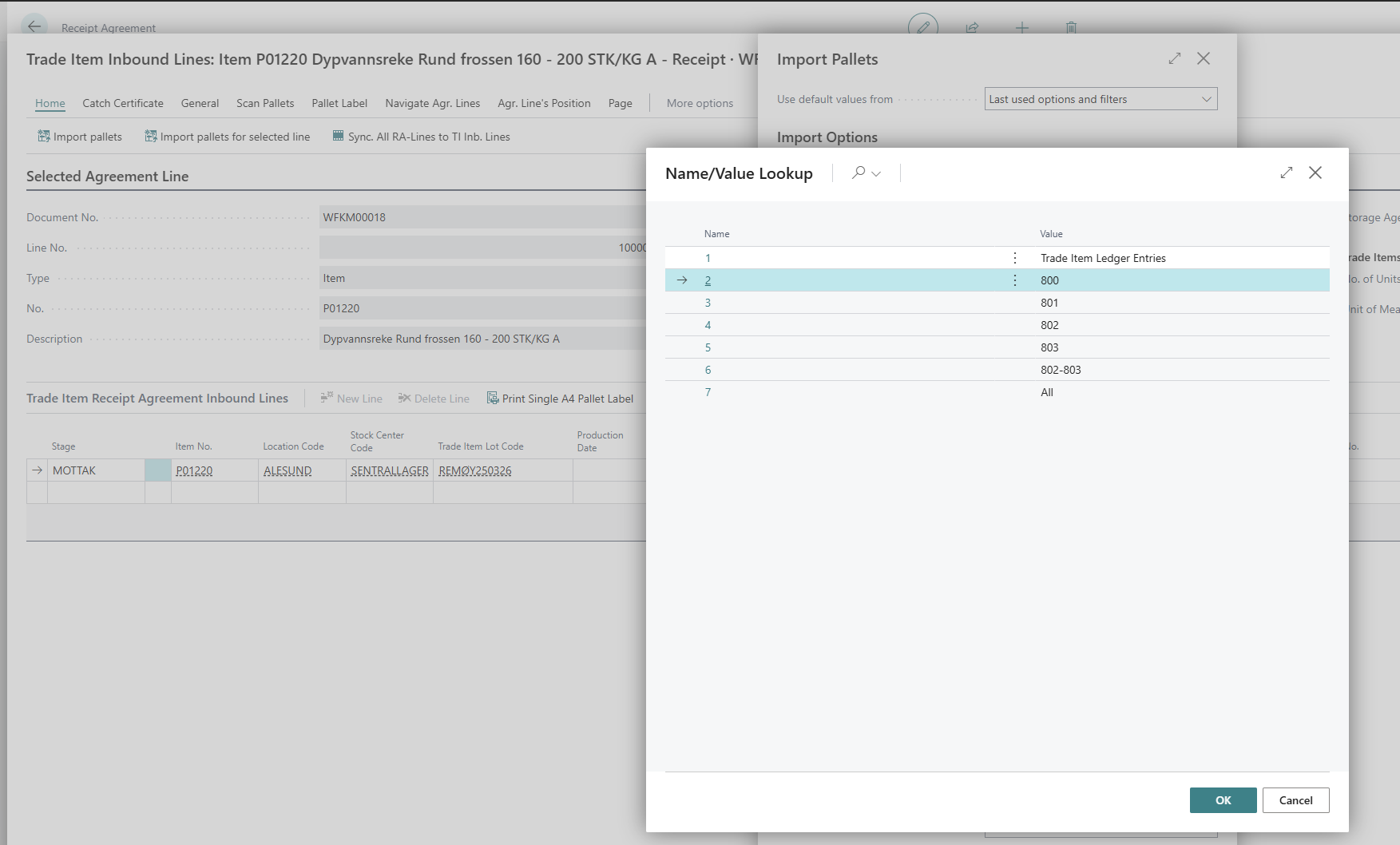
If your Excel file contains multiple tabs and you want to import a specific one, use the Name/Value Lookup to select the correct Excel tab. This lets you import items one at a time if you prefer.
Posting the purchase
Once the import is complete, the Trade items are posted to stock.
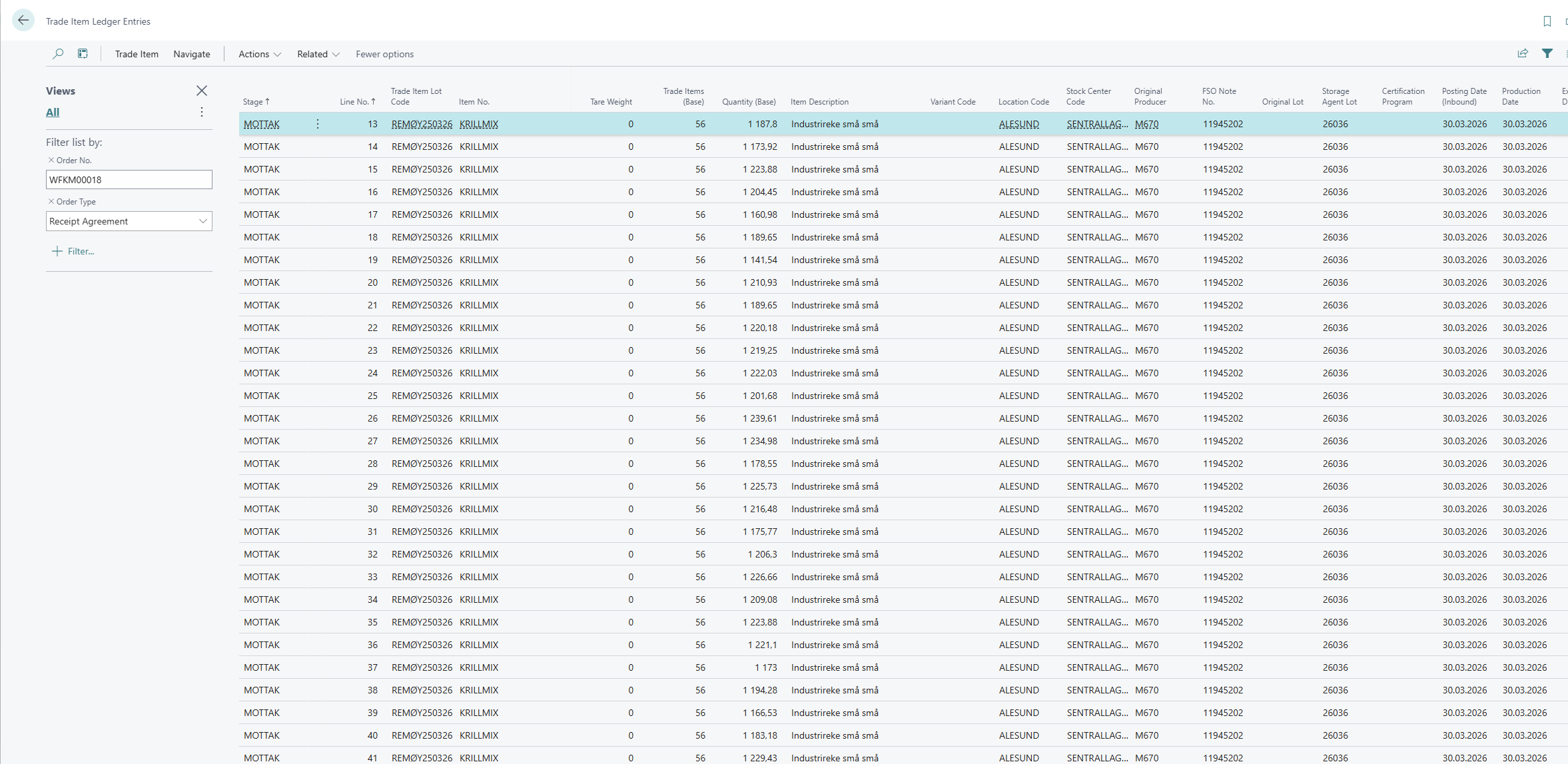
The origin lot shows the notes that have been linked to this lot.

If something goes wrong
I made a mistake and need to start over
You have two options:
-
Delete line/s and import again.
-
Delete line/s and Receipt Agreement, and start again from the FSO notes.