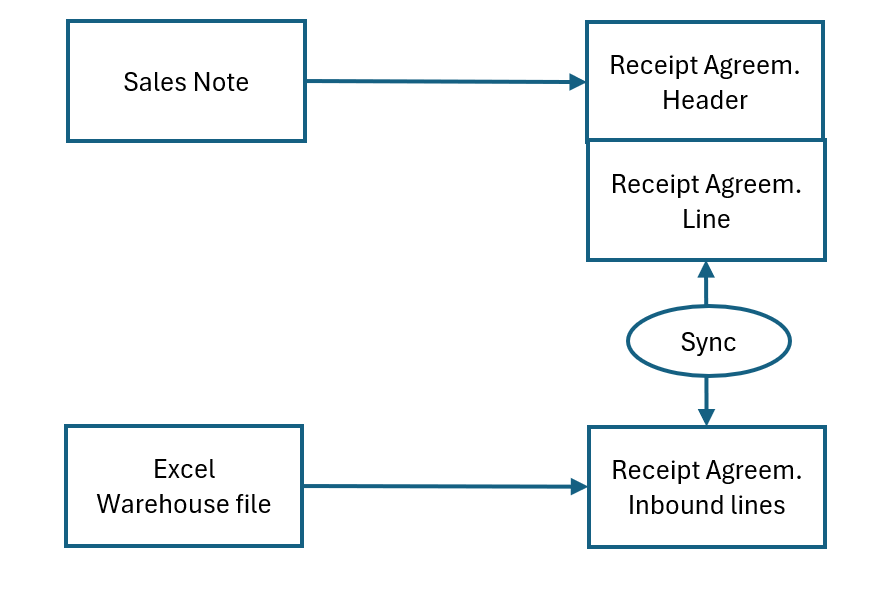
When purchasing from the Norwegian Fisherman's Sales Organizations (FSO) and importing pallets to Receipt Agreements, there are a few things to keep in mind.
-
External Item No.
-
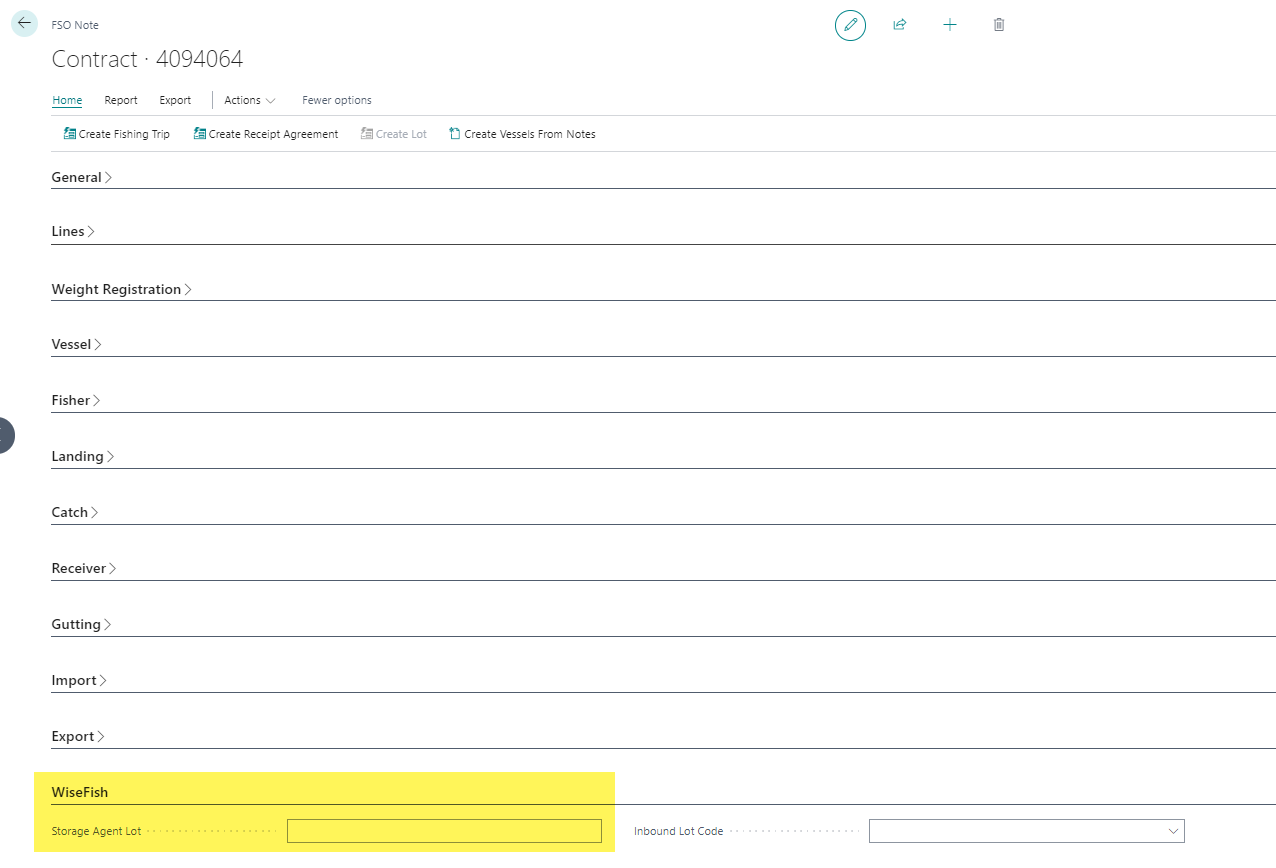
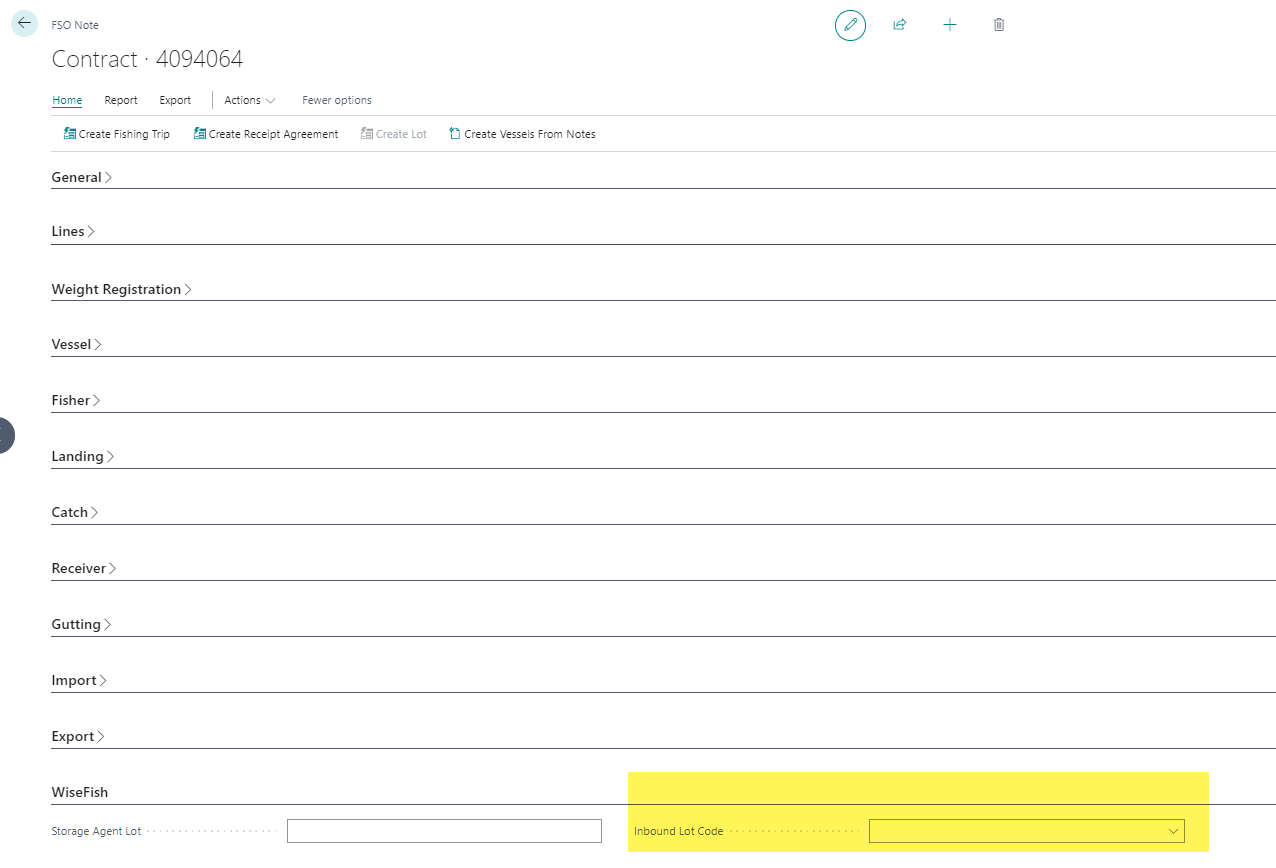
Storage Agent lot in the FSO note under the “Wisefish” tab
-
Inbound Lot Code under the “Wisefish” tab
-
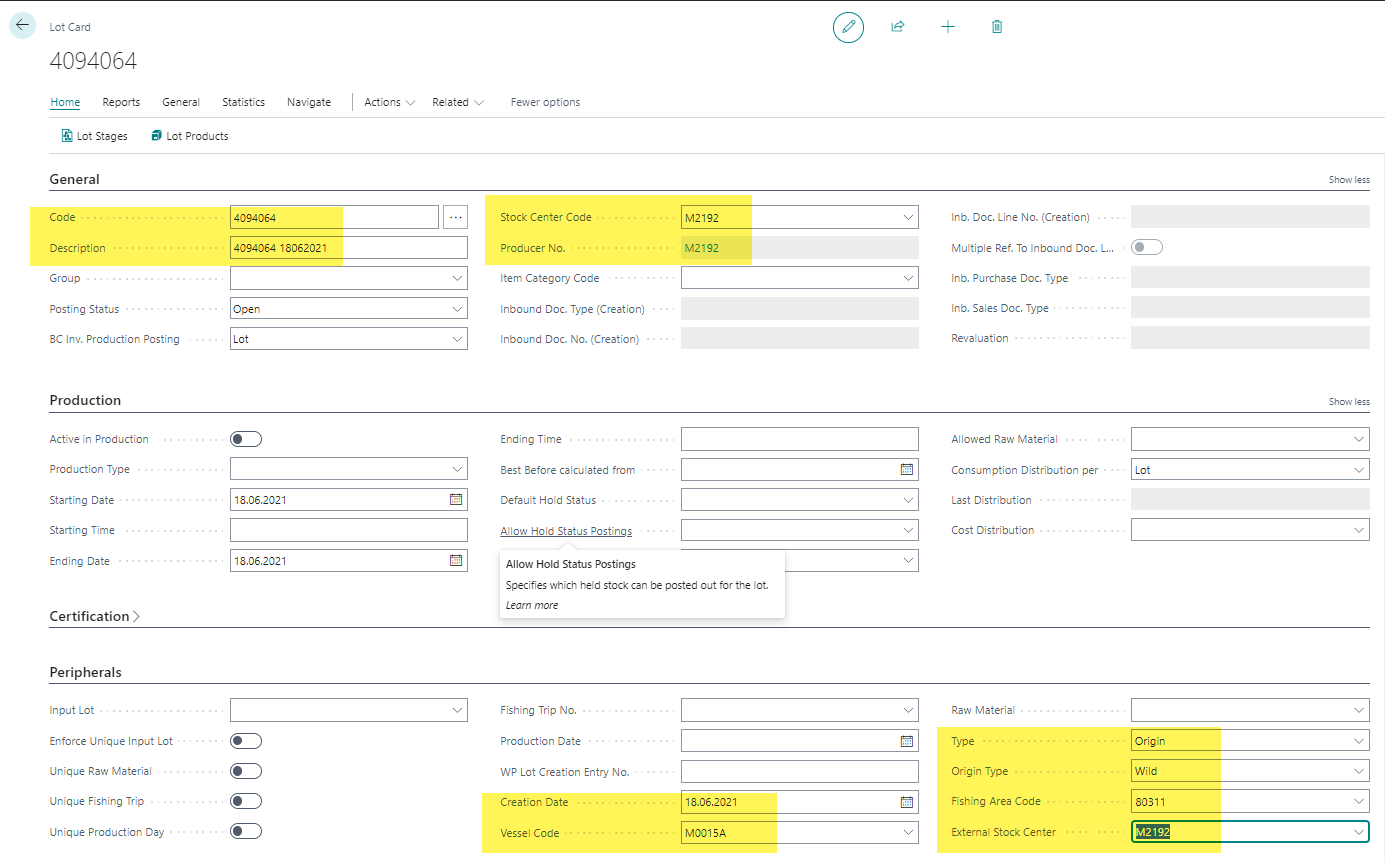
Adding the Note No. to the Excel file or in the Norwegian Warehouse Excel import Worksheet
External Item No.
The “External Item No.” is found on the item card under “Trade Item” => “External Item No.”.
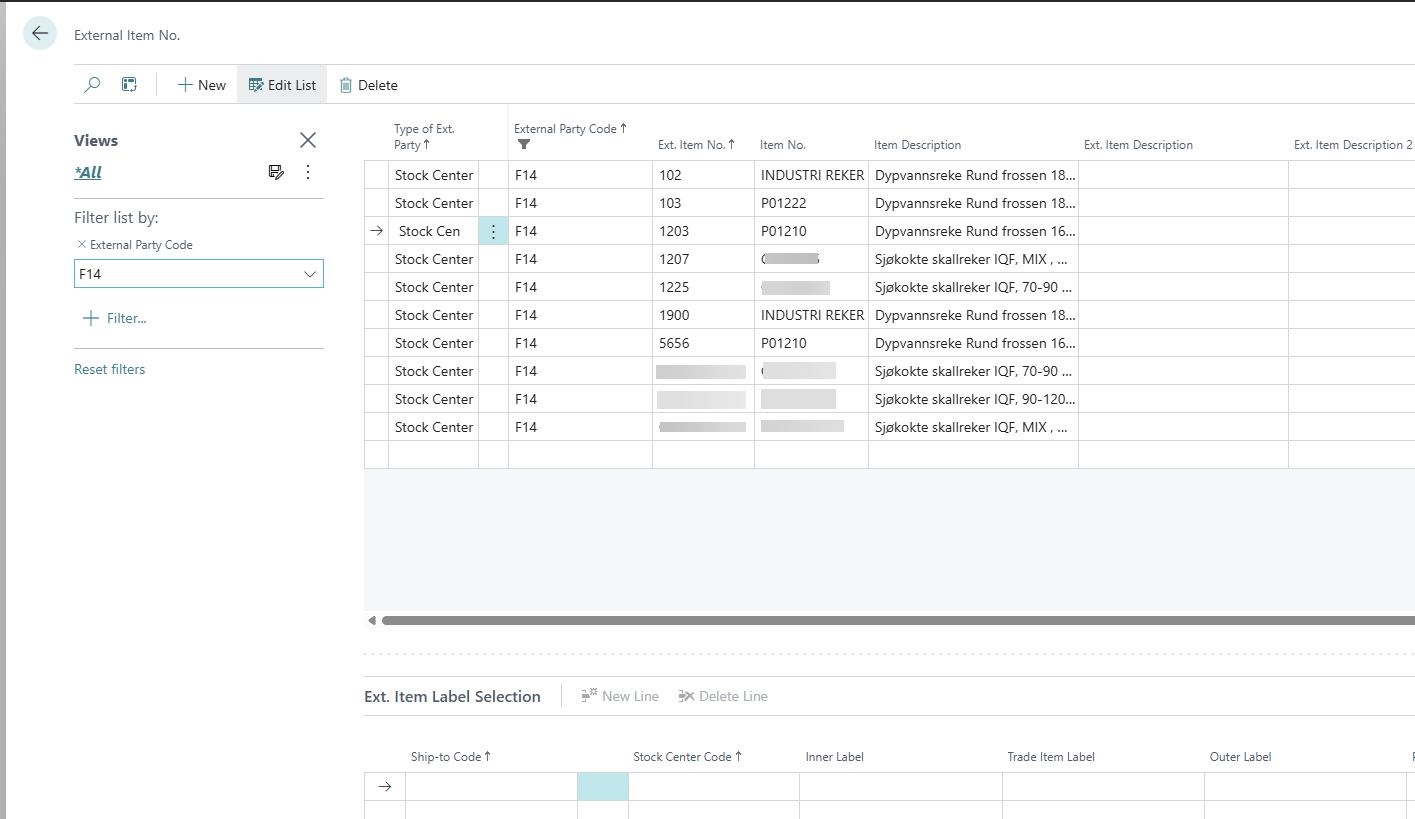
External Number is set to match the “External Party Number”(Stock Center) and the “Ext. Item No.”(Item number from Excel file) to the Item number in BC, so when importing to the Receipt Agreement, the system knows what number to use for the Trade Items being imported.

Storage Agent Lot
The Storage Agent Lot is used to match the imported pallets to the note and is the reference from the warehouse to the items being imported.
Inbound Lot Code
Users can create a unique Lot Code for the import or let the system create it upon posting the Receipt Agreement.
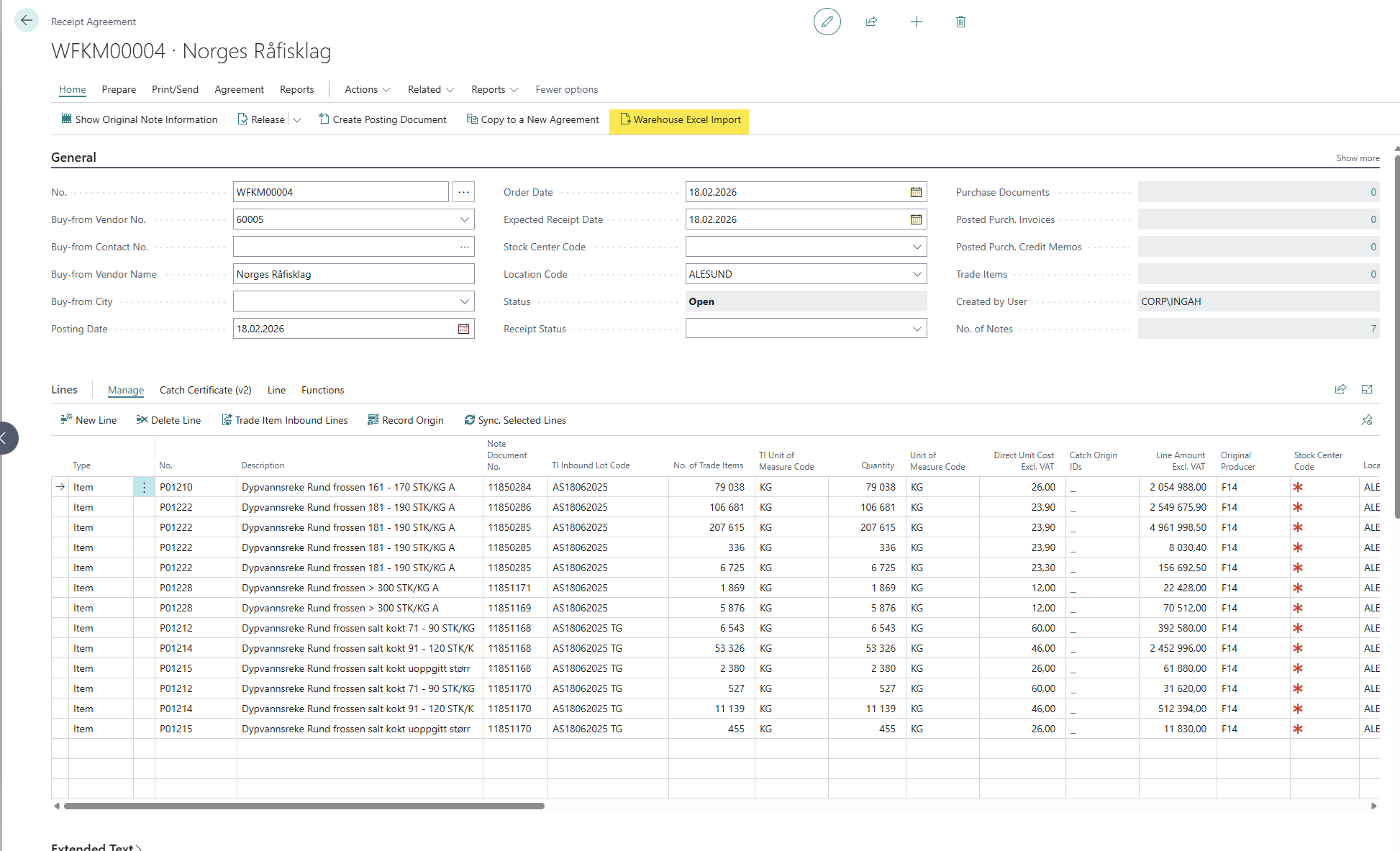
Warehouse Excel Import:
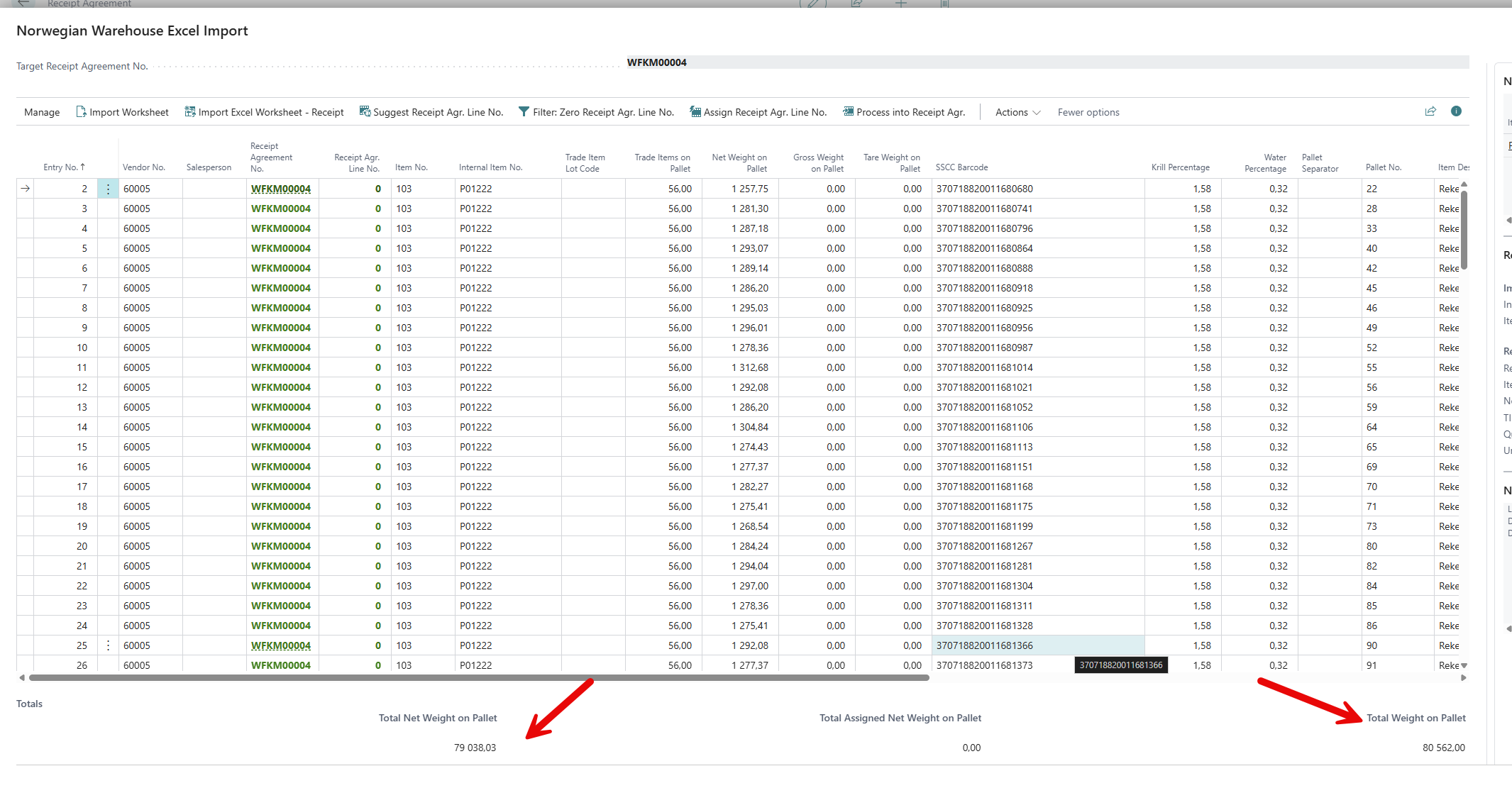
When importing pallets from Warehouses, the “Warehouse Excel Import” sheet should be used for the import:
“Import Excel Worksheet - Receipt” To import pallets
“Filter: Zero Receipt Agr. Line No.” To filter out the lines that have already been assigned to a receipt agreement line.
“Assign Receipt Agr. Line No.” to choose what Receipt Agreement line to assign the pallets to.
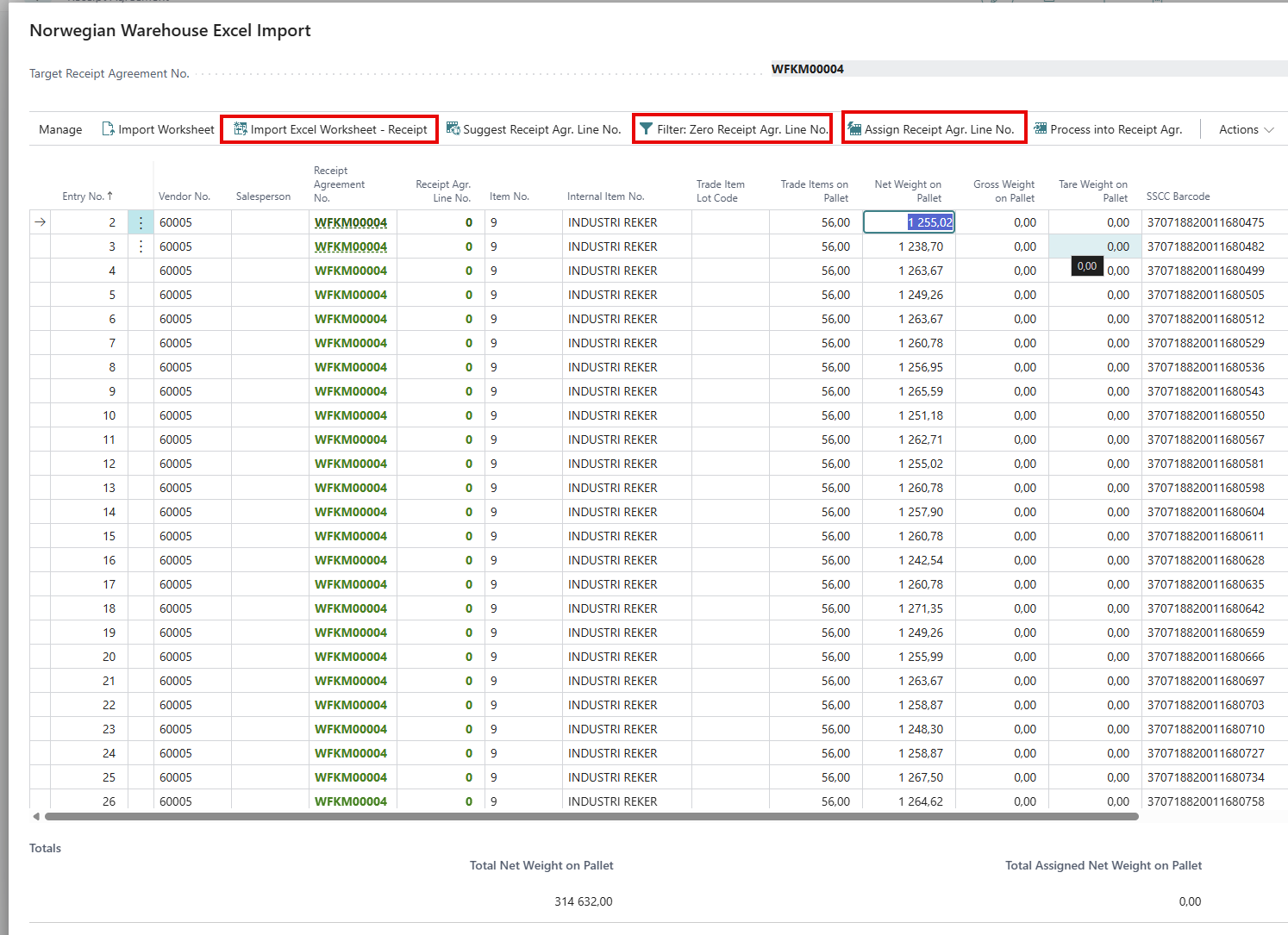
When working with many Item numbers at a time, use filter on the Internal Item No. and then select all the lines to assign the Receipt Agreement line to.
“Import Excel Worksheet - Receipt”
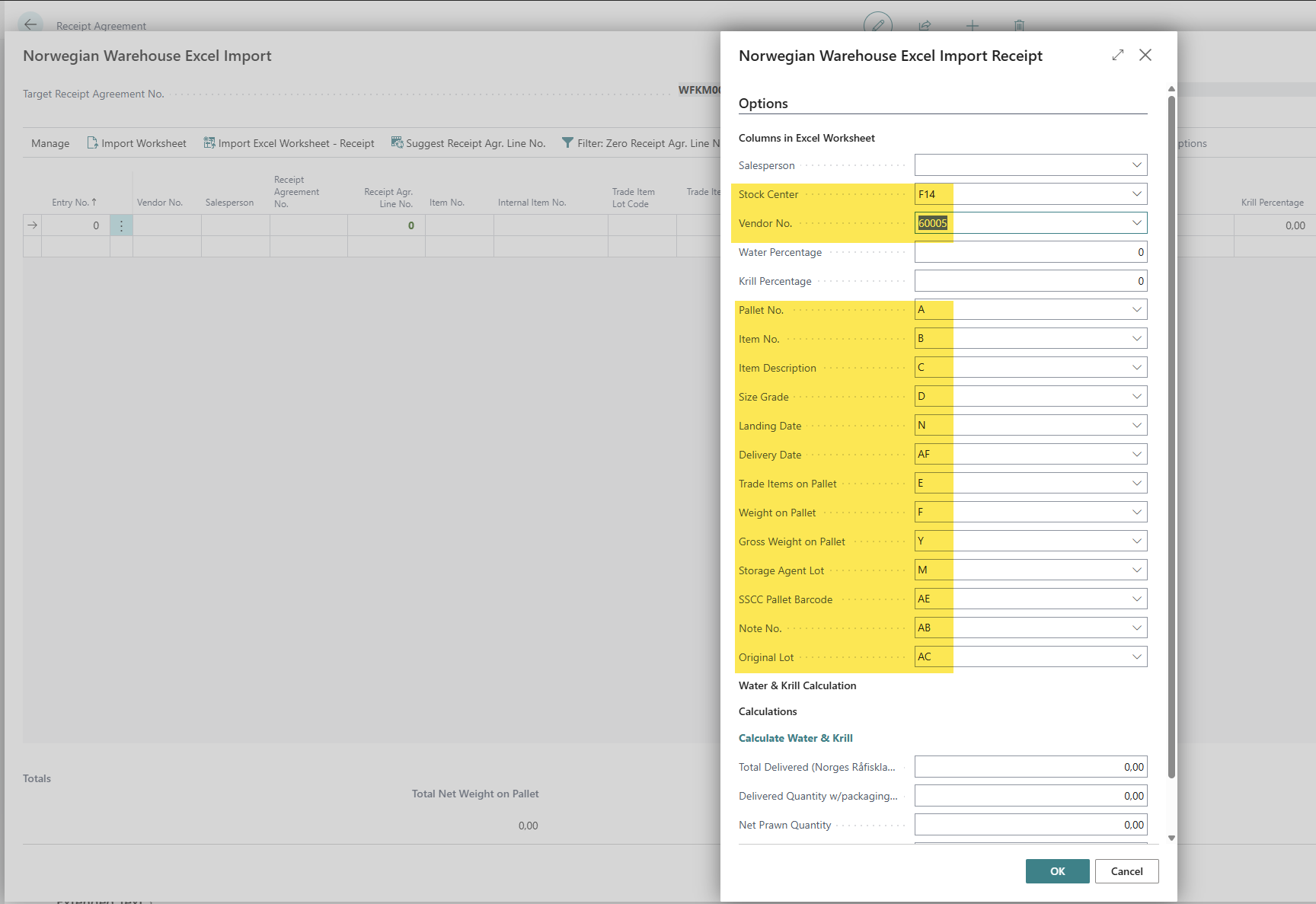
Set the Stock Center and Vendor No.
Choose the column according to the Excel sheet:
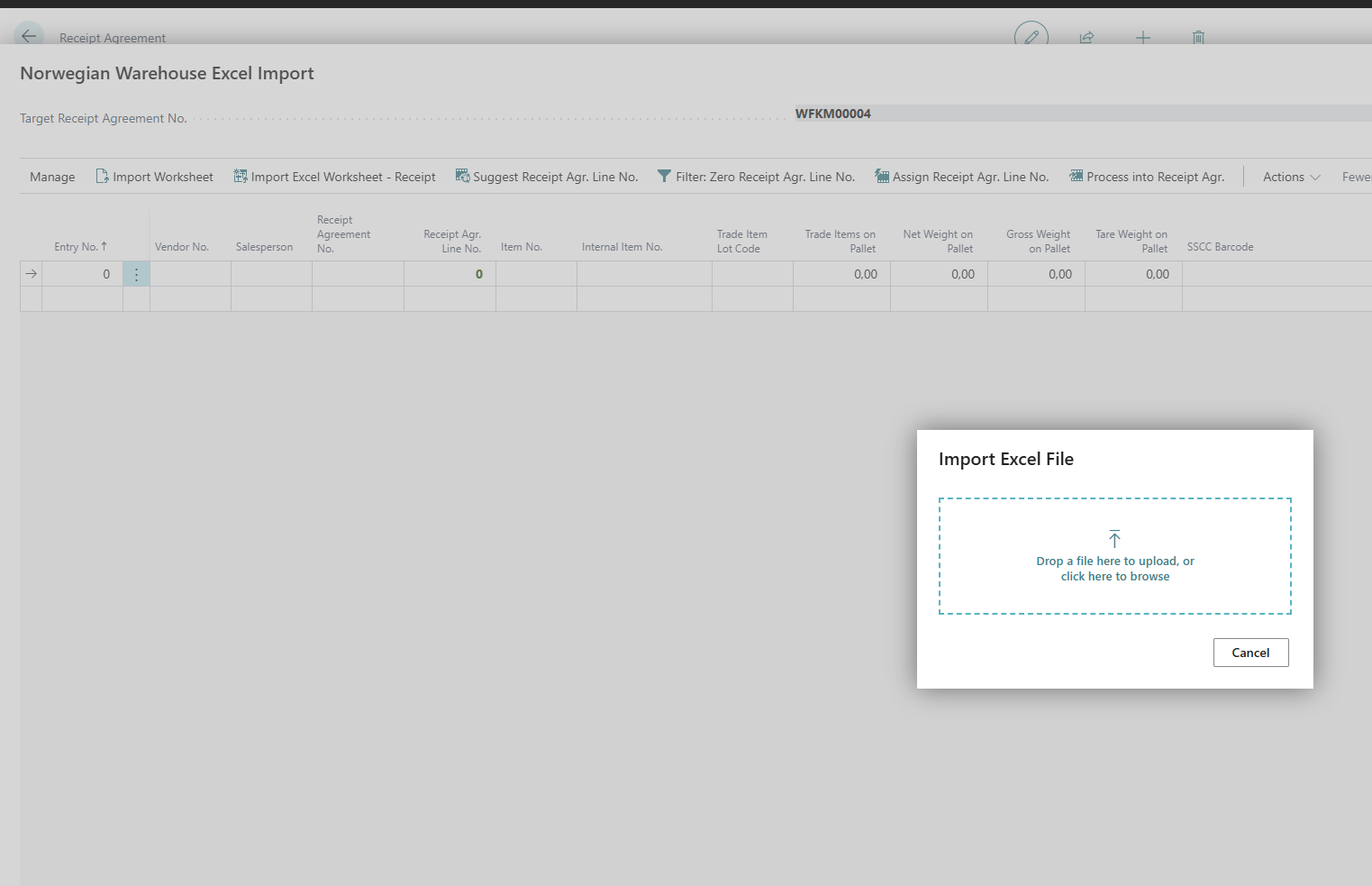
Choose the file from a location on your computer.
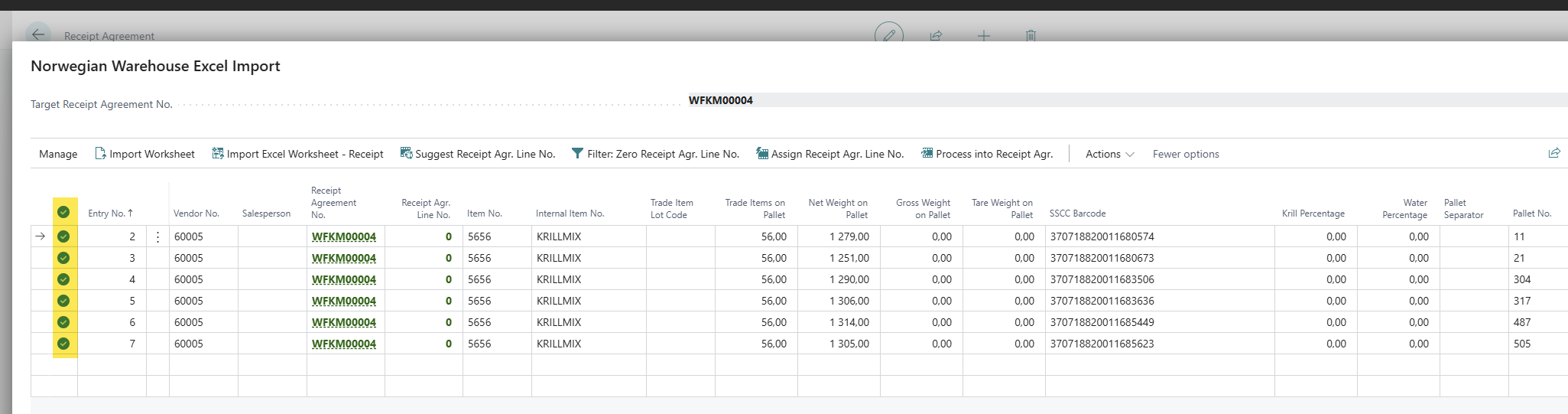
Select what lines are about to be assigned to a Receipt Agreement line.
Click the three dots:
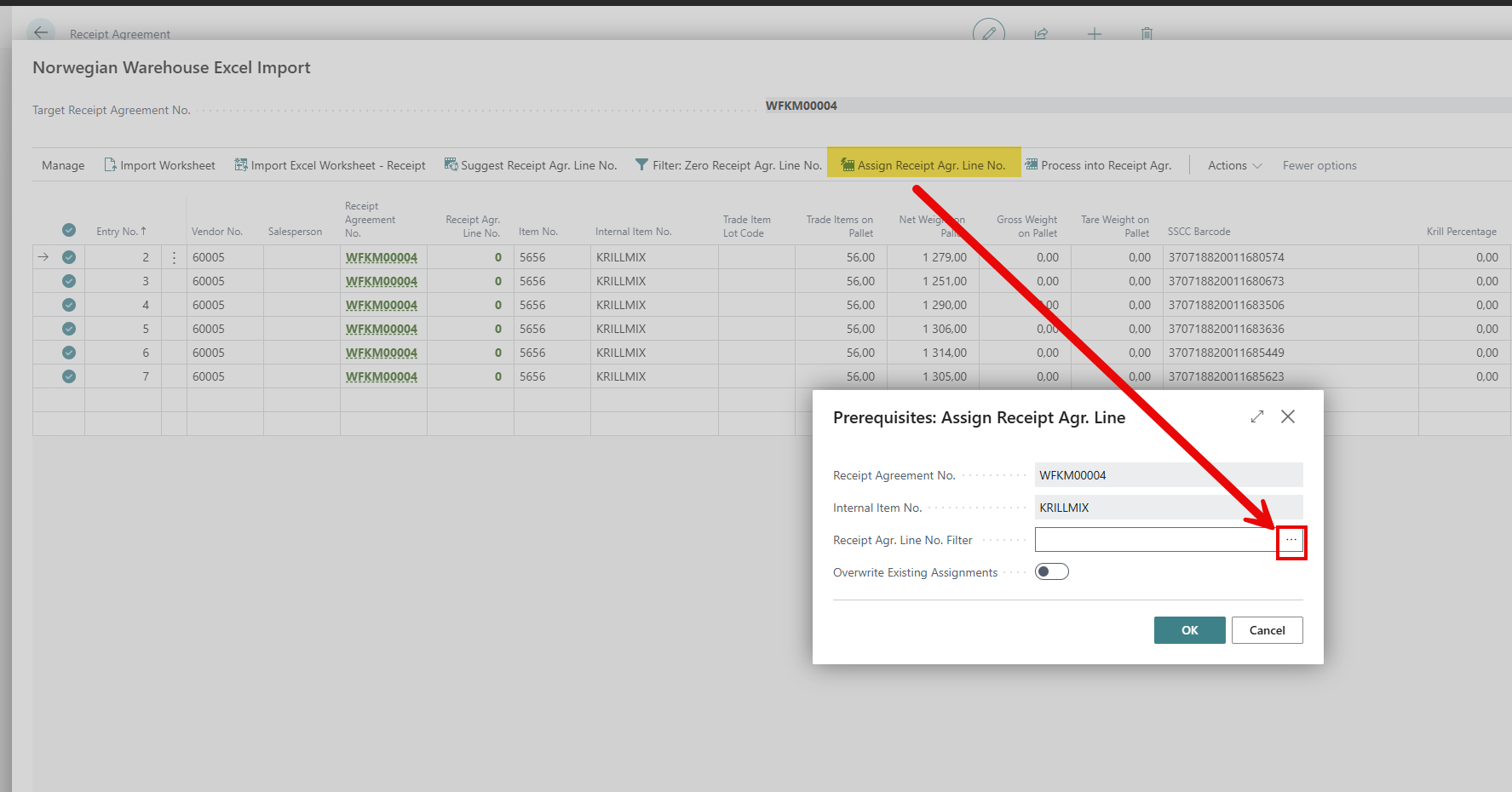
Then you get the Receipt Agreement lines that are available to select.
It is possible to select two or more lines if they have the same Item No.
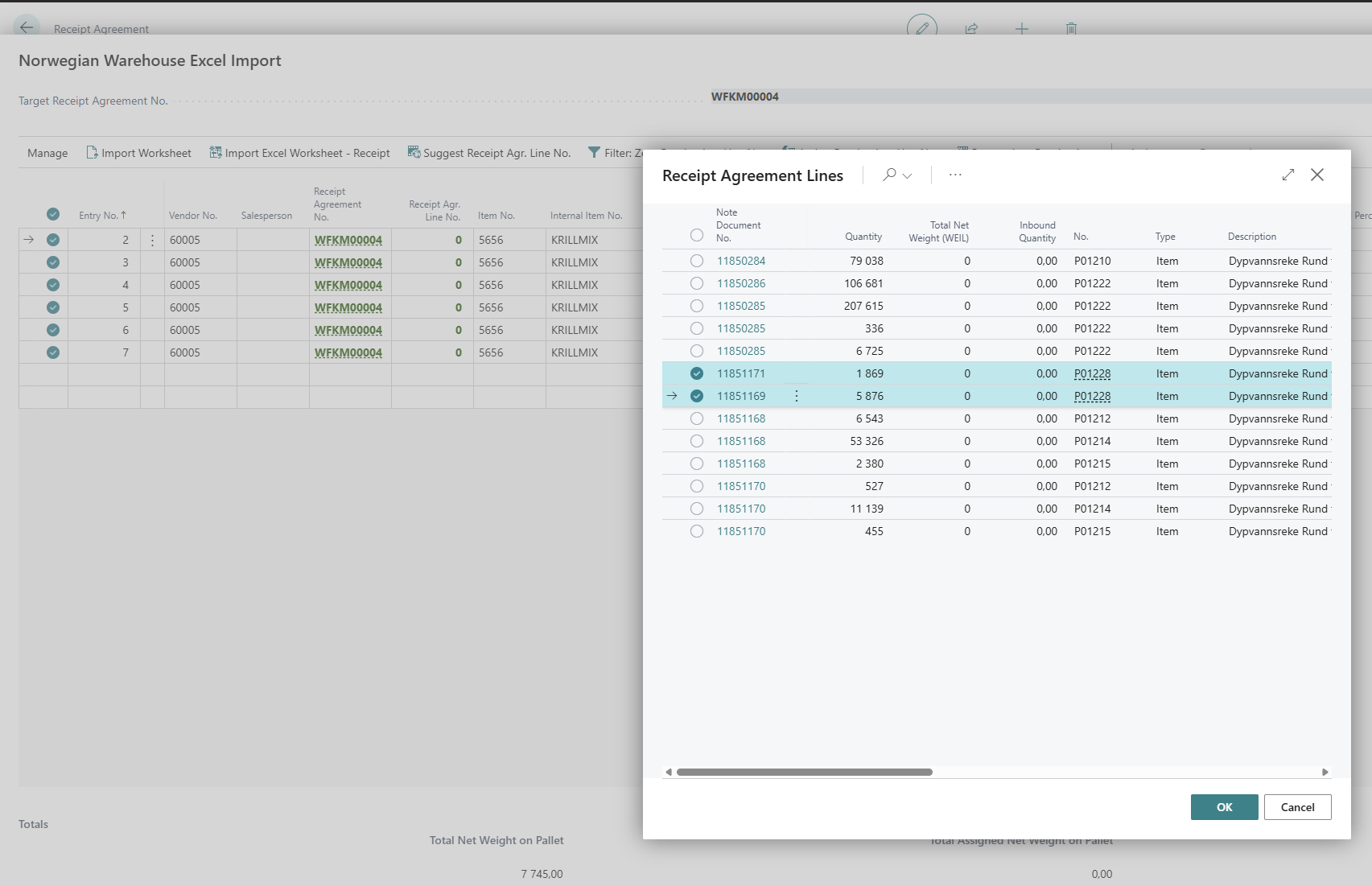
Click “OK”
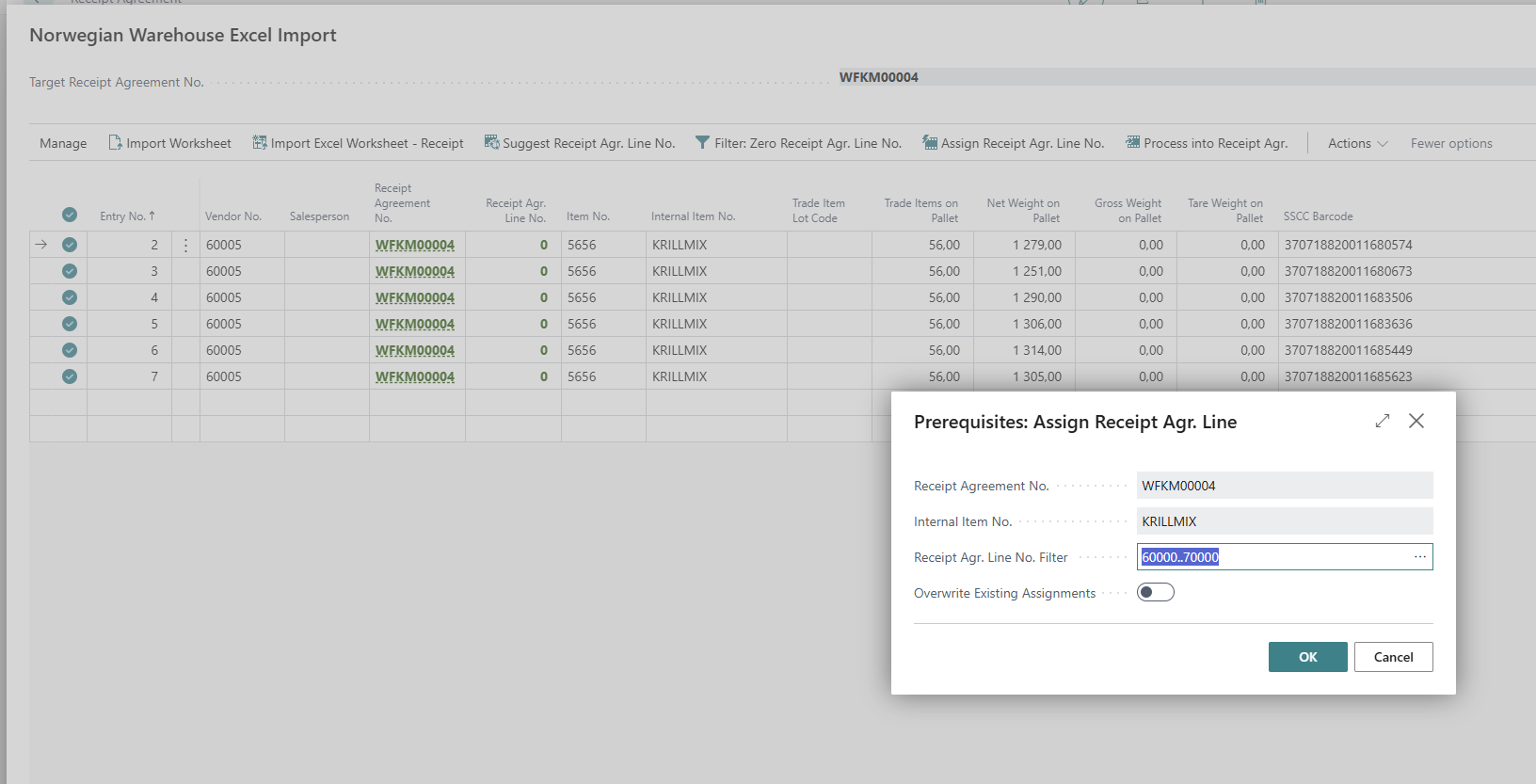
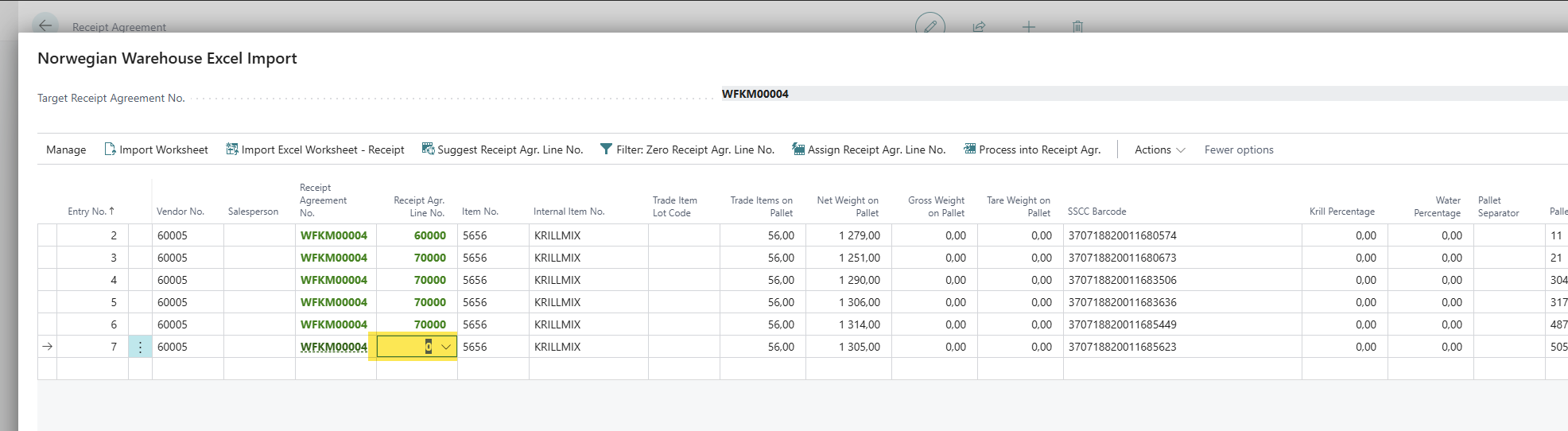
The system will assign the Quantity from the pallets as close to the Quantity of the line as possible.
Sometimes the user needs to decide what line to assign the quantity to manually, if the quantity from the pallets does not match the quantity from the line (can be more or less).
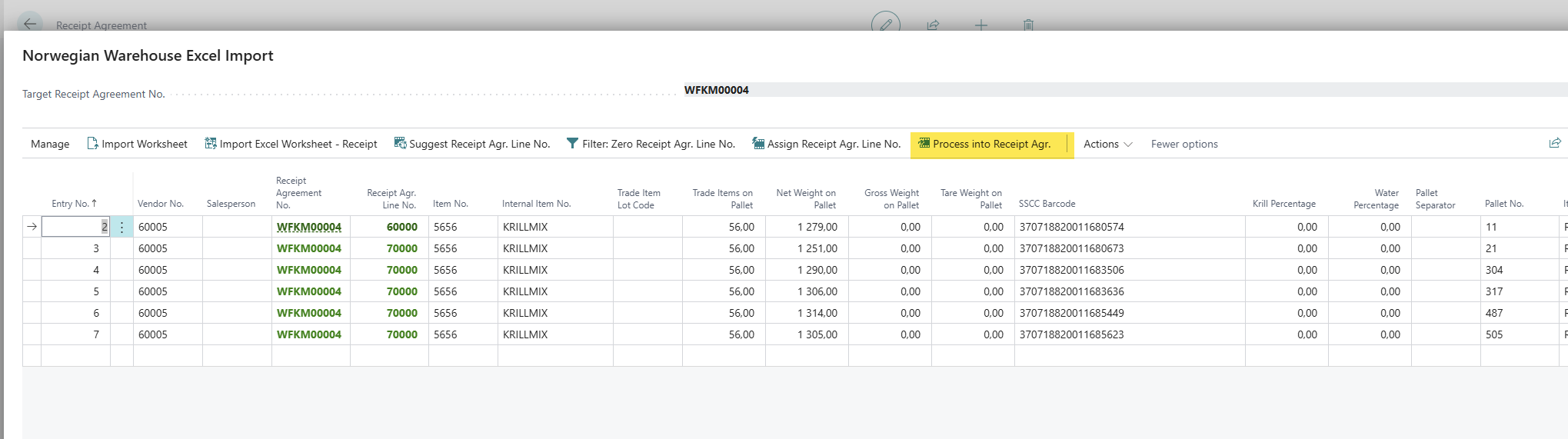
When all lines have been assigned a Receipt Agreement line, click “Process into Receipt Agr.”
The lines are red or Yellow if the Quantity does not match the line.
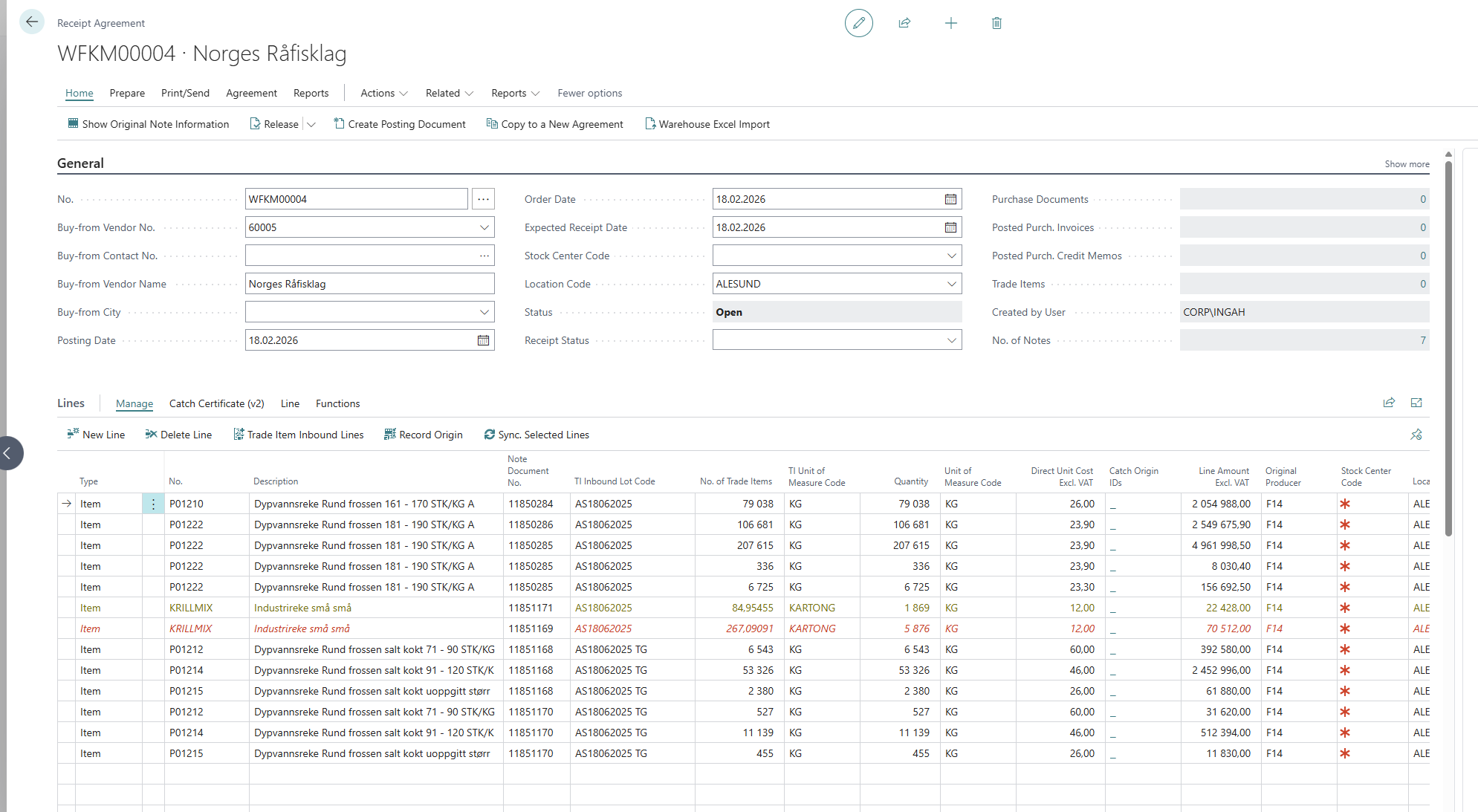
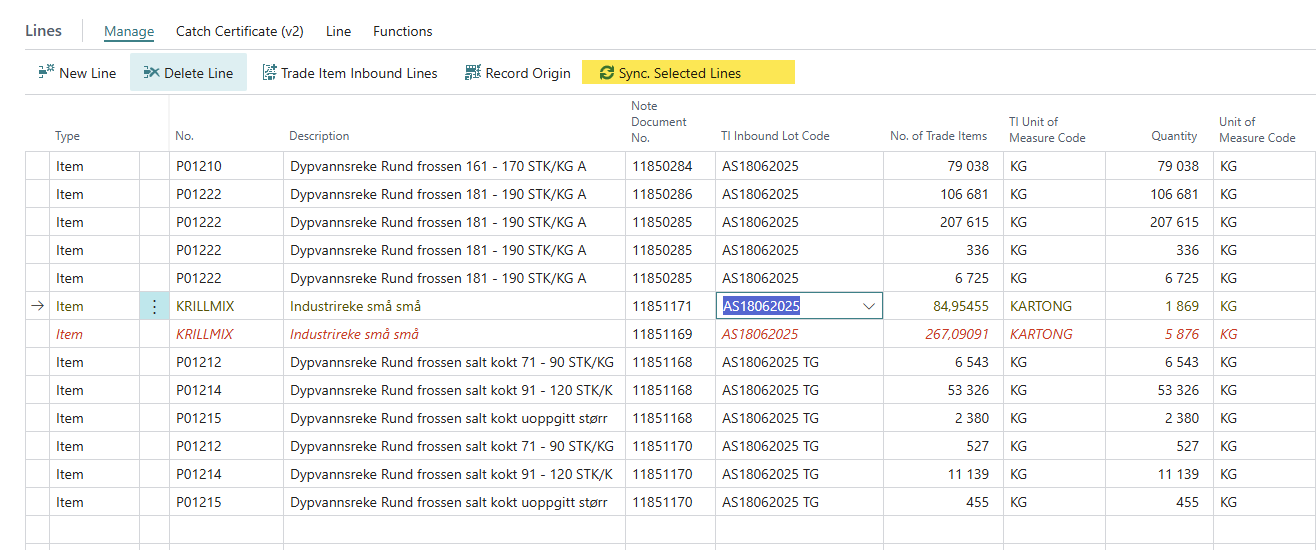
Use “Sync Selected Lines” to sync and adjust the lines.
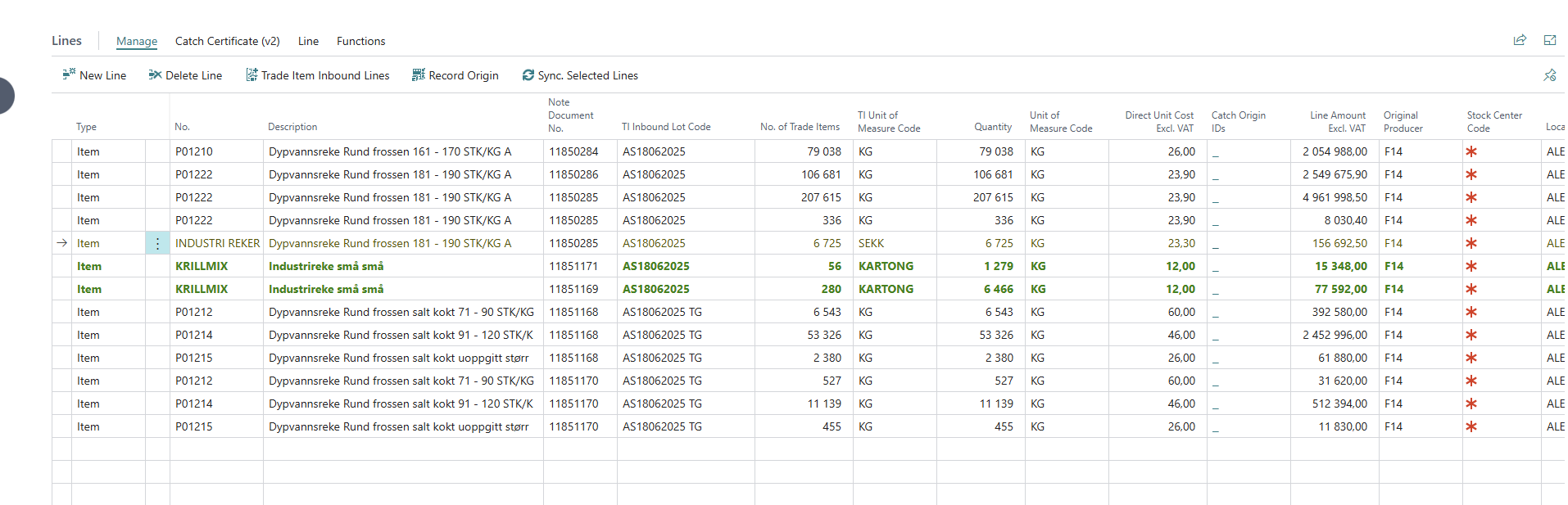
When the lines are green they are ok.
Water and Krill Calculations:
From a Control form/Sample form enter the relevant numbers:
Click “Calculate Water and Krill” and select the file from a Location on your computer.
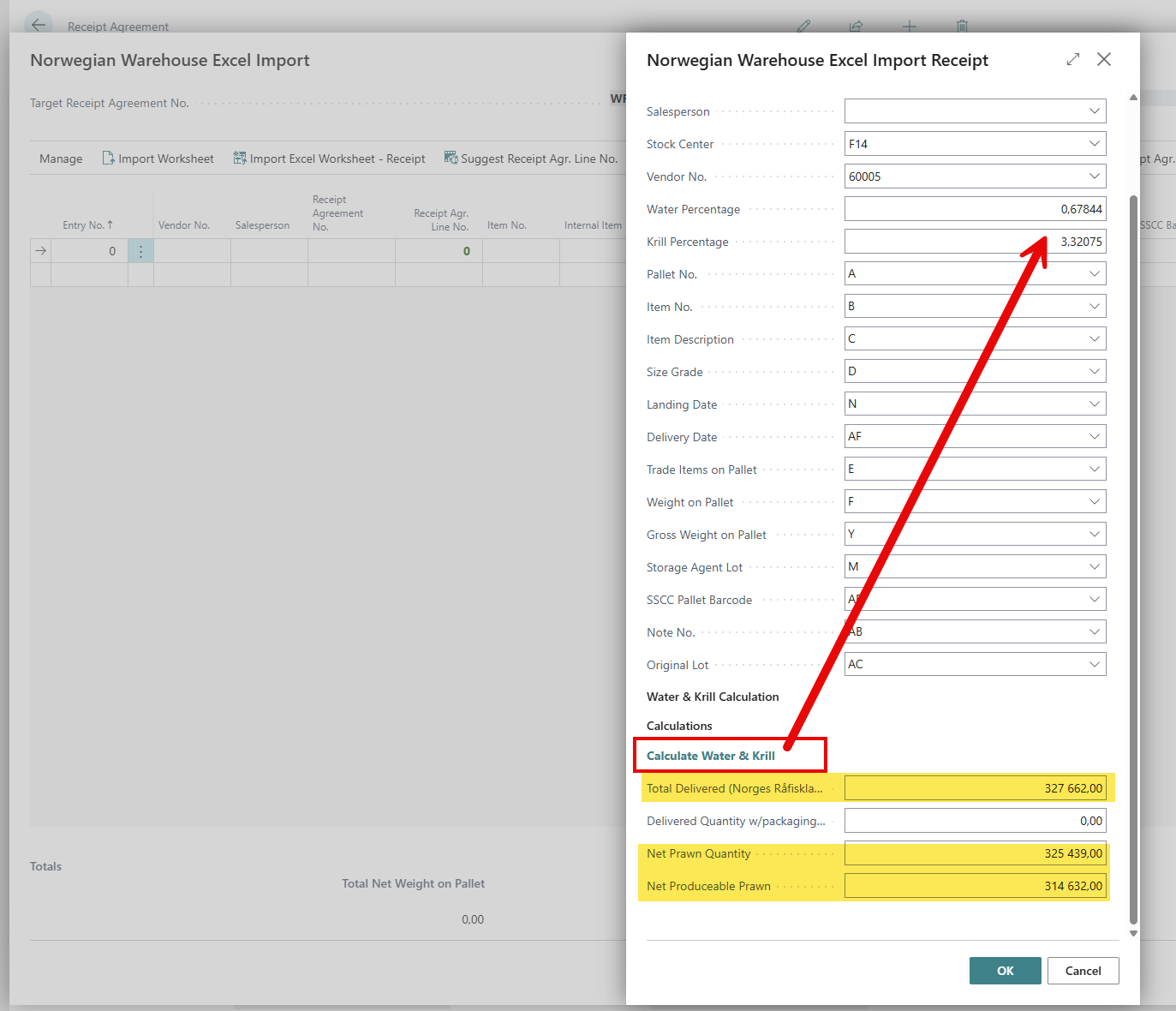
Sometimes the calculations are not 100% and then the Quantity will need to be adjusted manually
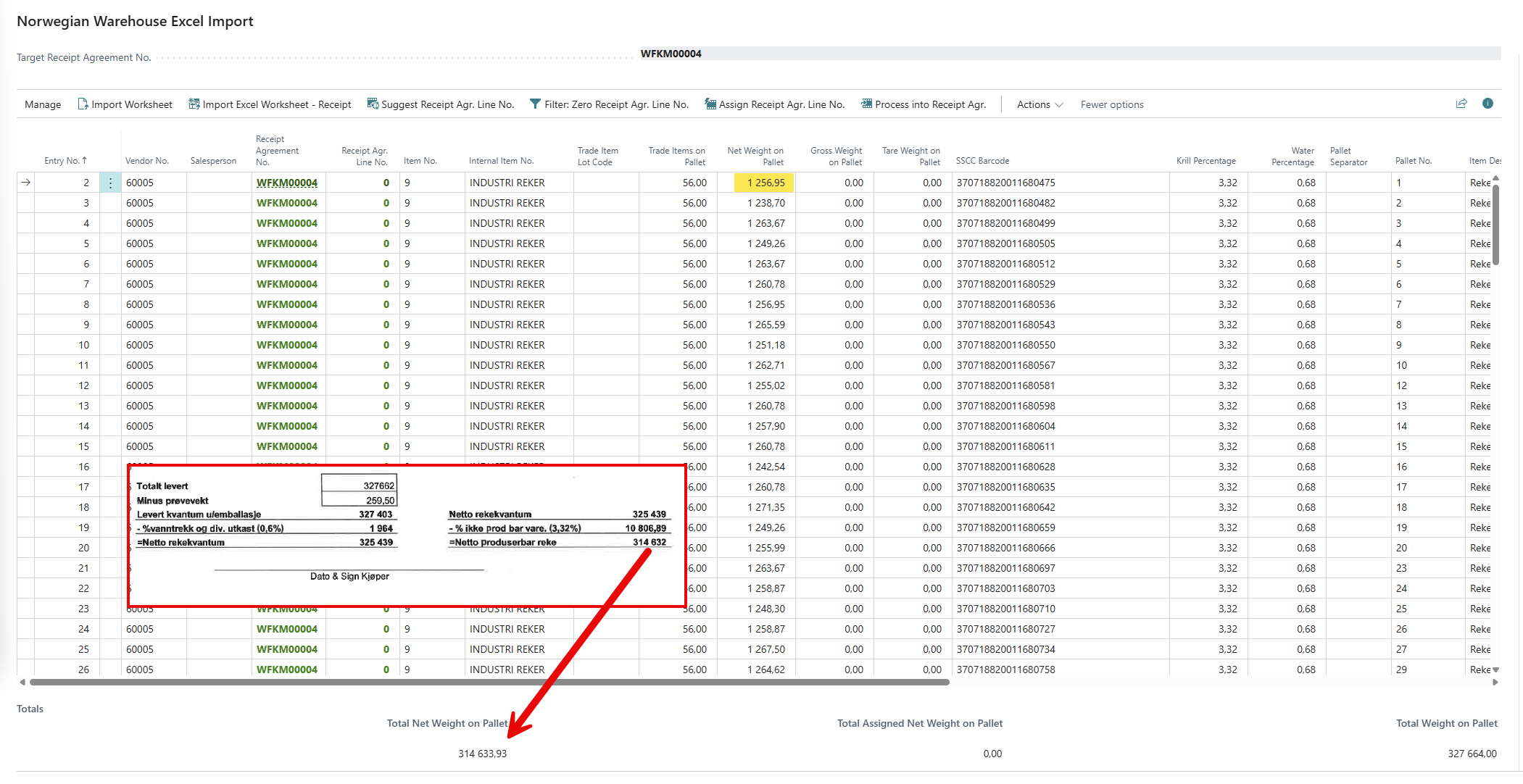
In the Excel import worksheet we can see the original weight “Total weight on pallet” and the weight after Water and Krill has been deducted “Total Net weight on Pallet”