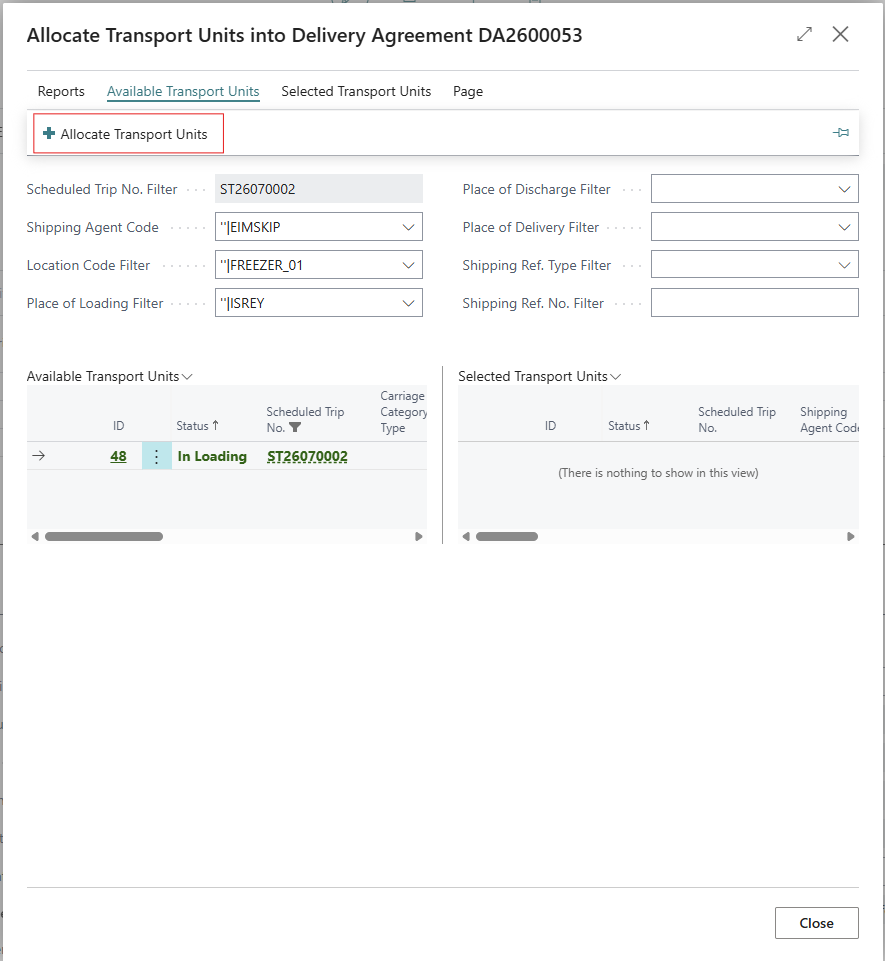
The workflow described inLoading Trade Items to Transport Units assumes trade items are reserved to a Delivery Agreement first, then loaded onto a Transport Unit. Logistics also supports the reverse order which can be useful when physical loading needs to happen before a Delivery Agreement is ready to receive it. Pre-allocate trade items directly onto a Transport Unit, then afterward allocate that whole loaded Transport Unit into a Delivery Agreement in a single action.
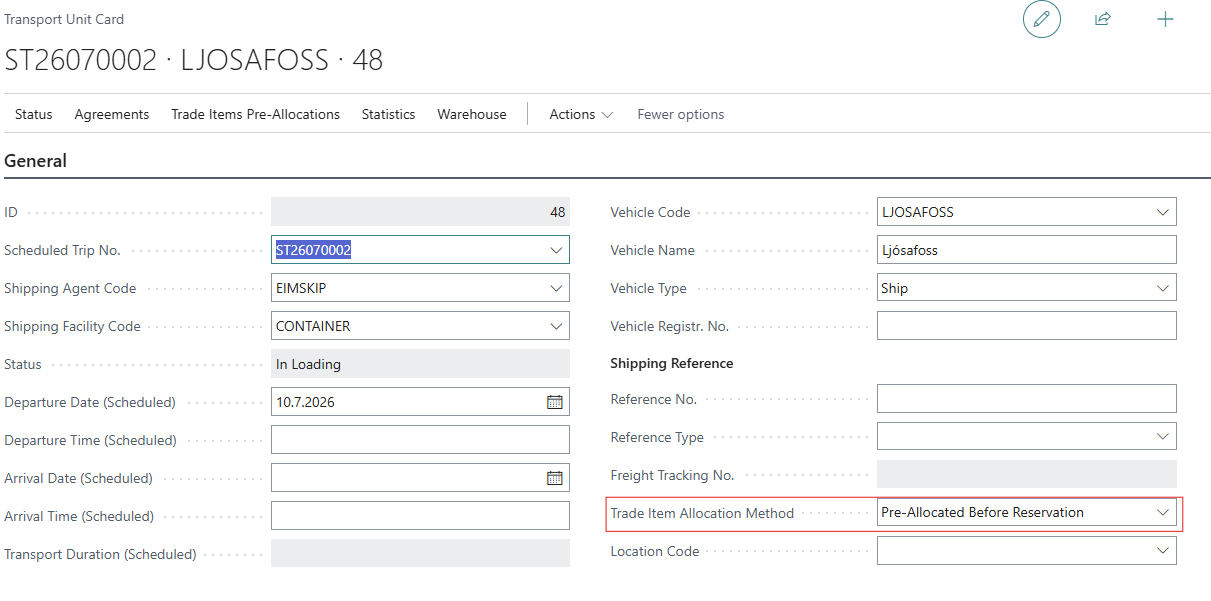
Set the Transport Unit's Allocation Method
On the Transport Unit Card, set Trade Item Allocation Method to Pre-Allocated Before Reservation (the default is Allocated by Reservation). This unlocks a new Trade Items Pre-Allocations action group on the card.
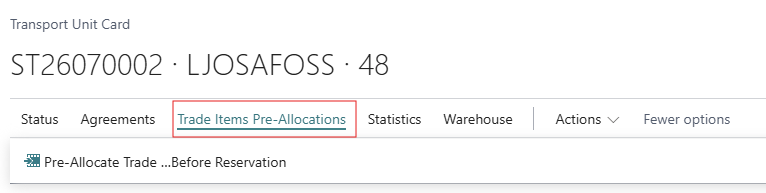
Pre-Allocate Trade Items onto the Transport Unit
Click Pre-Allocate Trade Items Before Reservation.
The Pre-Allocate Trade Items to Transport Unit Before Reservation page opens showing the Open Trade Items available for selection on the left, Selected Trade Items for the Transport Unit on the right.
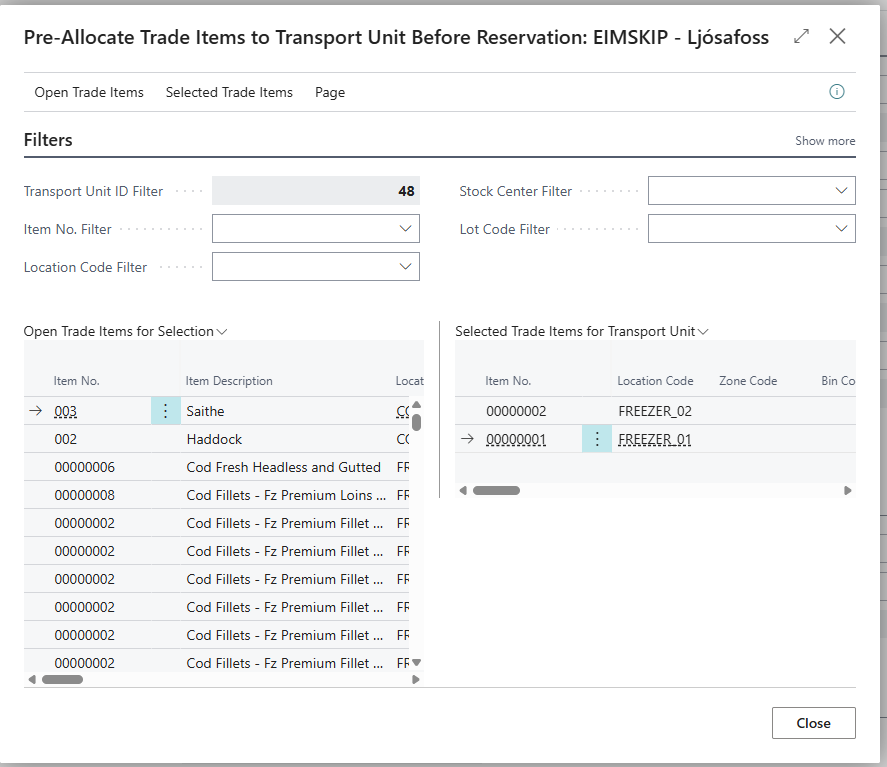
Use the Filters section (Item No., Variant, Location, Stock Center, Producer, Processing Stage, Lot, Fishing Trip No., Landing Type) to narrow the list, then:
-
Allocate Trade Item – move a selected line onto the Transport Unit.
-
Release Trade Item – move a line back off.
-
Edit Selected Qty on Trade Item – take a partial quantity from a line rather than all of it.
Selecting a trade item that's on a pallet automatically pulls the pallet's other trade items along with it.
Once items are allocated, the Transport Unit's status automatically advances to In Loading. The items are now linked to this Transport Unit and its scheduled trip, but are not yet reserved to any Delivery Agreement.
To undo an allocation, use Release Trade Item. This is blocked once a trade item has already been posted out of stock, or already appears on an outbound posting document.
Allocate the Loaded Transport Unit into a Delivery Agreement
Once the Delivery Agreement is ready and has a Scheduled Trip No. assigned in its Shipping tab go to Actions > Logistics > Reserve Whole Transport Units on the Delivery Agreement.
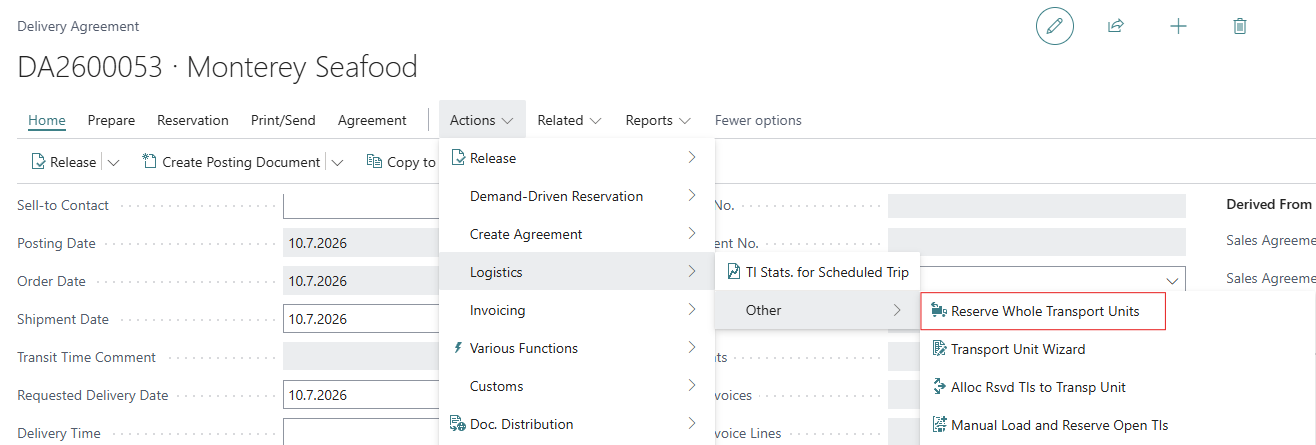
This will open the Allocate Transport Units into Delivery Agreement page which lists Transport Units on the scheduled trip that still have available pre-allocated trade items. Filter by shipping agent, location, place of loading/discharge/delivery, shipping facility, or shipping reference as needed, then it is possible to
-
Allocate Transport Units which reserves every trade item already loaded on the selected Transport Unit(s) against this Delivery Agreement in one action, grouped automatically by item and variant.
-
Release Transport Unit which reverses this, un-reserving the trade items and returning them to available pre-allocated stock.
-
Print which prints the Sales Agreement - Transport Units confirmation report for the agreement.