
Registering pallets, pallet numbers and pallet barcodes when receiving items in WiseFish is done with the action Trade Item Lines. The Trade Item Lines action opens a worksheet to record trade items to the purchase agreement.
The action is located on the ribbon and by the lines. Make sure that the items have been inserted to the Receipt Agreement and the lines have been filled out.
Click Process > Trade Item Lines in the Receipt Agreement Ribbon. Or click Line > Trade Item Lines in the Receipt Agreement Lines.
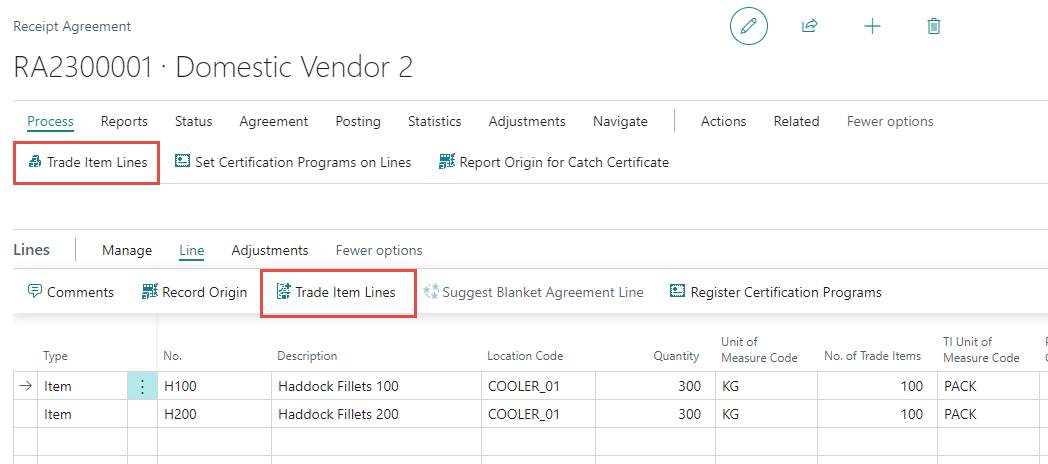
Navigate
When working with the Trade Item Lines, the system displays one line at a time.
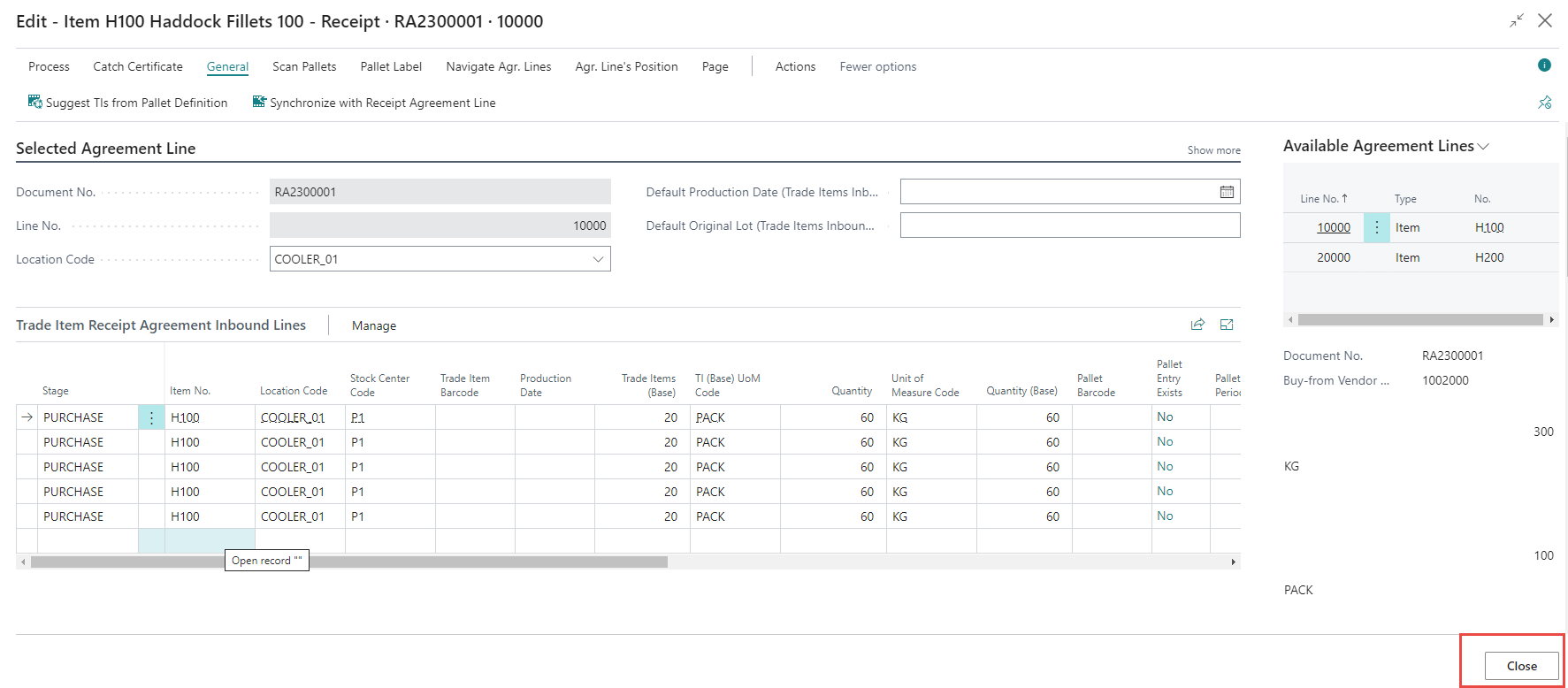
The example below shows a Receipt Agreement with two lines. The selected Line No. is displayed under the Selected Agreement Line tab. All the lines from the Receipt Agreement are displayed in the FactBox on the right side of the page.
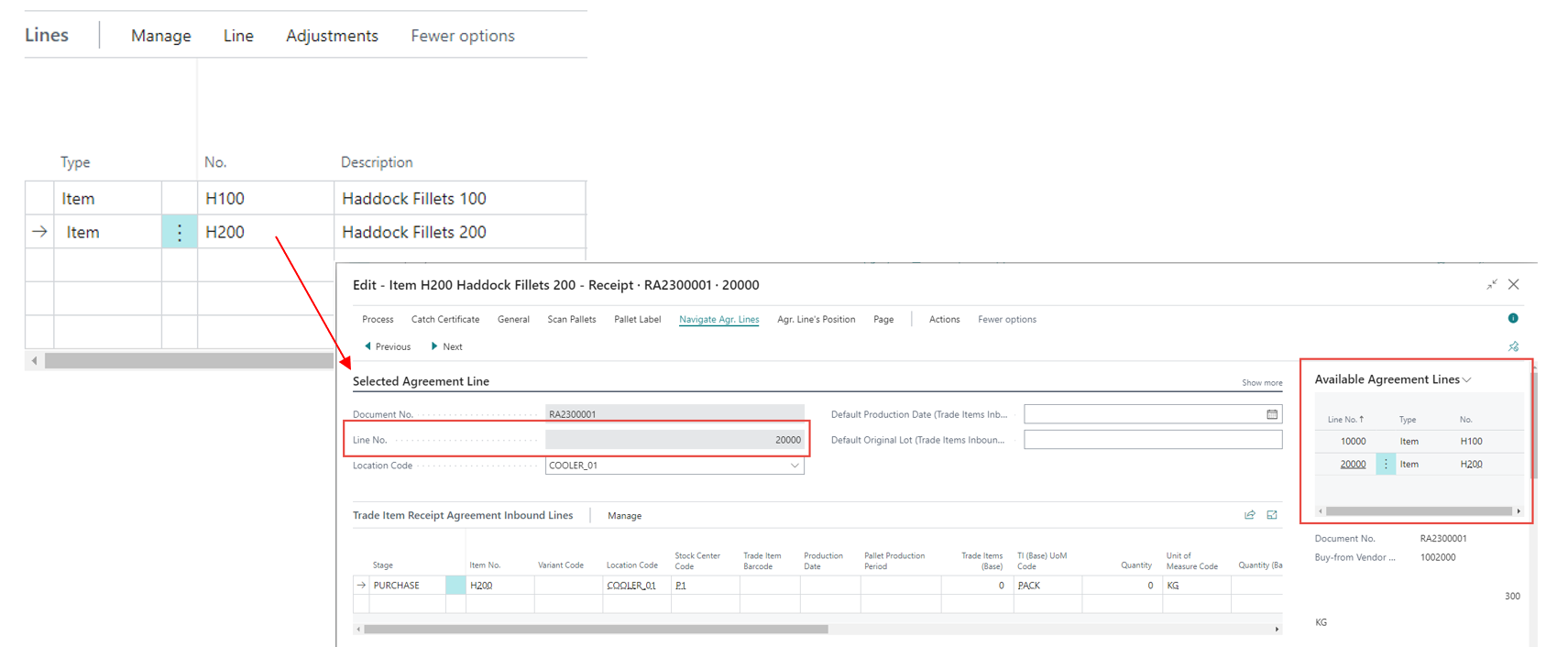
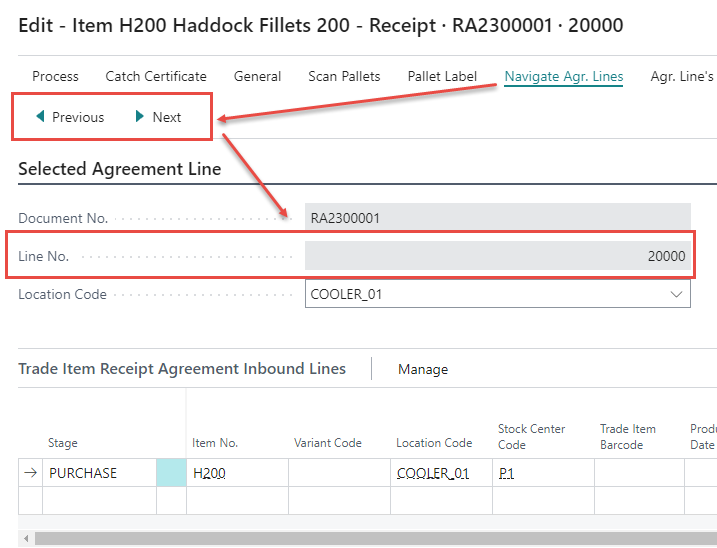
To navigate between the lines click Navigate Agr. Lines > Previous or Next. This action will change the selected agreement and the Line No field.
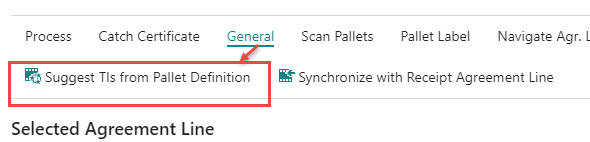
Suggest TIs from Pallet Definition
With the Action Suggest TIs from Pallet Definition, the system suggests how to split the receiving items in to pallets. The system splits the items in to pallets based on the Pallet Definition for the item.
To do this, select the item line that needs to be split and click on Suggest TIs from Pallet Definition.
Below is an example, where 100 trade items are being received.
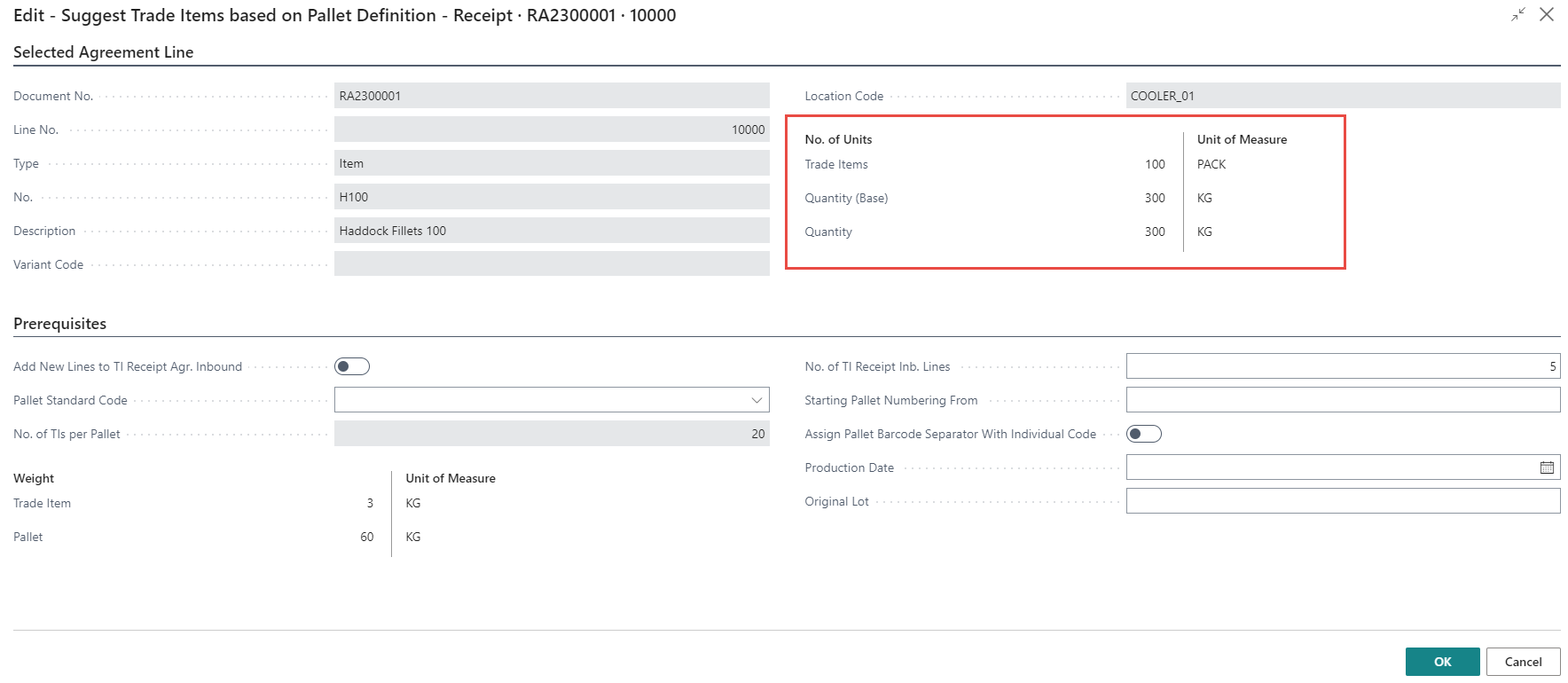
The system suggests 5 pallets with 20 Trade Items per Pallet.

Fill in the related fields and then click on OK.
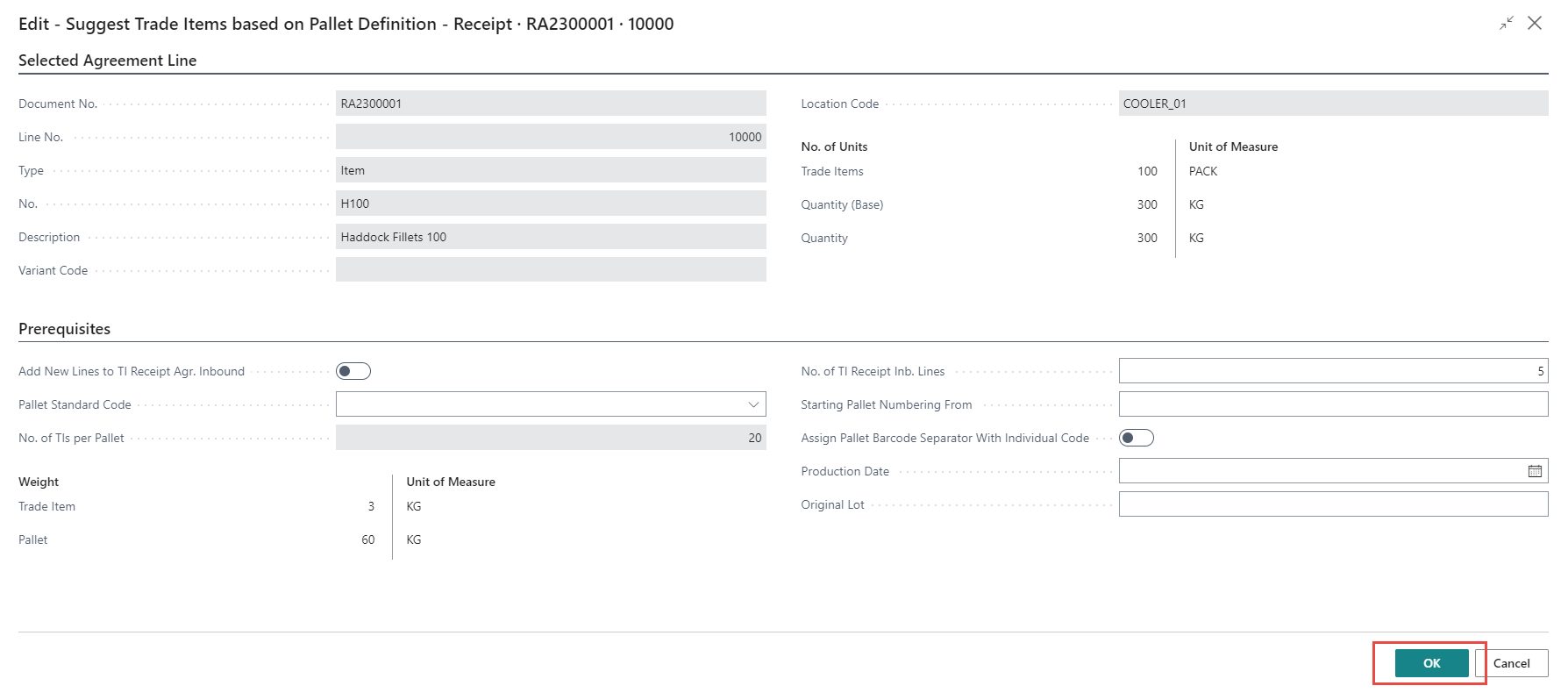
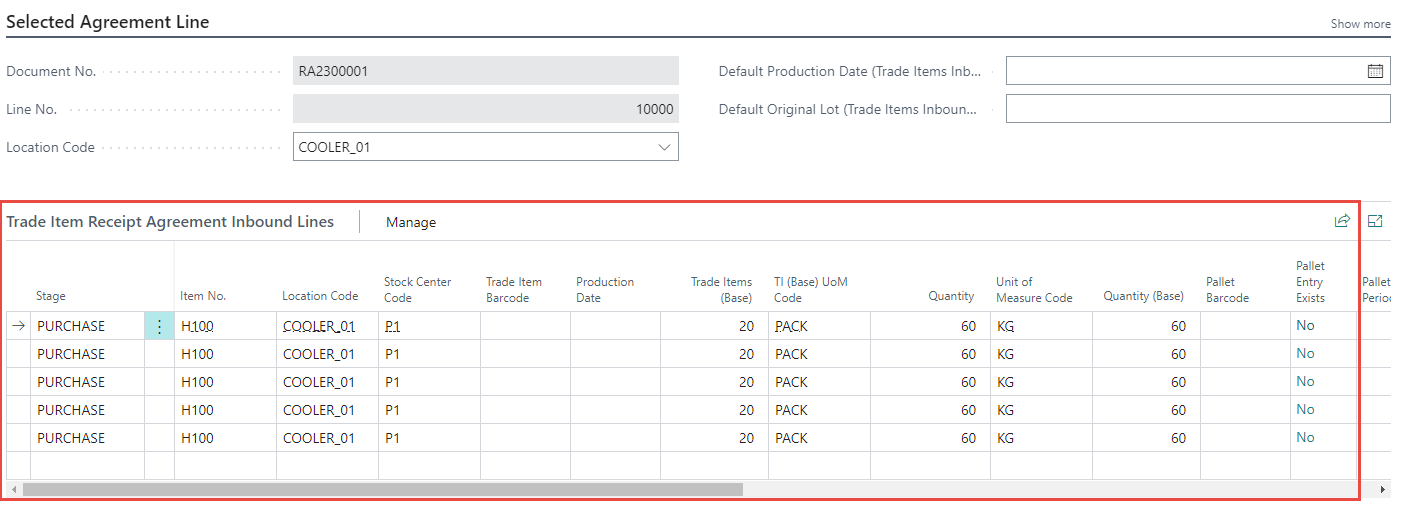
Now, the selected line has been split in to 5 Trade Item Receipt Agreement Inbound Lines.
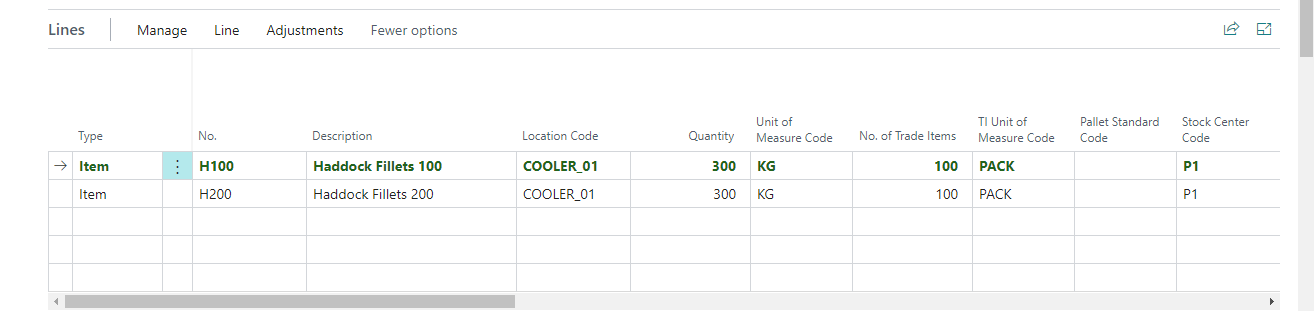
Click on Close. The line will turn green and bold, which means that pallets have been registered.
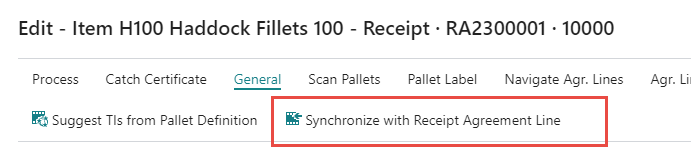
Synchronize with Receipt Agreement Line
It is possible to update and change the Quantity in the Trade Item Receipt Agreement Inbound Lines. To synchronize the change with the Receipt Agreement Lines, click Actions > Suggestions > Synchronize with Receipt Agreement Line.
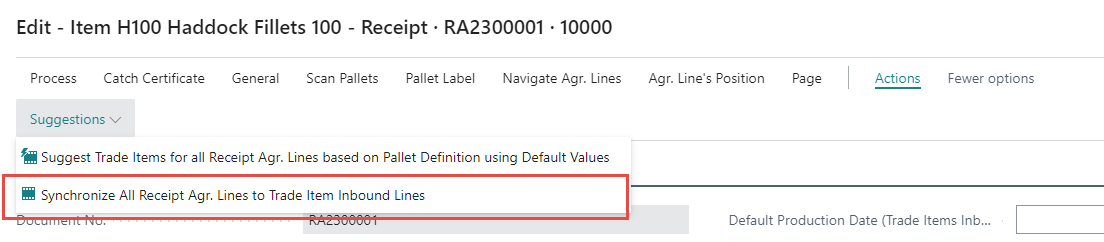
If the quantity has been change in more than one line it is also possible to synchronize all of the Receipt Agreement lines by clicking on Actions > Suggestions > Synchronize All Receipt Agr. Lines to Trade Item Inbound Lines.
Colors
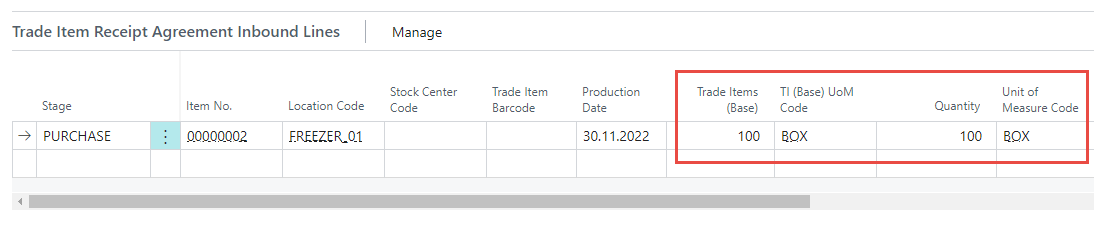
If the Inbound Lines are not synchronized with the Receipt Agreement Lines the Receipt Agreement Lines change color.
Yellow/Brown - Trade Item Inbound Lines Quantity is lower than the Receipt Agreement Line.
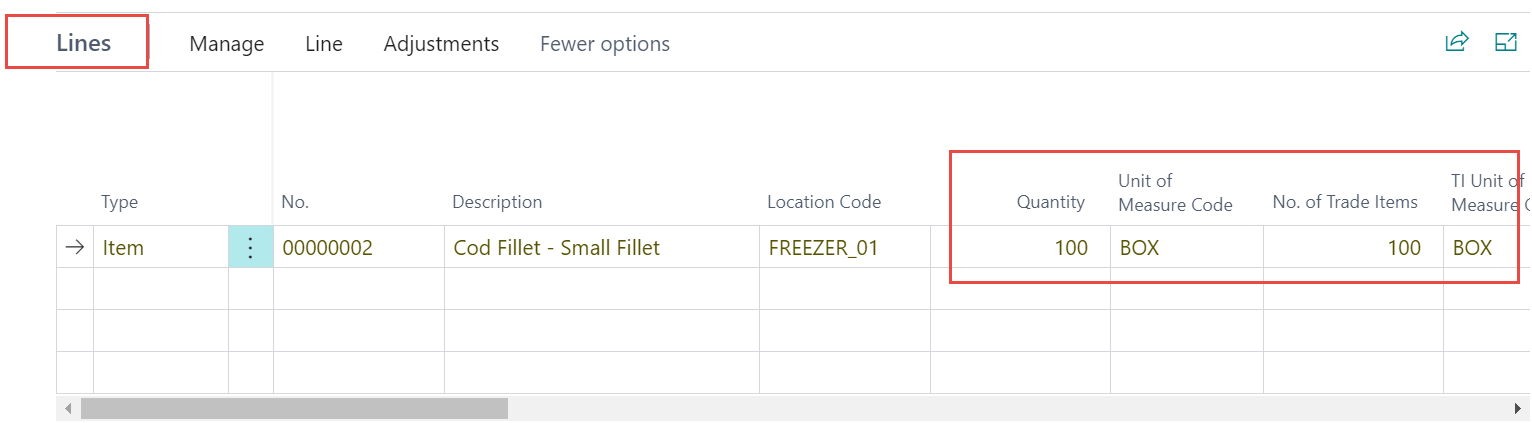

Red and italicized - Trade Item Inbound Lines Quantity is higher than the Receipt Agreement Line.
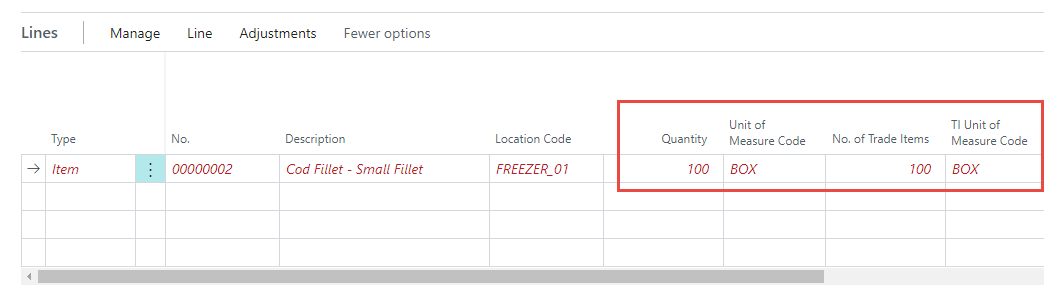
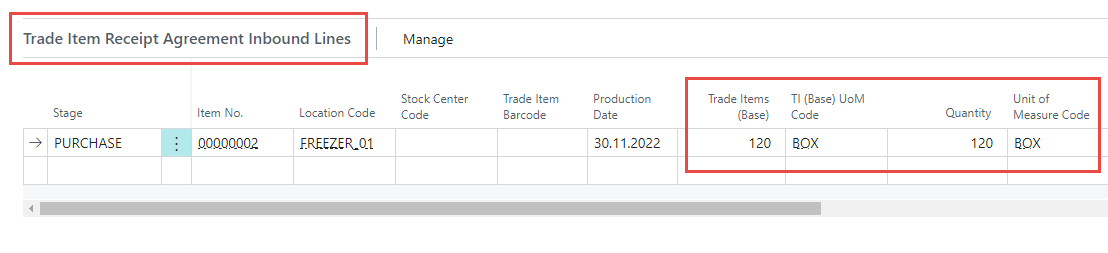
Bold and green - Trade Item Inbound Lines Quantity are in sync with the Receipt Agreement Line.

Scan Pallets into Trade Item Inbound Line
The Scan Pallets into Trade Item Inbound Line is used when incoming pallets are scanned, using
pre-defined barcode and pallet definition, for the related item no. in registration. Click Scan Pallets > Scan Pallets Into Trade Item Inbound Line.
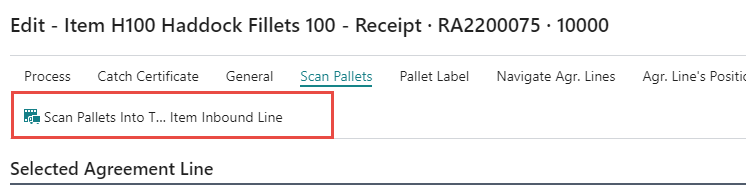
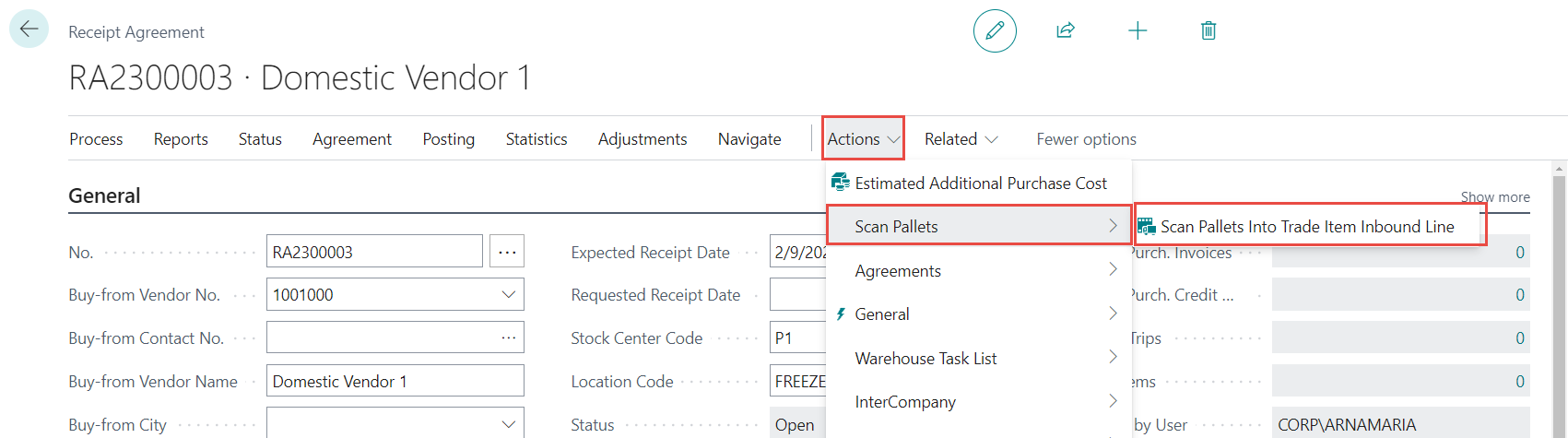
This action is also accessible through the Receipt Agreement. Click Actions > Scan Pallets > Scan Pallets Into Trade Item Inbound Line.
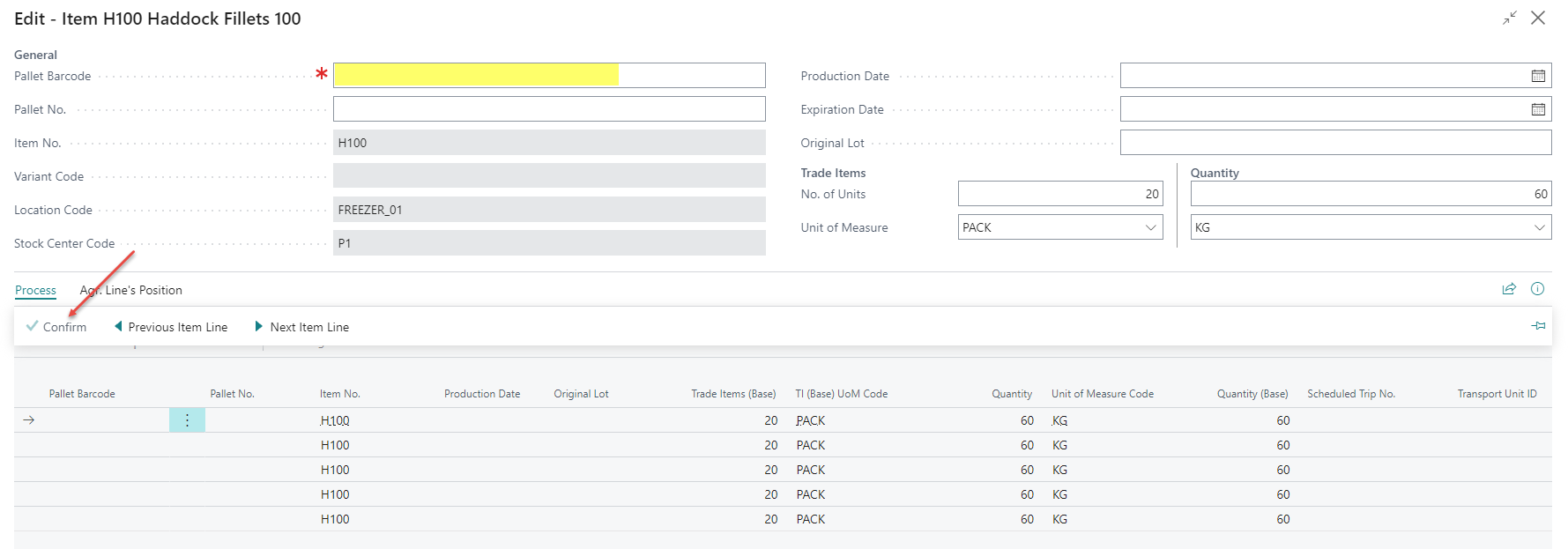
Scan the pallet barcode into the Pallet Barcode field, follow by clicking on Confirm. A new entry is now registered into the trade item inbound lines using the pallet definition as represented by the Trade Items and Quantity figures on the right-hand side of the page.
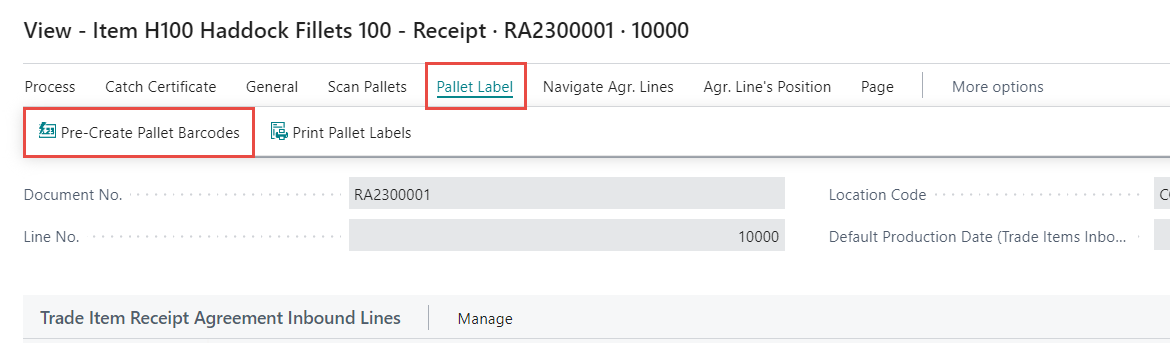
Pre-Create Pallet Barcodes
Prior to using the action the Pallet Separators must have been defined. To pre-create pallet barcodes, click Pallet Label > Pre-Create Pallet Barcodes.
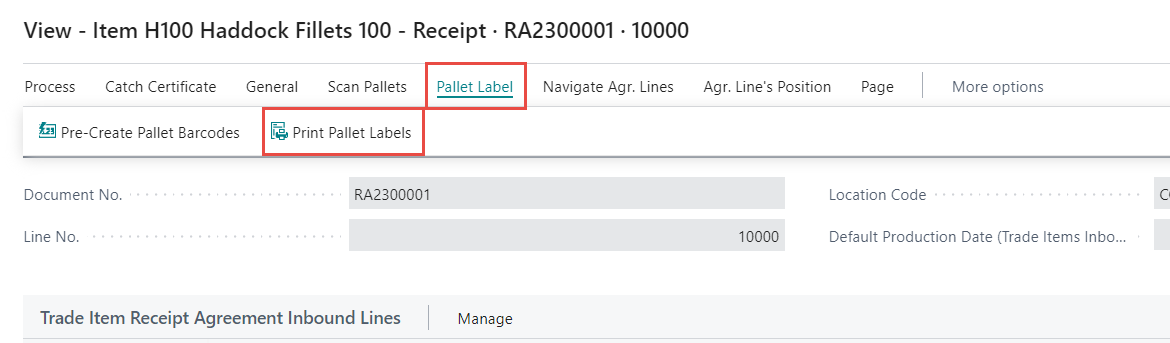
Print Pallet Labels
To print pallet labels, click Pallet Label > Print Pallet Lables
Suggestions
There are two actions under Suggestion. Click Actions > Suggestions.
The user is able to suggest trade items for all receipt agreement lines based on pallet definition using default values or synchronize all receipt agreement lines to trade inbound lines.
MÓttökusamkomulag sölueingalínur pallettur