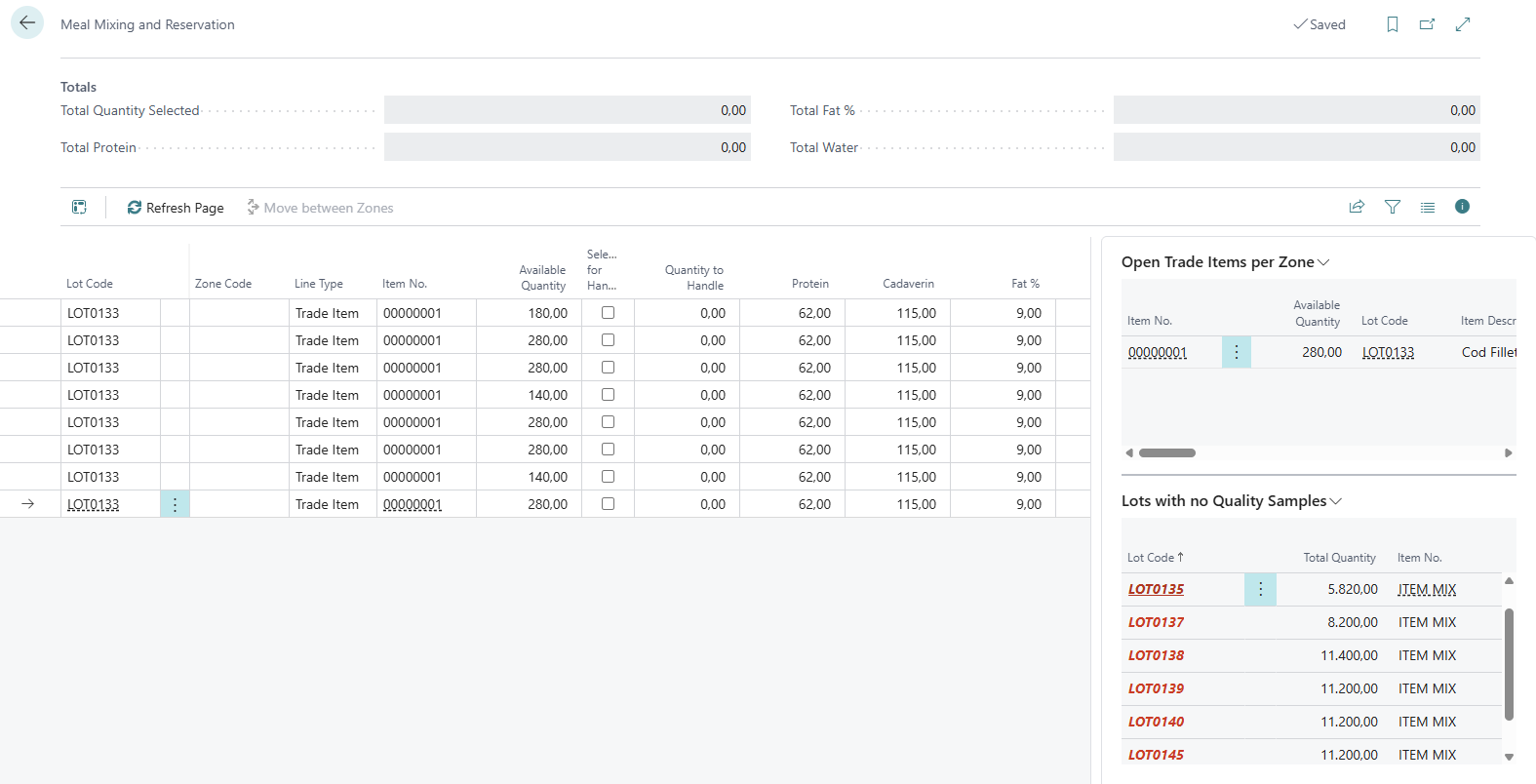
Before using the meal and oil extension of WiseFish, some setup is required. Until they are done, the Meal Mixing and Reservation page will not show any data.
Stock Centers
-
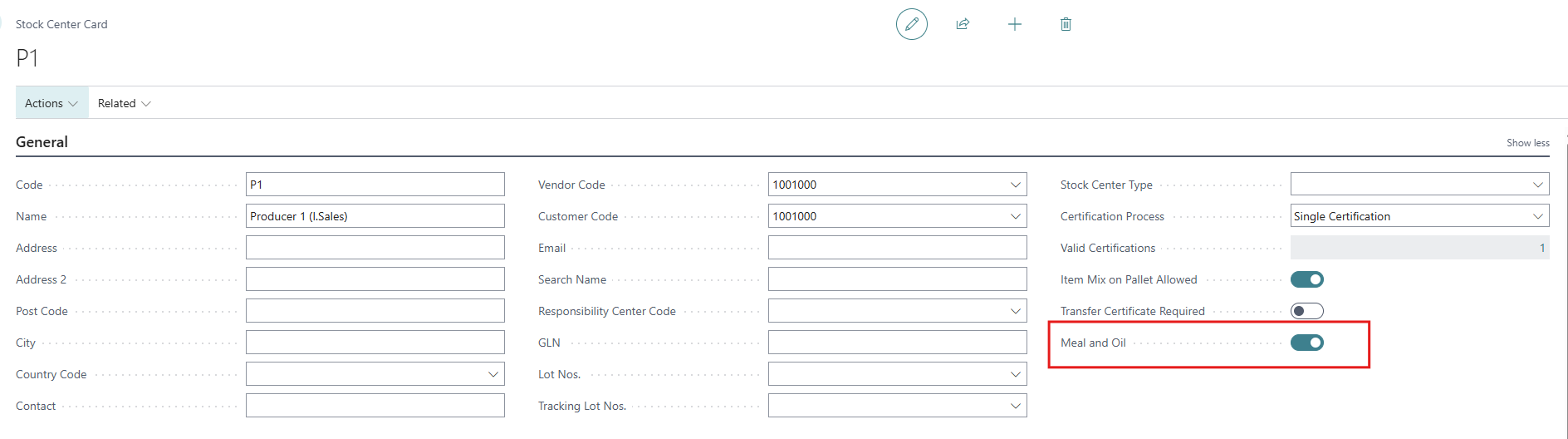
Search for Stock Centers and open the stock center that holds meal or oil.
-
Turn on Meal and Oil.
-
Repeat for every stock center that holds meal or oil.
If no stock center has Meal and Oil turned on, the page cannot open: "No stock center is set up for meal and oil."
Zones and Silos
-
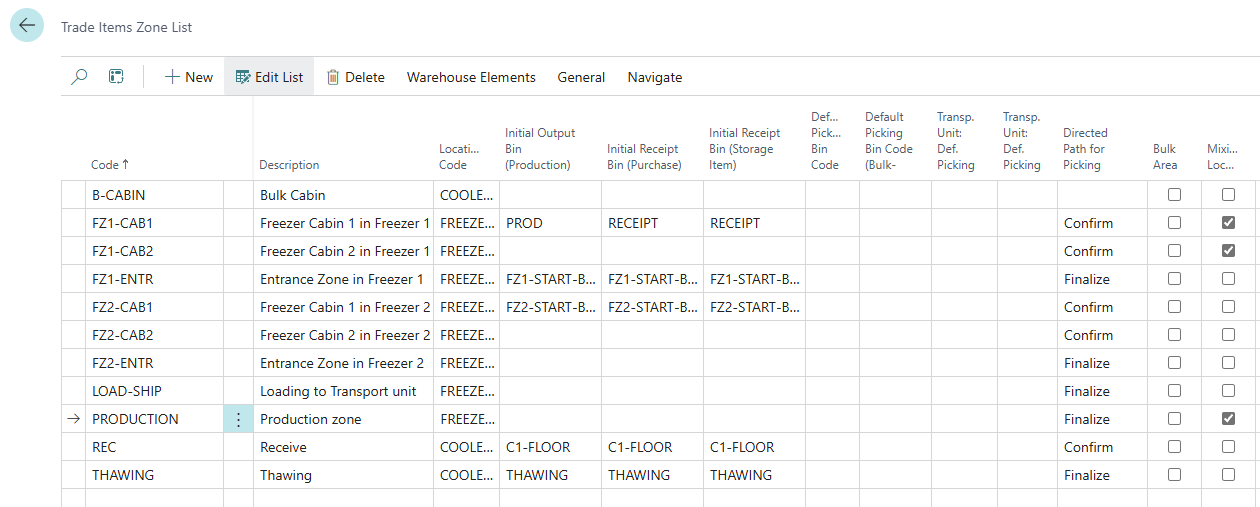
Search for Trade Items Zone List.
-
Create or edit a zone. Fill in Code, Description and Location Code (always fill in the location).
-
Turn on Mixing Location for a silo, where everything is mixed. Leave it off for a normal zone, where lots are kept separate.
Items
On the item card of each meal and oil item
-
Trade Item Unit of Measure must be the same as Base Unit of Measure (for example KG). Otherwise a trade item cannot be split, and reserving or moving part of it fails.
-
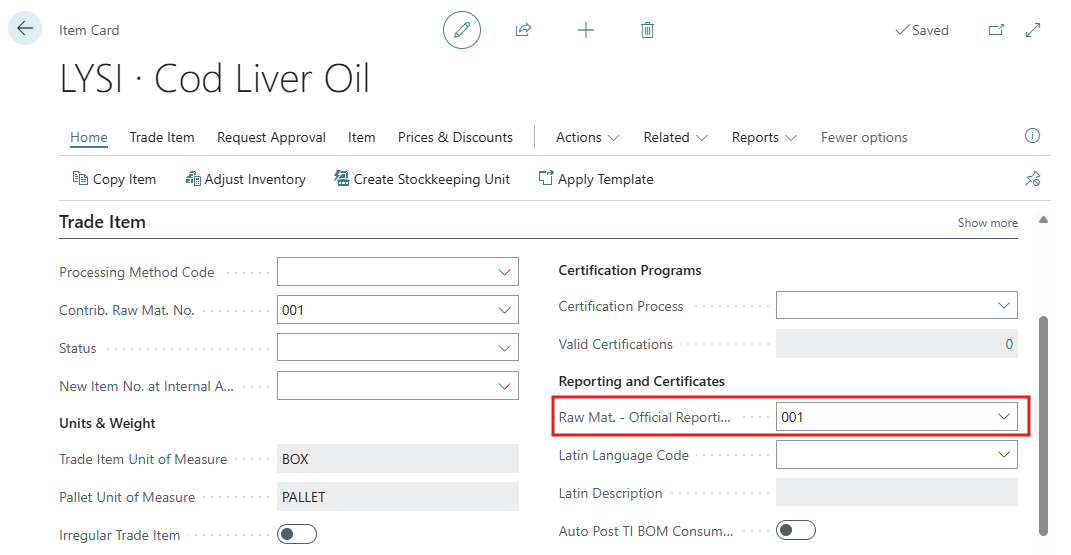
Fill in Raw Mat. - Official Reporting Code, or turn on Exclude from Catch Certificates if the item needs no catch certificate.
-
Optionally, in the Meal and Oil group, set Combine on Invoice to Meal and Oil to combine the item with other meal and oil items on printed sales agreement documents.
Which Trade Items are shown on Meal Mixing and Reservation
A trade item is shown on the Meal Mixing and Reservation page only when:
-
it belongs to a stock center marked Meal and Oil,
-
it is open and available (not reserved or blocked), and
-
its lot has at least one quality sample.
Production lots with stock but no sample are listed in the FactBox Lots with no Quality Samples, so you can register the missing sample.