
All mixing, reservation and moving is done on page Meal Mixing and Reservation.
Opening the page
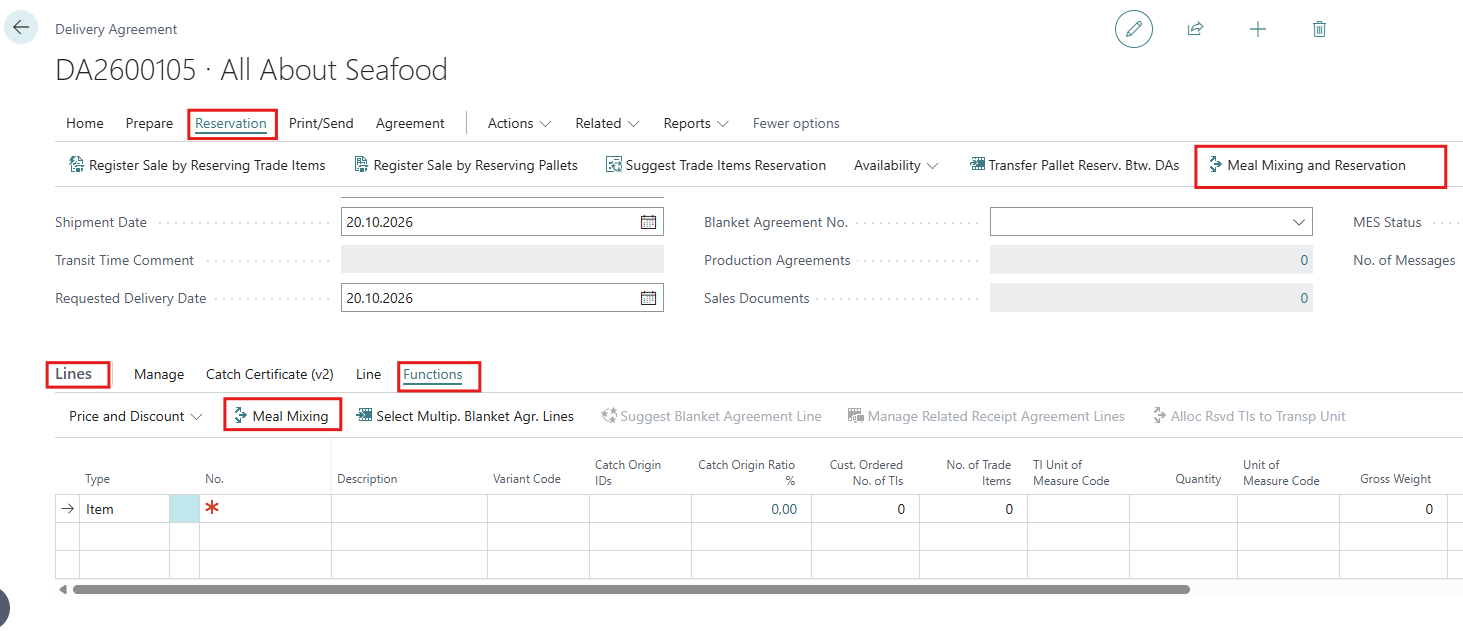
The Meal Mixing and Reservation page can be opened from these locations:
|
From |
Action |
Items shown |
Reserve possible? |
|---|---|---|---|
|
Delivery Agreement card (header) |
Reservation - Meal Mixing and Reservation |
All Meal and Oil items |
Yes. Trade items of different items can be reserved to the same Delivery Agreement |
|
Delivery Agreement lines |
Functions - Meal Mixing |
Only the item on the selected line |
Yes, to that line |
|
Search for Meal Mixing and Reservation |
– |
All Meal and Oil items |
No. Only Move between Zones is available. |
Please note that the status of the Delivery Agreement must be Open or Released.
How the lines are built
Each available trade item belongs to exactly one line. Which line depends on its zone.
|
Trade item's zone |
Line type |
One line per |
How to recognise it |
Quality values |
|---|---|---|---|---|
|
A SILO |
SILO |
Silo. All lots in the silo are combined. |
Zone Code filled in, Lot Code blank |
Weighted average of all trade items in the silo |
|
A normal Zone |
Zone Lot |
Zone + lot |
Zone Code and Lot Code filled in |
Weighted average of the lot's trade items in the zone |
|
No zone (or a zone that does not exist) |
Trade Item |
Trade item |
Zone Code blank |
The lot's newest sample |
Weighted average
Averages are weighted by quantity. Example: a silo holds 100 kg with 70% protein and 300 kg with 66%. The silo line shows 400 kg and (100 × 70 + 300 × 66) / 400 = 67.0% protein.
The Meal Mixing and Reservation page
-
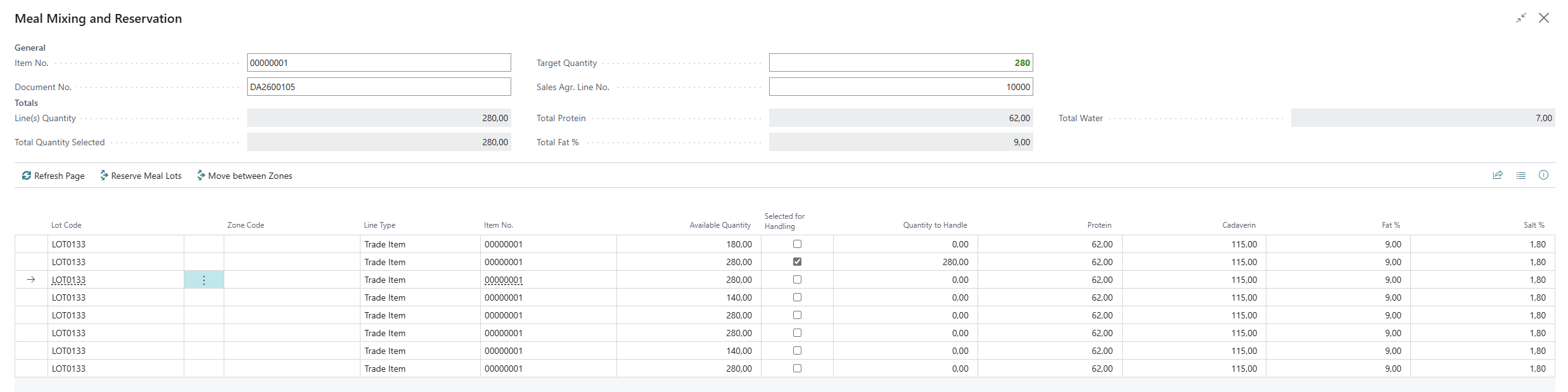
General (only when opened from a DA): Item No., Document No. and the Target Quantity (total of all lines) to reserve. The Sales Agr. Line No. shows the first DA line. If the DA has no lines the Target Quantity is 0 and the quantity that should be reserved can be entered.
-
Totals: Total Quantity Selected and the weighted average of the selection (Protein, Fat %, Water). The total is green when it equals the quantity to reserve, yellow when below, red when above. More quality totals can be shown with Personalize.
-
Lines: Lot Code, Zone Code, Item No., Available Quantity, Selected for Handling, Quantity to Handle, Protein, Cadaverin, Fat %, Salt %. More columns can be shown with Personalize.
FactBoxes
-
Open Trade Items per Zone shows the trade items behind the current line, with their own quality values. For a zone line it shows every lot in the zone.
-
Lots with no Quality Samples lists production lots with stock but no sample. Several items in one lot show as ITEM MIX. Click the lot code to open the Lot Card to register a sample, see Register a Quality Sample.
Selecting Quantities
-
Tick Selected for Handling to take the whole line, or type a Quantity to Handle (the line is ticked automatically).
-
Do not enter more than the available quantity.
-
The totals update after each change, so it is possible to try combinations and watch the quality of the mix.
-
Refresh Page collects all data again and clears all selections.