
Individual vehicles need to be set up. Vehicles can be for an example a truck, airline or a ship.
Go to the search bar and type Vehicle List.
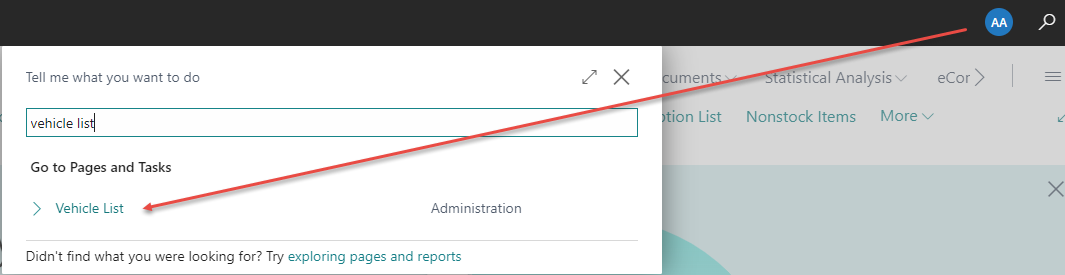
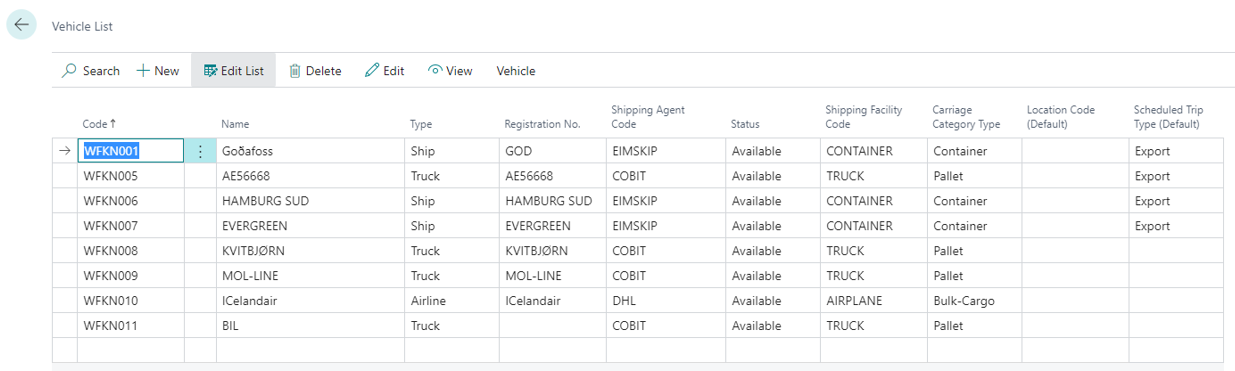
Create all Vehicles through the Vehicle list this will result in faster registration in Delivery Agreements.
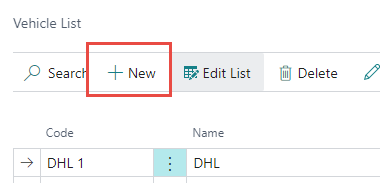
Click on +New to create a Vehicle.
The Vehicle Card opens.
Vehicle Card
Code is automatically set from a number series in Logistic setup but can be set manually if needed. Name of the Truck is set for easy registration. Select the Type of the vehicle. Registration number can be set for each vehicle for easy registration. If many vehicles are from the same shipping agent it can be helpful to fill in the Registration numbers to define each Vehicle. Status must be “Available” for the Vehicle to be used in registration.
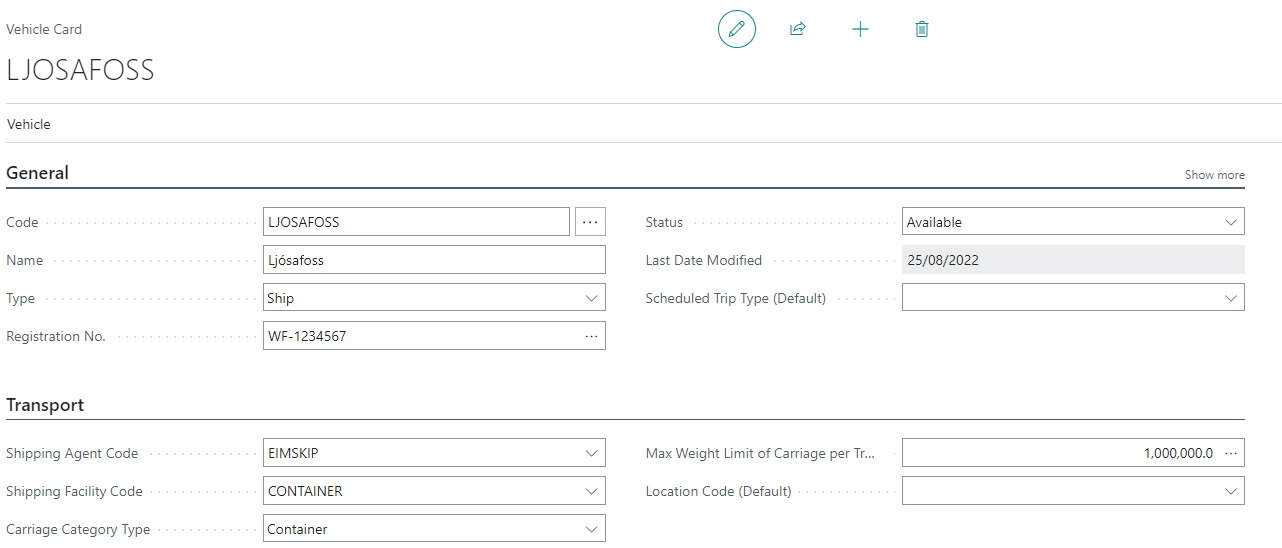
The Carriage Category Type field classifies how the vehicle is loaded and determines which allocation tools are available for it later in the process. Select
-
Pallet when the vehicle is loaded with individual pallets.
-
Container when the vehicle is transporting one or more containers (transport units). This is typically used for ships or railways.
-
Bulk-Cargo when the vehicle carries unwrapped/bulk cargo rather than individual pallets or containers.