
ℹ️ The following describes the new reservation forms available in late March 2026. The change will publish in all company databases with the new major version. The new method will be enabled by default.
Introduction
Before using the reservation actions, it is important to understand the difference between trade item reservation and pallet reservation.
-
Trade Item Reservation displays a list of available trade items as they are registered in the system.
-
Pallet Reservation displays a list of pallets. If multiple trade items are stored on the same pallet, they are grouped together and shown as a single entry, providing a more simpler, pallet-level view.
In general:
-
Use Pallet Reservation when working with palletized stock that is tracked per pallet.
-
Use Trade Item Reservation when items are registered and handled at a higher level (e.g. single-line registrations or raw materials).
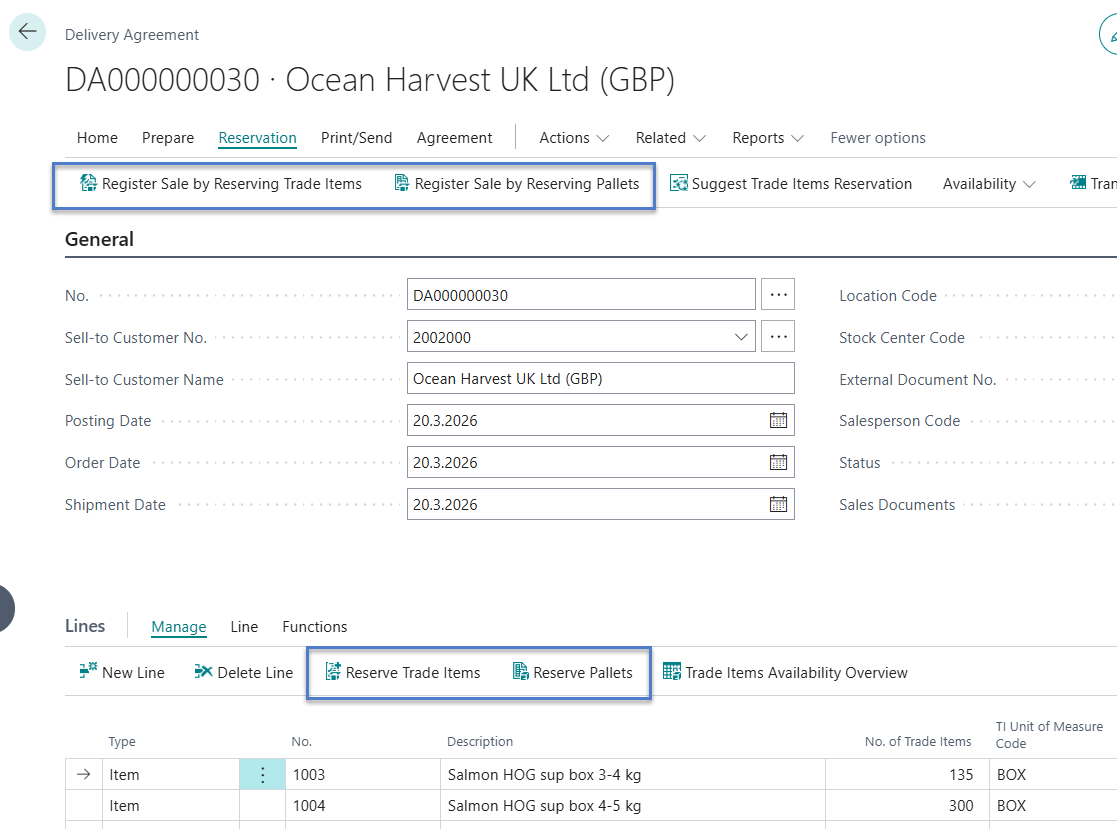
Header Actions (At the top of page under Reservation)
Actions located in the header are used to create new lines.
-
If no lines exist yet, these actions will automatically create a new line for you.
-
These actions are not filtered by item or other line-specific details.
-
Use these when you want to start a new reservation or add a new entry from scratch.
Line Actions (Above the Lines)
Actions available within the lines operate on the currently selected line.
-
These actions are filtered based on the line context, such as item, lot, or other relevant data.
-
When you reserve items using these actions, the reservation is applied directly to the line that is currently in focus.
Reserve Trade Items
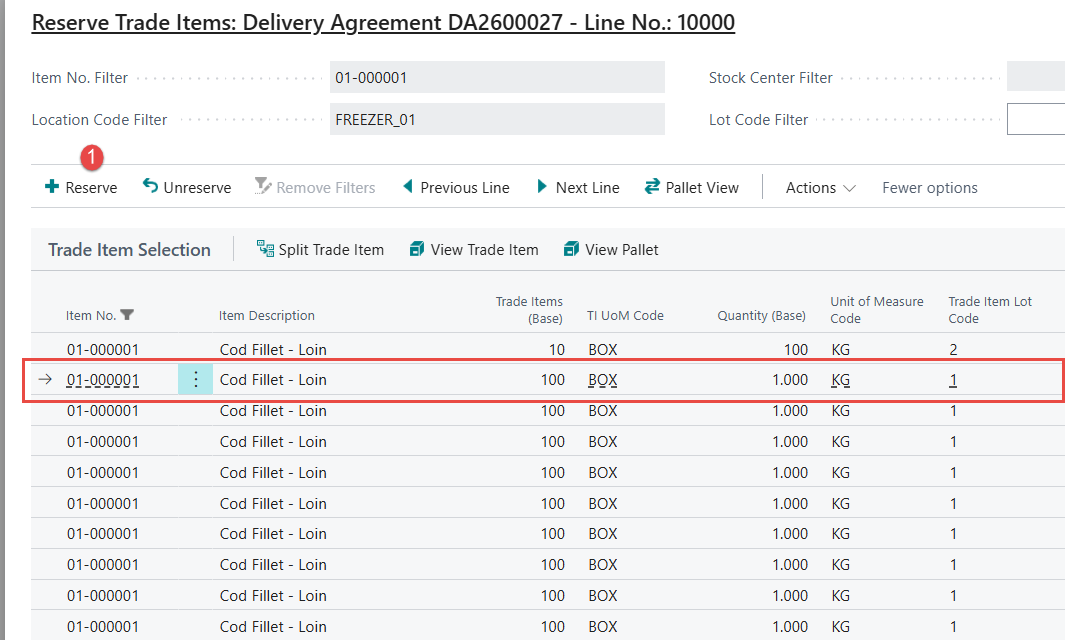
When Reserve Trade Items opens, it shows all available Trade items. Filters are pre-filled from the Delivery Agreement page and can be refined as needed.
-
On open: shows available Trade Items. Filters are pre-filled from the Delivery Agreement and can be adjusted.
-
Filters may differ when opening from header actions vs. line actions.
-
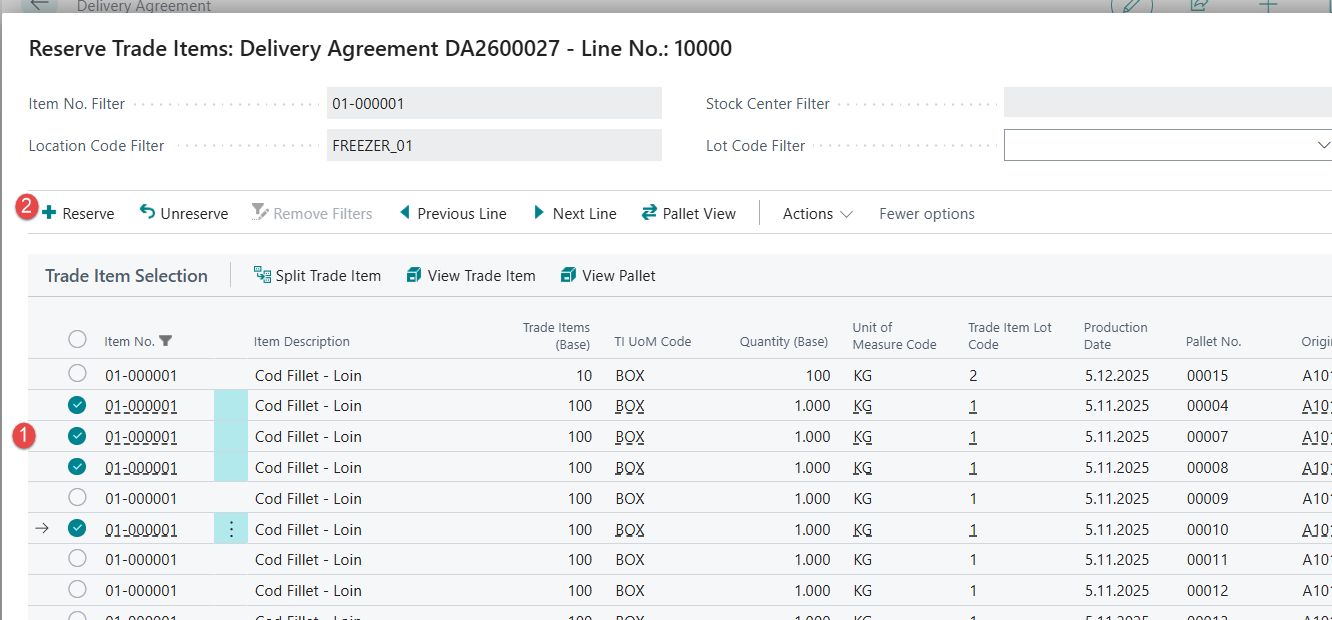
Select one or more lines.
-
Choose Reserve.
-
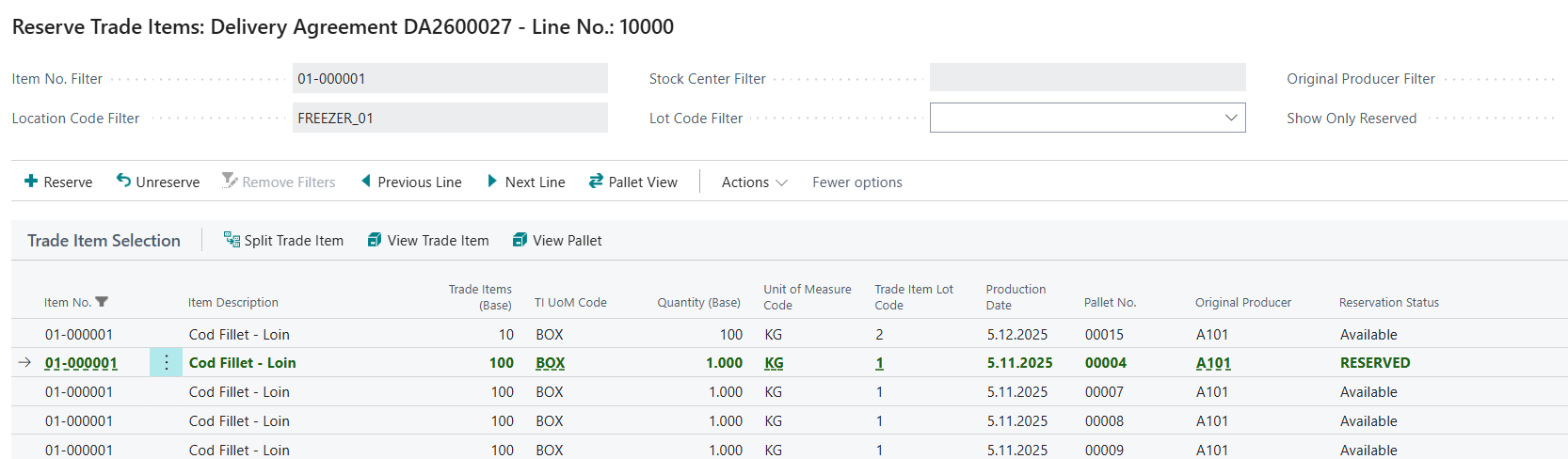
Confirmation: the reserved line turns green and bold.
Reserve Pallets
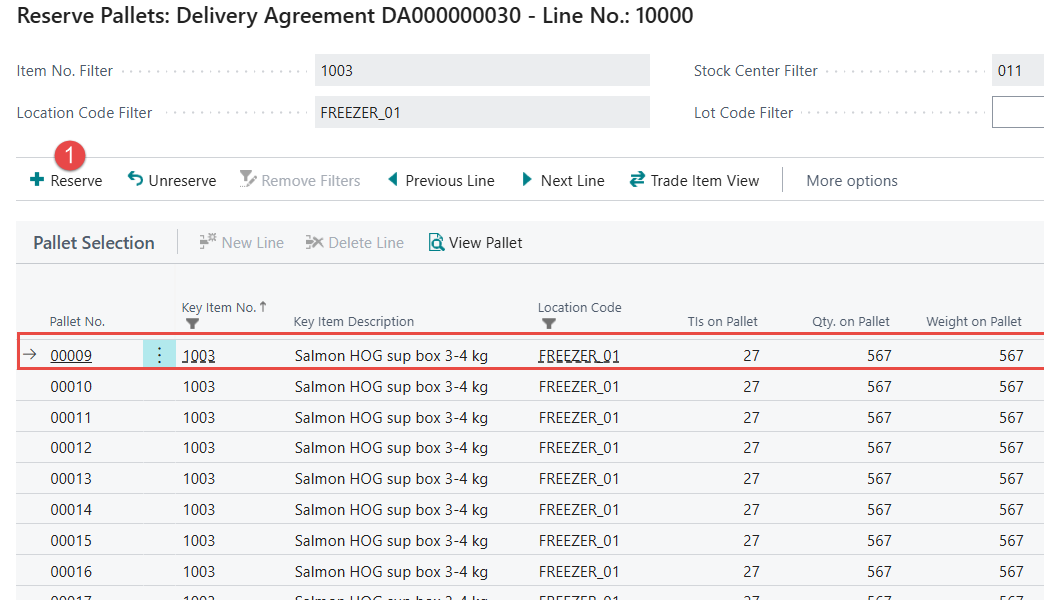
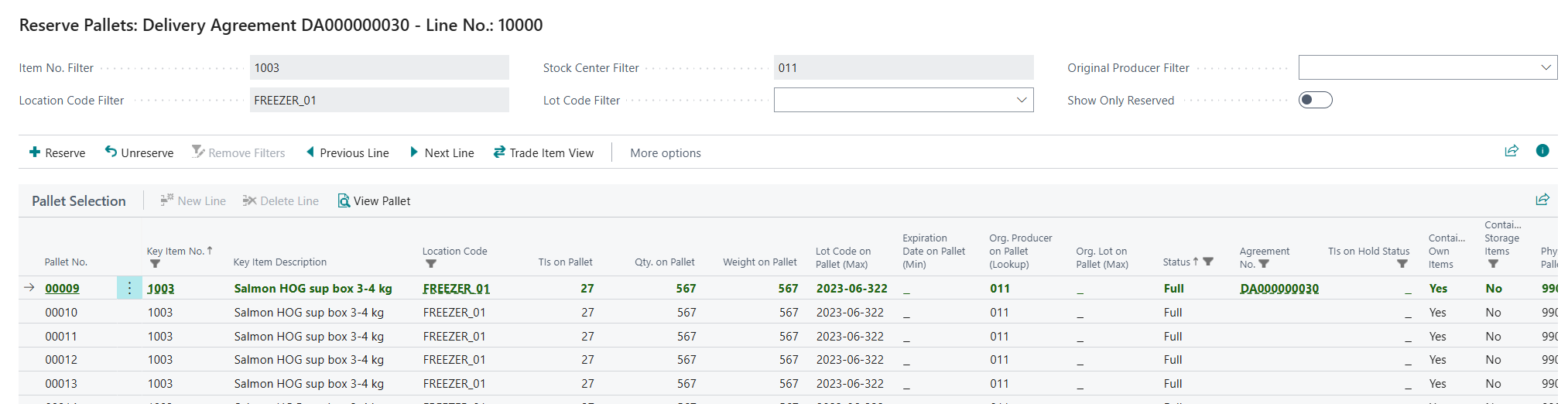
When Reserve Pallets opens, it shows available pallets. Filters are pre-filled from the Delivery Agreement page and can be refined as needed.
-
On open: shows available pallets. Filters are pre-filled from the Delivery Agreement and can be adjusted.
-
Filters may differ when opening from header actions vs. line actions.
-
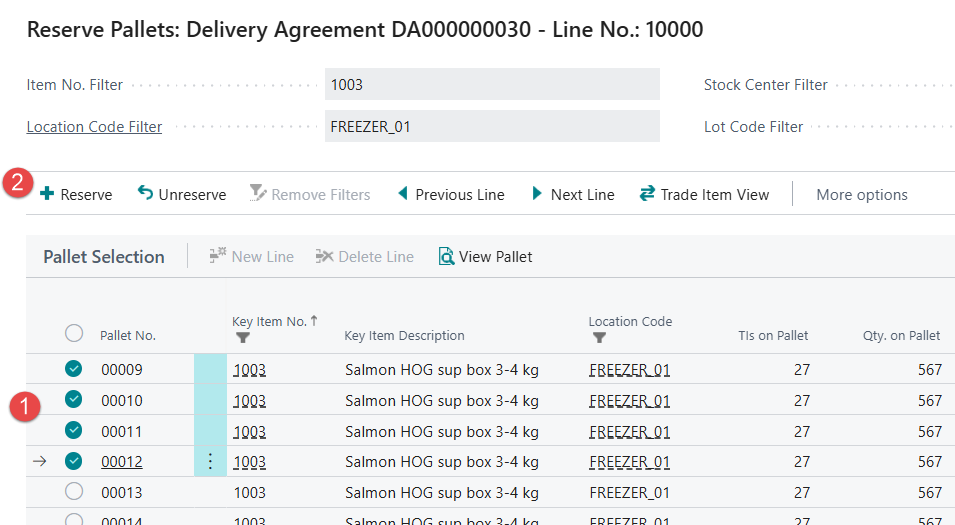
Select one or more pallet lines.
-
Choose Reserve.
-
Confirmation: the reserved line turns green and bold.
Actions
The following actions are available on reservation pages.
Show Only Reserved Items
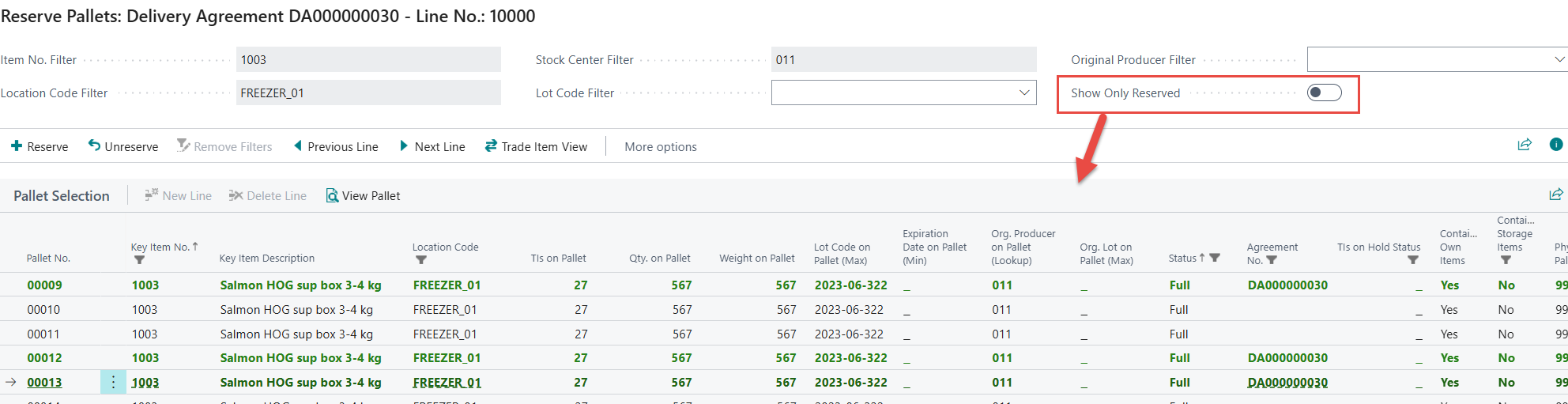
When many items are available and you have selected multiple lines, click Show Only Reserved to display only the items reserved for the agreement.
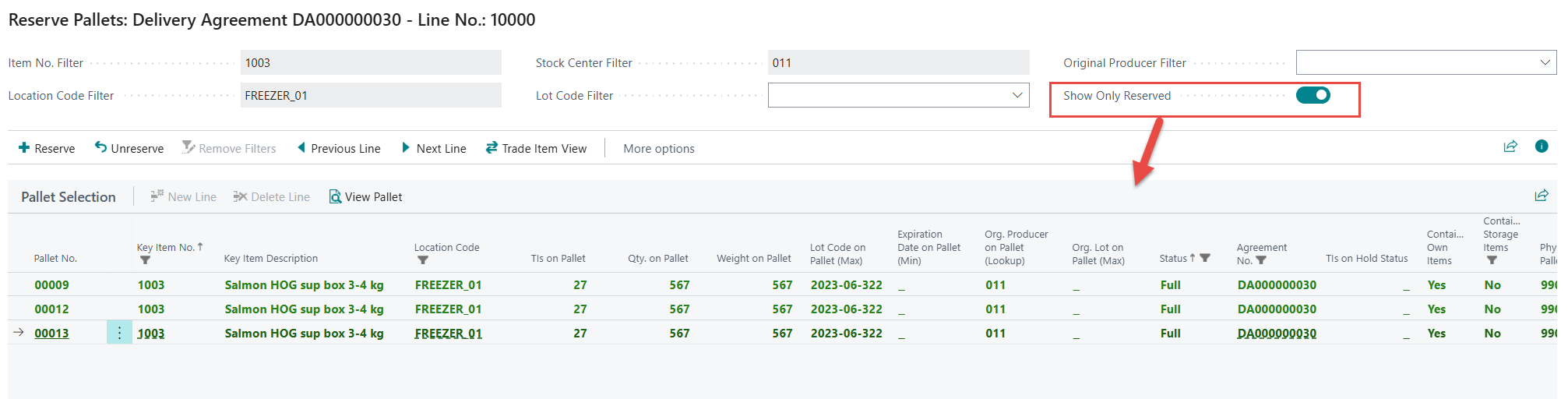
Trade Item View
Switch between Pallet Reservation and Trade Item Reservation.
View Pallets (pallets only)
Open the pallet card for the line in focus.
Split Trade Items (trade items only)
If you only need part of a trade item, select the line and click Split Trade Item to split the quantity.
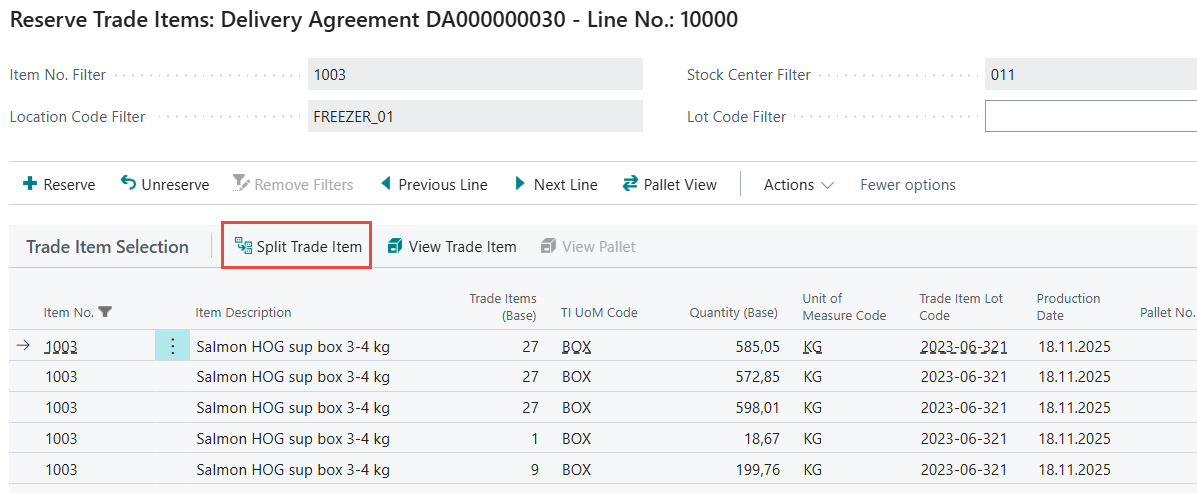
Enter the target Trade Items or Quantity at the bottom of the page. This quantity or trade items will be deducted from the original and reserved for the Delivery Agreement.
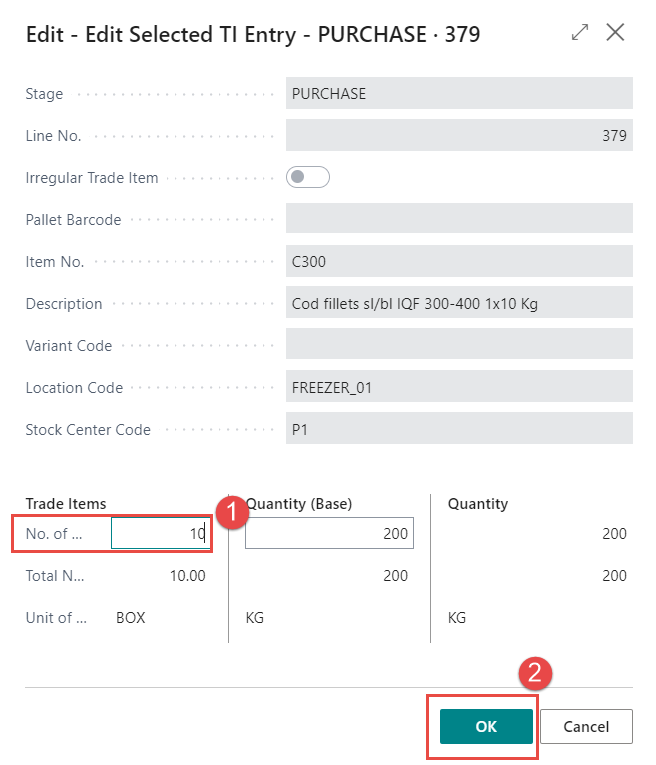
If changes to pallet entries are necessary, make them from the Pallet Card. The option to split or update pallet entries in the reservation form has been removed to follow best practice.
Split Trade Items after Reservation
It is also possible to split the reserved trade items into parts. To do so, select the line that has been reserved and click on Split Trade Item.
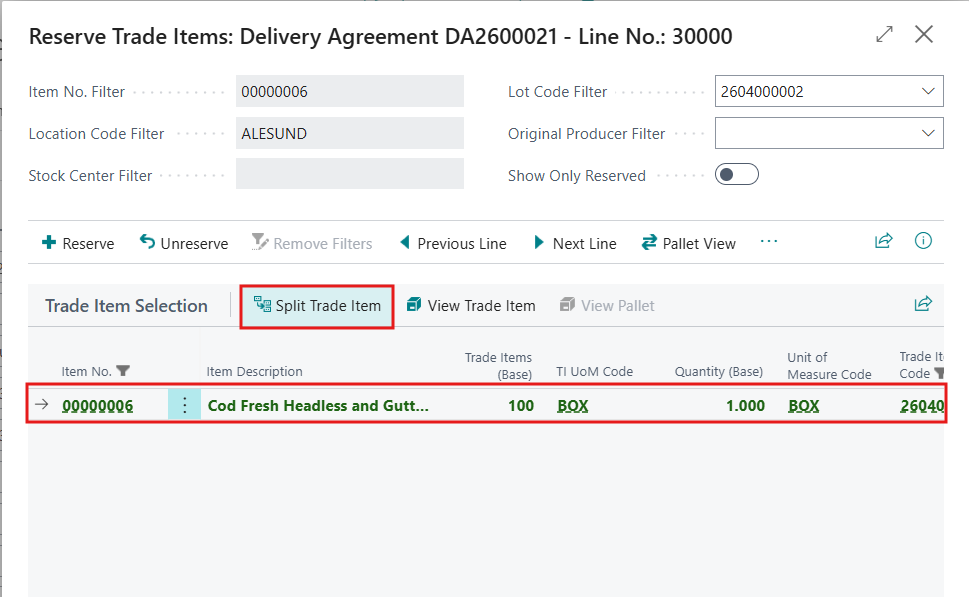
Enter the target Trade Items or Quantity at the bottom of the page.
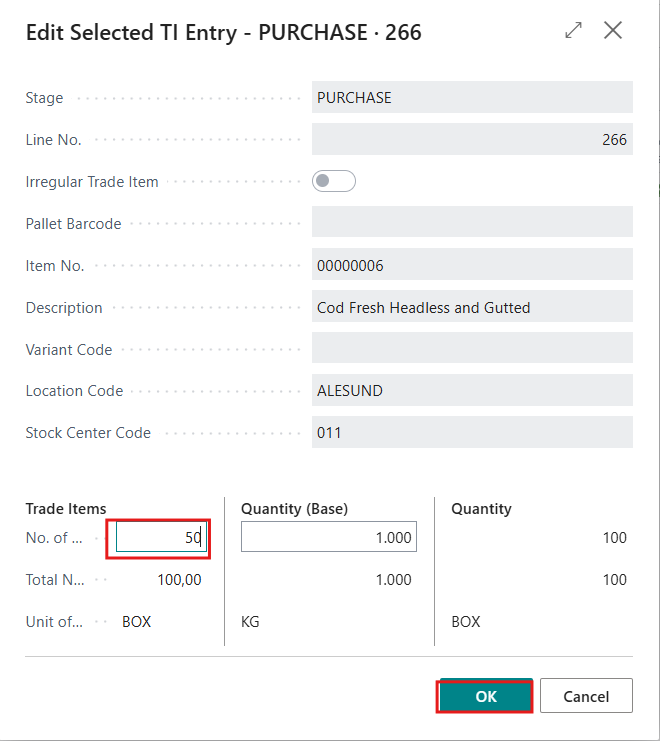
This defined quantity or Trade Items will be deducted from the original reserved line and a new with the remaining quantity will be created.
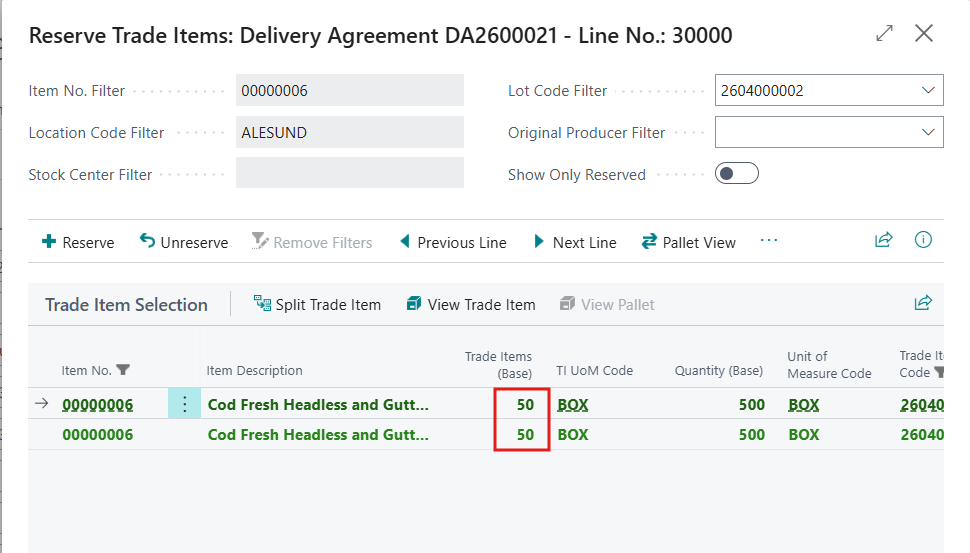
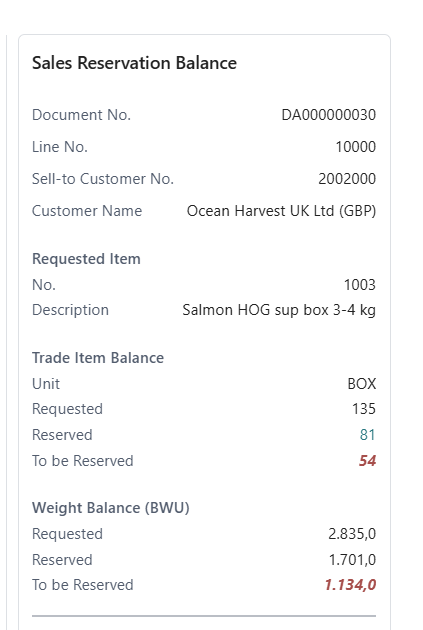
Using the FactBox
On the right, users can use the factbox to see the reserved amount based on the defined quantities in the line.
When the reservation page is closed, the items should be allocated to the Delivery Agreement, and Delivery Agreement lines will change color, see guide here: Reserving Trade Items | Amount vs. Allocated/Reserved Amount
eftirspurnardrifin frátekning frátaka söluein. upp í skráða sölu