
Once a Fishing Trip has been landed, you can no longer edit the original Raw Material, Product, or Production lines directly. Instead, any correction for a missed tub of fish, a wrong price, a production quantity that needs fixing, is entered on a separate set of Adjust screens reached from the Landed Fishing Trip card.
These entries sit in a holding area until they are posted, at which point they are merged into the trip’s real figures. This holding area is the adjustment journal.
No entries are corrected until they are posted in the relevant Adjust screen. Entering a correction line and closing the page without posting leaves it sitting in the journal and, unposted corrections will block the closure of the fishing trip.
Making Adjustments
To create adjustments, open the Landed Fishing Trip and go to Actions -Adjustments.
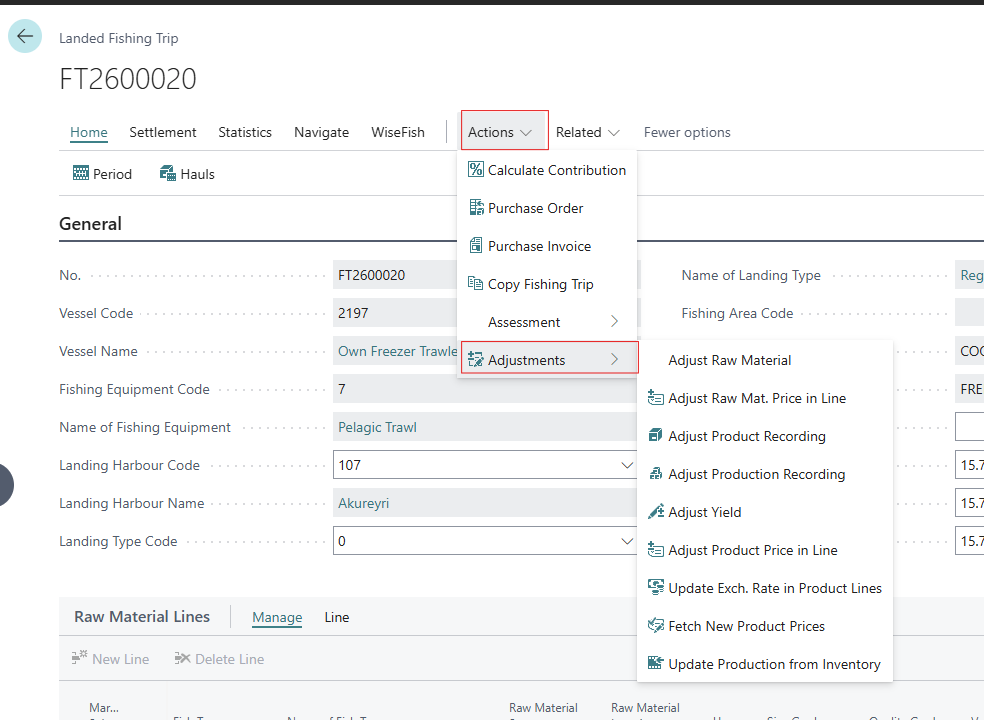
There are several actions available:
-
Adjust Raw Material opens the full raw material correction/credit screen.
-
Adjust Raw Mat. Price in Line for a quick dialog to fix the Basic Price on a single raw material line that has already been posted.
-
Adjust Product Recording opens the full product correction/credit screen.
-
Adjust Production Recording opens the production correction screen (for freezer trawlers).
-
Adjust Yield opens the Yield Factors correction screen used to fix production yield/conversion factors.
-
Adjust Product Price in Line a quick dialog to fix the Currency Code or Price per kg on a single product line that has already been posted.
-
Update Exch. Rate in Product Lines refreshes the exchange rate used on product lines.
-
Fetch New Product Prices re-fetches product prices from the price list.
-
Update Production from Inventory is the same “Retrieve Production from Inventory” feature described for freezer trawlers under Recording Catch (Actual Production in Wisefish Production ), available again here for a landed trip.
Correcting Raw Material lines
To do this, the Adjust Raw Material option is used. The screen that opens shows the
-
Correction lines to enter a new line similar to first registering catch on a Fishing Trip, to add missing catch or fix a line that needs replacing.
-
Credit lines, which are used to reverse a specific line that was already posted.
How crediting works: A positive quantity needs to be entered. The system decides whether it posts as a credit (negative) based on what the line is linked to. What the line links to depends on the vessel:
-
For an own vessel that lands to stock, pick a Trade Item for Credit. This is the open trade item created when the original line was posted.
-
For a 3rd-party vessel (or one that doesn’t land to stock), pick the FT RM Line No. instead — the original line’s number directly. The system will stop you with an error if you try to use a Trade Item on a vessel that doesn’t land to stock.
Either way, once a credit row is linked to its target, the original line’s quantity is copied in for reference (as Original No. of Tubs / Original Total Qty).
Before posting, the option to Calculate Totals can be used to see a preview of the positive, negative, and net totals for quantity, value, and sales cost. Credited lines are already shown negated in this preview.
Post the adjustments. Correction lines are merged into the trip’s real raw material lines. Credit lines are merged in with their quantity and value flipped negative. An inbound trade item posting is created for own vessels, and quota is posted if your setup posts quota at landing.
IN case the New Zealand quota system is used, the Assign Budgets / Cancel Assignment actions allow to assign or unassign quota budgets against the correction lines before posting.
Correcting Product lines
Open Adjust Product Recording. The page that opens is similar to the Adjust Raw Material page.
The same Calculate Totals preview and Post action are available. Posting merges corrections in directly and merges credits in with quantity, weight, and value fields flipped negative, then posts the resulting quota and inventory entries. An Adjust Yield action is also available directly from this screen as a shortcut into the Yield Factors correction.
Correcting Production lines (freezer trawlers)
Open Adjust Production Recording. New rows entered here are automatically routed into the correction area for this trip. When clicking Post, it is necessary to choose between Confirm and Record Products or Only Confirm:
-
Only Confirm simply carries the corrected production lines into the trip’s real production records.
-
Confirm and Record Products does that and also converts the production entries into actual Product lines using the trip’s yield factors. This requires the trip’s Landing Type Code to be set first.
Adjusting Yield Factors (freezer trawlers)
If the actual product yield turns out to be different from what was recorded, the Adjust Yield can be used. This opens a screen showing both the original recorded yield/average weight of master and editable “Adjusted” versions of the same figures side by side, so it is possible to compare before confirming. The Adjust Quota action posts only the quota difference between the original and corrected yield as a correction entry. The inventory or value is not re-posted, just the quota quantity.