
This feature provides a user with the ability to scan or manually enter a pallet barcode and take a photo of the pallet that is then attached to the pallet in Business Central.
Note: This process is mostly intended to be used in mobile applications.
t
Uploading a Photo to a Pallet
To update a photo of a pallet, use this button on the main screen:

The camera will start.
-
Identify the pallet
in one of the three optional ways :-
Place a barcode within the view of the camera.
-
If a barcode scanner is connected you can use it to scan the barcode.
-
Press the “Enter manually" button and type the barcode number.
When the barcode has been put in successfully, it is shown at the top of the screen.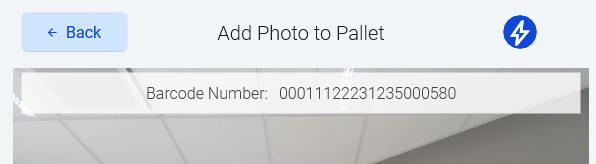
-
-
Take photo(s)
The next thing to do is to take a photo of the pallet. Simply push the circle to take a photo.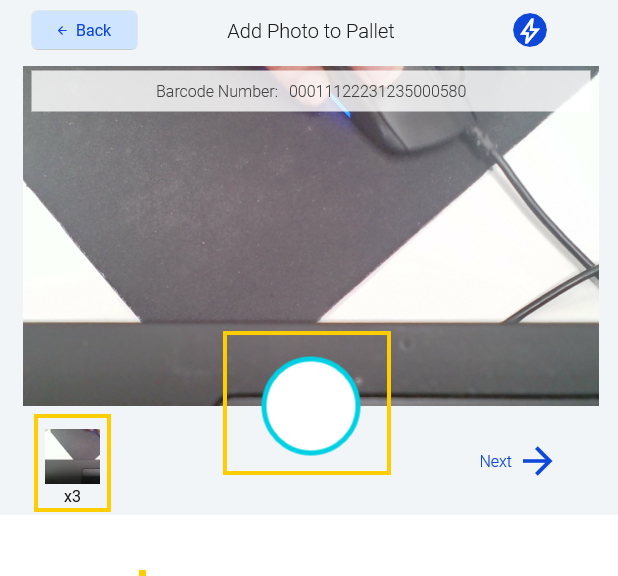
-
Click Next
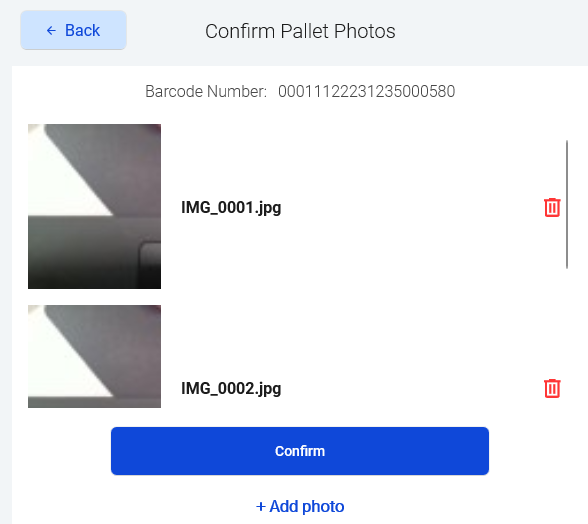
When you have taken one or more photos, click next, which opens a screen with a list of the photos. There you will see an overview of the pictures you have taken.-
You can remove an image by clicking the “Delete” icon displayed on the right of the image.
-
You can click an “+Add Photo” button to add a new photo/photos.
-
-
Confirm
when photos are ready. A pop-up gives the opportunity to…-
select “Yes”, then photos are sent to BC
-
select “No”, then no images are sent to BC.
-
To see the photo, user needs to sign into Business Central and find the corresponding pallet, there should be an image attached to it.
Notification Process
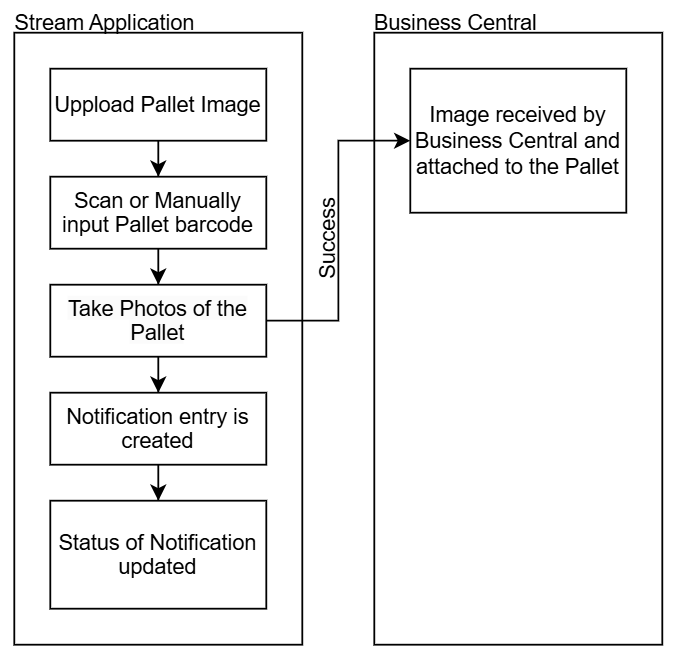
Uploading a Photo of a Container
to do