This page has some examples of Stream pallet modifications.
Note: These snapshots are taken of an earlier version of Stream, current pages have changed a little.
Modifying a single Pallet
Example: Add TIs to Pallet
EXAMPLE - CLICK to view an example of "Add TIs to Pallet"
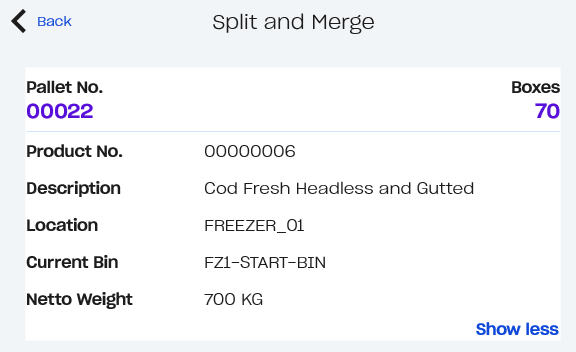
In this example, the 50 TIs I merged to pallet 00022 to pallet 00023 (Currently pallet 00022 contains 100 TIs and pallet 00023 contains 50 TIs, after this 50 of the 100 TIs on 00022 should be moved to 00023).
-
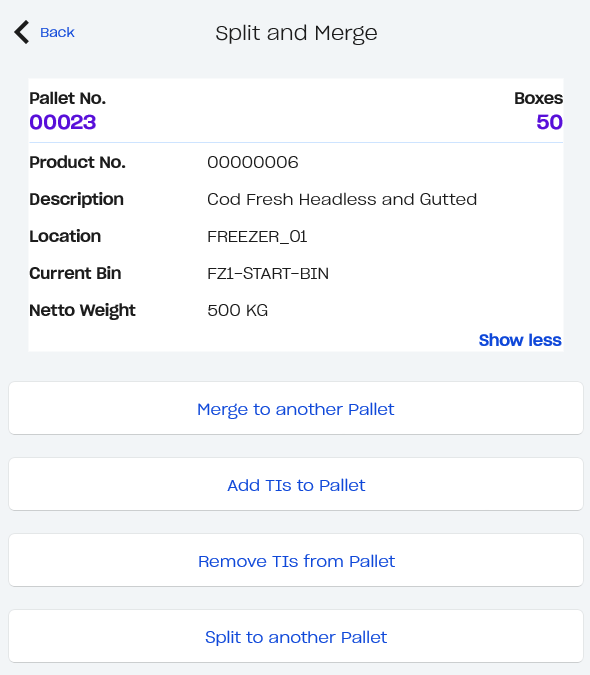
After scanning in the barcode for pallet 00023, you press “Add TIs to Pallet”
-
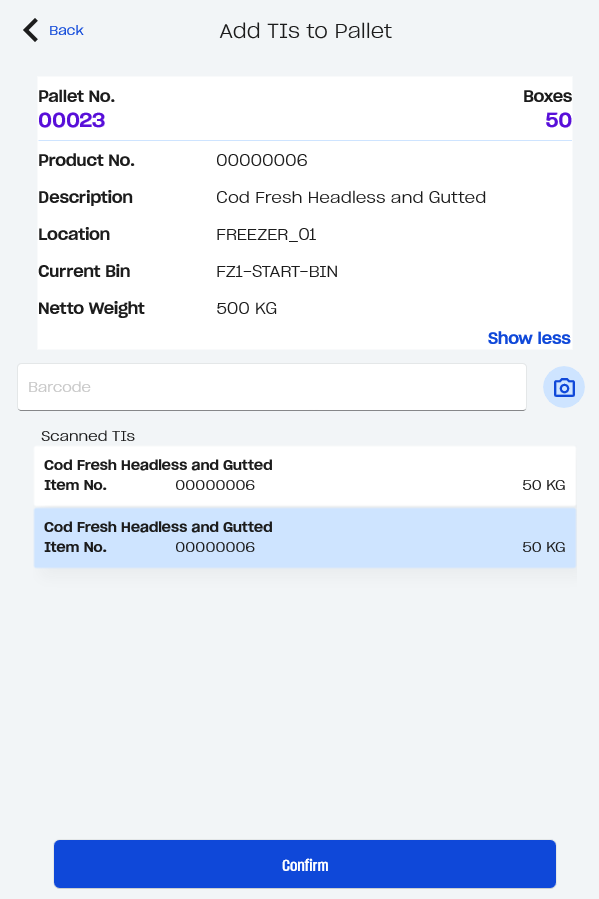
Then you get to the screen where you can scan, manually input or use the camera to input the barcode of the pallet you want to take TIs from.
-
When you have done that a list of TIs from that pallet appears where you can select the Trade Items you want to add to the pallet, in this example I am moving 50 TIs (from pallet 00022 => 00023).
-
When you hit the “Confirm” button a confirmation pop up appears and when you press “Yes” on that confirmation the move of TIs takes place in the system.
-
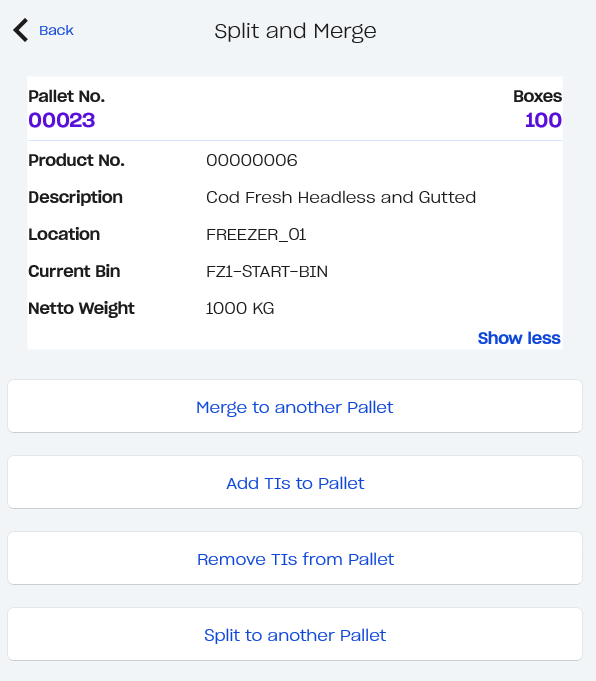
Then you are once again returned to the opening interface of “Split and Merge” and can see how the pallet looks after this change. Now it contains 100 Trade Items and 100 boxes like the image displays.
Example: Remove TIs from Pallet
EXAMPLE - CLICK to view an example of "Remove TIs from Pallet"
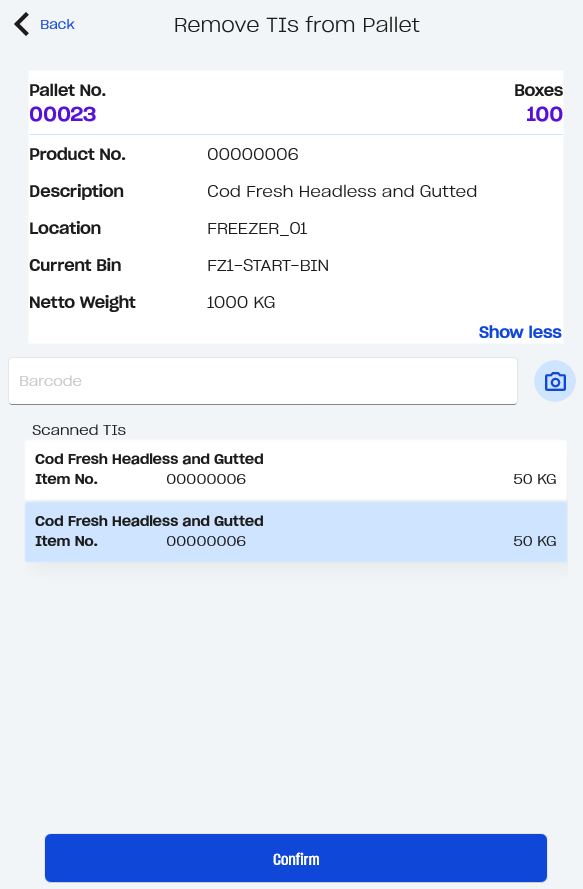
I will be removing the 50 TIs I just added to pallet 00023, continuing from the Image displayed above.
-
Press the “Remove TIs from Pallet”.
-
Then you will see a screen containing information about the pallet along with a list of the Trade Items on the pallet. You simply want to select the TIs you wish to remove from the pallet and hit “Confirm”.
-
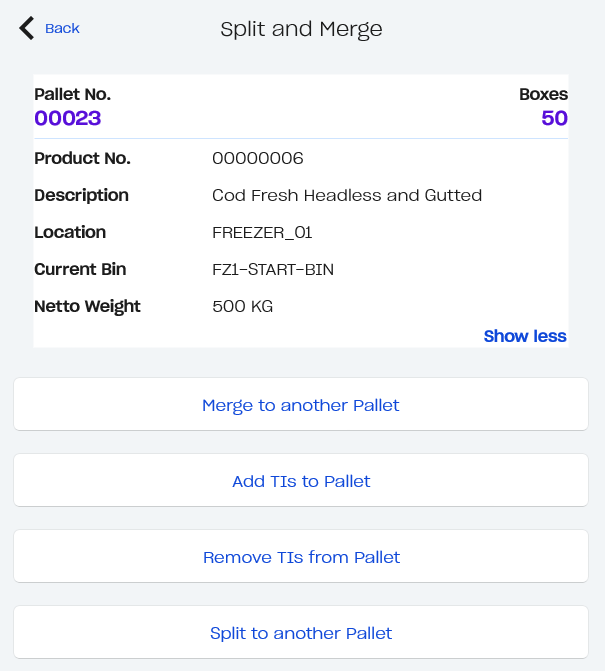
Again you are then returned to the opening interface of “Split and Merge” where you can see how the pallet looks after this change. Now it only contains 50 Trade Items and 50 boxes.
Modifying two pallets
Example: Merge to second Pallet
EXAMPLE - CLICK to view an example of "Merge to second Pallet"
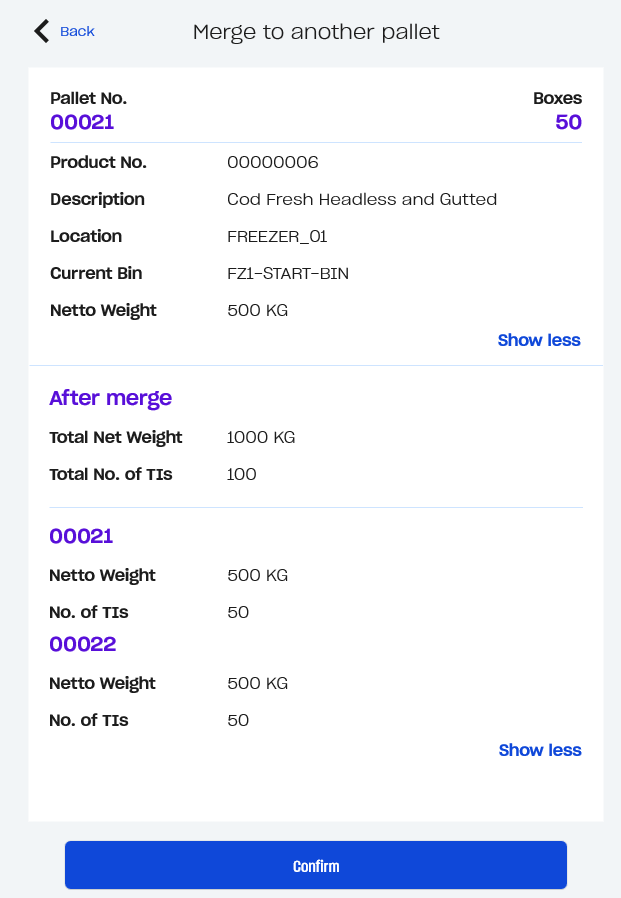
In this example, both pallets contain 50 TIs and after this merge the destination pallet (Pallet No. 00022) will contain all 100 TIs.
-
After selecting the first pallet, press the “Merge to second Pallet”.
-
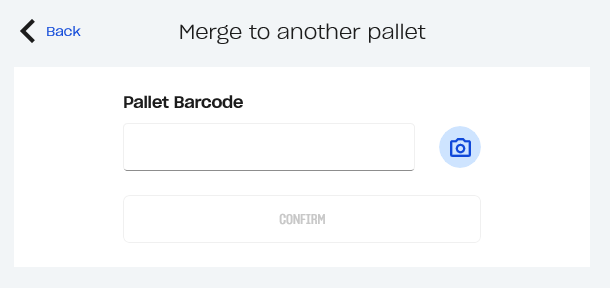
Then you get to the screen where you have to scan, manually input or use the camera to input the destination pallet barcode.
-
Press the “Confirm” button.
-
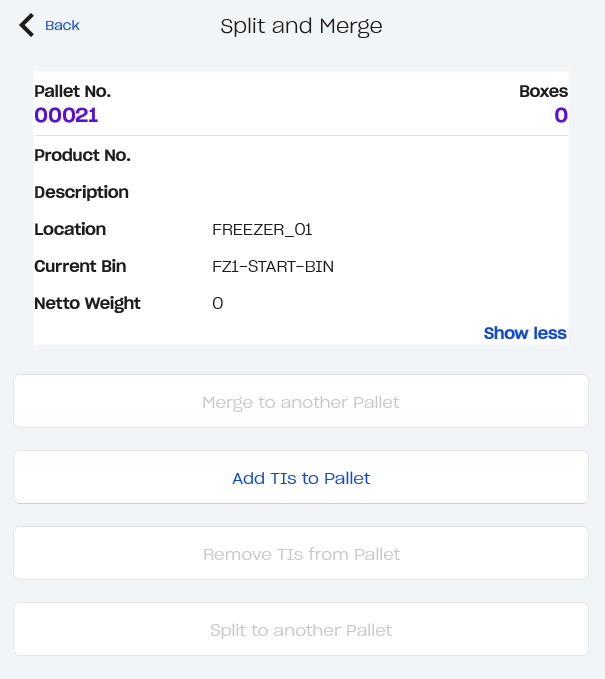
Once confirmed, you are returned to the opening interface of “Split and Merge” and can see how the pallet looks after this change. Now it contains no Trade Items and no boxes like the image displays and then the only operation available is “Add TIs to Pallet”.
Example: Split to second Pallet
EXAMPLE - CLICK to view an example of "Split to second Pallet"
I will be splitting the 50 boxes on the pallet displayed above (pallet 00023), and place 20 of these 50 boxes back on pallet 00022. Again I will be continuing from the Image displayed above.
-
Press “Split to another Pallet”.
-
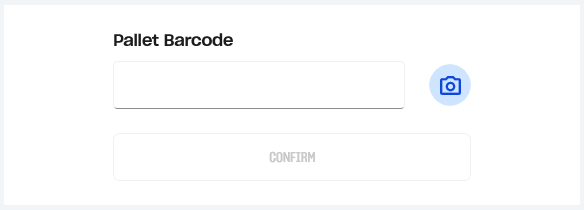
Then you get to the screen where you have to scan, manually input or use the camera to input the destination pallet barcode.
-
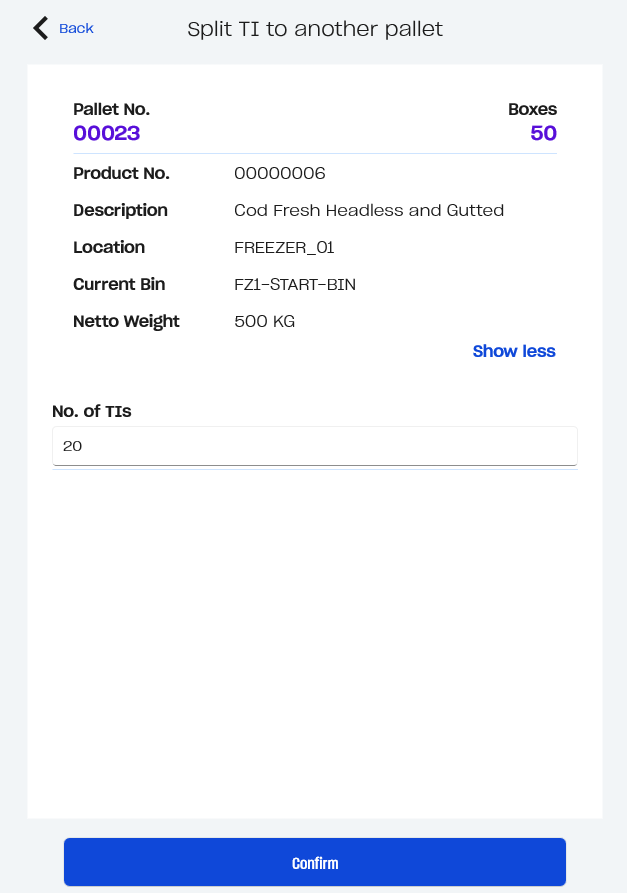
After that you see info about the pallet you are splitting from and an input field where you select the amount of TIs you want to move to the destination pallet (in this demonstration, pallet 00022).
-
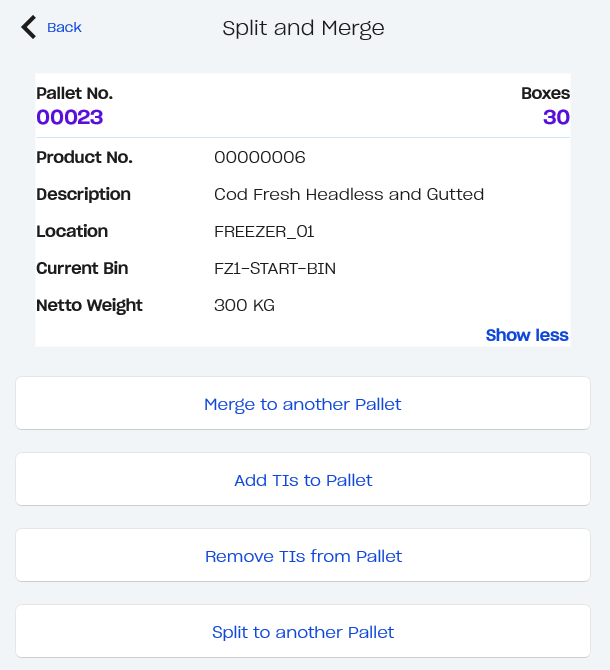
Hit “Confirm” and the move takes place and you are returned to the opening interface of “Split and Merge” where you can see how the pallet looks after this change. Now we have split 20 boxes from the pallet and therefor 30 boxes remain.
Below I will also include how the destination pallet (00022) looks after the split.