
When posted raw material consumption is to be corrected, use the Trade Item Credit Consumption Journal.
Using the credit Journal
The journal can be found either in the Role or by using the Search field.
-
Select a batch to use
-
Create a new line
-
Fill in data in the line as needed, probably at least…
-
the Posting date, usually the date when the consumption was posted.
-
and the Stage that the inventory consumed had before.
-
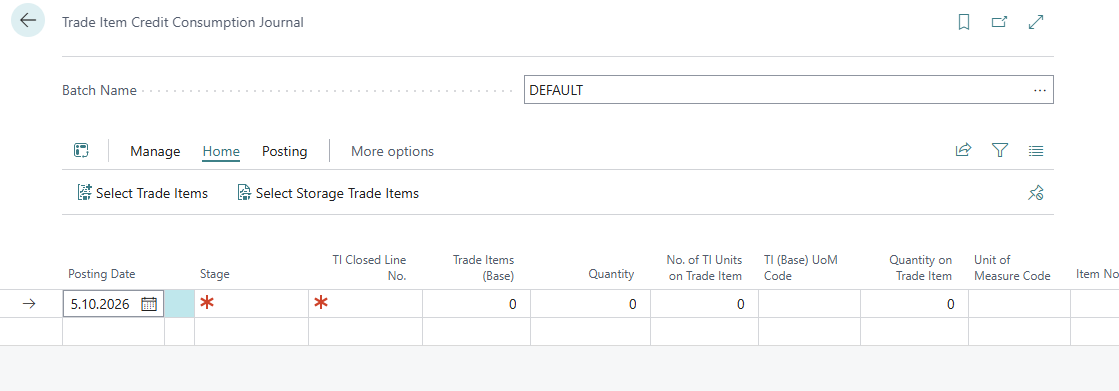
-
Drill into the TI Closed Line No. to open a list of closed trade items. Select the trade item to be corrected.
-
Confirm by pressing OK.
The system automatically updates the credit journal line with information from the selected trade item.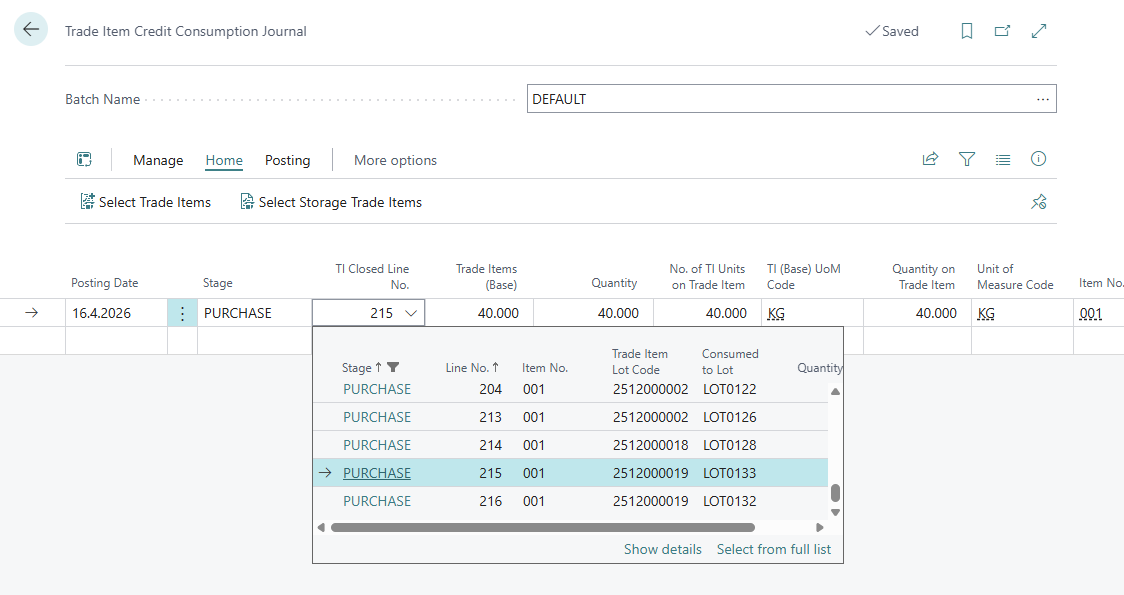
-
Click Post button from the ribbon at the top of the page.
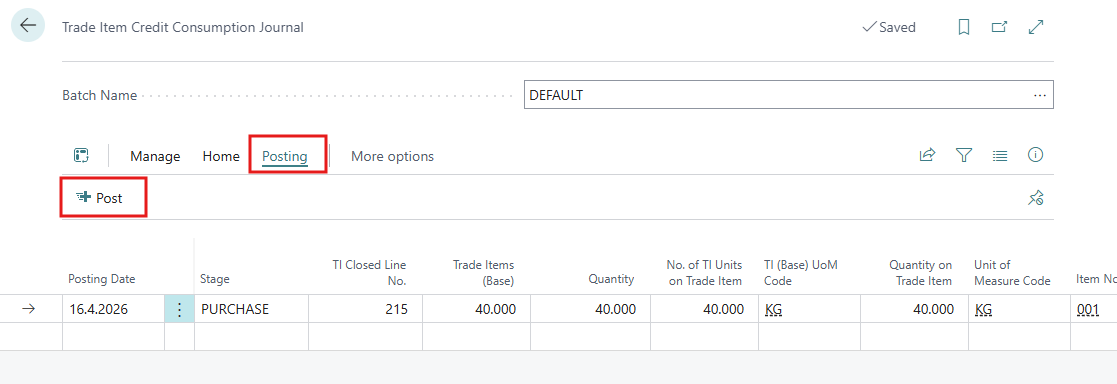
Crediting Consumed Trade Items
Consumed trade items are credited in the Trade Item Credit Consumption Journal. The trade items to credit are selected on the Reserve Trade Items page, which lists consumed (closed) trade items and creates the journal lines.
Open the page
In the Trade Item Credit Consumption Journal, choose the batch and run one of these actions:
|
Action |
Lists |
|---|---|
|
Select Trade Items |
Consumed trade items owned by the company |
|
Select Storage Trade Items |
Consumed storage items (owned by a customer) |
Only trade items that were consumed (Closing Type Usage or Repacking) and not already credited are listed.
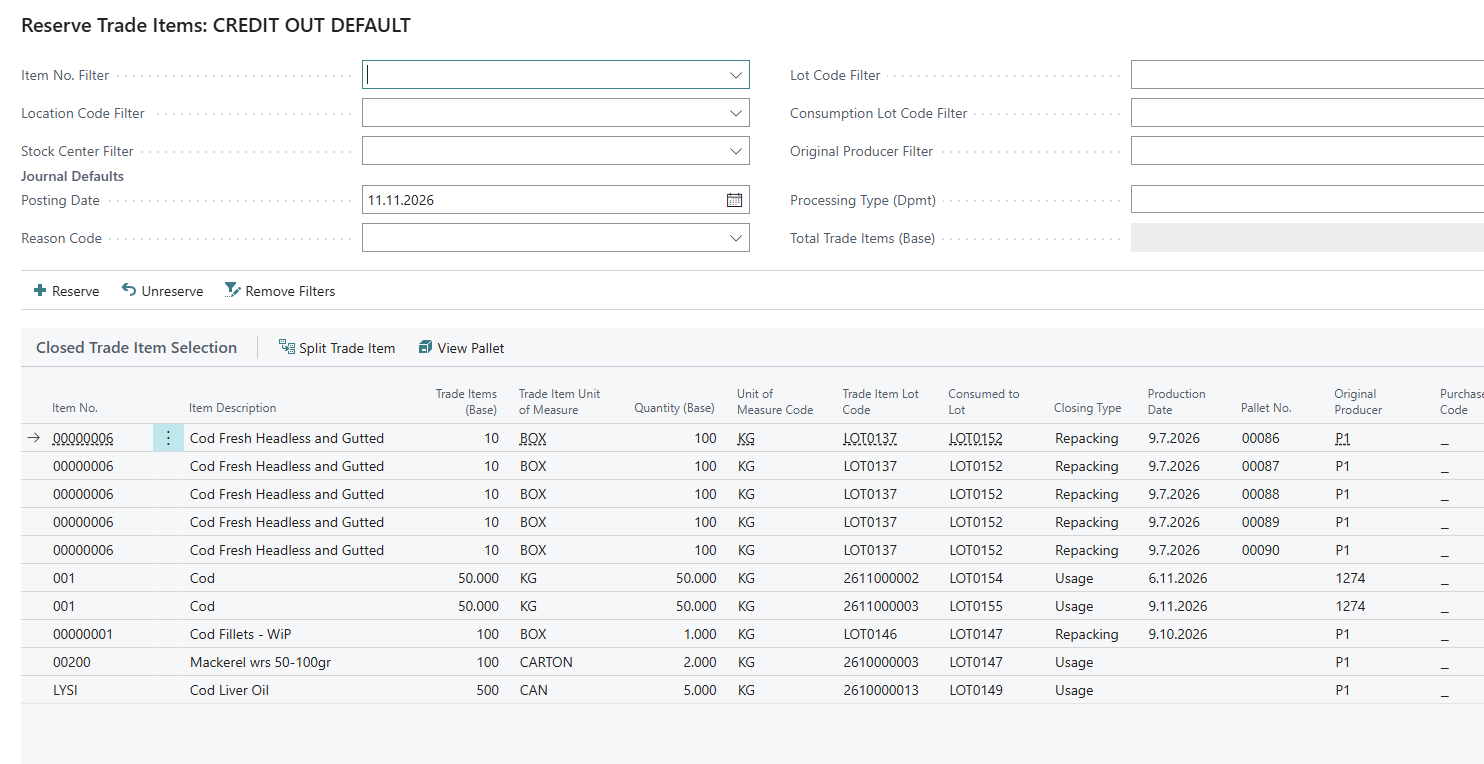
Filters
|
Filter |
Use |
|---|---|
|
Item No., Location Code, Lot Code |
Narrow the list to an item, a location or a trade item lot |
|
Consumption Lot Code |
Show trade items consumed into a given lot |
|
Stock Center |
Show trade items from one stock center (not available for storage items) |
|
Original Producer |
Show trade items from one producer |
|
Storage Agent Lot Code |
Show storage items with the owner's reference. Shown only for storage items. |
|
Show Only Reserved |
Show only trade items already selected in this batch |
More filters (Variant, Original Lot, Stage, Fishing Trip) can be added with Personalize.
Journal Defaults
The values entered here are copied to every journal line created: Posting Date, Reason Code and Processing Type (Dpmt). Total Trade Items (Base) and Total Weight show the totals of the batch.
Select and credit trade items
-
Fill in the Journal Defaults.
-
Select one or more trade items and click Reserve. A journal line is created for each trade item and its Reservation Status changes to RESERVED.
-
To remove a trade item from the batch, select it and click Unreserve. The journal line is deleted.
-
To credit only part of a trade item, select a reserved trade item and click Split Trade Item. Enter the quantity to credit.
-
Close the page and Post the journal. The credited trade items return to stock.
Notes
-
Select Trade Items and Select Storage Trade Items keep the two kinds apart. Storage items never appear in Select Trade Items.
-
Users whose User Profile has Use Old Trade Item Reservation turned on get the previous selection page instead.