
The BOM Analysis/Inspection Overview shows the items that have a BOM, with the full BOM structure below each item: the BOM, its components, and the BOMs of the components, as many levels down as they go. For each item it calculates what the item costs according to its BOM (the Rolled-up BOM Cost) and compares it with the cost registered on the item. Use it to check BOM costs, to find BOMs that should be reviewed, and to print a production plan with the required quantities of every component.
There are two versions of the overview. Use the one that matches BOM System to Use in the WiseFish Setup Configuration:
-
WiseFish BOM Analysis/Inspection Overview for WiseFish BOMs.
-
Production BOM Analysis/Inspection Overview for BC Production BOMs.
Both work the same way. If you open the version that doesn't match the setup, a notification offers to open the other one.
Open the overview
There are two ways to open the overview:
-
For a selection of items: Select the Search for page icon, enter WiseFish BOM Analysis/Inspection Overview (or Production BOM Analysis/Inspection Overview), and choose the page. It is also available from the production role centres. The page opens empty. Choose Update Analysis View to select the items and the kind of BOM (see below).
-
For one item: On the Item Card, choose the … button next to one of the BOM fields (see Assign a BOM to the Item Card). The overview opens directly for that item and the kind of BOM you chose, without asking for a selection.
Select the items and the kind of BOM
When you choose Update Analysis View, the Prerequisites page opens:
|
Field |
Description |
|---|---|
|
BOM Kind |
Which of the item's BOMs the overview is built from: Standard BOM, Contractor BOM, Repacking BOM or Relabeling BOM. Only items that have a BOM of the selected kind are shown. The default is Standard BOM. |
|
Filter: Item |
Limit the overview to certain items, for example by No., Trade Item Type, Item Category Code, Processing Method Code, Contrib. Raw Mat. No., Raw Mat. - Official Reporting Code or Inventory Posting Group. |
Choose OK. The overview is built, and a progress dialog with a progress bar shows how far it has come. Without any item filter, the overview includes every item that has a BOM of the selected kind, which can take a while in a large company.
How the overview is structured
The overview is a tree. Use the arrows in the Analysis Level column to expand and collapse it.
|
Level |
What it shows |
|---|---|
|
Item (top level) |
The item, with its Unit Cost or Standard Cost, its Rolled-up BOM Cost and the Cost Variance between them. |
|
WiFi BOM / Production BOM |
The item's BOM of the selected kind, with its unit of measure and the BOM Aggregated Cost: the cost of one unit of the BOM. |
|
Item, Item (Non-Inventory), BOM |
The lines of the BOM: components, non-inventory items such as labour or overhead, and BOMs placed directly in the BOM. |
|
Further levels |
A component that has its own Standard BOM is expanded with that BOM below it, and so on. Components are always expanded through their Standard BOM, whatever BOM Kind was selected. |
Each level has its own colour, so it's easy to see where one BOM ends and the next begins.

-
When a BOM has versions, the overview uses the certified version that is valid on the work date.
-
If a BOM contains itself, directly or further down, the overview stops at that point and shows the notification Warning: Circular reference detected in production BOM no. …
Fields
|
Field |
Description |
|---|---|
|
Analysis Level, Analysis Code, Analysis Description |
What the line is (item, BOM, non-inventory item), and its number and description. |
|
BOM No., BOM Description, BOM Status, Version Code |
The BOM the line belongs to. On a top-level item, the item's own BOM. |
|
BOM Unit of Measure Code |
The unit of measure the BOM is defined in. The quantities on the BOM's lines are per one unit of this. |
|
Quantity, Unit of Measure Code |
The quantity of the component per unit of the BOM, as entered on the BOM line. |
|
Quantity (Base), Base Unit of Measure Code |
The same quantity in the component's base unit of measure. |
|
Costing Method (Item), Unit Cost, Standard Cost |
The item's costing method and its cost per base unit of measure. Standard Cost is shown for items with Standard costing, Unit Cost for the other costing methods. |
|
Total Cost (BOM Line) |
The cost of the component on this BOM line: Quantity (Base) × Unit Cost (or Standard Cost). |
|
Rolled-up BOM Cost |
On an item that has a BOM: what one base unit of the item costs according to its BOM, all levels included. |
|
Cost Variance |
Rolled-up BOM Cost minus the item's Standard Cost (Standard costing) or Unit Cost (other costing methods). A positive amount means that the BOM calculates a higher cost than the cost registered on the item. |
|
Cost Variance % |
The cost variance as a percentage of the item's Standard Cost or Unit Cost. Blank when the item's cost is 0. |
|
BOM UoM Conversion Factor |
On a BOM: how many base units of the item one unit of the BOM is, for example 4,000 CAN in one PALLET. It converts the BOM's cost into the item's base unit of measure. In the Production BOM version this field is hidden by default; add it with Personalize. |
|
BOM Aggregated Cost |
On a BOM: the cost of one unit of the BOM, all levels included. On a component with its own BOM: the cost of the component on this line, based on its Rolled-up BOM Cost. |
|
Standard BOM No. (Item) |
The item's Standard BOM. |
How the costs are calculated
Costs are calculated from the bottom up. Each BOM's cost is converted into the base unit of measure of the item it belongs to, so the BOM can be defined in any of the item's units of measure. Example with a container of cod liver in cans:
|
Step |
Line in the overview |
Calculation |
|---|---|---|
|
1 |
Item 001 Cod, 1 KG per CAN |
1 KG × 4.33333 = 4.33333 |
|
2 |
BOM BOM-COD-LIVER, defined per CAN |
BOM Aggregated Cost 4.33333 per CAN |
|
3 |
Item COD-LIVER, 4,000 CAN per PALLET |
4,000 × 4.33333 = 17,333.32 |
|
4 |
BOM BOM-COD-LIVER-PALLET, defined per PALLET |
BOM Aggregated Cost 17,333.32 per PALLET. Conversion factor 4,000 (1 PALLET = 4,000 CAN) |
|
5 |
Item COD-LIVER-PALLET, 20 PALLET per CONTAINER |
Rolled-up BOM Cost 17,333.32 ÷ 4,000 = 4.33333 per CAN (the item's base unit). Line cost 20 × 4,000 × 4.33333 = 346,666.40 |
|
6 |
BOM BOM-COD-LIVER-CONTAI, defined per CONTAINER |
BOM Aggregated Cost 346,666.40 per CONTAINER. Conversion factor 20 (1 CONTAINER = 20 MT) |
|
7 |
Item COD-LIVER-CONTAINER (top level), base unit MT |
Rolled-up BOM Cost 346,666.40 ÷ 20 = 17,333.32 per MT |
The result is the same whatever unit the BOM lines are entered in. For example, 80,000 CAN of COD-LIVER-PALLET on the container BOM gives the same cost as 20 PALLET.
The conversion uses the item's Item Units of Measure. If the BOM's unit of measure isn't set up as a unit of measure of the item, the conversion factor is 1 and the Rolled-up BOM Cost is per unit of the BOM instead of per base unit of the item.
Compare the item's cost with its BOM
The Cost Variance and Cost Variance % fields on the item lines show how much the cost from the BOM differs from the cost registered on the item. A large variance can mean that:
-
the quantities, units of measure or components of the BOM need to be reviewed, or
-
the item's Unit Cost or Standard Cost is out of date, for example after changes in component costs.
Sort or filter the overview on Cost Variance % to find the items with the largest differences.
Actions
|
Action |
Description |
|---|---|
|
Open WiseFish BOM / Open Production BOM |
Opens the BOM of the selected line. |
|
Update Analysis View |
Opens the Prerequisites page and builds the overview again, for example with other items, another BOM Kind or after changes in BOMs or costs. |
|
Print BOM Analysis |
Prints the BOM Analysis Detail Printout for the items in the overview (see below). |
The Related Items FactBox shows the items that use the selected BOM.
BOM Analysis Detail Printout
The printout (BOM - Production Plan) calculates how much of each component is needed to produce a requested quantity of an item, what it costs, and whether there is enough inventory.
Choose Print BOM Analysis in the overview. The printout opens with the overview's items and BOM Kind already filled in. When the overview was opened from an item card, that item is selected. The printout can also be run on its own: search for WiseFish BOM Analysis Detail Printout or Production BOM Analysis Detail Printout.
Request page
|
Field |
Description |
|---|---|
|
Requested Quantity (Base) |
The quantity of each item to calculate the BOM for, in the item's base unit of measure. |
|
Base Unit of Measure |
The item's base unit of measure, shown when the printout is opened for a single item. |
|
BOM Kind |
Which of the items' BOMs is calculated, as in the overview. |
|
Show Levels |
How many levels of the BOM structure are printed. All levels (8) are shown by default. |
|
Reference Date for The Selection of The BOM Version |
The date that decides which version of each BOM is used. The certified BOM version that is valid on this date is used, or the BOM itself when no version is valid on this date. The work date by default. |
|
Filter: Item |
The items to print, with the same filters as the overview. |
What the printout shows
The printout is grouped by item. The header shows the item and the requested quantity with its unit of measure, for example Quantity : 100,00 MT. The requested quantity is converted into the unit of measure of each BOM below the item, so each BOM line shows the required quantity in its own unit.
|
Column |
Description |
|---|---|
|
Level, Type, No., Description |
The item, BOM or component. |
|
UoM, Quantity |
The unit of measure, and the quantity per unit of the BOM as entered on the BOM line. |
|
Unit Cost, Line Cost, BOM Aggregated Cost |
As in the overview. |
|
Total Req. Line Qty |
The quantity required for the requested quantity of the item, in the line's unit of measure. On a BOM, the number of units of the BOM. |
|
Total Req. Line Cost |
The cost of the required quantity of the component. |
|
Total BOM Aggregated Cost |
The cost of the required quantity, all levels below included. |
|
Inventory, Shortage |
The item's inventory, in the line's unit of measure, and how much is missing to cover the required quantity. |
Example: 100 MT of COD-LIVER-CONTAINER requires 5 CONTAINER → 100 PALLET of COD-LIVER-PALLET → 400,000 CAN of COD-LIVER → 400,000 KG of 001 Cod. The total cost, 1,733,332, is the same on every level.
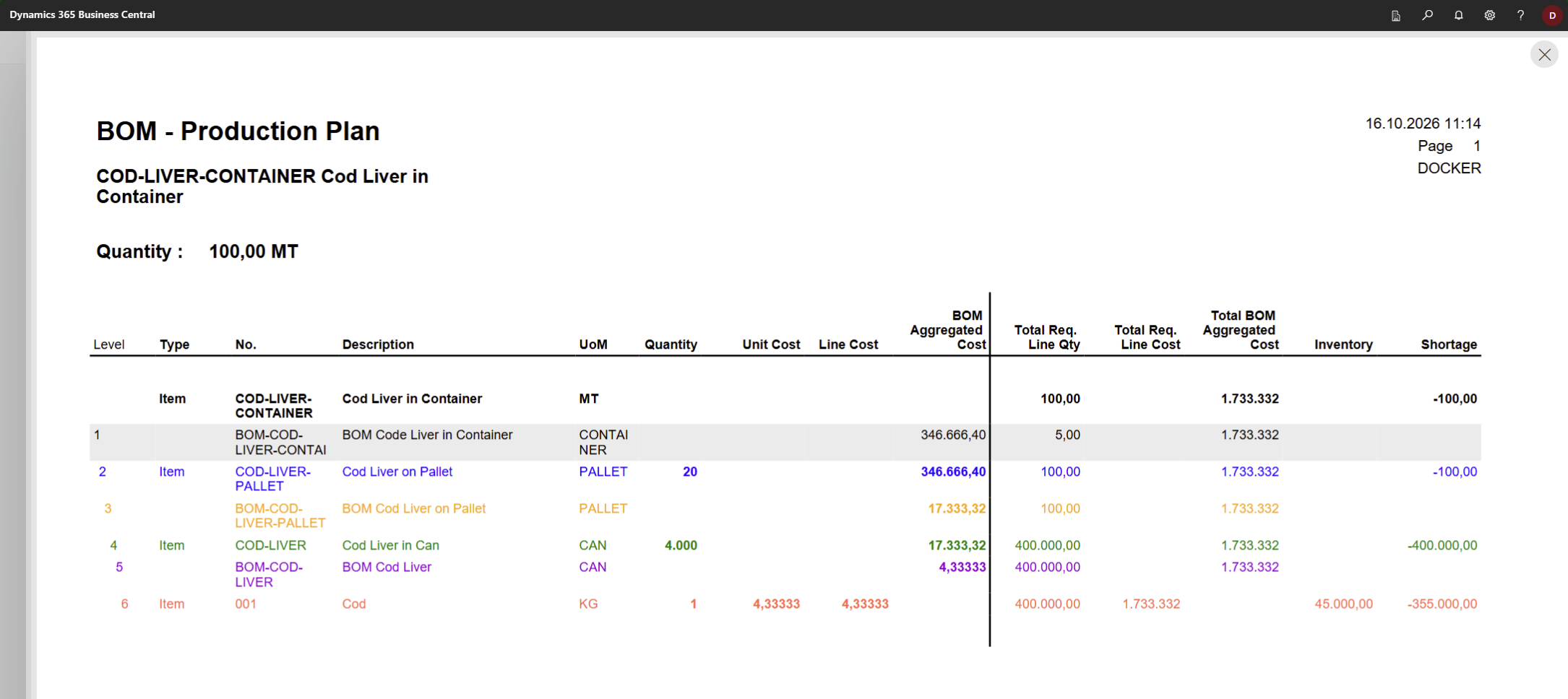
Shortage is calculated for each level on its own. A shortage of an intermediate product, for example COD-LIVER-PALLET, doesn't reduce the required quantities of the components below it.