
Once a BOM has been created, link it to each finished product on the Item Card. When output of the item is posted, the system uses the BOM from the item card to post the consumption of the BOM components.
The BOM fields are on the item card, Product & WIP tab, Bill of Material group.
The fields are only visible when:
-
the item's WF Item Type is Product or WIP, and
-
BOM System to Use in the WiseFish Setup Configuration is WiseFish BOM or BC Production BOM.
On the Item Card, you can define up to four different types of BOMs, depending on the nature of the production process. The Standard BOM field is the most commonly used option.
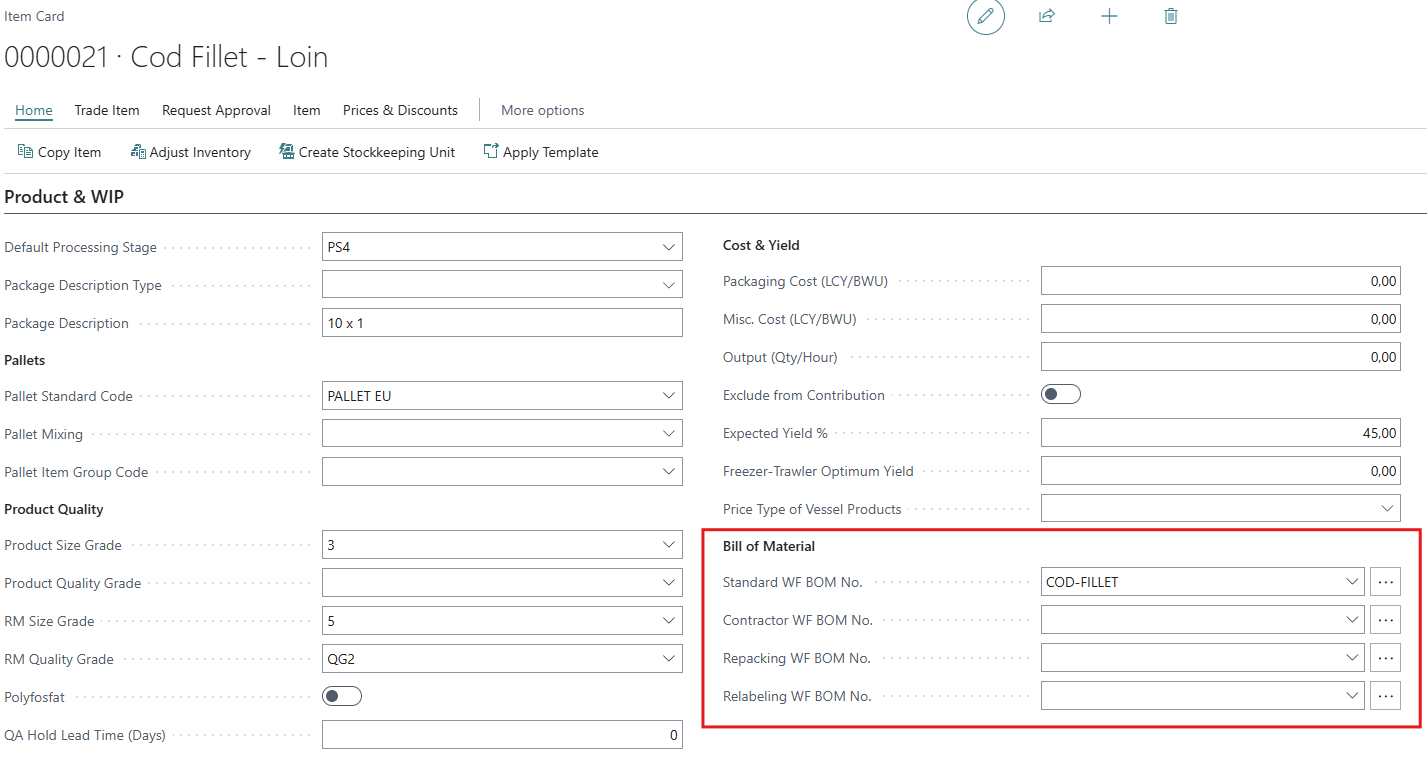
The fields shown in the Item card depend on the BOM system you use:
|
BOM System to Use |
Fields shown |
|---|---|
|
WiseFish BOM |
Standard WF BOM No., Contractor WF BOM No., Repacking WF BOM No., Relabeling WF BOM No. |
|
BC Production BOM |
Standard BC BOM No., Contractor BC BOM No., Repacking BC BOM No., Relabeling BC BOM No. |
|
Assembly BOM |
No fields. The item's standard Business Central Assembly BOM is used. |
The item must have Type = Inventory. Otherwise the BOM fields can't be filled in.
Which BOM is used
You can define up to four BOMs per item. Which one is used when posting depends on the Production Type of the production lot the output is posted to (seeCreating a Production Lot)
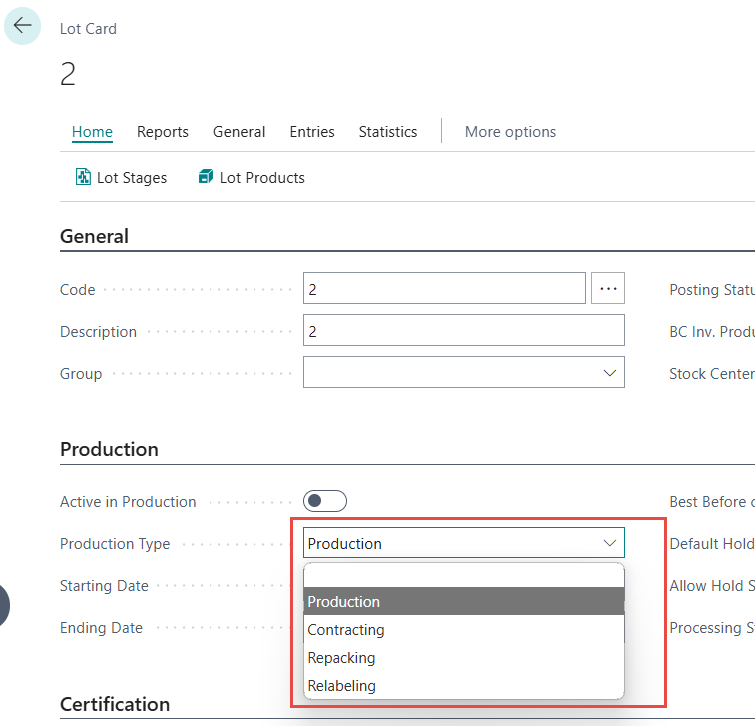
The following BOM types are supported, each corresponding to a particular production scenario:
|
Field |
Used when the lot's Production Type is |
Typical use |
|---|---|---|
|
Standard BOM No. |
Production |
The company provides the raw material, ingredients, packaging, labour and other resources. This is the most common option. |
|
Contractor BOM No. |
Contracting |
All materials are provided by a third-party owner. The company only charges processing fees. |
|
Repacking BOM No. |
Repacking |
Finished goods are only repacked. No change of raw material or product. |
|
Relabeling BOM No. |
Relabeling |
Only new labels are applied to finished goods. |
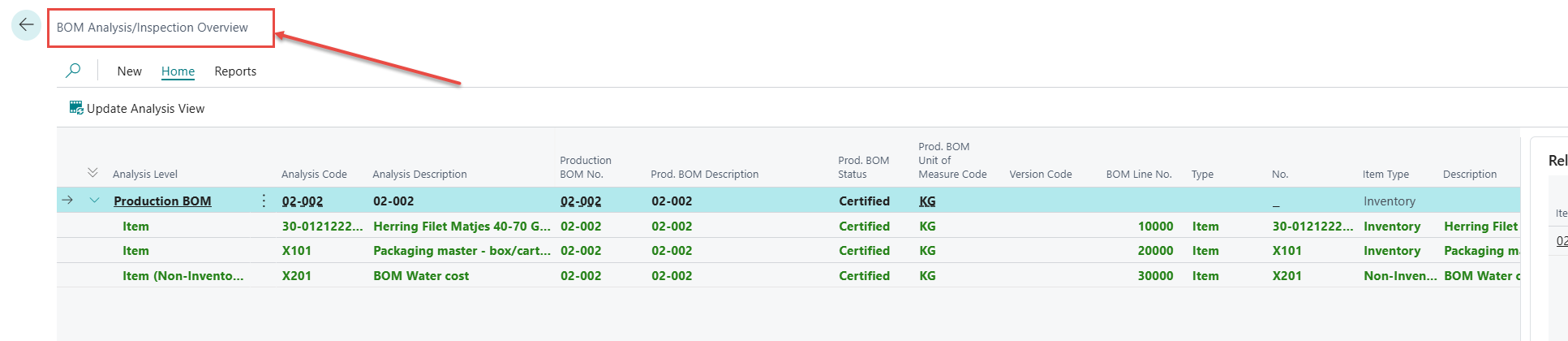
A BOM Analysis/Inspection Overview
When BOMs have been assigned to item cards, users can use the BOM Analysis/Inspection Overview to drill down into multiple layers of BOMs.
Using a different BOM for a specific production
Sometimes a product is made with a different BOM than the default, for example with a different packaging. To allow this:
-
In the WiseFish Setup Configuration, Production tab, enable BOM – Items Links To Use.
-
On the item card, choose Item – BOM Link and add the BOMs that can be used for the item.
-
When registering production, select the BOM in the Item BOM No. field on the Trade Item Output Journal line or the Production Agreement line.
The BOM selected on the line is used instead of the BOM on the item card.
Automatic consumption of Wisefish items in a BOM
Normally, Wisefish items (items with a WF Item Type, such as raw material) in a BOM aren't consumed automatically. Their consumption is posted separately through the Trade Item Consumption Journal.
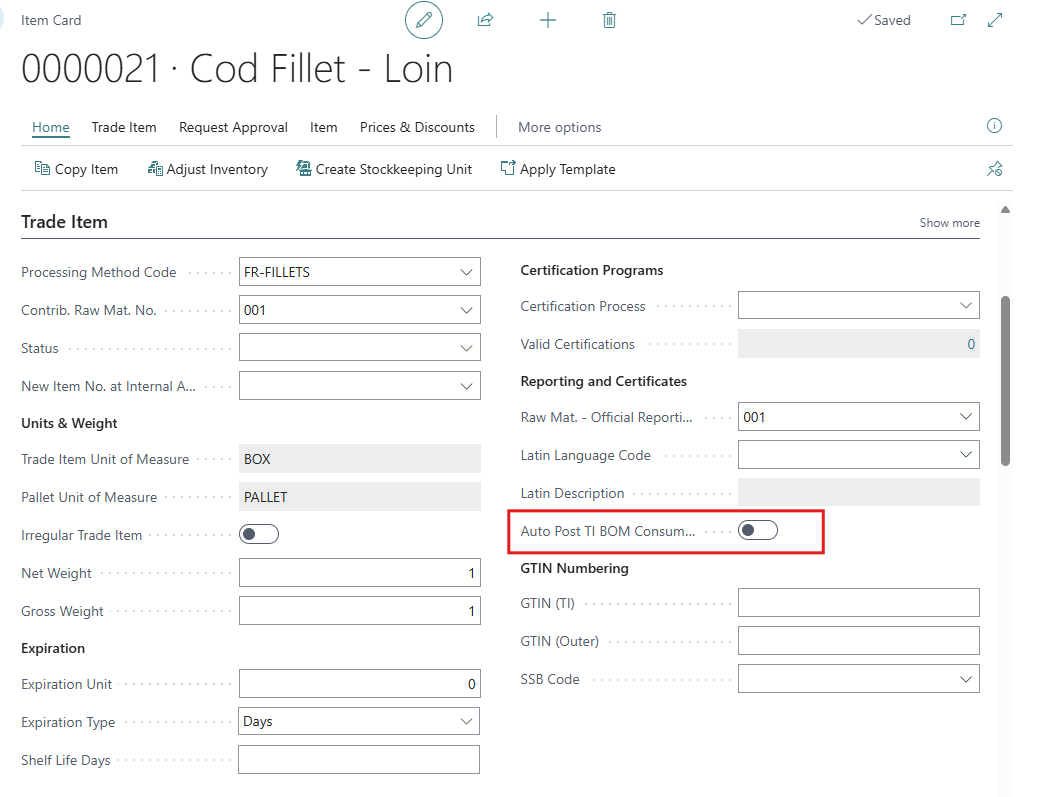
If Auto Post TI BOM Consumption is enabled on the item card of the component (Trade Item Tab), the item is consumed automatically when the finished product is produced. The system finds open trade items of the component and consumes the quantity required by the BOM.