
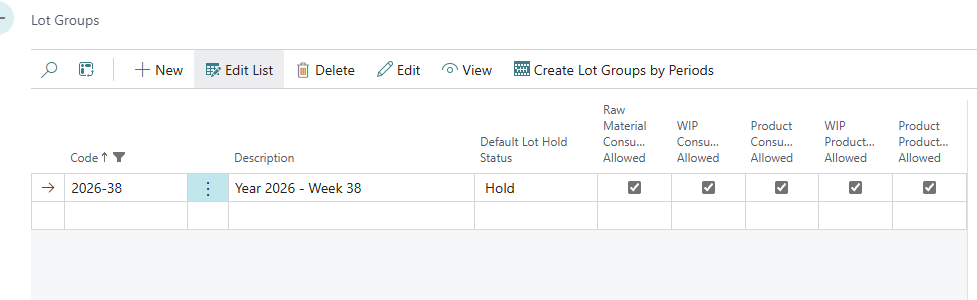
A lot group gathers production lots that belong together, for example all lots for a week, a production line or a type of production. A lot group can be used to:
-
control what may be posted to its lots: which types of items can be consumed and produced
-
set a default hold status for the produced goods
-
filter and group lots in lists, journals and analysis, for example the Lot Analytic Cost View and the TI BC Consumption Journal
-
remind users when they post to a lot outside their own group
Using lot groups is optional.
Setting up lot groups
Open Lot Groups. In the Production & MES Wisefish role it’s under Production Setup; you can also search for it.
|
Field |
Description |
|---|---|
|
Code |
A unique code for the group, for example 2026-W14 or LINE-A. |
|
Description |
The name of the group. |
|
Default Lot Hold Status |
The hold status given to new lots in this group, and therefore to the goods produced in them. Options: blank, Hold, QA Hold, QA Lock, Customs Hold. |
|
Raw Material Consumption Allowed |
Raw material items (WF Item Type Raw Material) may be consumed to lots in this group. |
|
WIP Consumption Allowed |
WIP items may be consumed to lots in this group. |
|
Product Consumption Allowed |
Product items may be consumed to lots in this group, for example when repacking. |
|
WIP Production Allowed |
WIP items may be produced in lots in this group. |
|
Product Production Allowed |
Product items may be produced in lots in this group. |
Assigning a lot to a group
Enter the group in the Group field on the Lot Card.
When the group is entered, the lot’s Default Hold Status is copied from the group’s Default Lot Hold Status. The exception is when the lot already has the hold status, then the lot keeps its status.
When lots are created with Create Lots on the Lot List, the group’s default hold status is used as well.
What is checked when posting
When consumption or output is posted to a lot that belongs to a group, the system checks the group’s settings against the item’s WF Item Type:
|
Posting |
Item type |
Must be allowed in the group |
|---|---|---|
|
Consumption |
Raw Material |
Raw Material Consumption Allowed |
|
Consumption |
WIP |
WIP Consumption Allowed |
|
Consumption |
Product |
Product Consumption Allowed |
|
Output |
WIP |
WIP Production Allowed |
|
Output |
Product |
Product Production Allowed |
Creating lot groups by period
If you group lots by time period, for example one group per week, you can create the groups automatically. On the Lot Groups page, choose Create Lot Groups by Periods, then fill in:
|
Field |
Description |
|---|---|
|
Lot Group Period Length |
Week, Month or Quarter |
|
Reference Year |
The year the groups are created for. |
|
Reference Start Date / Reference End Date |
The period range. |
|
No of Periods |
How many groups to create. |
|
Raw Material / WIP / Product Consumption Allowed, WIP / Product Production Allowed |
The posting settings given to all the created groups. |
The groups get codes such as 2026-14 (week 14), 2026-M04 (April) or 2026-Q2, with a description showing the period and dates. If a group with the same code already exists, its description and posting settings are updated.
Lot group on the user profile
In the WF User Profile, Production tab, you can enter a Lot Group Code. When a user with a lot group enters a lot from another group, for example in a trade item journal, on a production agreement or in a tally, the system shows a warning.