XML Import Setup
Quality inspections can be recorded from an external XML file instead of typing each response manually. This is useful when inspection data is produced by another system or device and exported as XML.
How it works
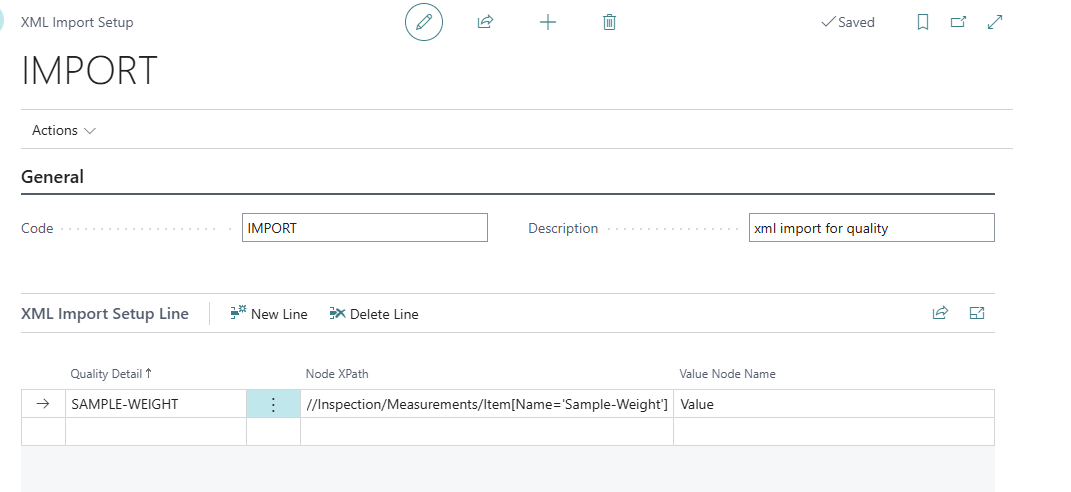
An XML Import Setup defines, per Quality Detail, where in an XML file to find the value for that detail: an XPath expression that locates the relevant node, and the name of the child element under that node that holds the actual value.
Creating an XML Import Setup
-
Open XML Import Setup List (reachable from the Quality Inspector Role Center, or via Search).
-
Create a new entry: enter a Code and Description.
-
In the lines below, add one row per Quality Detail that should be imported:
-
Quality Detail — the Quality Detail this line supplies a value for.
-
Node XPath — the XPath expression that finds the relevant node in the XML file.
-
Value Node Name — the name of the child element, under the node found above, whose contents are the value to import.
-
-
Use action Test XML file Import to upload a sample XML file and preview, for each line, what value would be imported — without affecting any actual inspection. Use this to verify the XPath/node names are correct before going live.
Linking the setup to an Inspection Form
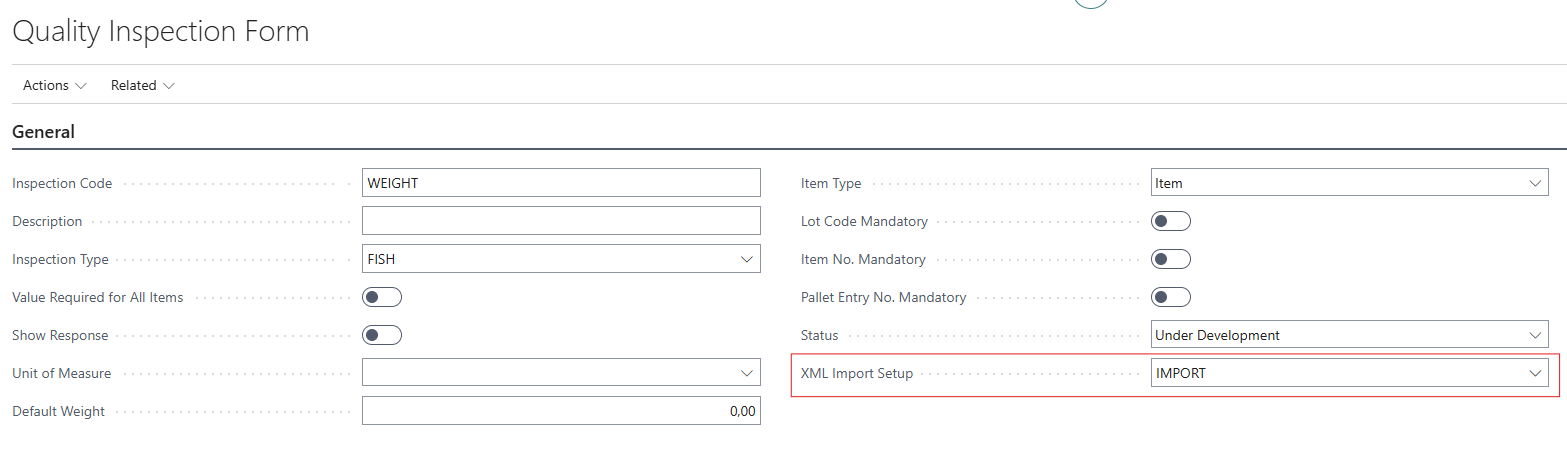
Open the Quality Inspection you want to use this with, and set the XML Import Setup field (General tab) to the Code created above.
Importing during recording
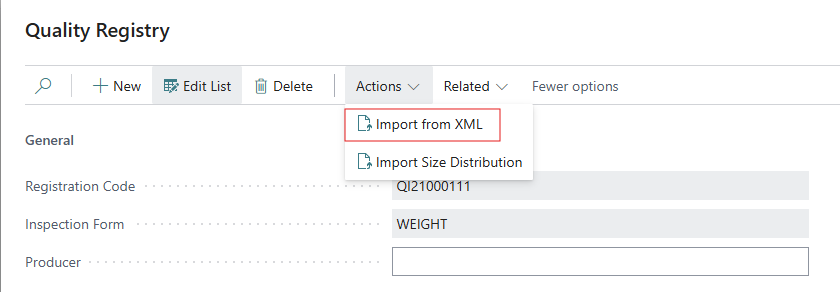
While recording an inspection (Quality Registry), run action Import from XML.
Select the XML file. The system matches each configured line against the file and writes the found value into the Response field of the corresponding Quality Detail line automatically.