
Picking Pallets
Picking pallets directly to a Transport Unit can be done through the Transport Unit Picking List
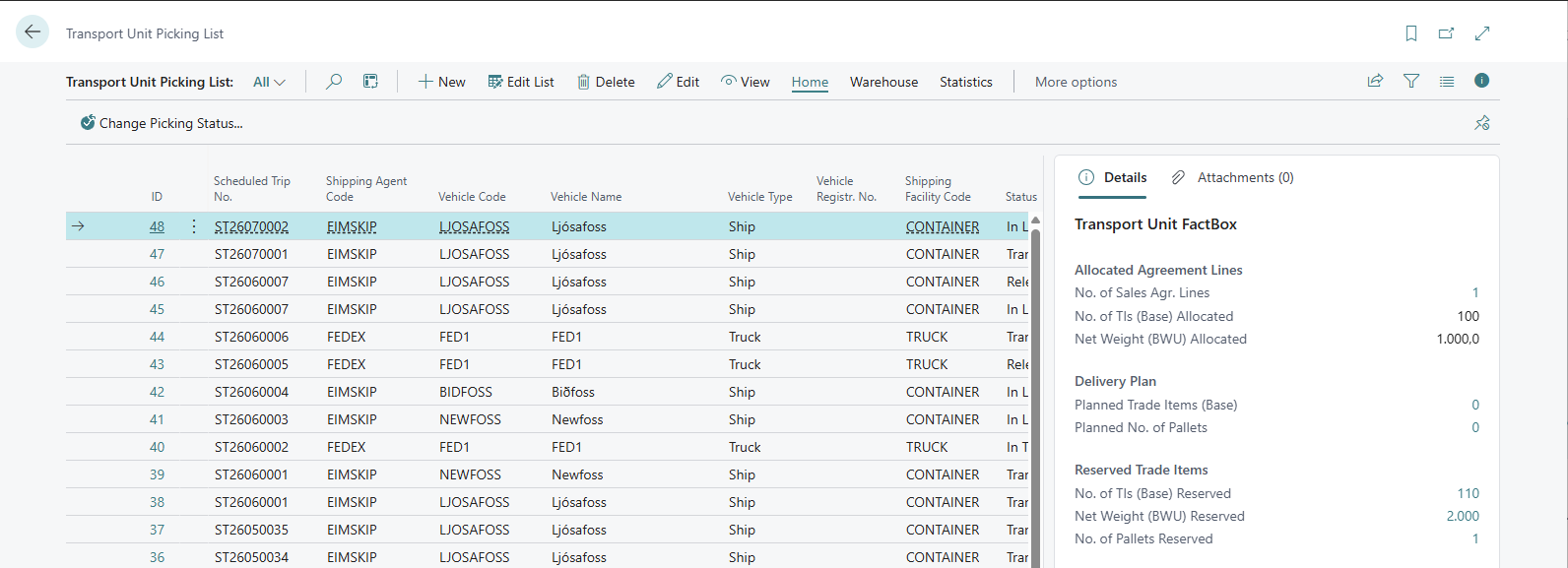
or the Scheduled Trip - View Transport Unit
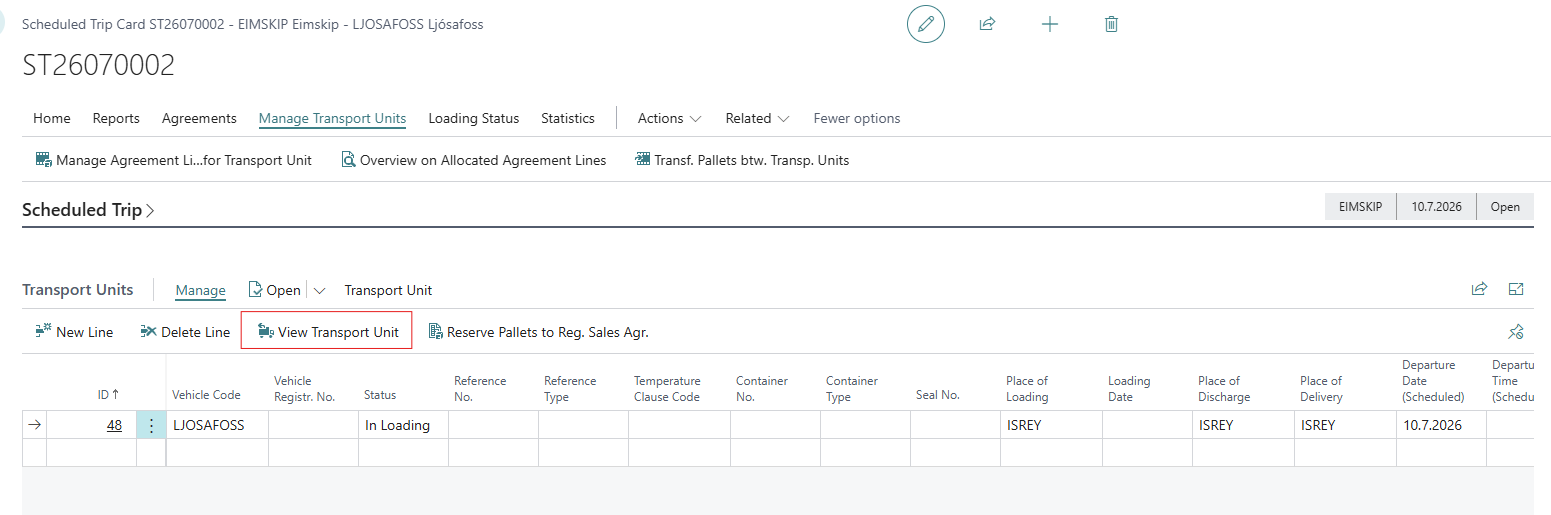
Using these links opens the Transport Unit Card.
On this card, the current Warehous Picking Status is displayed (Unavailable for Picking, Process for Picking, Finished).
Use the Warehouse - Place Into Picking action to start picking for the Transport Unit (the Transport Unit needs to be in status Released.
Confirm the picking method for the Transport Unit, only the options for Pre-reservation and Bulk Picking/ Freestyle Reservation are available here.
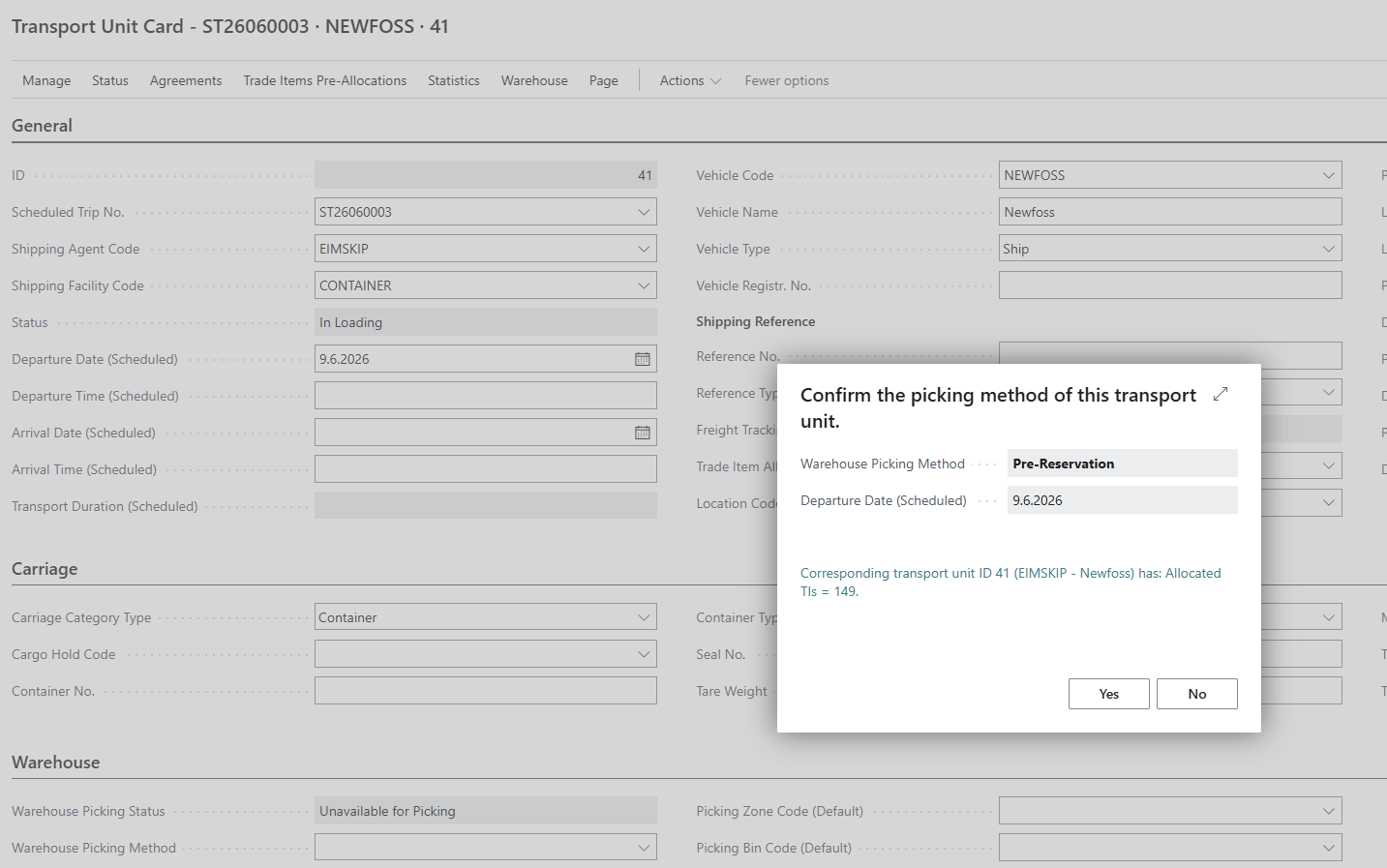
Then use the Warehouse - Scan Pallets into Picking for Transport action to open the Warehouse Picking Pallet Worksheet for Transport Units.
As pallets are scanned and confirmed into a bin, the pallet's picking status is set to Finished when the destination bin is of type Load & Ship, otherwise it goes to Confirmed.
Depending on the setting for Whse. Picking Cmpltn. Method in the Warehouse Setup, the Picking Status changes automatically to Finished or it needs to be done manually.
Revoke from Picking
To revoke the Transport Unit from Picking, the action Revoke from Picking in Actions - Warehouse is used. This is only possible when no pallet that is connected to the Transport Unit has reachded the status Confirmed or Finished.