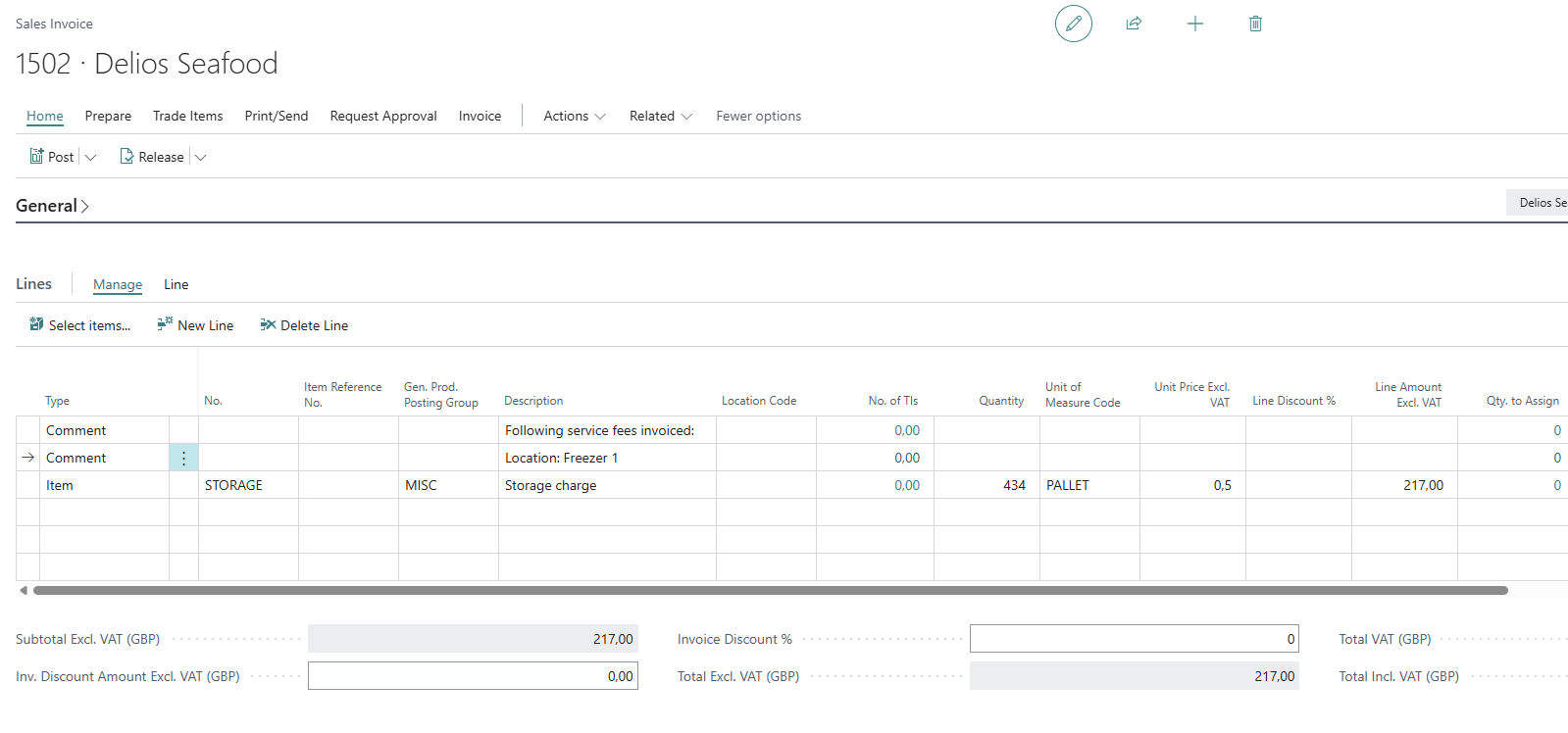
As an alternative to handle the invoicing of Storage & Handling fees with a Project, the Storage Fee Worksheet - Sales can be used.
Instead of Projects, it builds a worksheet of receipt/shipment/storage fee quantities directly from Trade Item Ledger Entries and creates Sales Invoices straight from it, one invoice per Stock Center/Customer combination.
Setup
-
To begin with, some basic setup needs to be done, i.e. items with prices as well as projects for the customers. See Storage & Handling Fees Setup
-
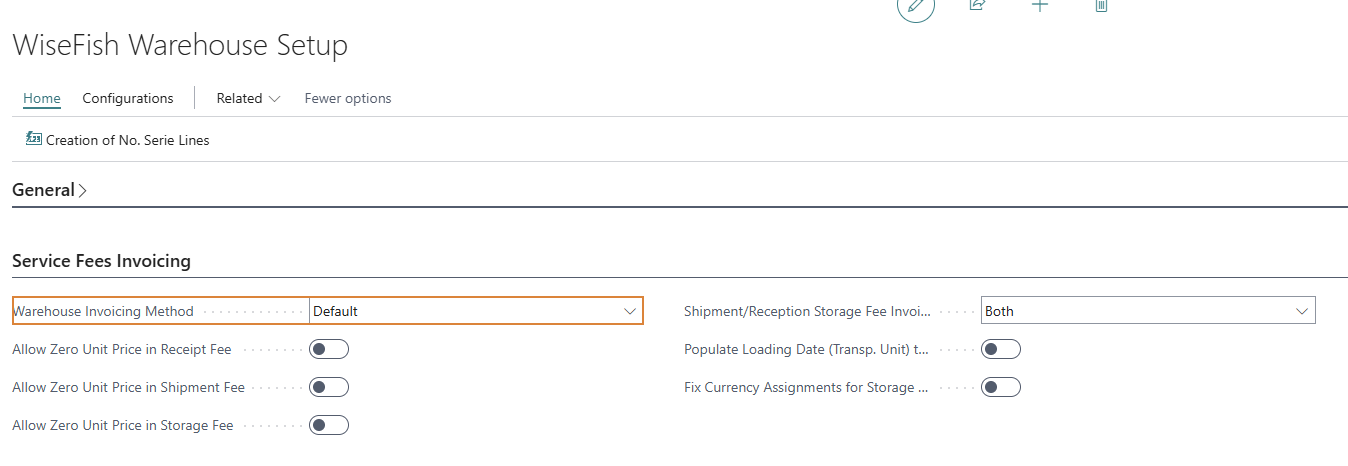
Set the Warehouse Invoicing Method in the WiseFish Warehouse Setup to Default, see Wisefish Warehouse Setup | Job Journals
Create the Overview
Open the Storage Fee Worksheet - Sales list and run Create Overview for Storage Invoicing. This opens the Inventorial Storage Time and Fee Calculation Prerequisites dialog.
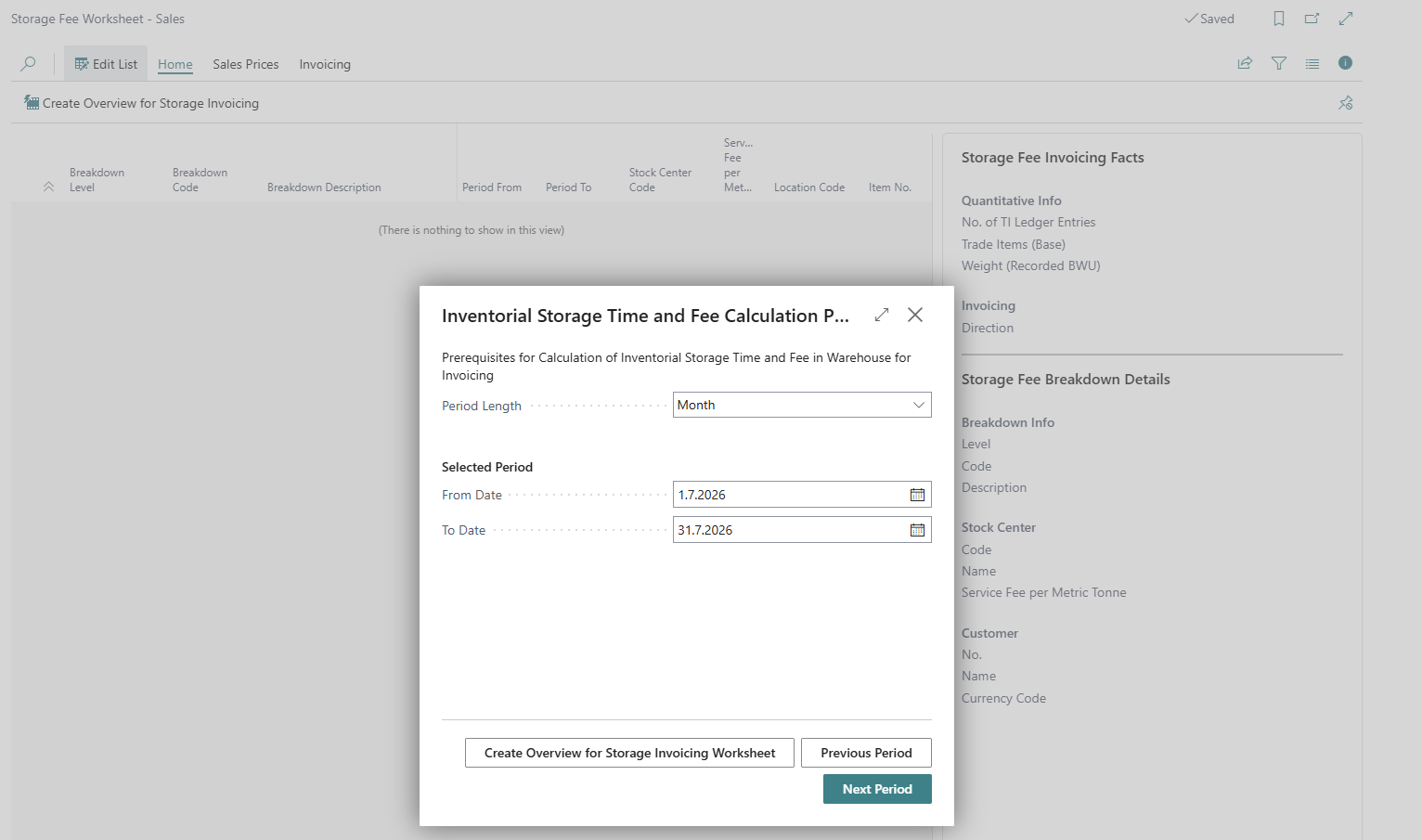
Enter the Period lenght and From / To Date, then Create Overview for Storage Invoicing Worksheet.
This will check the Trade Item Ledger Entries posted for the selected period, using the identification method that is set in WiseFish SetupConfiguration - Storage Items Identific Prereq (Barcodes (Pallets) or Storage Agent Lot).
Review the Worksheet
The Sales Prices action group (Receipt, Shipment and Storage Fee) leads to the sales price entries behind each fee type.
Exclude Stock Center From Worksheet removes all worksheet lines for the selected stock center if it should not be invoiced it in this run.
Create the sales documents
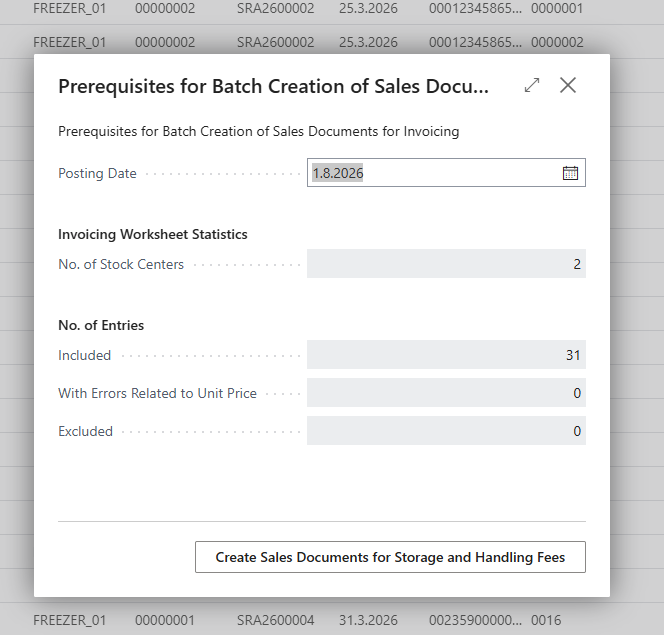
The link Invoicing - Create Sales Documents, opens the Prerequisites for Batch Creation of Sales Documents dialog. This dialog shows information about the No. of Stock Centers, Entries, Unit Price errors and Excluded entries. A Posting Date is required.
When there are no errors, the Create Sales Documents for Storage and Handling Fees can be used.
Information about the created sales documents is then listed in the Storage Fee Batch Register - Sales and can be accessed from there.
The newly created sales documents show information about the fee, location and quantity that are being charged and can be posted.