
The Pallet Card shows all information about a single pallet: what is on it, where it is, which agreement it's connected to, and its weights.
To open it, go to the Pallet List and select a pallet. You can also drill down on a pallet barcode from other pages, such as an Open Trade Items list or a reservation page.
Pallet status
A pallet always has one of the following statuses:
|
Status |
Meaning |
|---|---|
|
Open |
More trade items can be added to the pallet. Only open pallets can receive trade items with Add to Pallet or Mix on Pallet. |
|
Full |
The pallet is complete. No more trade items can be added unless it's reopened. |
|
Empty |
There are no trade items on the pallet. |
|
Gone |
The pallet has been reserved and moved out of the inventory. |
|
Precreated |
The pallet has been created in advance with Precreate Pallets in the Trade Item Output Journal, but no production has been posted to it yet. |
General
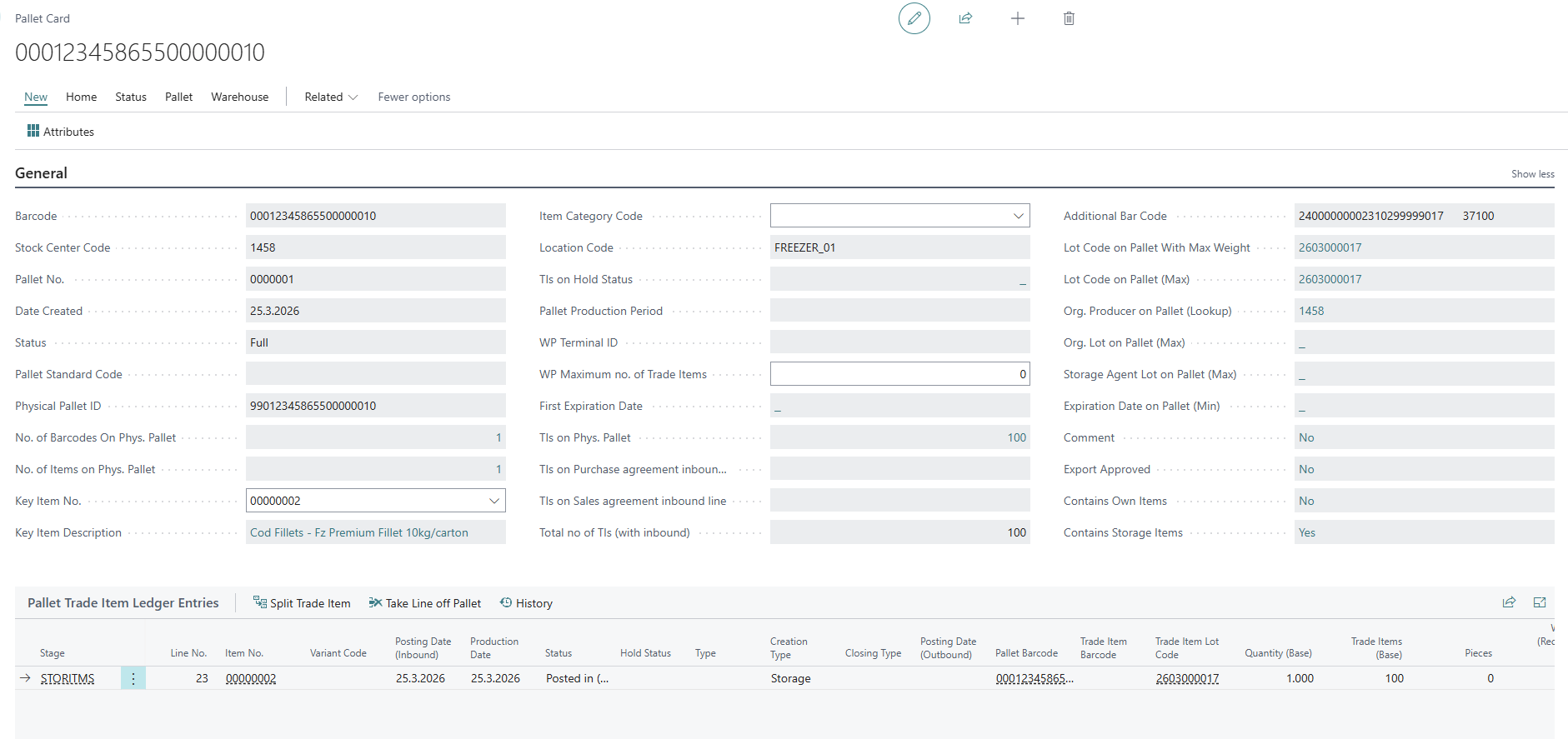
This is a list of some of the fields in the Pallet Card header.
|
Field |
Description |
|---|---|
|
Barcode |
The pallet barcode (SSCC, Serial Shipping Container Code). |
|
Stock Center Code |
The stock center (producer) the pallet belongs to. You can change it with Update Pallet, but only while no trade items are connected to the pallet. |
|
Pallet No. |
The pallet number. |
|
Date Created |
The date the pallet was created. |
|
Status |
The pallet status. See Pallet status above. |
|
Pallet Standard Code |
The pallet standard used, for example the type and size of pallet. |
|
Physical Pallet ID |
Identifies the physical pallet. Several barcodes can belong to the same physical pallet. |
|
Key Item No. / Key Item Description |
The main item on the pallet. |
|
Location Code |
The location where the pallet is stored. |
|
TIs on Phys. Pallet |
The number of trade items on the physical pallet. |
Trade Items

The Trade Items part lists all trade items on the pallet. These actions are available on the lines:
|
Action |
Description |
|---|---|
|
Split Trade Item |
Split the selected trade item into two or more lines, for example to take part of a trade item off the pallet. See Split Trade Item from Pallet. |
|
Take Line off Pallet |
Remove the selected trade item line from the pallet. The trade item stays in inventory but is no longer connected to the pallet. |
|
History |
Open the history entries for the selected trade item. |
Delivery, Warehouse and Weights
These tabs show which agreement the pallet is connected to and where it is in the reservation, picking and shipping process. Information about the placing of the Pallet, the Gross Weight and more can also be found here.