
Extended text can be created directly for a Customer, Vendor, or Item card. When added this way, the text will be automatically generated when a sales document is created. Regardless of where the text is created, the same Extended Text page is used, and all texts are automatically saved in the WF Extended Text List.
To view extended text already linked to master data, open the relevant card and navigates to Customer/Vendor Extended Text. From here, all texts connected to the selected customer, vendor, or item are displayed.
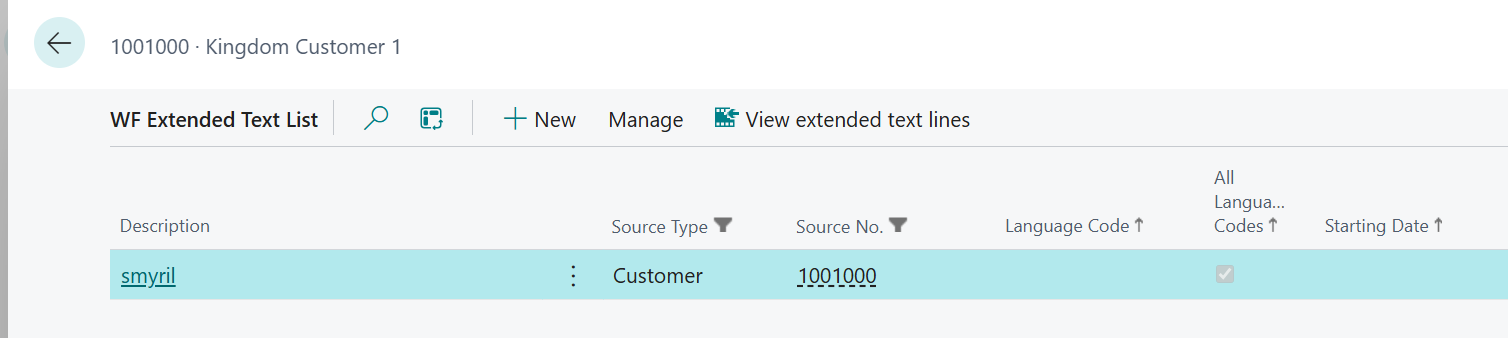
How to Create Extended Text from a Card
-
Open the relevant card:
-
Customer Card → Home → WF Customer Extended Text
-
Vendor Card → Home → WF Vendor Extended Text
-
Item Card → Related → Item → Extended Text
-
-
Choose how to add the text
There are two available options:
Option 1 – Link an existing generic text
Open the action View Extended Text List and locate a previously created generic text.
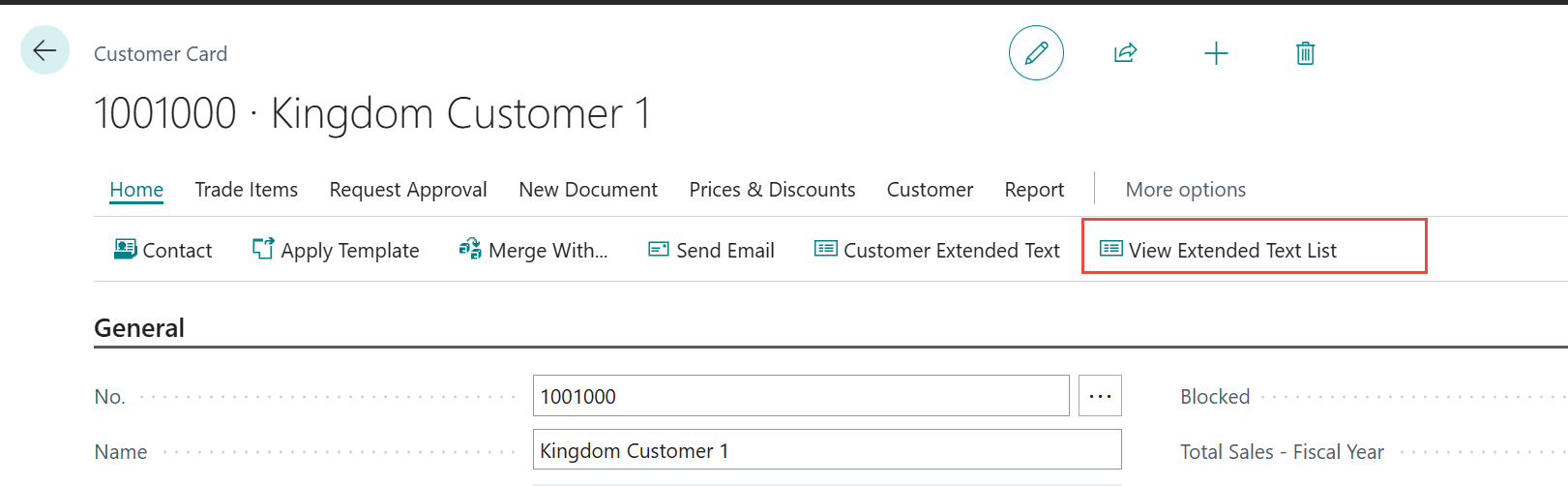
Select the desired text and click Link Text.
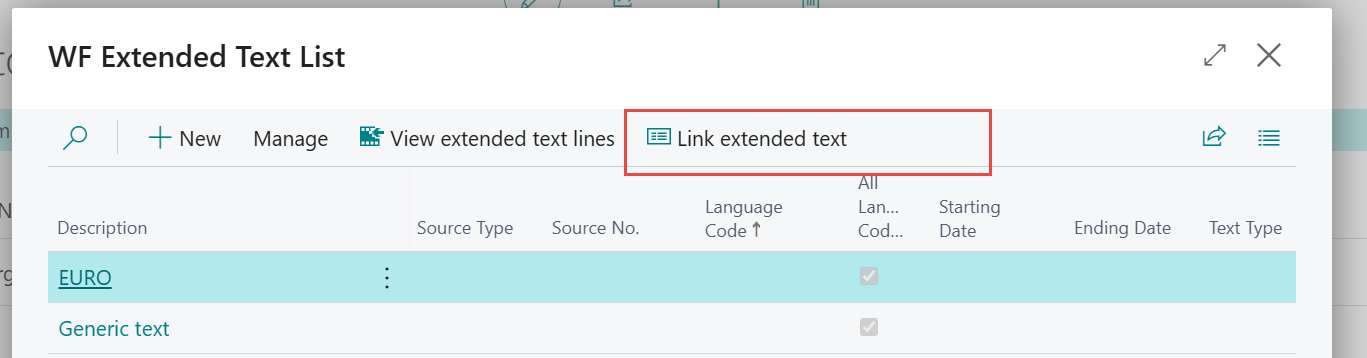
This creates a copy of the existing text and links it to the selected customer, vendor, or item.
Option 2 – Create a unique text
Click Customer/Vendor Extended text to create a new extended text specifically for the customer, vendor, or item.
This follows the same process as creating text from the Extended Text List.
For items, extended text will only be added automatically to documents if the Automatic Ext. Texts field is enabled on the Item Card.