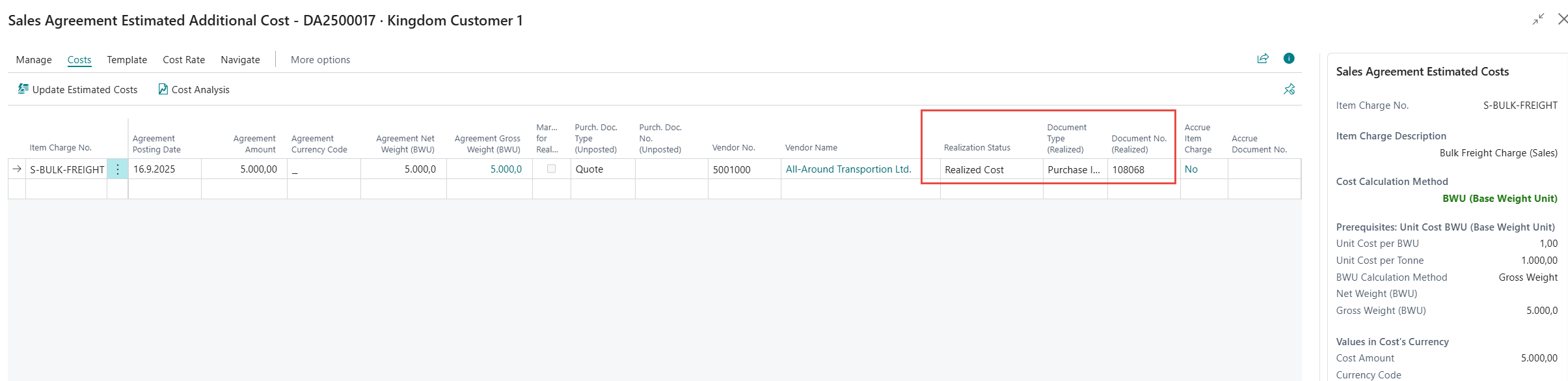
Using Estimated Additional Costs in Agreements is optional and only for information purposes (unless it is posted as accruals, see manual on Accruals).
The estimated costs are later on compared with the actual costs.
Item Charge Assignment
The actual amounts are recorded in purchase and sales documents as Item Charges in Business Central.
Before posting the invoice lines, the item charges are assigned to posted shipment/receipt documents.
The invoiced amounts update the Value Entries for the shipped stock (item ledger entries) related to the posted documents that are assigned to the item charge.
-
When cost is recorded on a purchase invoice line and is allocated against posted shipment documents, then the value is recorded as an additional Non-Inventoriable cost in the Value Entry table.
-
When cost is recorded on a sales invoice line and allocated against a posted Shipment document, then the value is added to the “Sales Amount (Actual)” in the value entry table.
📘 Learn more about item charges : https://learn.microsoft.com/en-us/dynamics365/business-central/payables-how-assign-item-charges
Using Agreements Selection Wizards
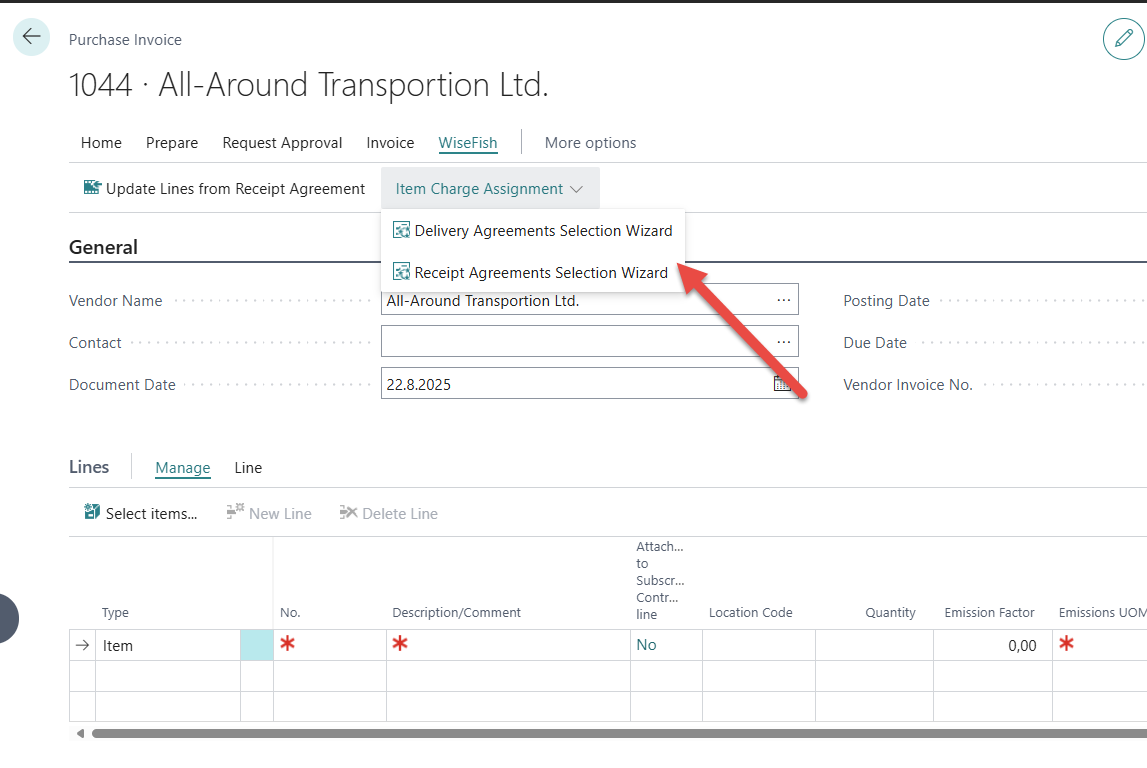
To simplify registration of item charges in purchase and sales documents, users can use Delivery / Receipt Agreement Selection Wizards
Steps
-
Fill in the document header.
-
Click Delivery/Receipt Agreements Selection Wizard to record the item charge on the document line.
-
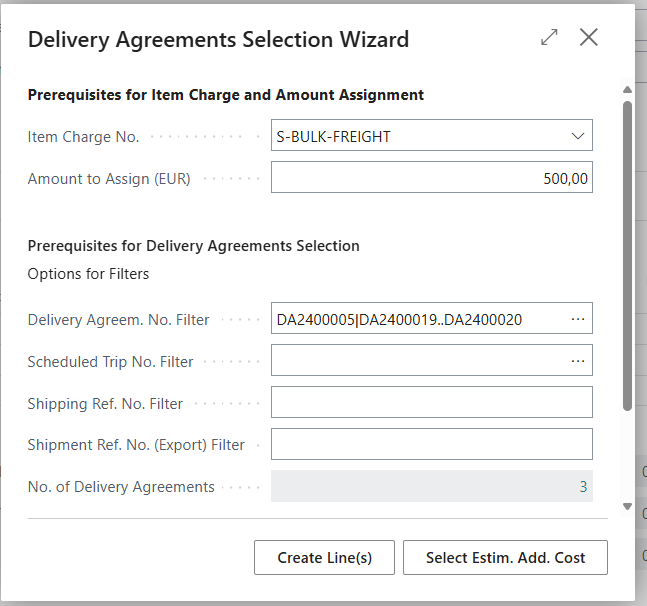
Select the item charge and enter the cost amount.
-
Select the Receipts/Shipments by using the available filters.
-
click Create Lines(s).
-
The system automatically creates the lines, assigns and distributes the lines.
Overview of Estimated vs. Actual Costs
Users can view the difference between estimated vs actual cost using the Agreement Cost - Statistics.

These statistics can also be opened directly from Agreements.
Comparing costs before posting actual amount
In some cases, users may want to compare the actual amount to the estimated amount before posting. This allows them to quickly identify if the invoiced amount is significantly higher or lower than expected.
This is particularly useful for transport or other services with pre-agreed cost rates. By comparing estimated and actual costs before posting, users can verify the invoice amount and avoid posting incorrect charges.
To illustrate, lets look at an example for estimated transport cost of 5.000 LCY.
The cost is added to Delivery Agreement DA2500017.
When using this method, the vendor number must be assigned on the lines.
At this stage, notice how the Realization fields are empty:

Later, the invoiced amount is received from the transportation company and a Purchase Invoice is created.
Suppose the actual amount is 5,500 LCY. The cost is added to the Delivery Agreement Selection Wizard and then click Select Estim. Add. Cost
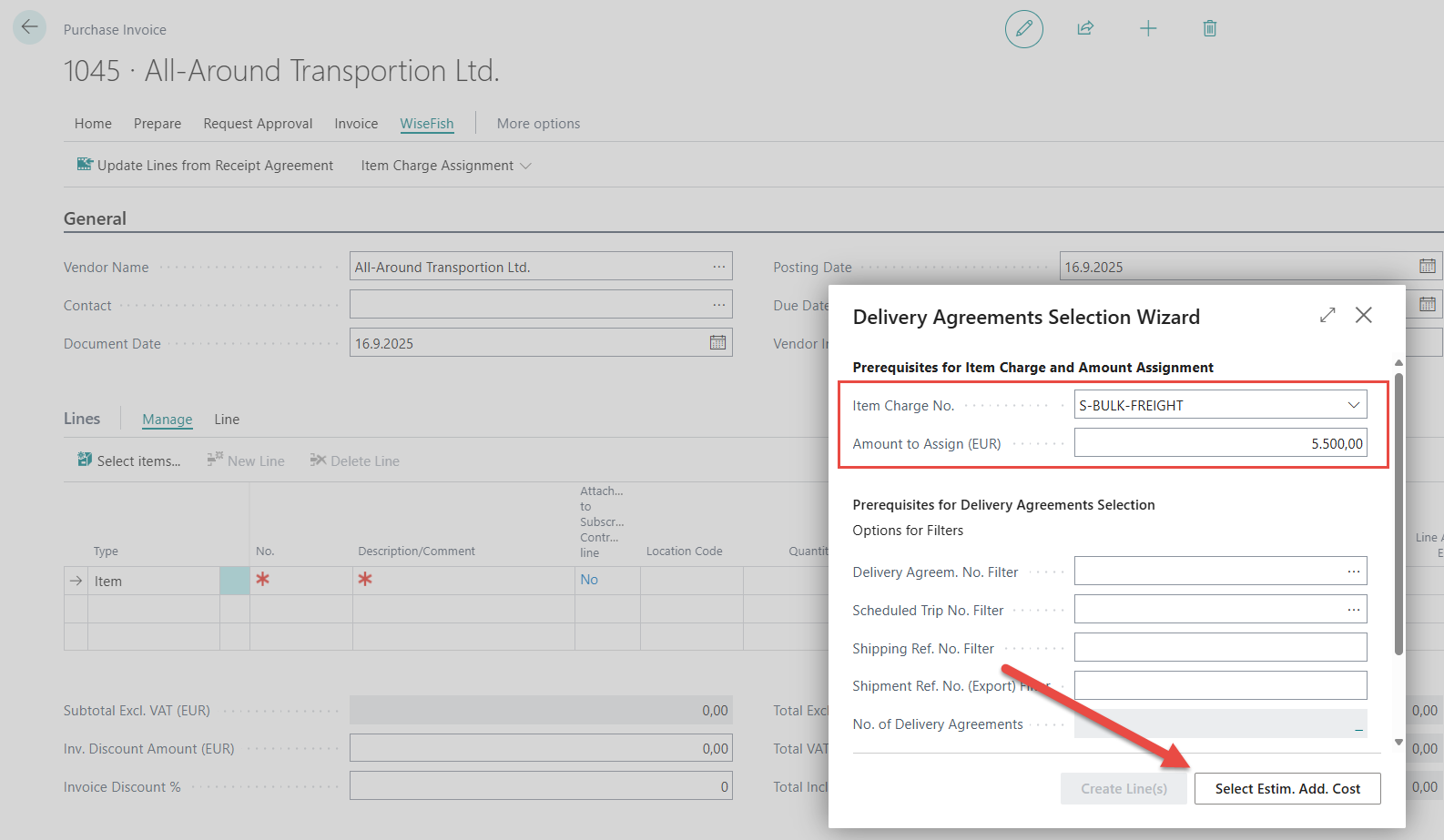
A page opens where the user can view the related shipments and click Mark for Realization.

After the shipments are marked and the page is closed, the system calculates the difference in the Estim. Add. Cost Amount field. If the actual amount is higher than the estimated, the field appears in red, making the discrepancy clear.
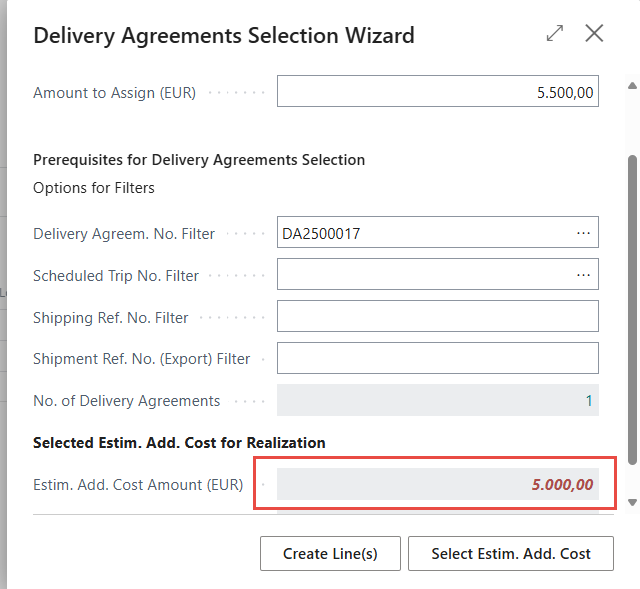
At this point, the user can proceed to post the invoice by clicking Create Lines, or pause until the difference is confirmed.
When the invoice is posted, the Realization Status is updated.